In this guide, we show How to Navigate Manual Enquiry Options in the MAT Finance Module.
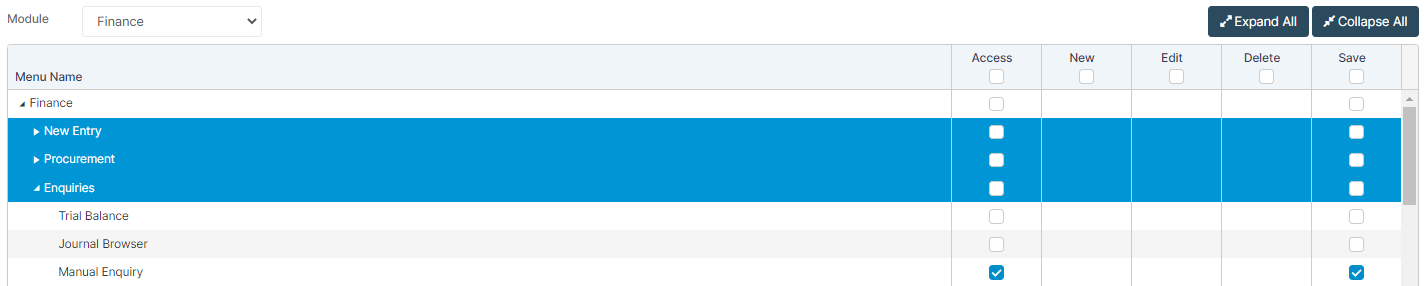
Access: The minimum permissions required to Navigate Manual Enquiry Options are found in the Finance Module section of Config > Setup > Roles & Permissions.
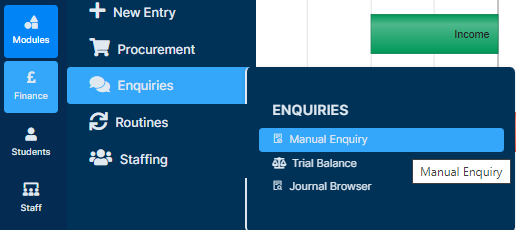
To begin, from the left Menu, go to Finance > Enquiries > Manual Enquiry.
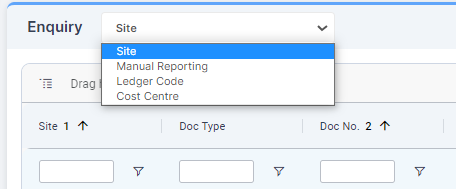
There are four Enquiry Types, which are available within the Enquiry Type dropdown at the top of the page:
- Site: Presents Schools for to report on
- Manual Reporting: Presents data based on the selected parameters
- Ledger Code: Presents Ledger Codes to report on
- Cost Centre: Presents Cost Centres to report on
Select the required option. The parameters change based on what is selected.
Go to the Filters section on the right to filter results. Select the parameters to find the required data and press Save Parameters.
The table will be populated with the information chosen.
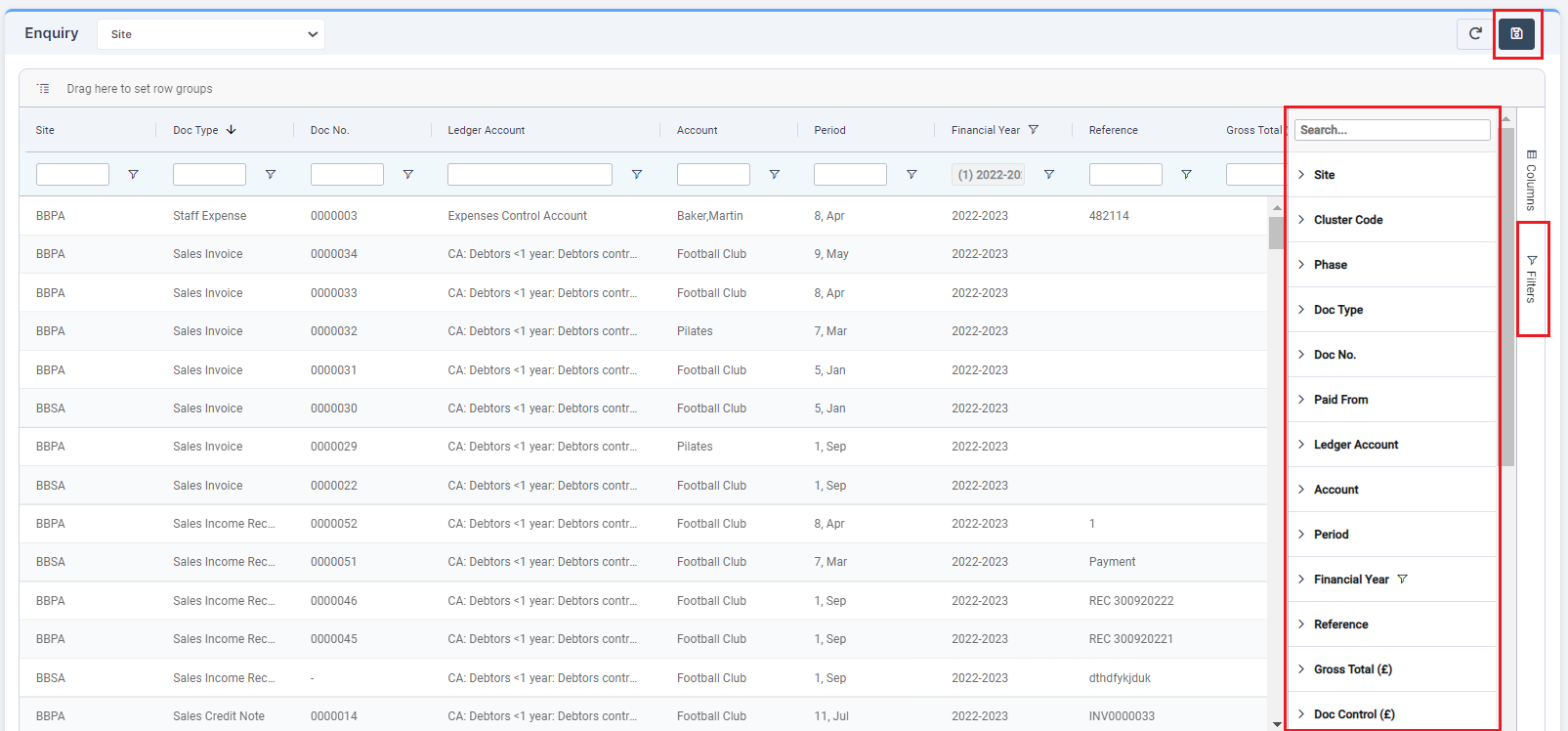
It is possible to drill down into these Journals by double clicking on them. This opens a pop up window containing their details.
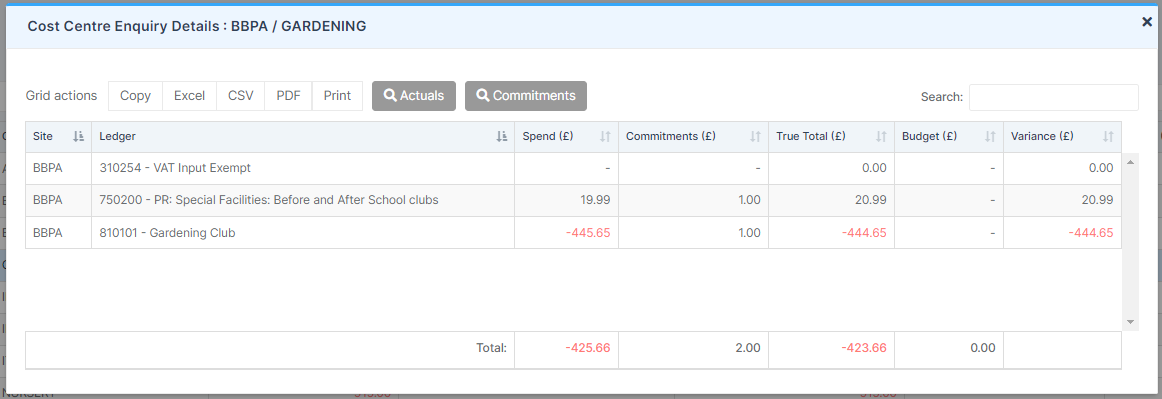
Once the required information has been found, close the Journal and leave the page.
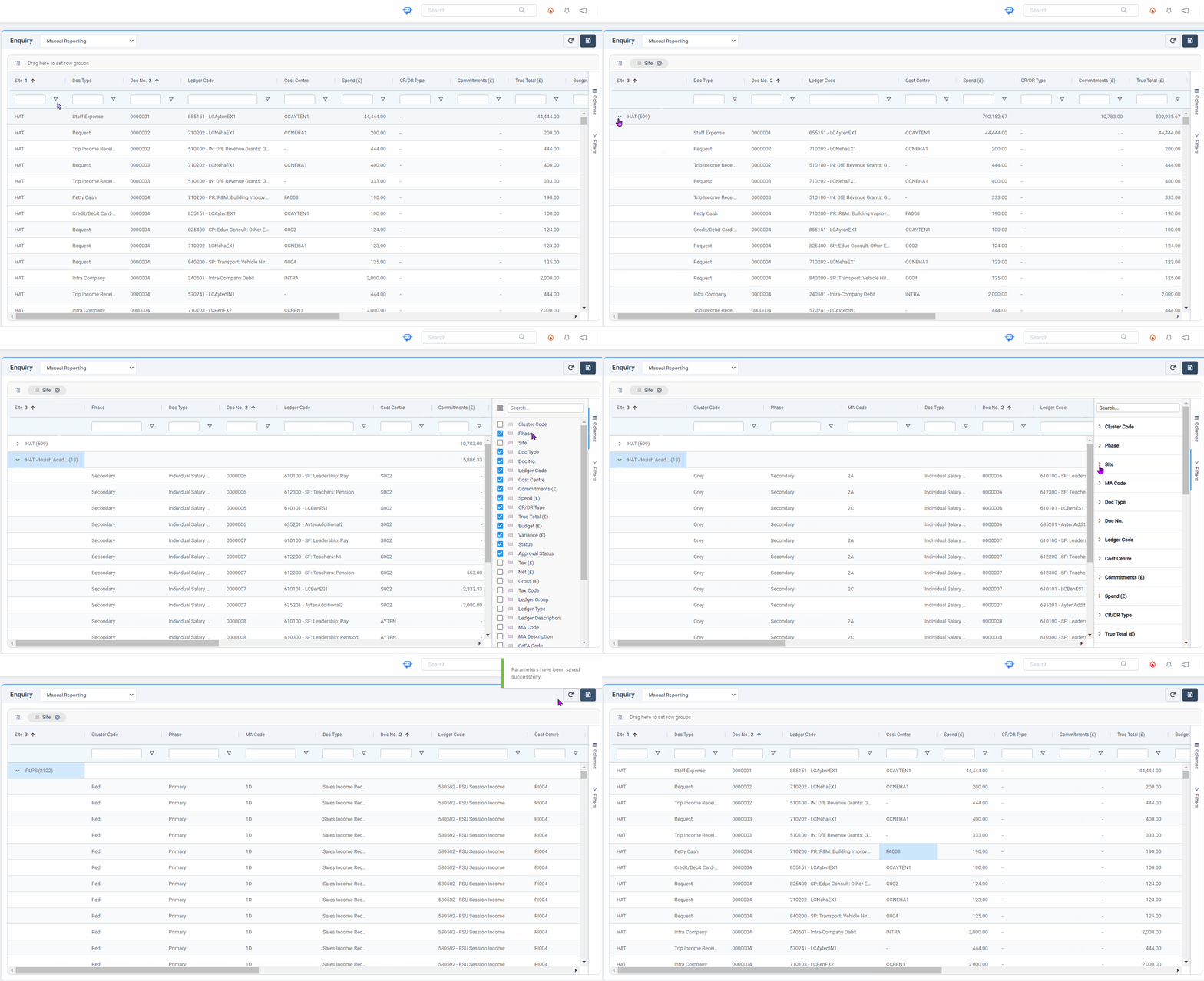
Manual Enquiry page features
See: How to Get the Best from Finance AG Grids
- Group the data by Dragging one of the columns to the top of the Grid e.g. Site
- Columns: Re-arrange by simply Dragging them to a different location in the grid
- Columns: Add, Remove and Rearrange order in the Side Panel
- New columns Cluster Code (All), Phase (All), and Status (Journal Browser only)
- Filters: in the side panel
- Save Parameters (columns and filters) and Reset to default
- Grid Actions using the right click – Copy and Export