In this guide, we show How to Send a Purchase Order within the Finance Module.
This Guide forms part of the ACCOUNTS PAYABLE USER GUIDE. Click to see Related Guides.
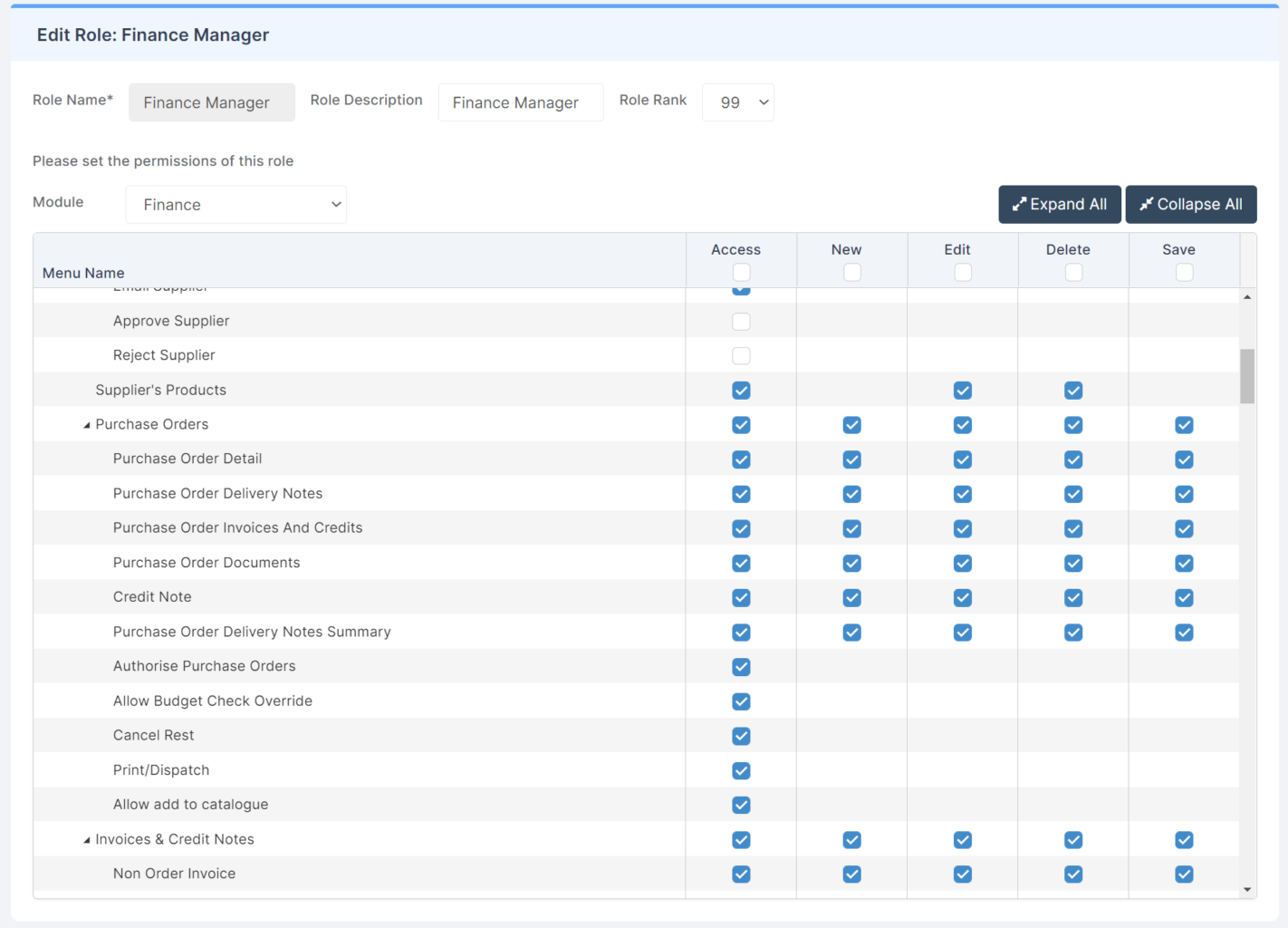
Access: The minimum permissions required to create a new Purchase Order are found in the Finance Module section Config > Setup > Roles & Permissions.
Pre-requisites: In order to send a Purchase Order, the Purchase Order Settings need to be defined See: How to Manage Purchase Order Settings.
Related guides:
- Accounts Payable User Guide
- How to Create a New Purchase Order
- How to Manage Purchase Order Settings
- How to Add a Supplier
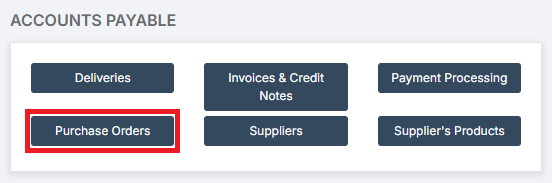
To begin, go to Modules > Finance > Finance Home Page > Accounts Payable > Purchase Orders.
This will take you to the Purchase Order List, where you can find all functions relating to the Purchase Order process.
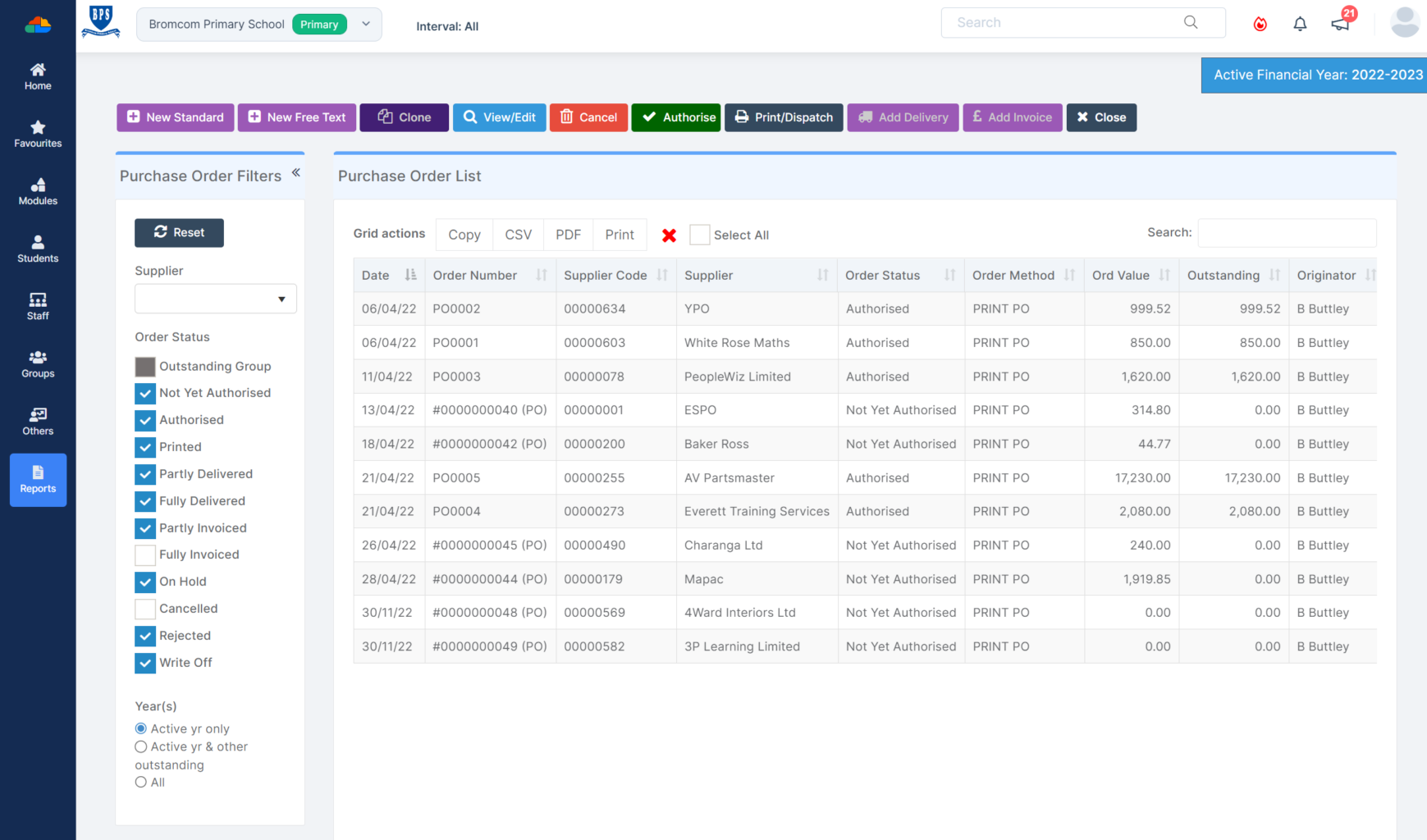
Only Purchase Orders with the Status of Authorised can be sent. These can be viewed by setting the Purchase Order Filters on the left to show a tick against Authorised.
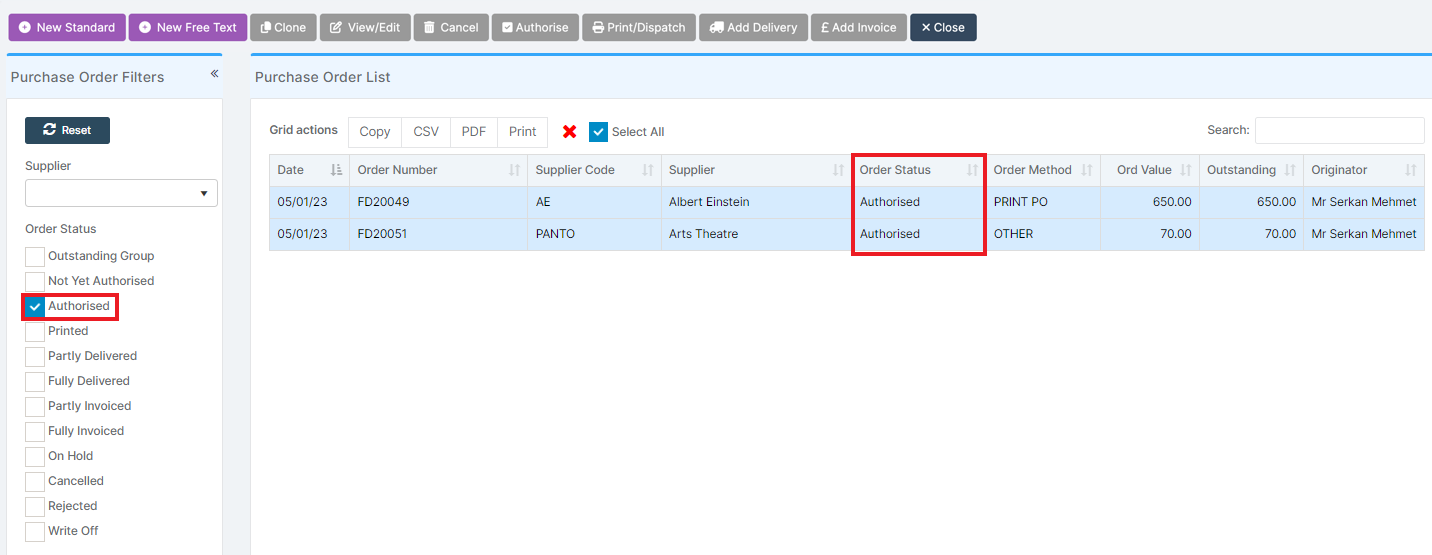
Select the Purchase Order(s) to be sent and click Print/Dispatch.

This will Print or Dispatch according to the option selected when setting up the Supplier. Please see: How to Add A Supplier.
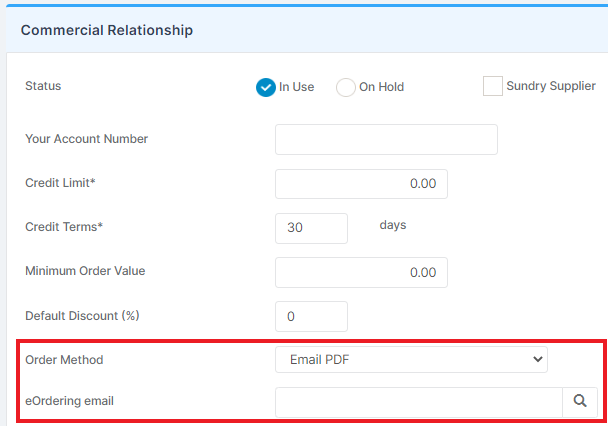
Where this is Email PDF, an email will be sent directly to the Supplier using the email address added in the Supplier Details page.
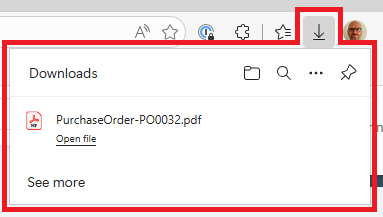
Where this is Print Purchase Order, the Purchase Order PDF will be downloaded into your downloads folder for retrieval.