
In this guide, we show How to Add a Supplier Refund in the MAT Finance Module.
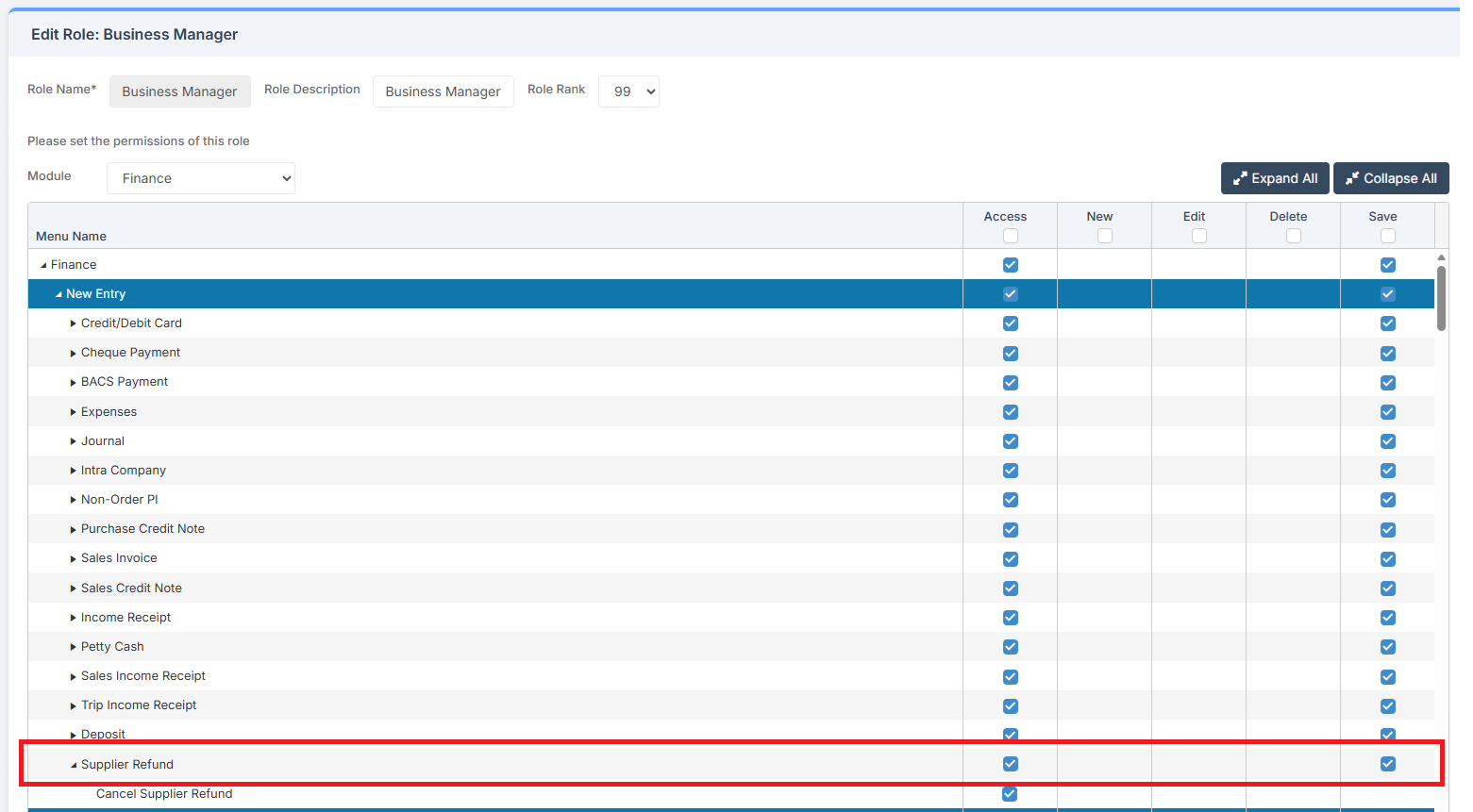
Access: The minimum permissions required to Add a Supplier Refund are found in the MAT Finance Module section of Config > Setup > Roles & Permissions.
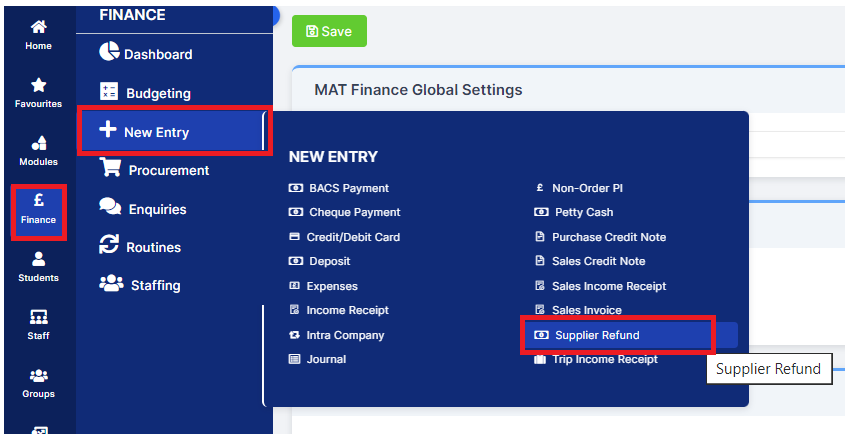
To begin, from the left Menu, go to Finance > New Entry > Supplier Refund.
This opens the Supplier Refund page.
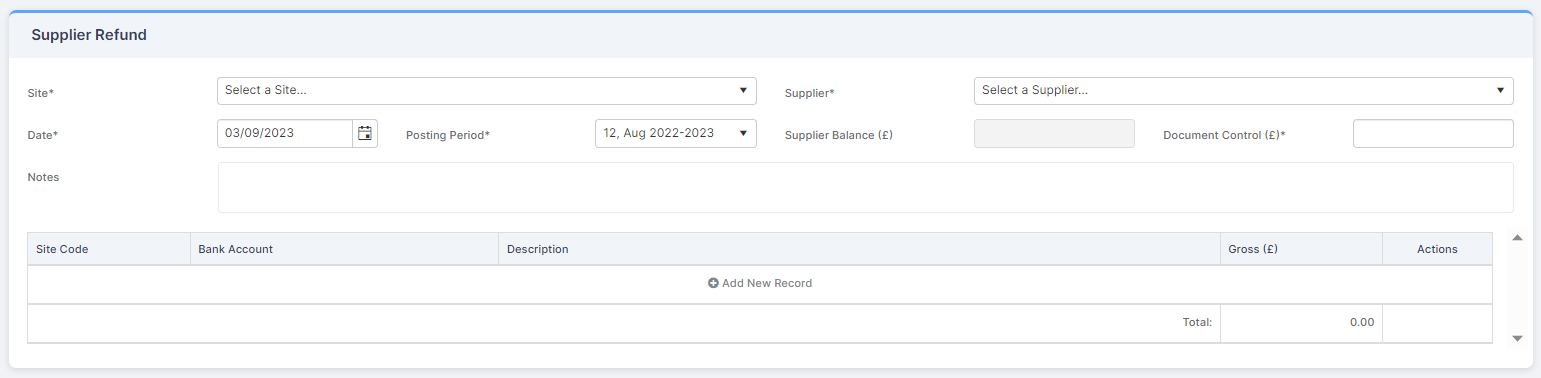
Complete the required information. Asterisked fields are mandatory.

Once complete, click Add New Record.
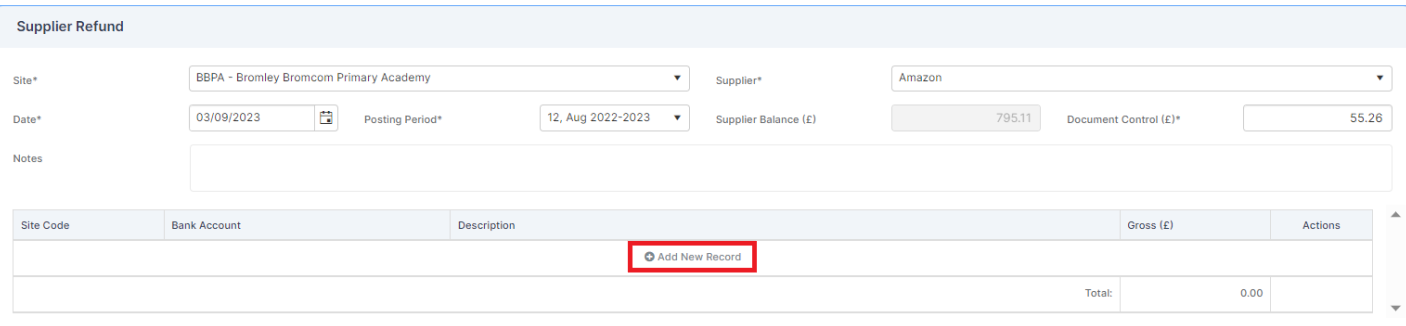
Select the Site code and Bank Account. Add a Description of the Refund and enter the amount in Gross (£). Tick at the end of the line to Save.
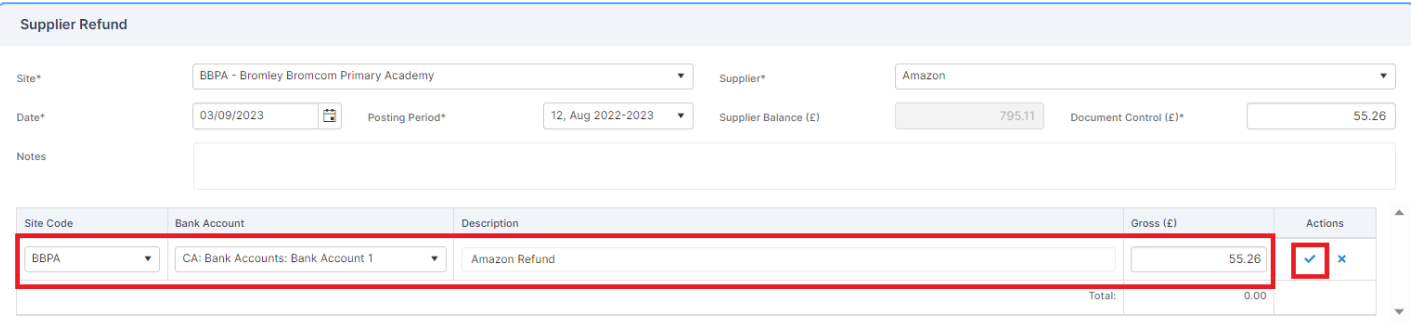
Add any further lines, if required.
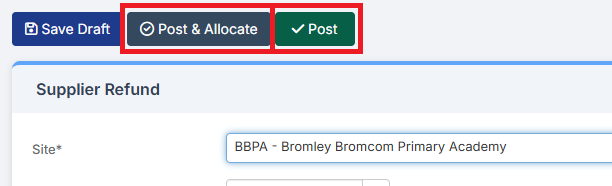
Once complete, either Post or Post and Allocate.
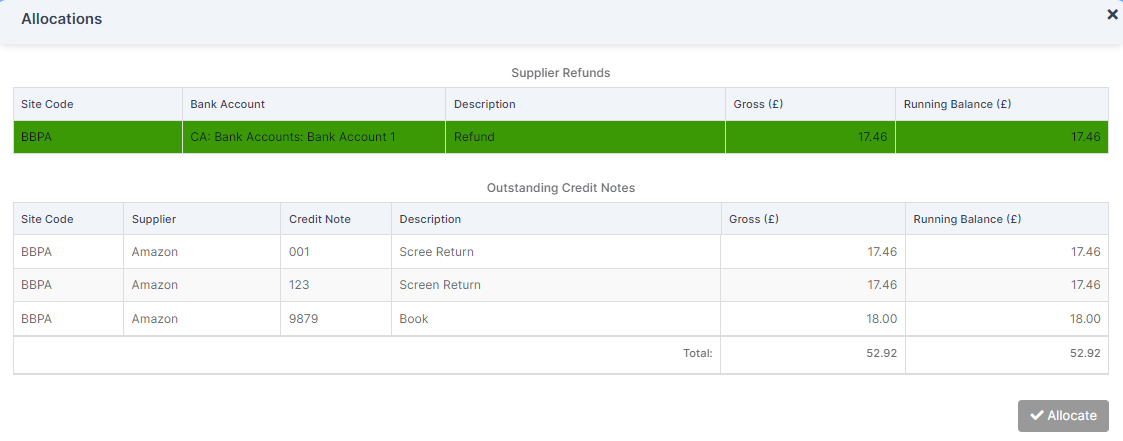
When Post and Allocate is selected, there is a pop up for the allocation process. To Allocate, click on the Refund amount and this will turn green and invoices will be shown below.
Select the Invoice to Allocate. If this is a full Allocation, it will turn green.
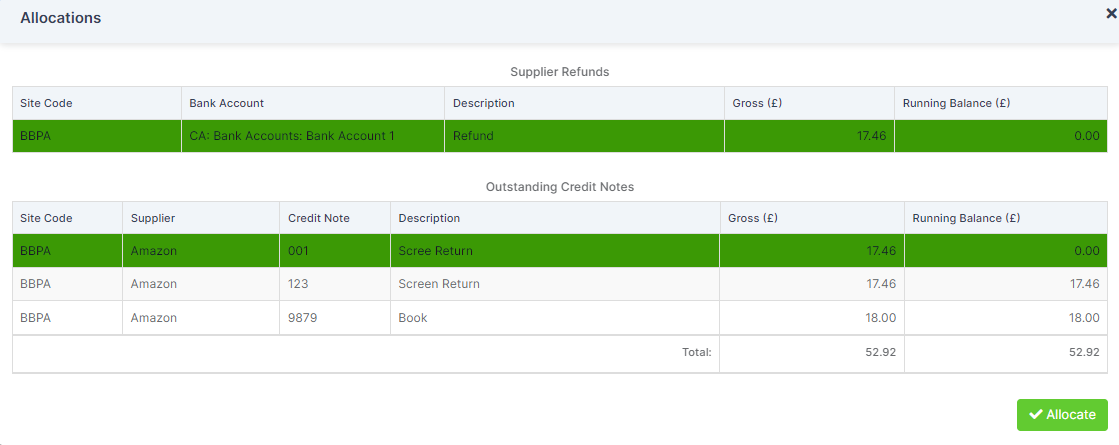
To allocate, click Allocate. This will Post and Allocate to the selected Invoice.
If Allocating a Refund to an Invoice is not required, just select Post.
Supplier Refund has been posted successfully.
This will then show in the Bank Reconciliation as a Receipt.