
In this guide, we show how to complete Automatic Reconciliation of Salaries within the Finance Module.
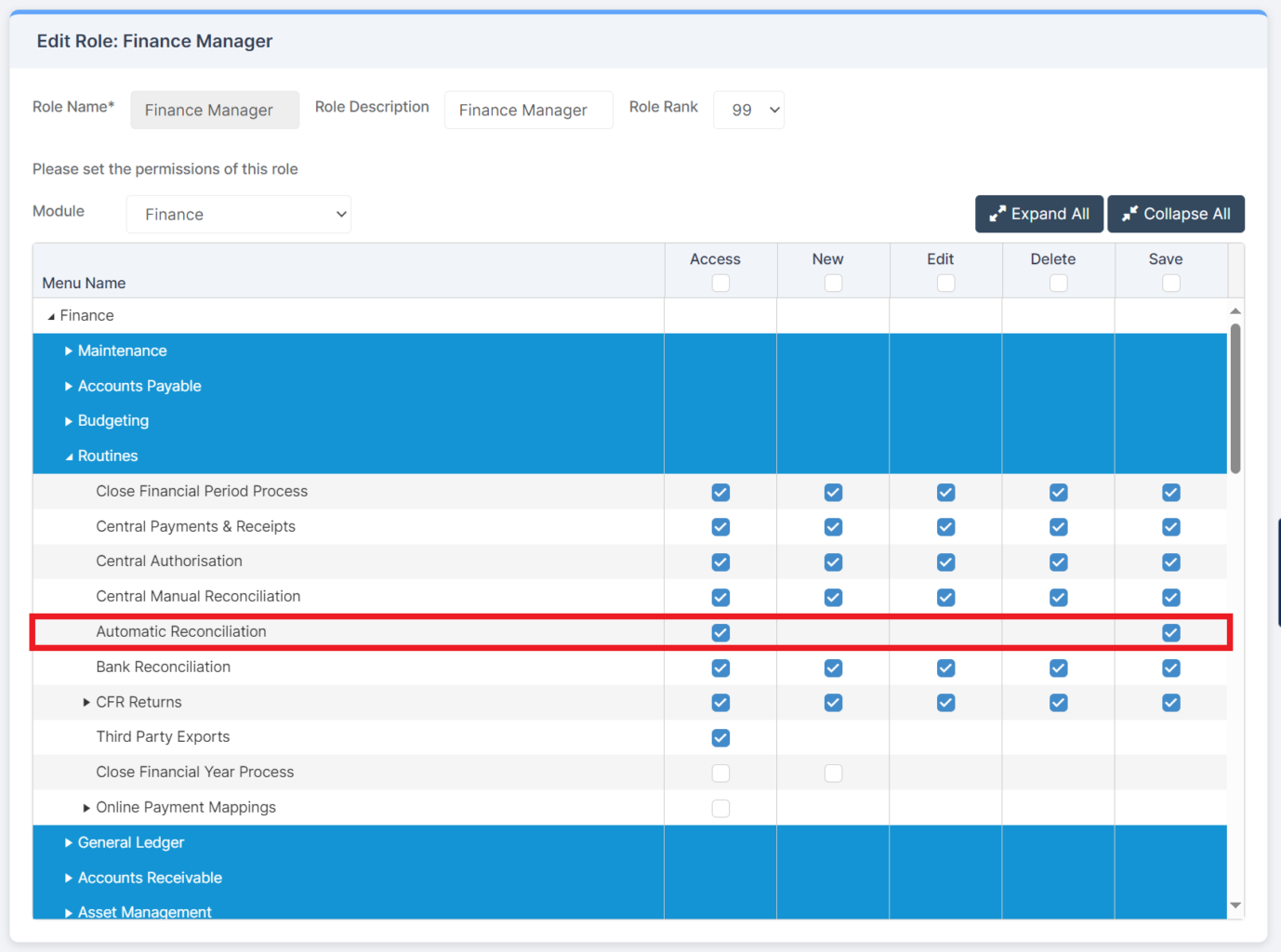
Access: The minimum permissions required to complete Automatic Reconciliation are found in the Finance Module section of Config > Setup > Roles & Permissions.
Related guides:
Note: The Automatic Reconciliation process accepts most file types, including .CSV and .TXT files.
How to Import an Automatic Reconciliation File
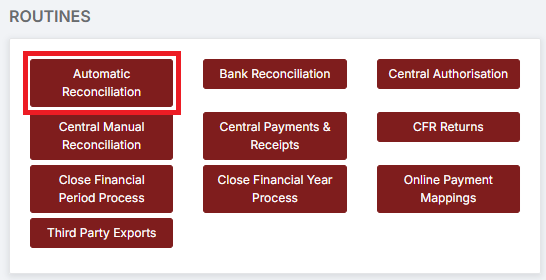
To begin, go to Modules > Finance > Finance Home Page > Routines > Automatic Reconciliation.
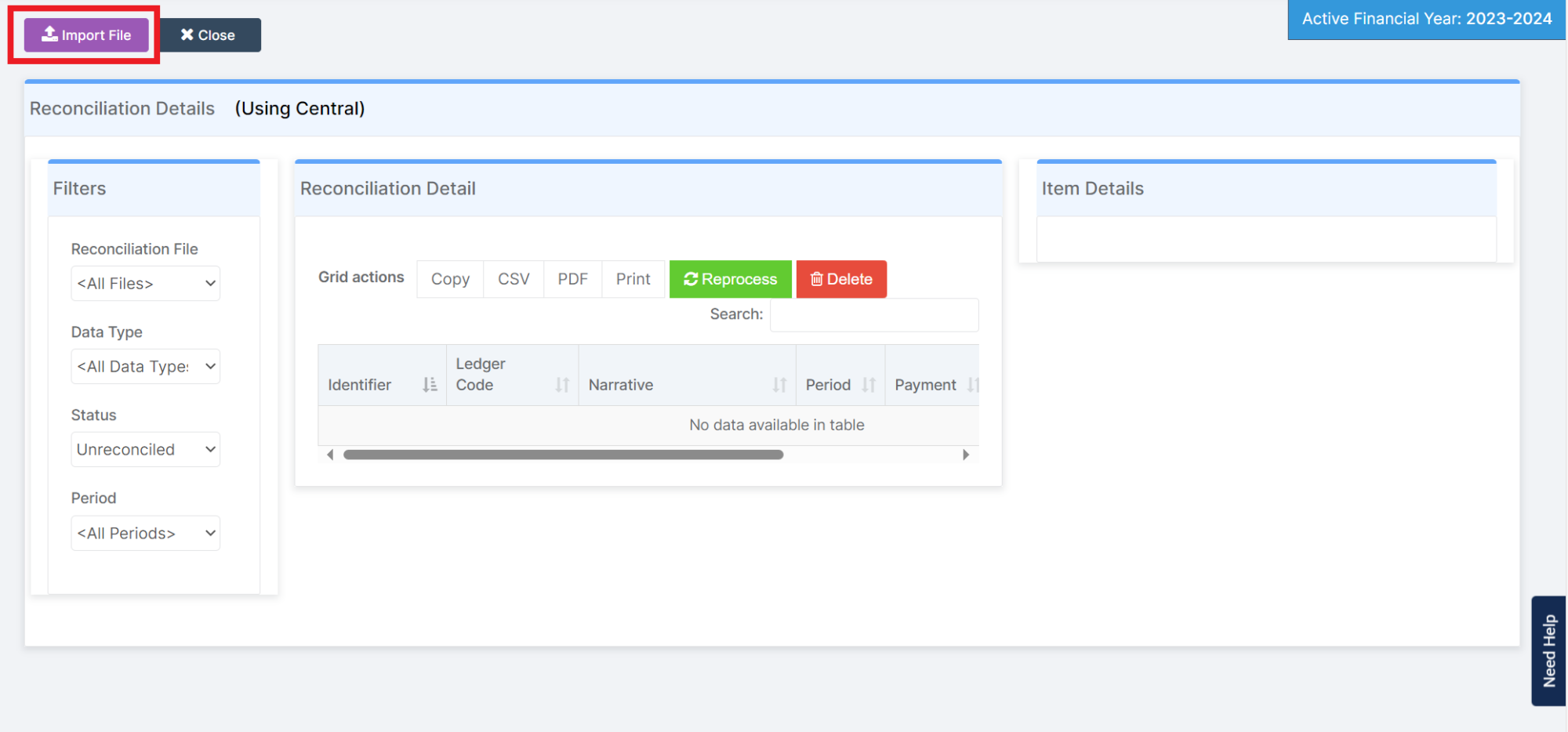
Click Import File.
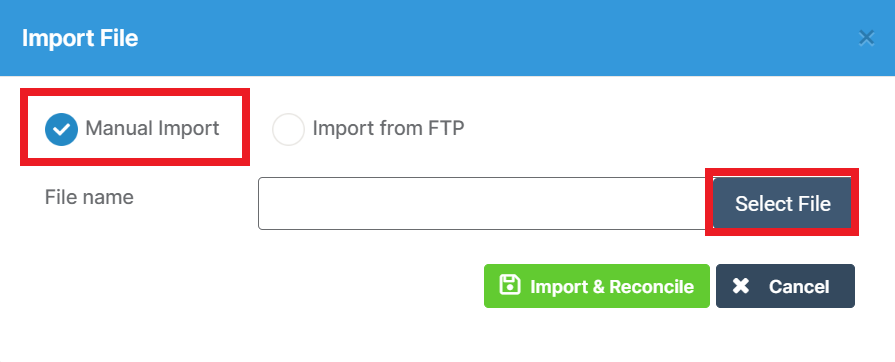
For Manual Import, select Manual Import and click Select File.
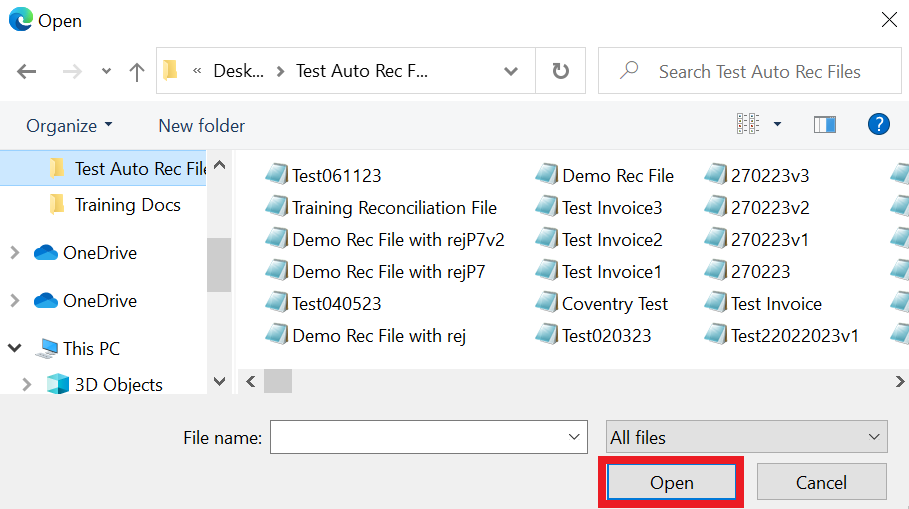
Select the saved file location and click Open.
Note: txt files can also be used.
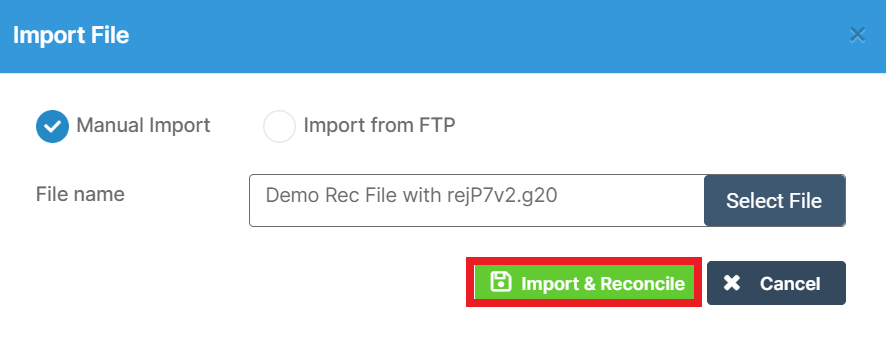
Click Import & Reconcile.
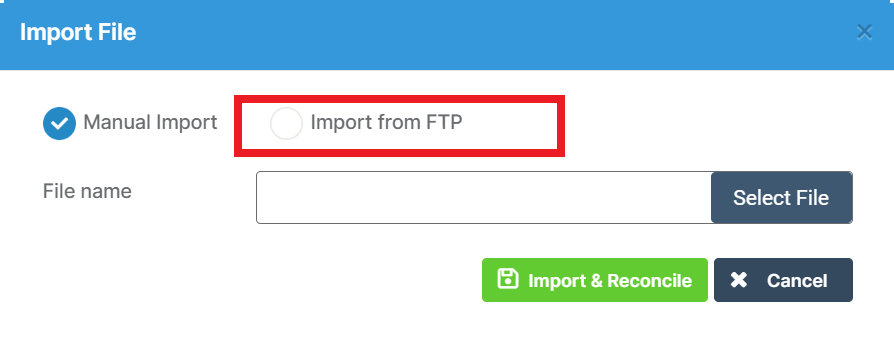
To Import from FTP, use the steps above selecting the Import from FTP option.
When importing a file for Automatic Reconciliation, the system will check that the total of the Trailer line record in the file matches the total of all the lines in the same file. This ensures the total in the file is correct before reconciling in Bromcom Finance.
If the Trailer line record amount does not match the total of the file, the import process will stop and the file will not be imported. Users will see this message.
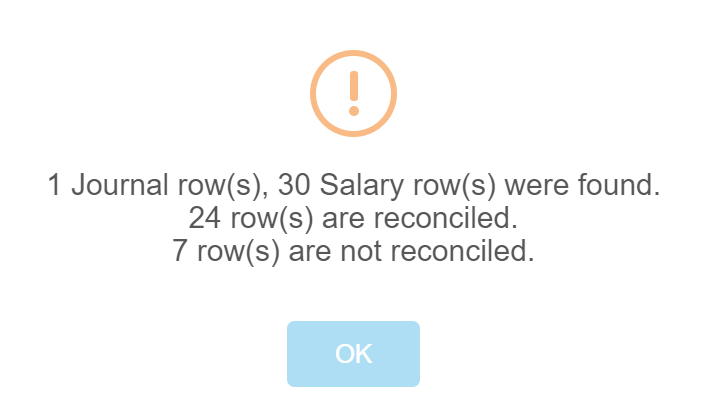
If the Trailer line record matches the total in the file, a Confirmation of the process will then show on screen.
How to Deal with Unreconciled Rows
Unreconciled Rows must be dealt with to complete the reconciliation. Rows fail to reconcile because of a mismatch between the data contained in the imported automatic reconciliation file and the data held in Bromcom Finance. Detective work is required to find these mismatches and correct them. The good news is that once these mismatches are corrected, they will not appear again. Below, three of the most common reasons for rows not reconciling are examined.
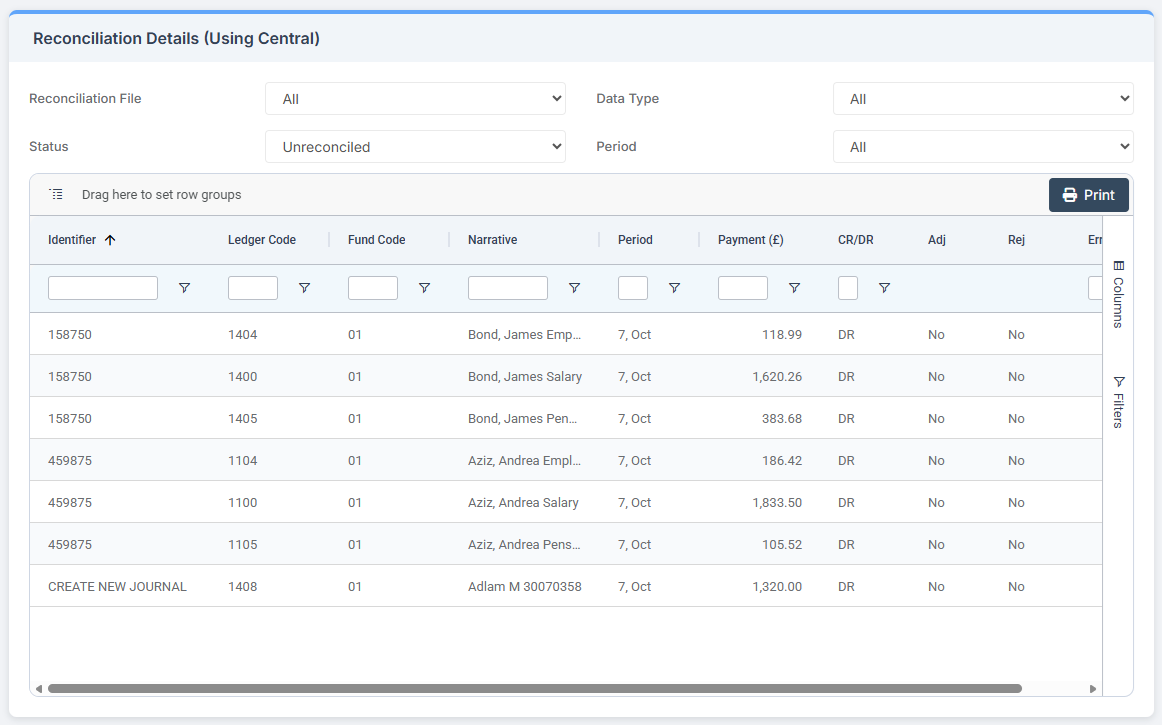
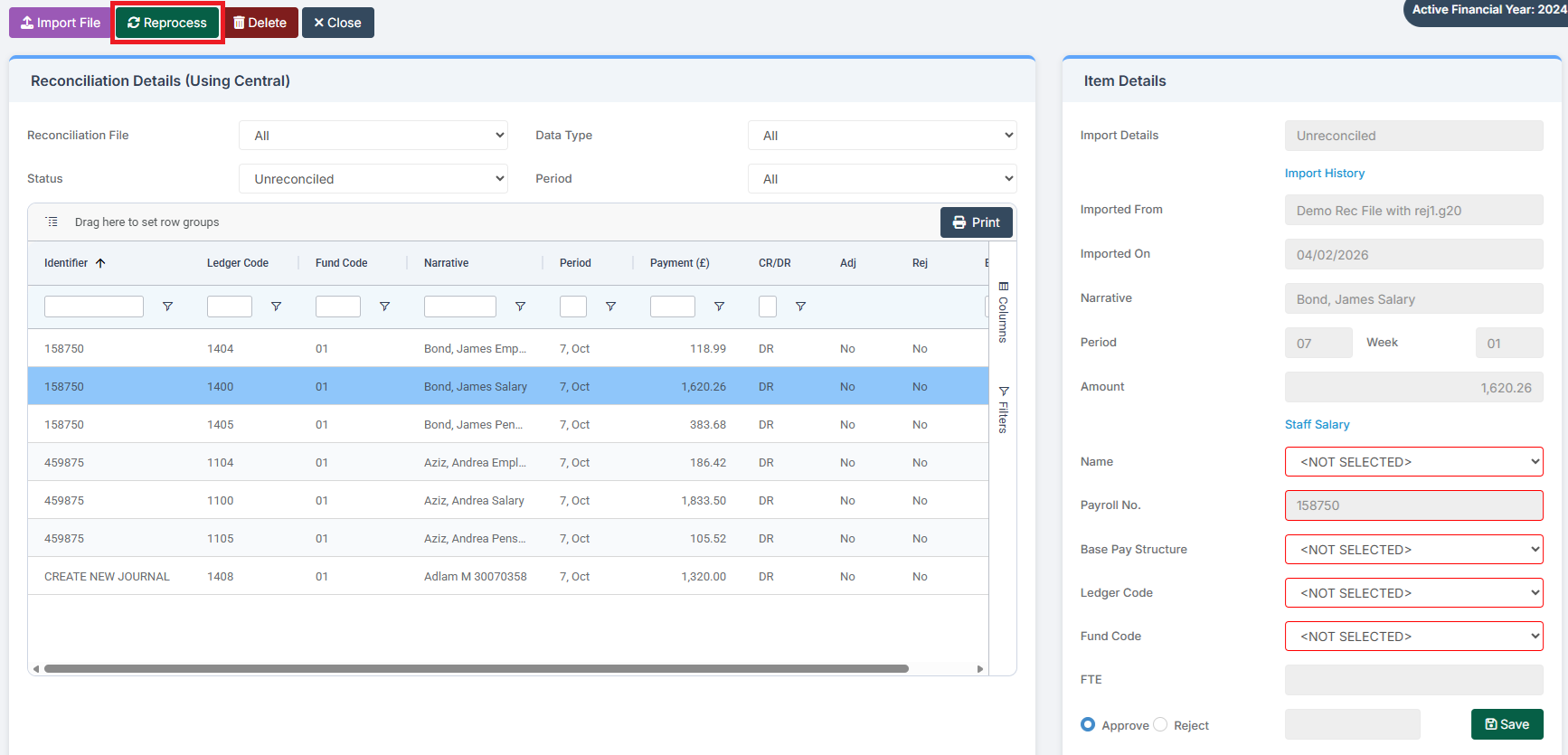
The 7 unreconciled rows pertain to 3 staff members: James Bond, Andrea Aziz, and M Adlam.
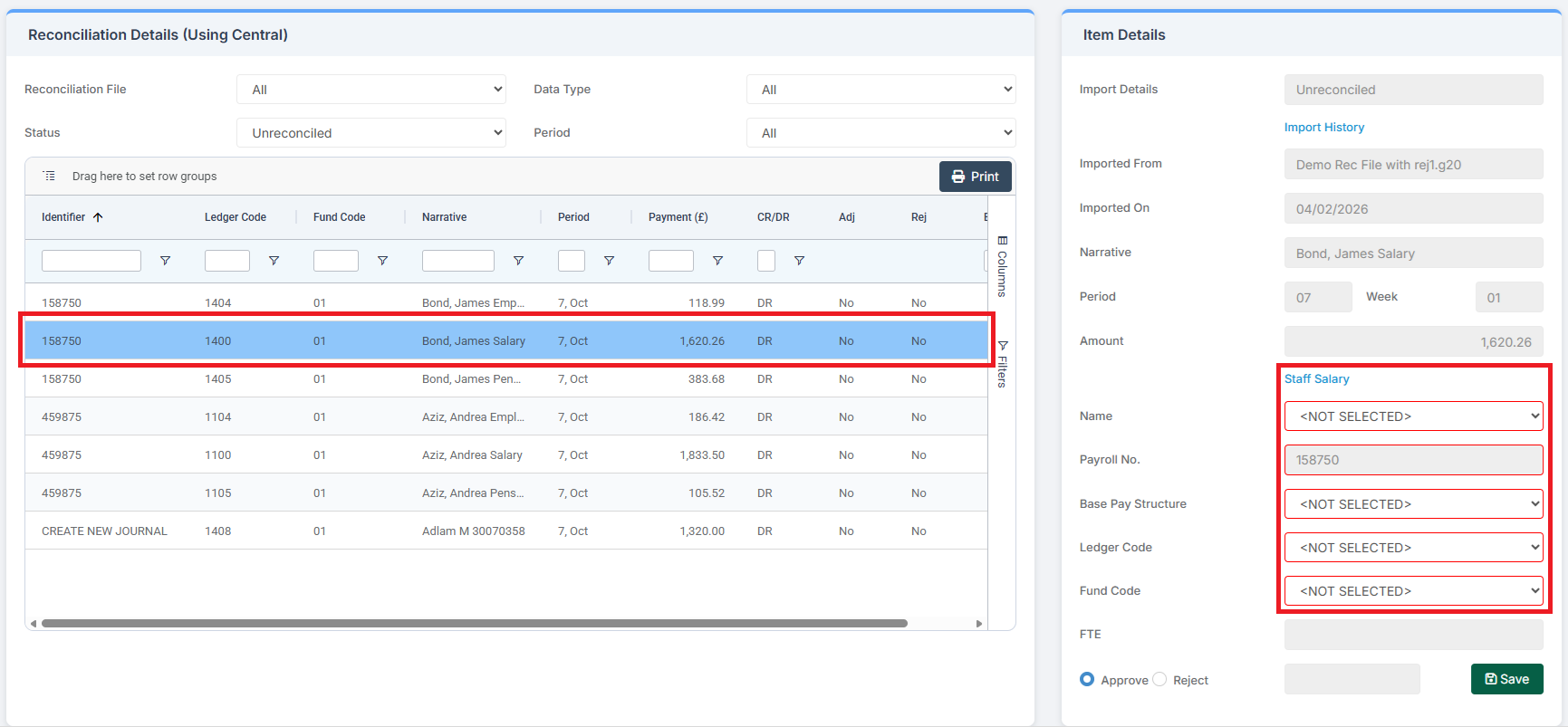
Clicking on James Bond‘s salary line shows missing or incorrect information in the Staff Salary section of the box on the right, highlighted by the red outline of the data fields.
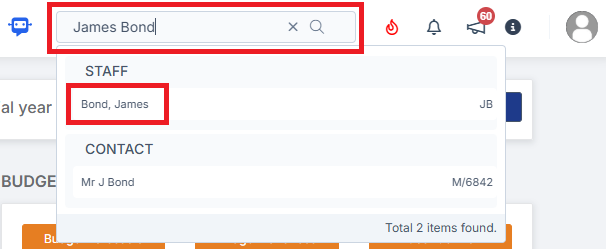
The first thing to do is to check whether the Payroll Number is correct. To quickly bring up Mr Bond‘s contract information, type his name in the Global Search box at the top right of the page and then click on the staff name. This opens his Staff Details in a new tab.
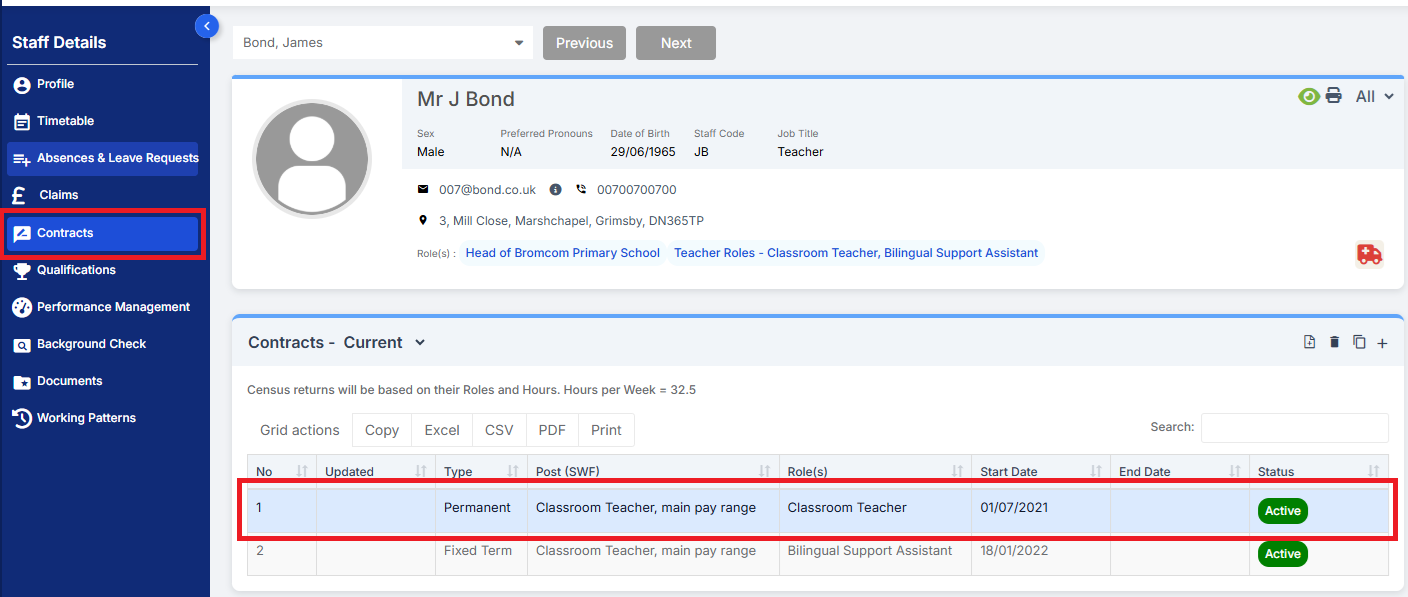
Then click on Contracts on the ribbon on the left and then double-click on a Current Contract.
Select Payroll Information in the Add / Edit Contract pop up and check the Contract Number against that in the Reconciliation Details page.
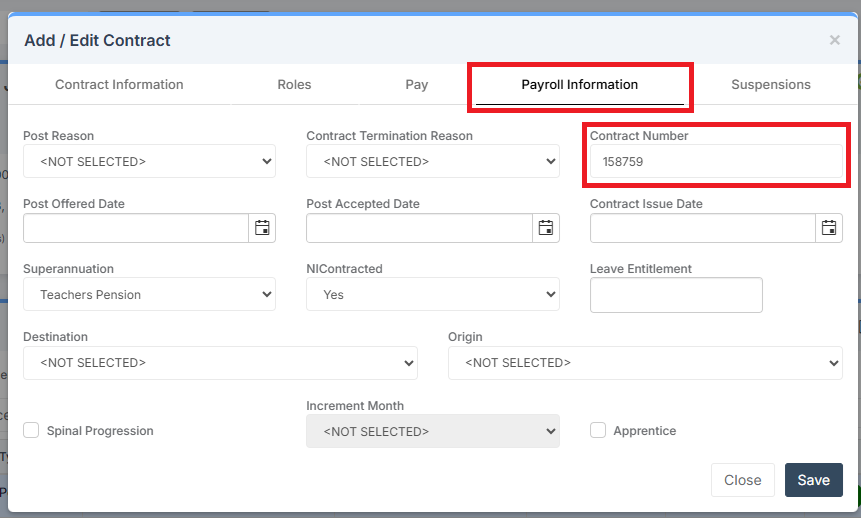
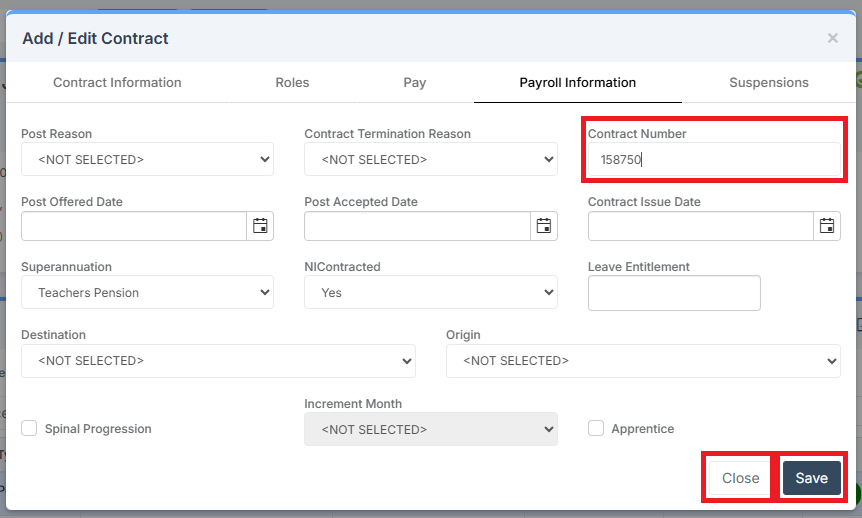
Make the correction, click Save and then Close.
Returning to the Reconciliation Details page, click Reprocess.
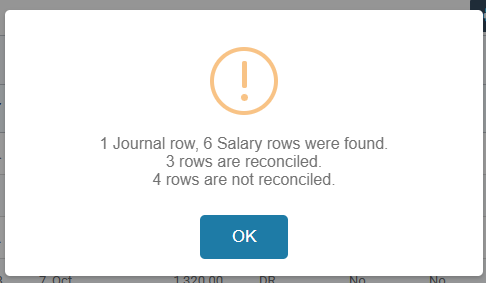
Mr Bond‘s three unreconciled lines are now reconciled.
Clicking on Andrea Aziz‘s salary line shows missing or incorrect information in the Staff Salary section of the box on the right, highlighted by the red outline of the data fields and a (Contract not Active) warning.
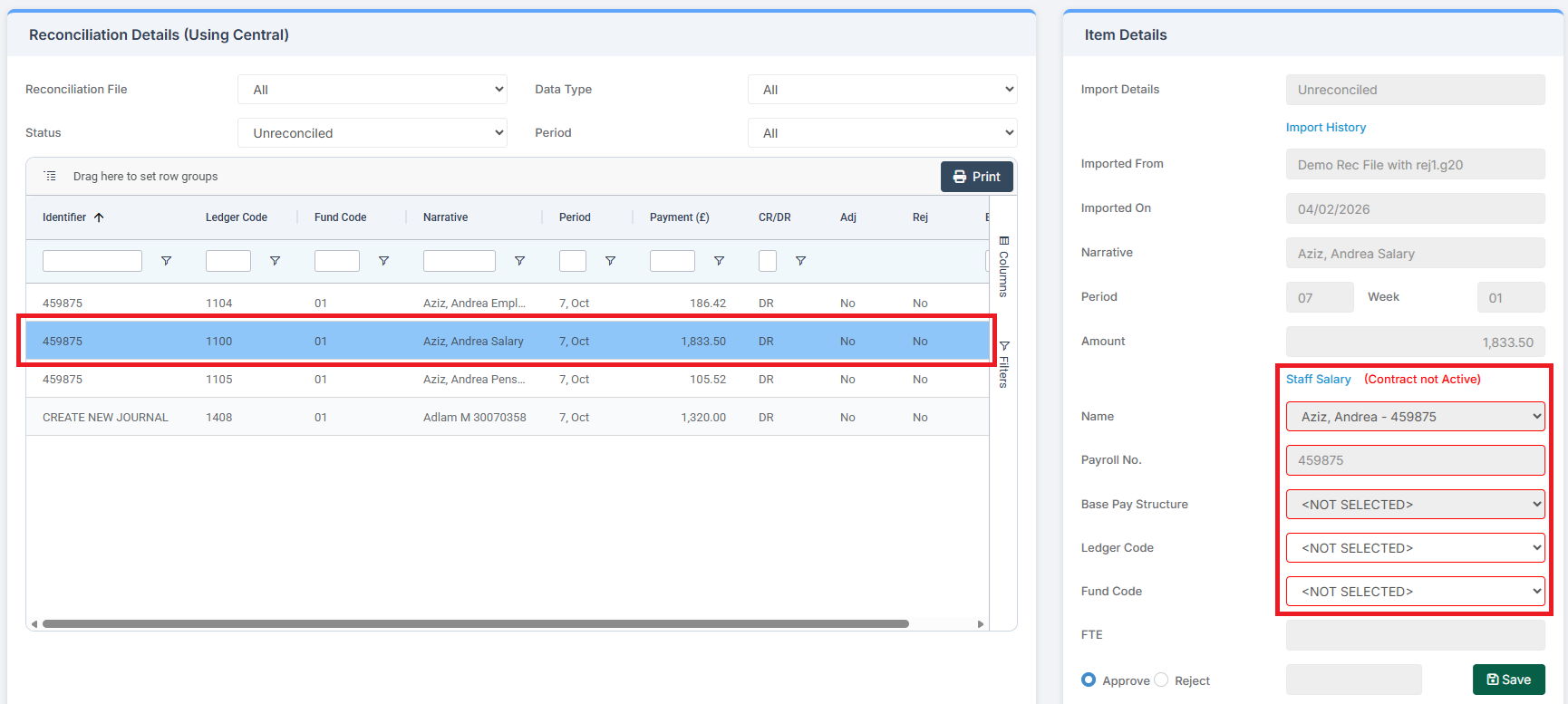
After checking that her Contract Number is correct, the Ledger Codes for her unreconciled lines should be compared to those associated with her role.
We can see from her Contract Information that she is a Teaching Assistant.
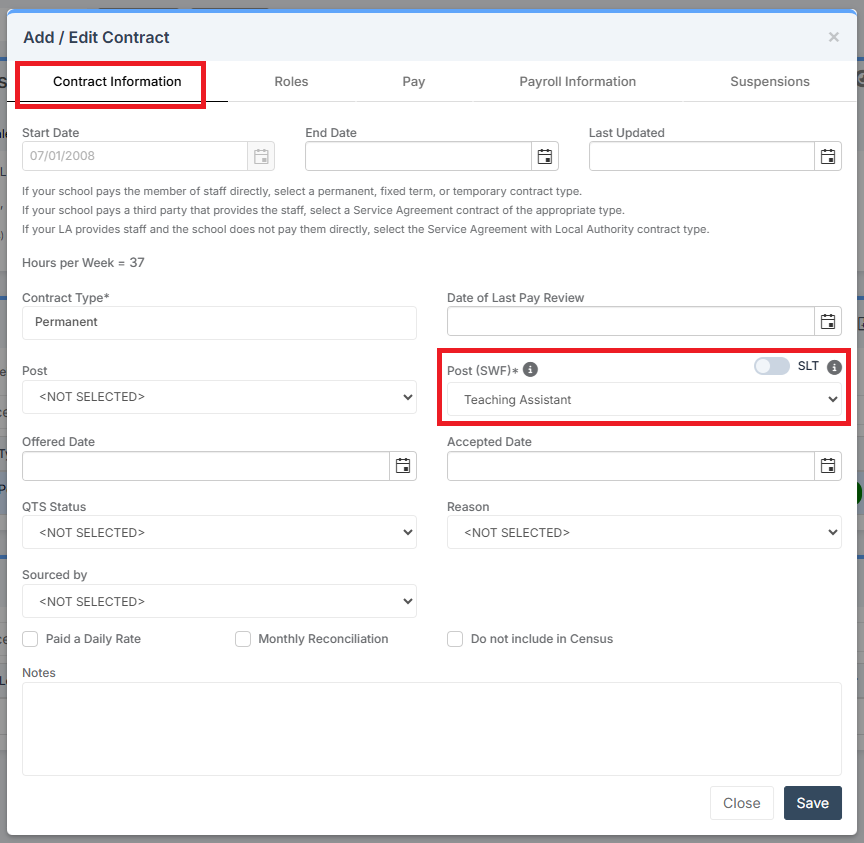
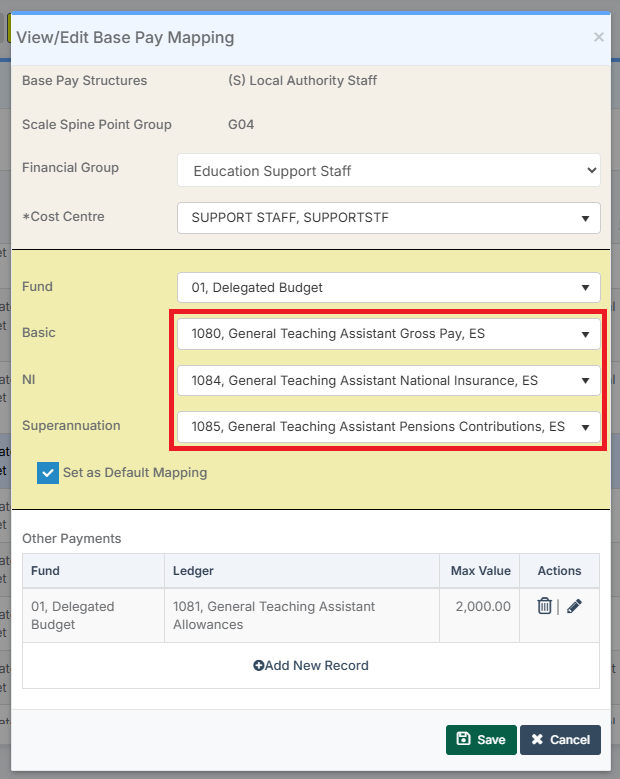
Checking within Base Pay Mapping, it can be seen that the ledger codes for a Teaching Assistant are incorrect in the Import File and that they need to be changed.
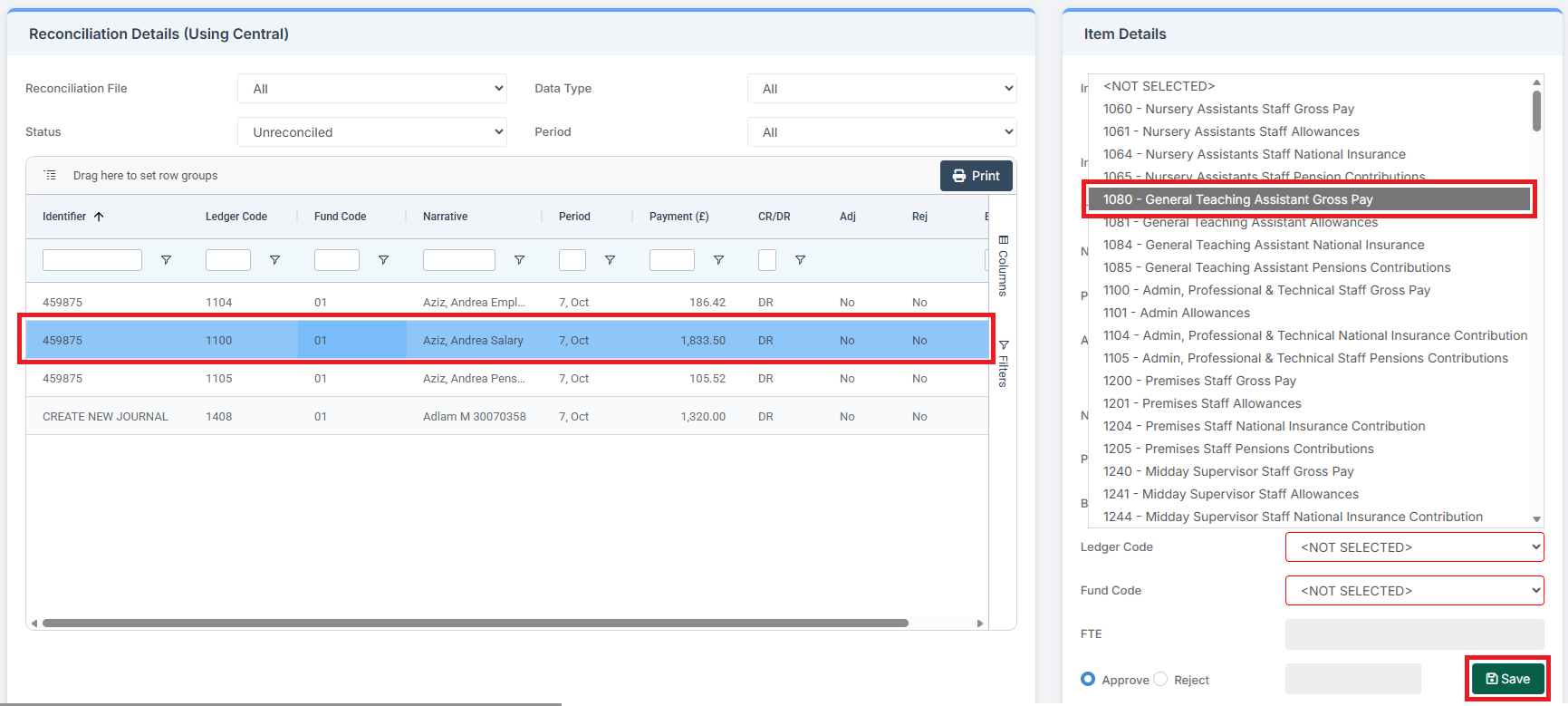
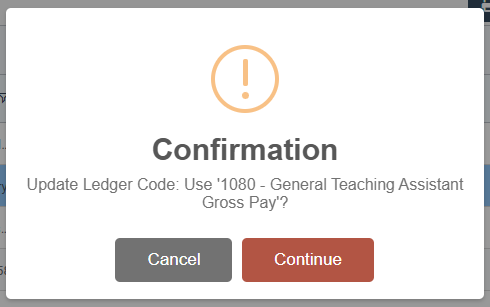
Select the correct Ledger Code from the drop down list on the right and then click Save.
Agree to the Confirmation.
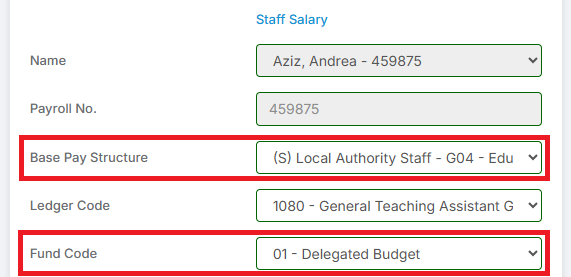
Similarly, select the correct Base Pay Structure and Fund Code.
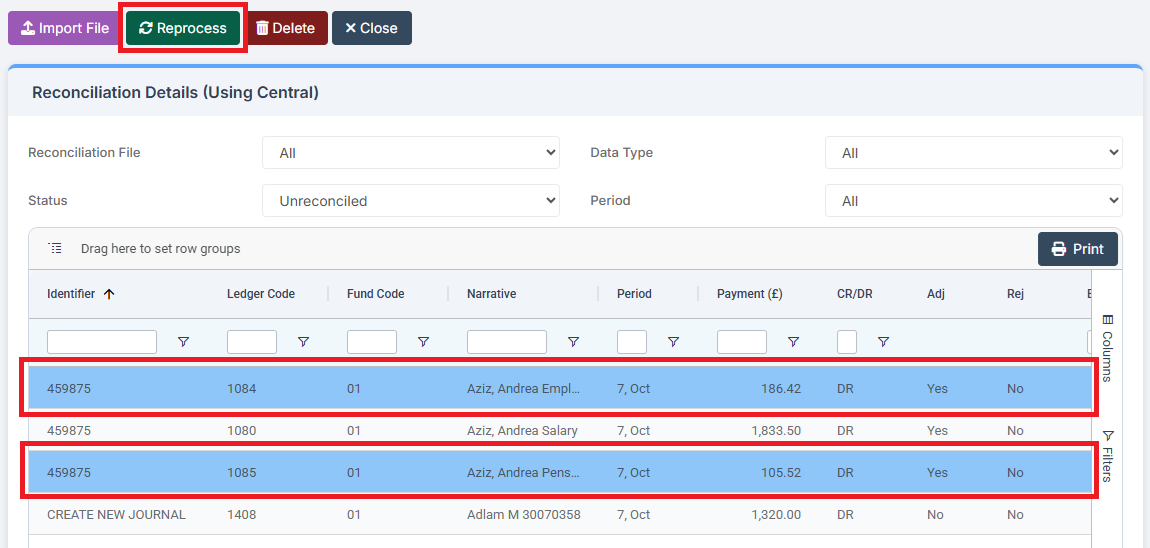
Do the same for any other lines for that employee, then click Reprocess.
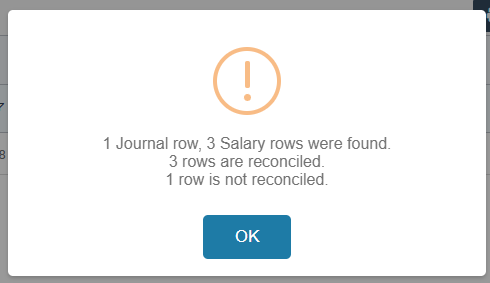
Ms Aziz’s three unreconciled lines are now reconciled.
Note: Each school or Local Authority will have its own defined Ledger Codes. Those shown in this guide are an example only and are used to demonstrate that a Staff Member’s Salary, NI, Superannuation, and Allowances Ledger Codes must be correct and match in both the Import File and in Bromcom Finance.
Clicking on M Adlam’s unreconciled line shows that the Cost Centre has not been assigned to their Redundancy Payment.
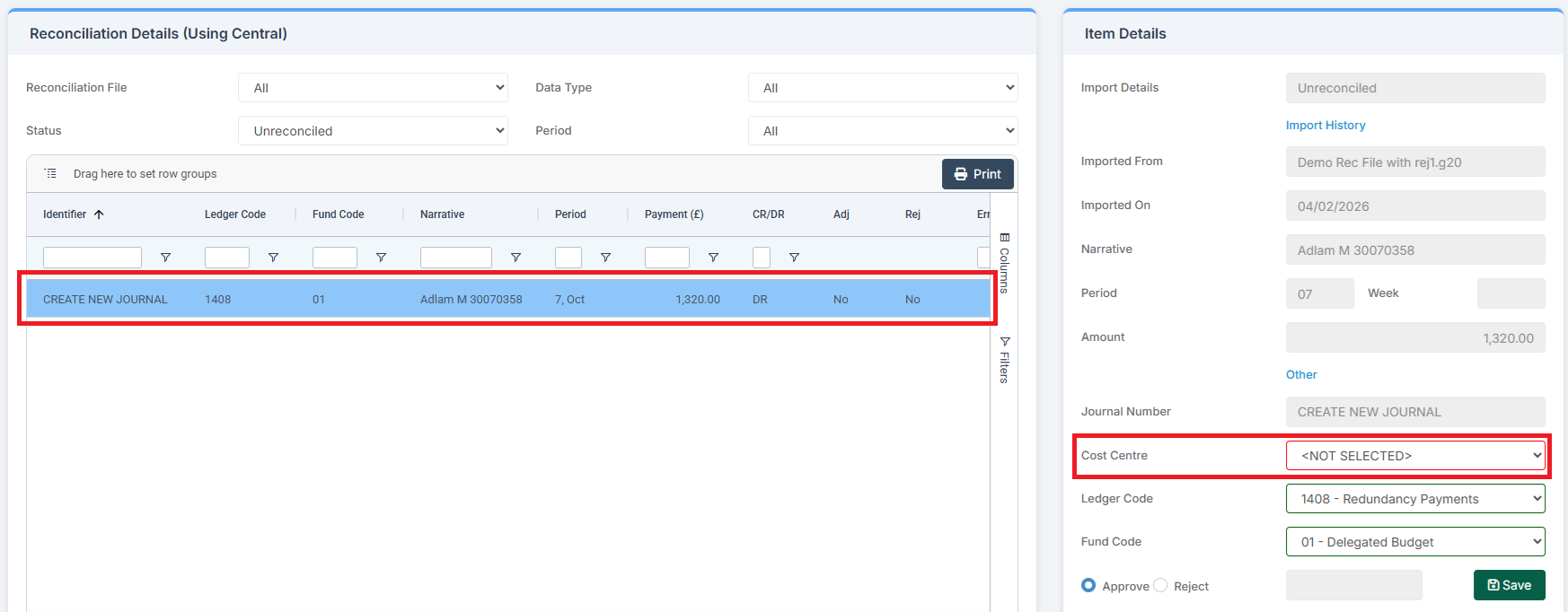
As M Adlam has left the organisation, hence the redundancy payment, once a Cost Centre has been assigned, the Reprocess button can be clicked.
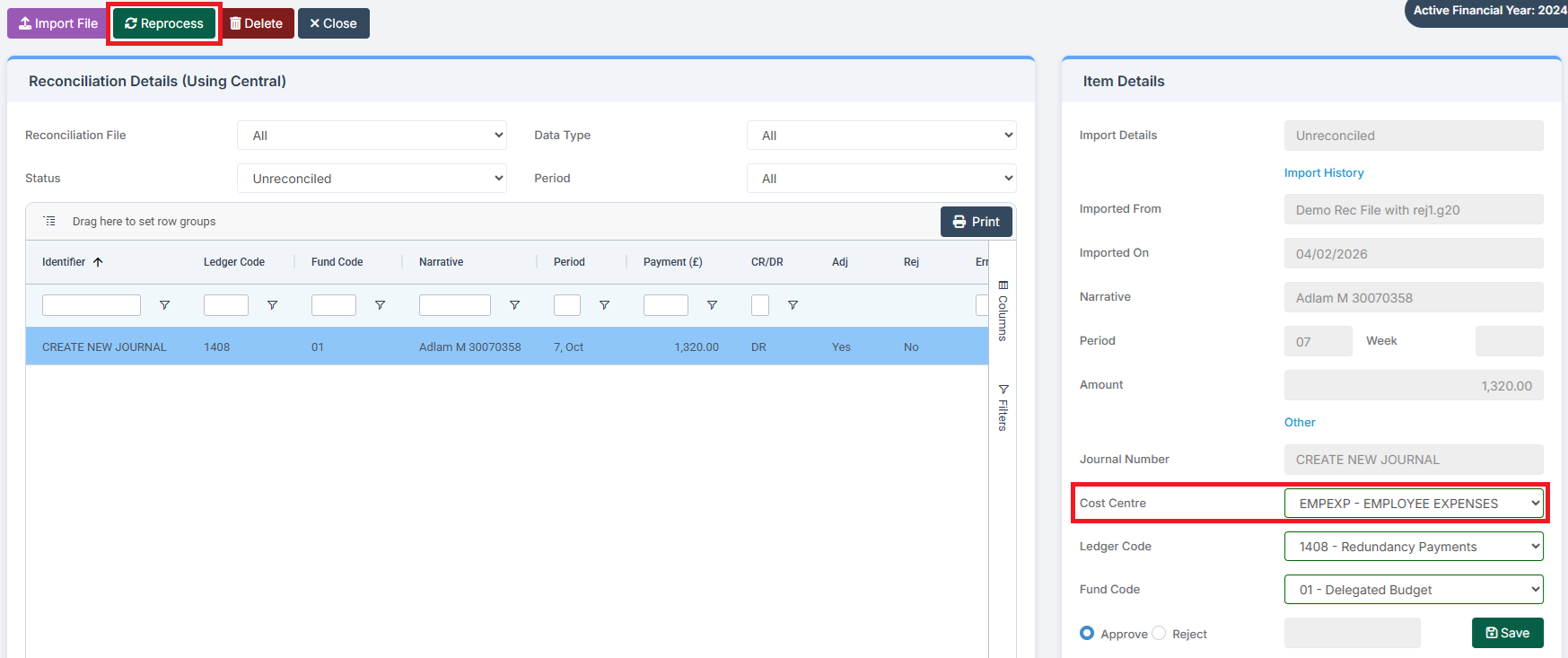
The row is now reconciled.
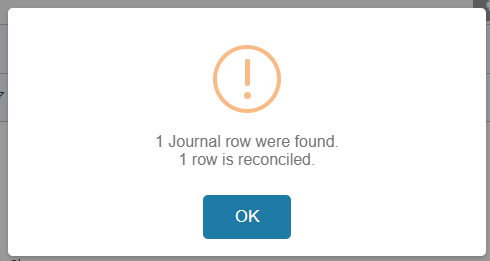
As a Journal was created for this payment, it need to be processed.
Go to Modules > Finance > Finance Home Page > General Ledger > Journals.
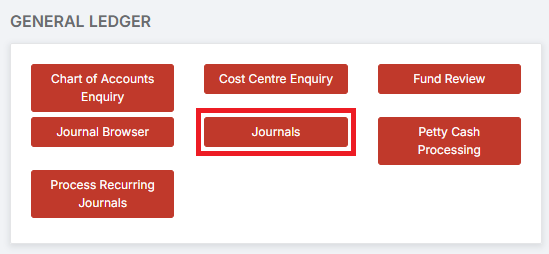
Select the Journal and then click Post.

All unreconciled rows have now been reconciled.
If, after attempting the above, and further detective work still leaves unreconciled rows, please reach out for further support.