
In this guide, we show How to Post Automatic Reversal Journals when posting Accrual or Prepayment Journals in MAT Finance.
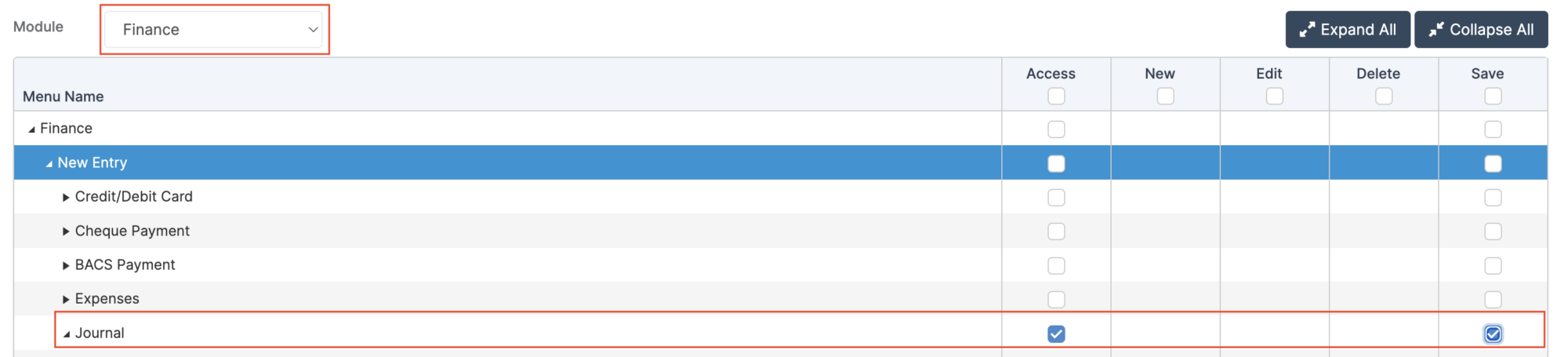
Access: The minimum permissions required to Post Automatic Reversal Journals are found in the MAT Finance Module section of Config > Setup > Roles & Permissions.
Related Guides:
Pre-requisite: The Next Financial Year must be Open for the Journal(s) to be posted into it.
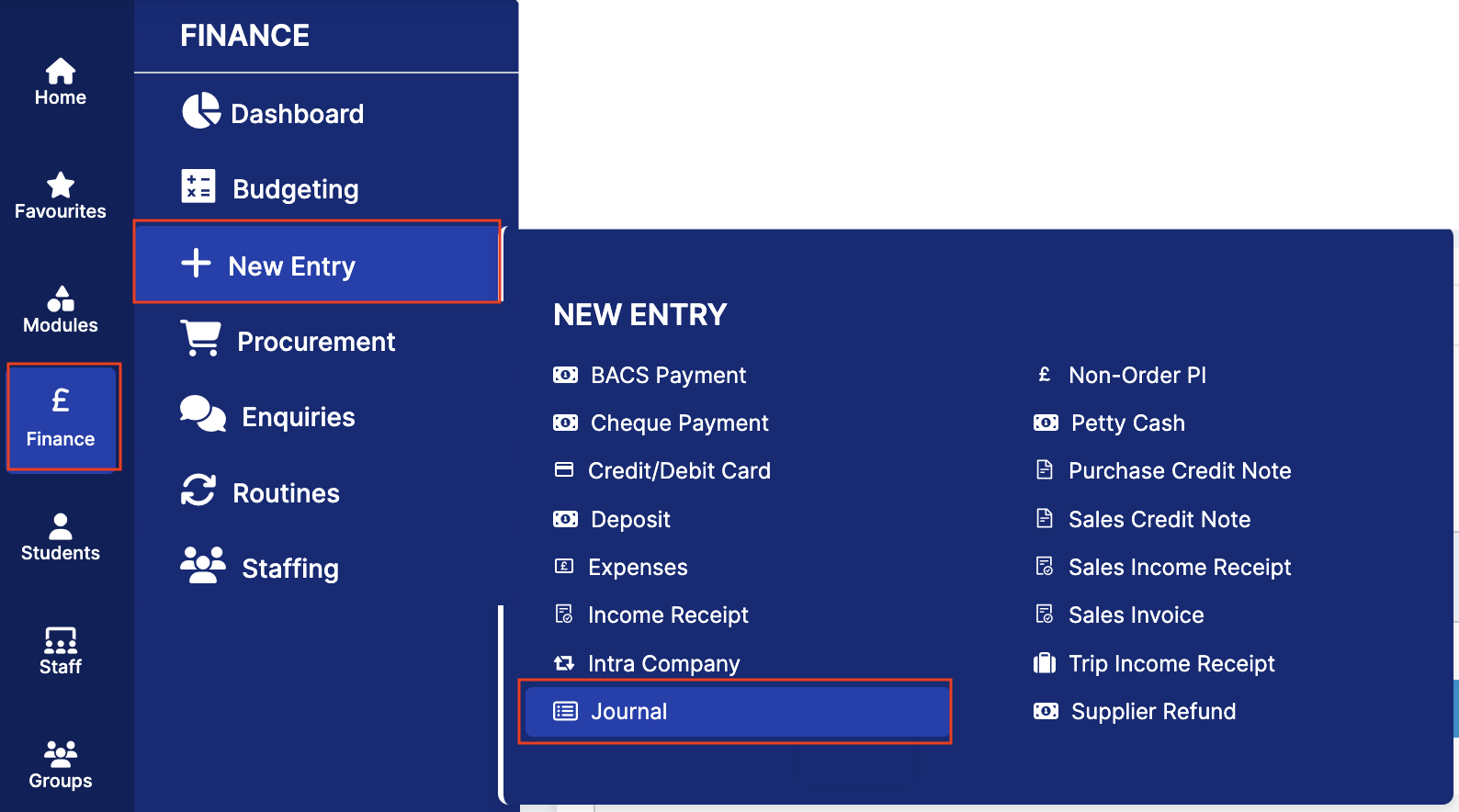
To begin, from the left Menu, go to Finance > New Entry > Journal.
When selecting Journal Type from the dropdown, either Accrual or Prepayment, tick the box Add Reversal to post an automated Reversal Journal alongside the original Journal.
Select the Reversal Period where the Reversal Journal should appear. The Reversal Period dropdown lists all the Periods after the Posting Period for the current Financial Year and the next Financial Year. Remember, the next Financial Year must be Open for the Journal(s) to be posted into it.
Note: Add Reversal is unticked by default.
On clicking Post, for the Accrual or Prepayment Journal, a Confirmation message is displayed.
Click Continue. The success message will list both the main Journal and Reversal Journal numbers.