
In this guide, we show How to Import and Export Cost Centres and Ledger Links in the MAT Finance Module.
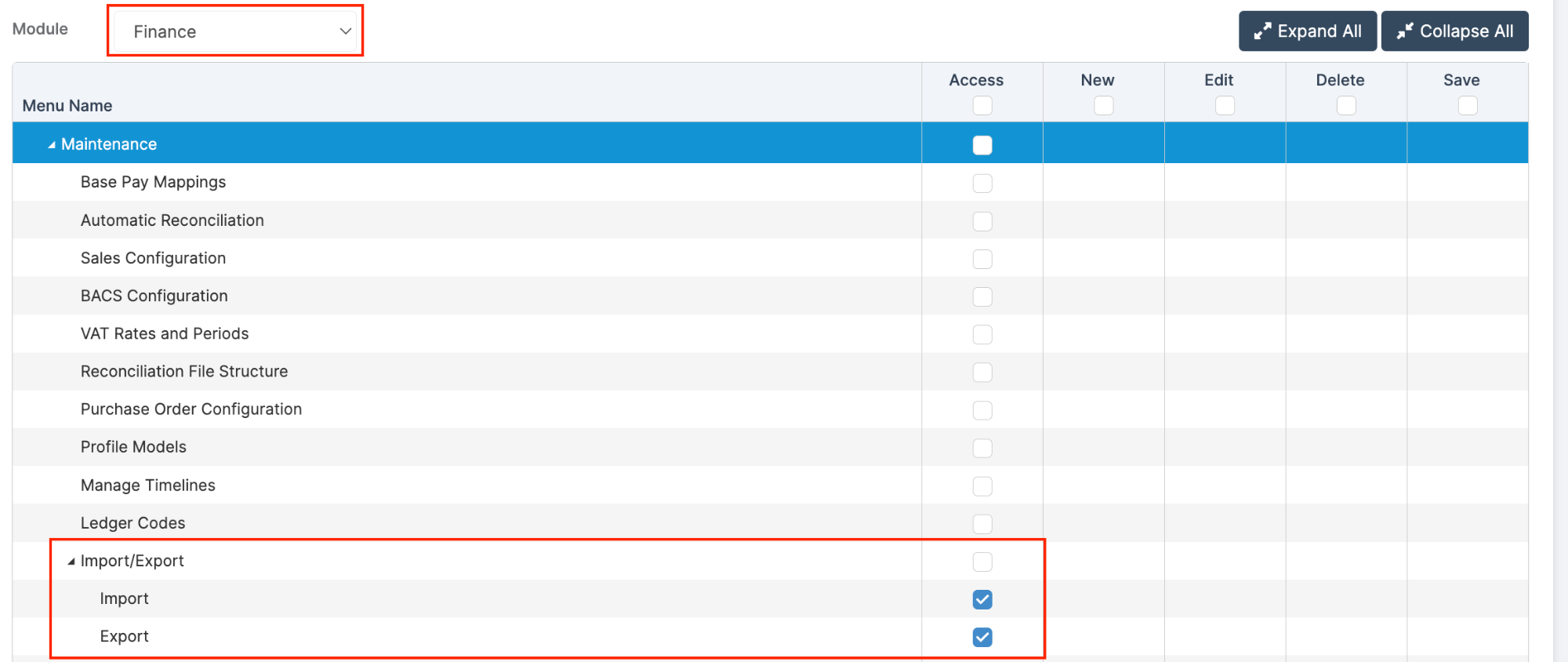
Access: The minimum permissions required to Import and Export Cost Centres and Ledger Links are found in the MAT Finance Module section of Config > Setup > Roles and Permissions.
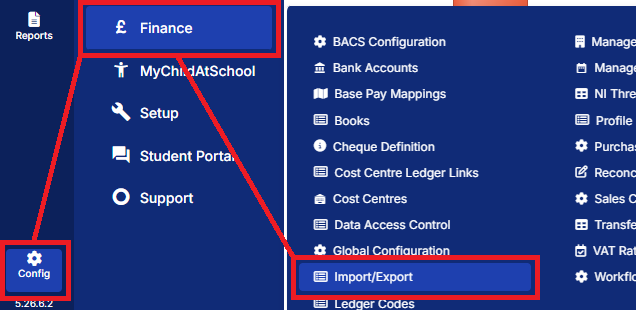
To begin, go to Config > Finance > Import/Export.
The Import/Export page displays three buttons:
Export button
- This exports all the active in use Cost Centres or Ledger Links for the active Financial Year that the user is working in
- This exports in CSV format and give the user a summary of how many rows have been exported
- Users have the ability to change the filename before saving the file
Analysis button
- When clicking this button, the user selects a file which loads in the File Analysis grid at the bottom of the screen
Note: Switching to a different Selected Data Area (Cost Centre or Ledger Link) resets the grid.
Import button
- When clicking this button, the user selects a file which loads in the File Analysis grid at the bottom of the screen
- Once Import has been clicked, all three buttons Analysis, Import, and Export become disabled
- When clicking Go, users see a pop up asking if they are sure they want to continue importing data from the file, and that this process cannot be undone
- Once completed, a popup summary is displayed telling the user how many rows were processed, how many new items were created, updated, ignored, and had no changes
Note: Switching to a different Selected Data Area (Cost Centre or Ledger Link) will reset the grid. To exclude rows from the imported file, users need to delete them from the source file before selecting them to Import. The order that users Import files might be important if entries in one file rely on data that will be imported from another. With Ledger Links, users will need to select Y or N to hide all pre-existing links that are not in the import file.