
In this guide, we show How to Process a Refund in Accounts Receivable in the Finance Module.
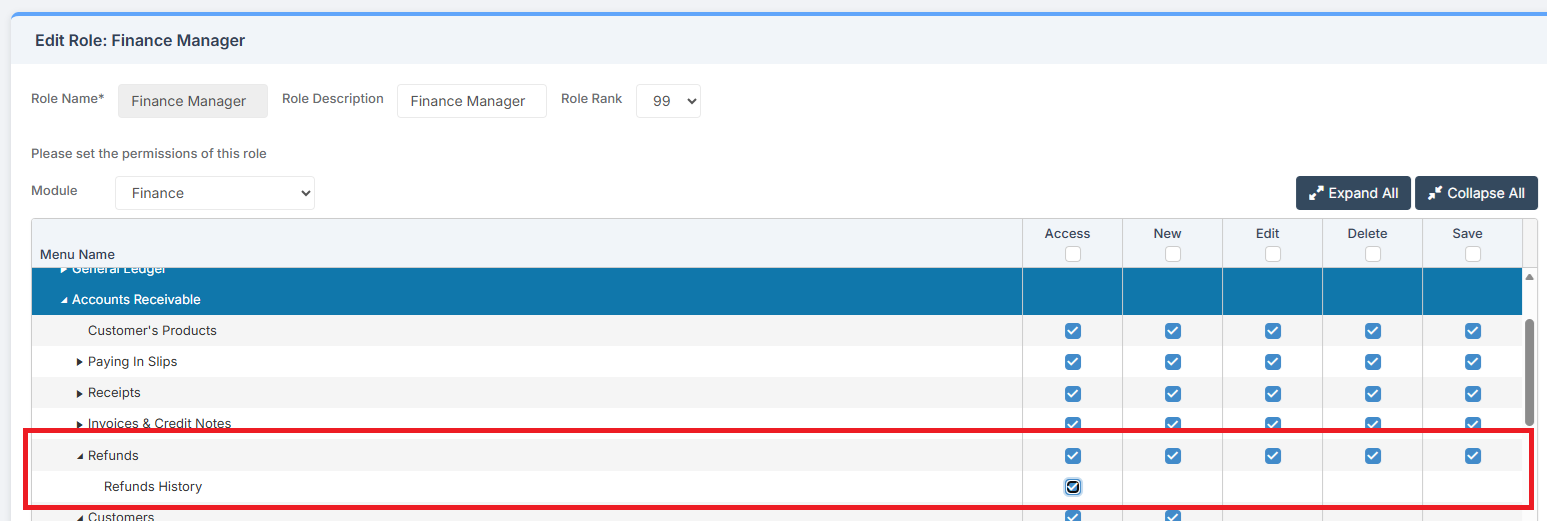
Access: The minimum permissions required to Process a Refund are found in the Finance Module section Config > Setup > Roles & Permissions.
This Guide forms part of the ACCOUNTS RECEIVABLE USER GUIDE. Click on the link to see Related Guides.
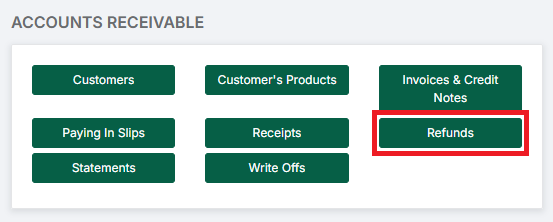
To begin, go to Modules > Finance > Finance Home Page > Accounts Receivable > Refunds.
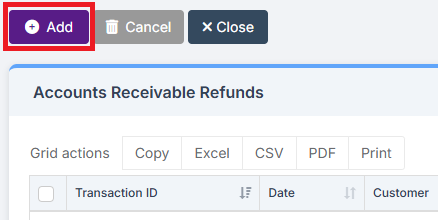
Click on the Add button.
Select the Customer, complete the Reason for Refund and Refund Amount.
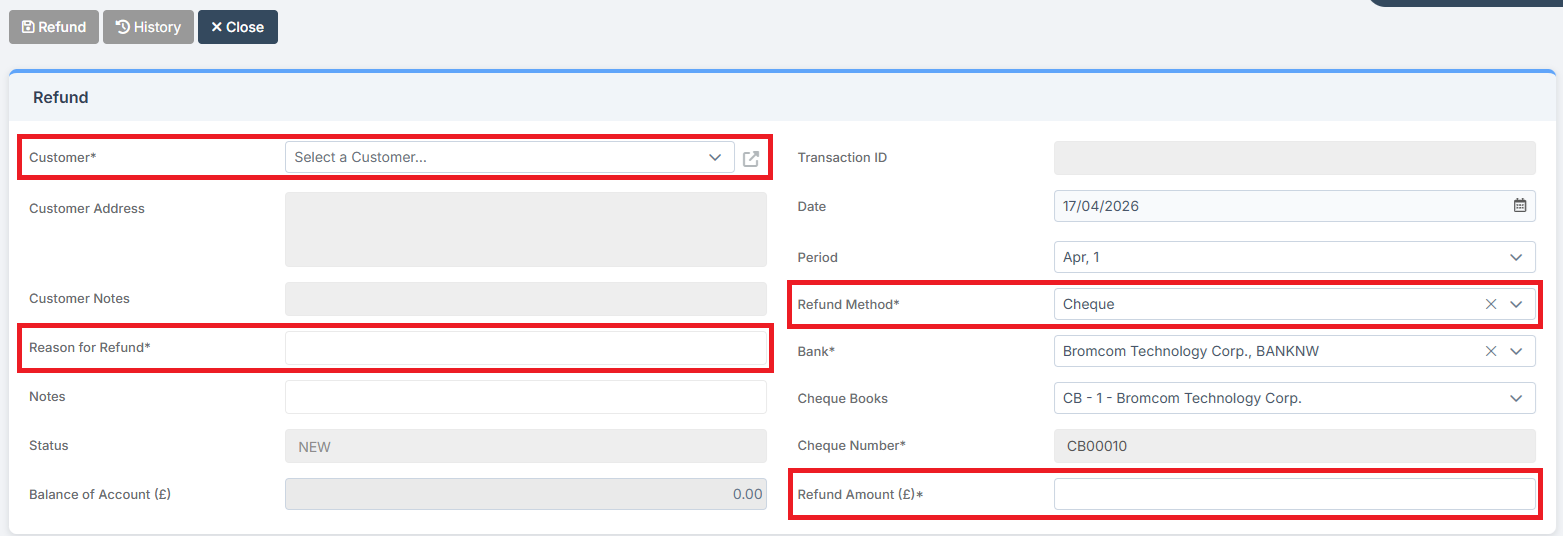
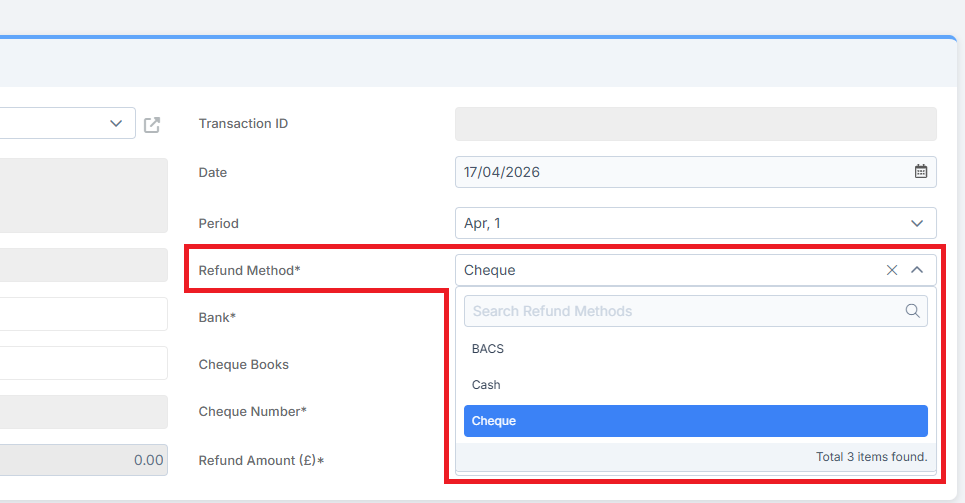
Then select an option from the Refund Method dropdown:
- BACS: Requires Bank and Refund Amount (£). A BACS File is generated that can be uploaded to the Bank. This uses the same BACS File format that is defined in the Bank Accounts page. This process works in the same way as Accounts Payable BACS Payment Processing
- Cash: Requires Refund Amount (£) only
- Cheque: Requires Bank, Cheque Books, Cheque Number, and Refund Amount (£)
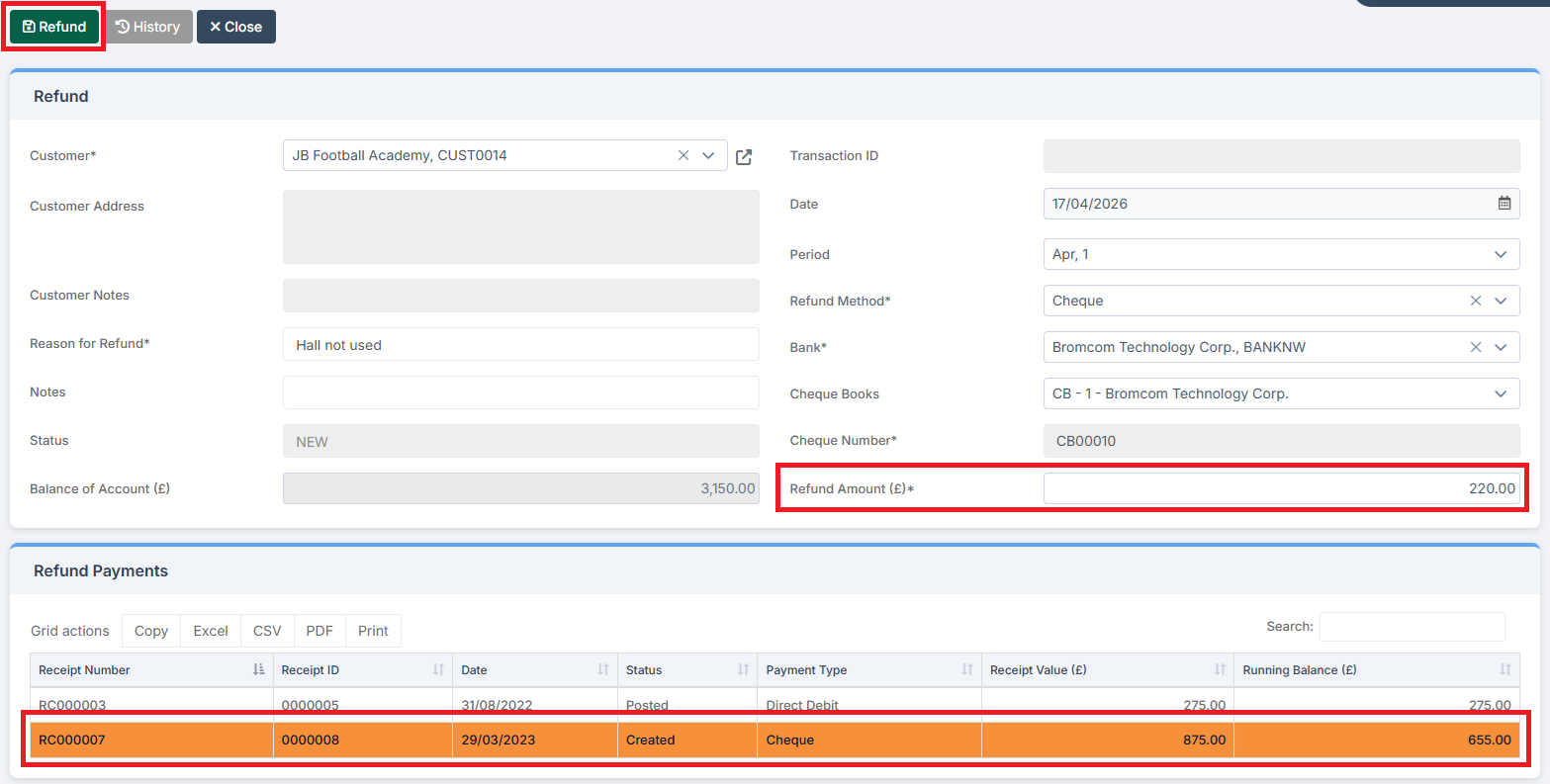
Select the Line against which the Refund it to be issued in the Refund Payments section.
A Partial Refund is indicated by the Refund Line being highlighted in orange. Click Refund to process the Refund.
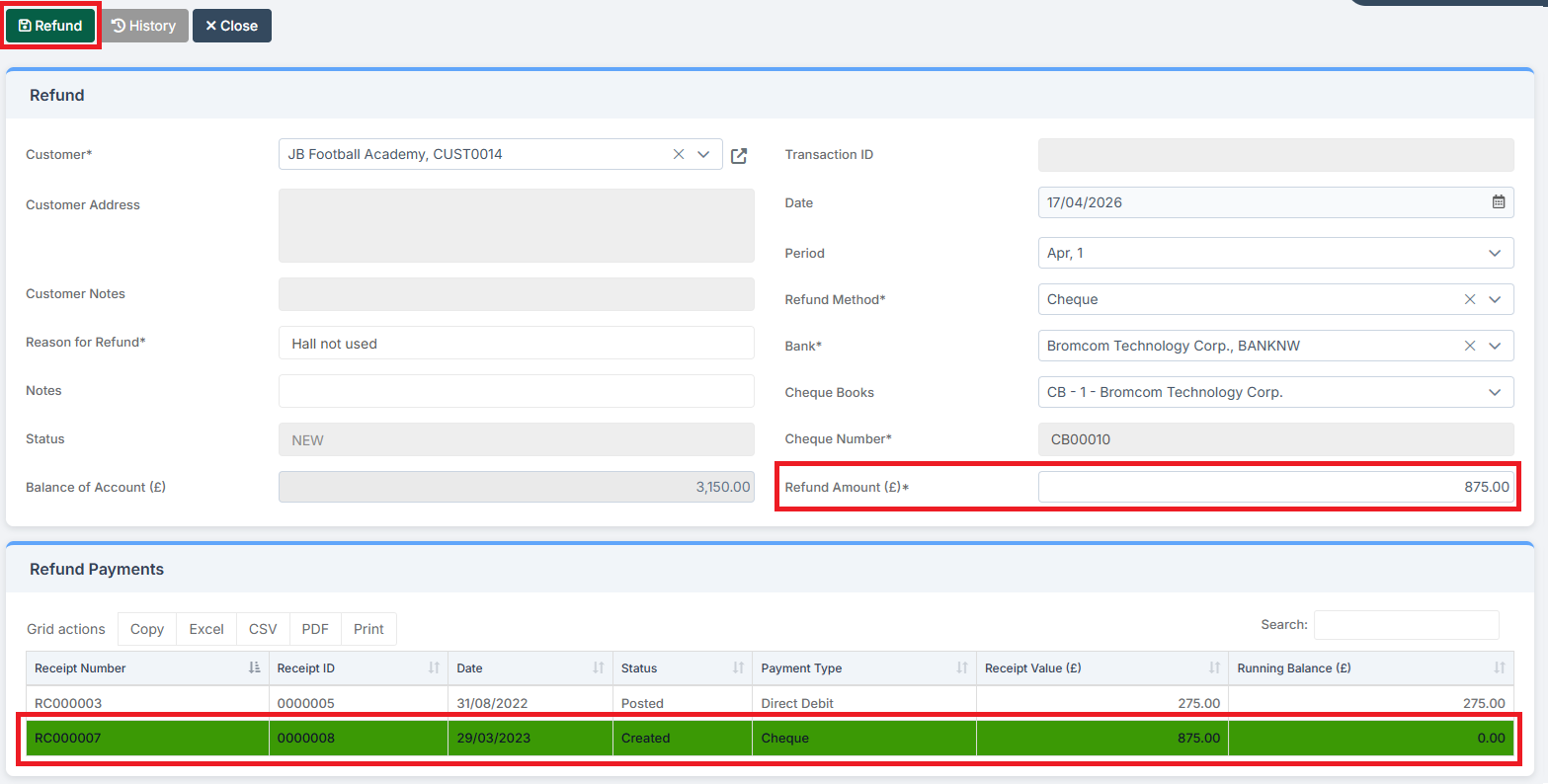
A Full Refund is indicated by the Refund Line being highlighted in green. Click Refund to process the Refund.
Note: As the system is currently configured, a Refund cannot be issued unless the account is in Credit.