
In this guide, we show How to:
- Calculate Future Budget Forecasts
- Apply Forecast Factors to Budget Forecasts
- Publish a Forecast as a New Budget Scenario
- Create Multiple Budget Forecasts in the Same Year
Access: The minimum permissions required to Use Budget Forecasts in MAT Finance are found in the Finance Module section of Config > Setup > Roles & Permissions.
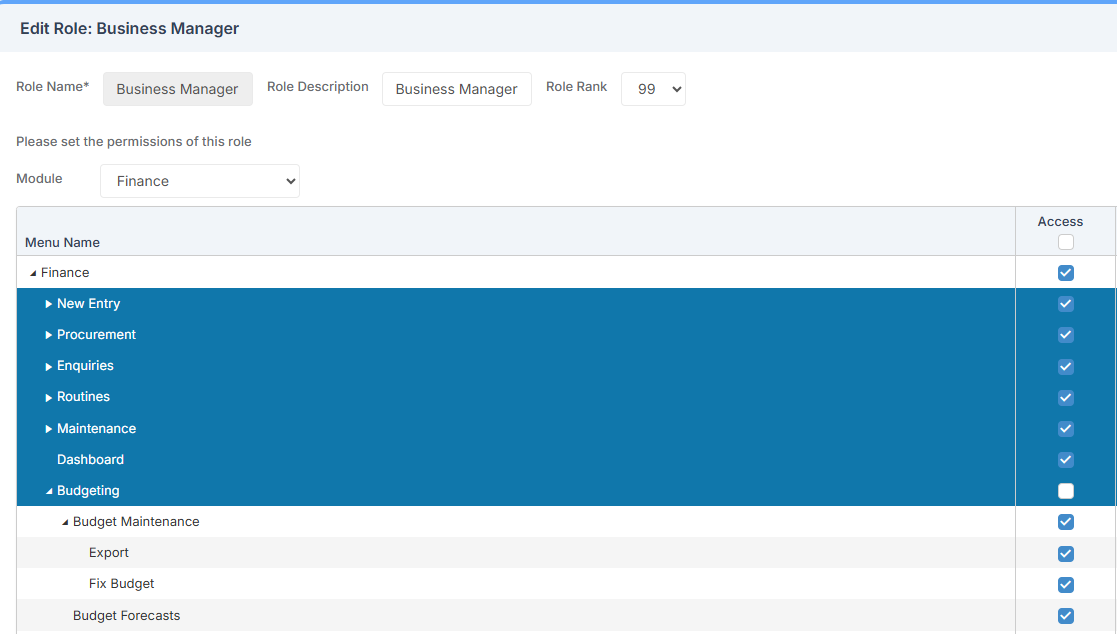
Pre-requisites: In order to use Budget Forecasting, a number of Forecasting Scenarios need to be in place within the MAT Finance Module. In addition, Forward Financial Years will only appear if they have been configured in the system. That is, if only two years have been configured, only two years will be available to forecast into.
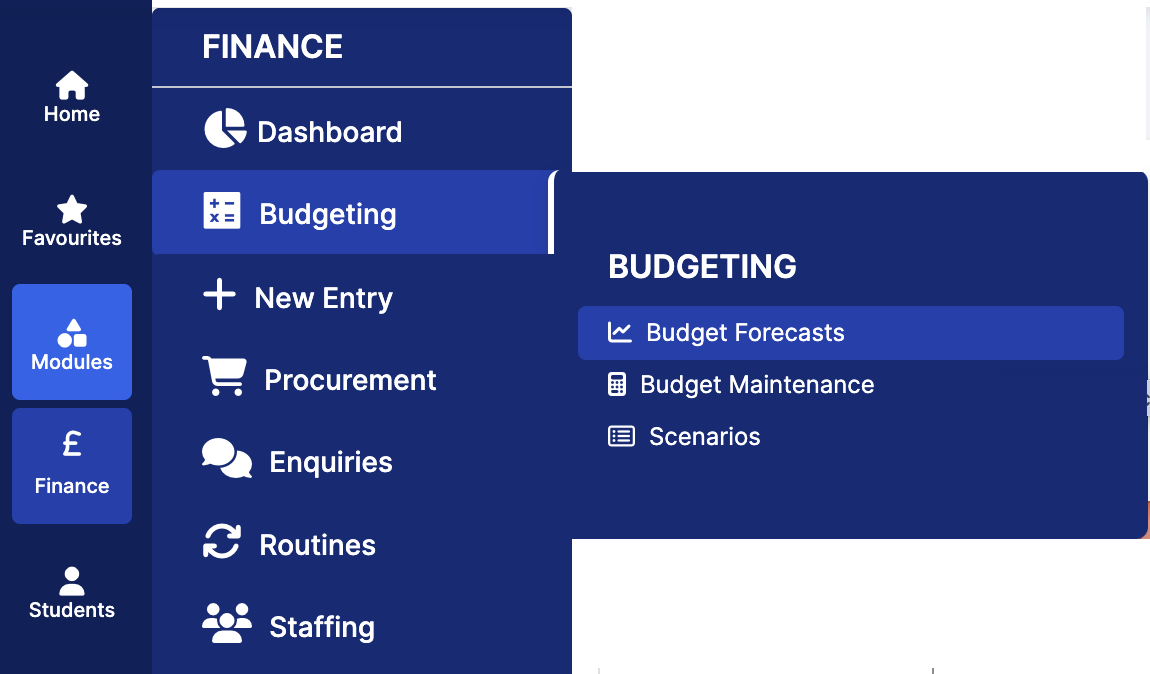
To begin, from the left Menu, go to Finance > Budgeting > Budget Forecasts.
Calculate Future Budget Forecasts
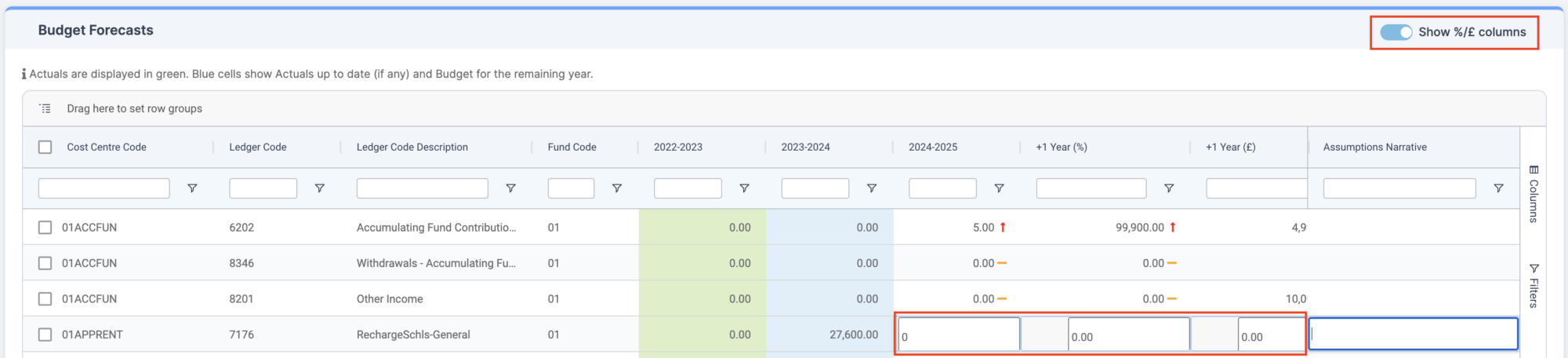
The % and £ factor columns in the Budget Forecast table allow the user to enter a factor to be used to calculate the increase/decrease in the corresponding Budget Forecast.
- Click on the toggle Show %/£ columns to display the factors, or alternatively select them individually from the list in Columns.
- Double click in the Row to amend the values.
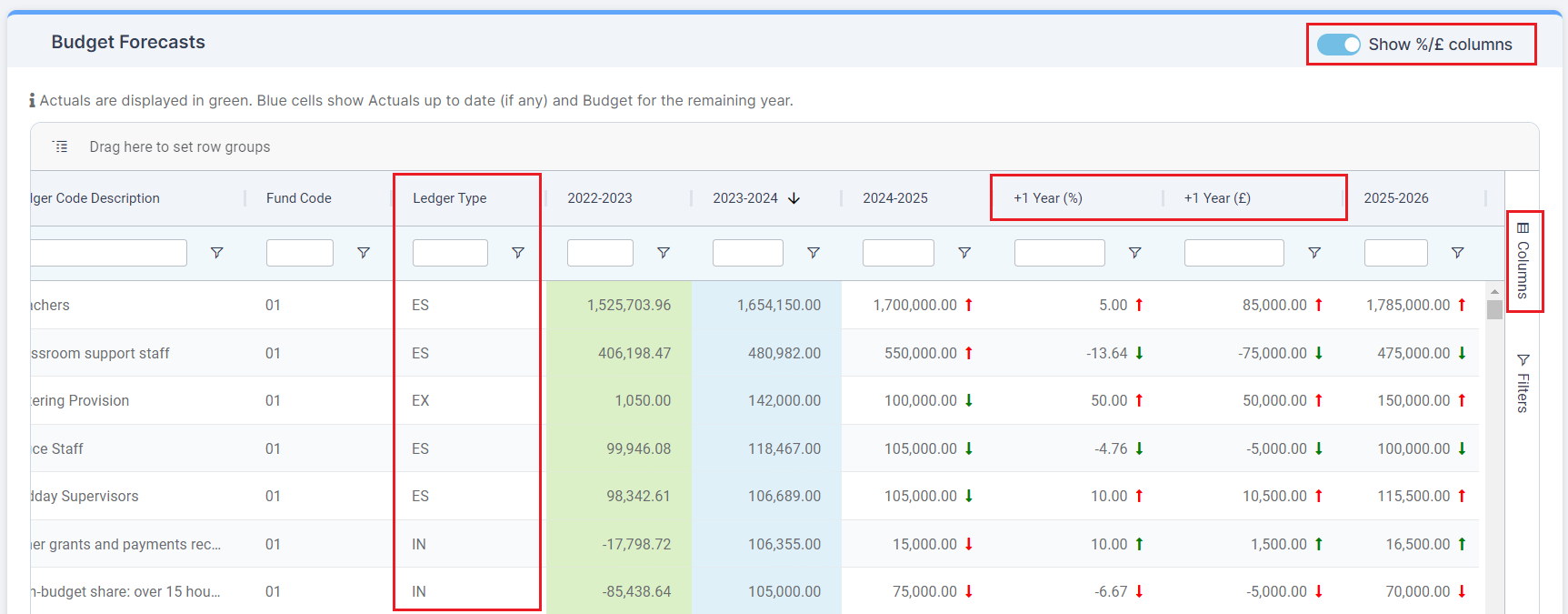
In the example where the Active Financial Year is 23/24, the factors correspond to the following Budget Forecasts:
- +1 Year (%) and+1 Year (£) corresponds to financial year 25/26 (v 24/25)
- +2 Year (%) and+2 Year (£) corresponds to financial year 26/27 (v 25/26)
- +3 Year (%) and+3 Year (£) corresponds to financial year 27/28 (v 26/27)
- +4 Year (%) and+4 Year (£) corresponds to financial year 28/29 (v 27/28)
For IN Ledger Type rows,
- Where there is an Increase, a Green Up Arrow is displayed
- Where there is a Decrease, a Red Down Arrow is displayed
For EX and ES Ledger Type rows:
- Where there is an Increase, a Red Up Arrow is displayed
- Where there is a Decrease, a Green Down Arrow arrow is displayed
Note: Negative and decimal values are allowed.
Note: If multiple columns are used to calculate the Budget Forecast, e.g. Year (%), Year (£), and budget value, then the final column entered is used to calculate the new value.
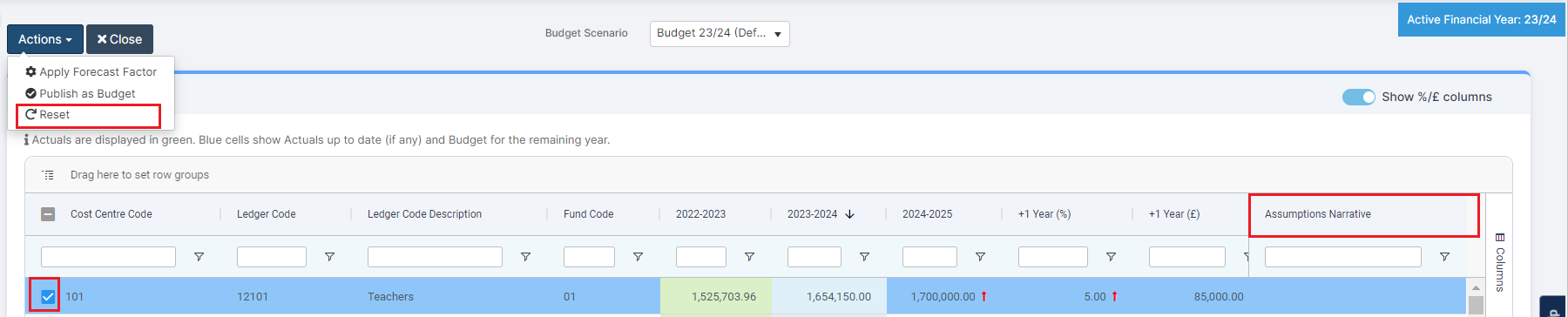
Enter text into the column labelled Assumptions Narrative to support the assumptions made in the budget forecasting. Users can filter, sort, add and remove this column.
To undo any of the factors applied to a row, click on a row checkbox and then the Actions > Reset button to reset the percentage (%) and value (£) factors back to zero for that row. This causes the Budget Forecast to become zero.
Apply a Forecast Factor to the Budget Forecast
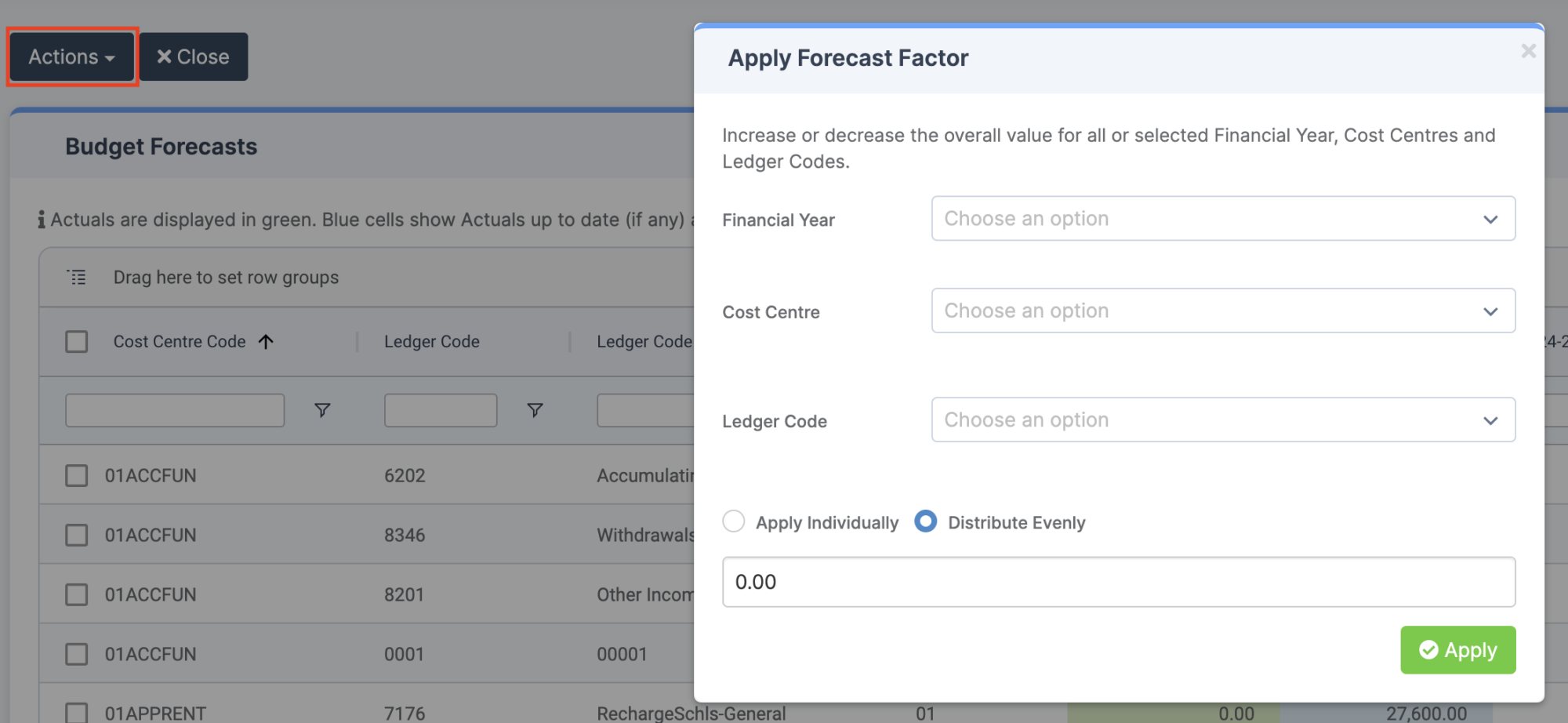
The Apply Forecast Factor option can be used to affect the forecast for a filtered Financial Year, Cost Centre and Ledger Code combination. It allows the increase/decrease of the forecast by a percentage or a value, or distributes a lump sum evenly across the filtered combination.
- Select from the Actions dropdown the Apply Forecast Factor option and the pop up is displayed
- Filter by Financial Year, Cost Centre and Ledger Code
- Choose to apply a decrease/increase in value/percentage or distribute a lump sum evenly. Enter the values necessary
- Click the Apply button when complete
Publish a Forecast as a New Budget Scenario
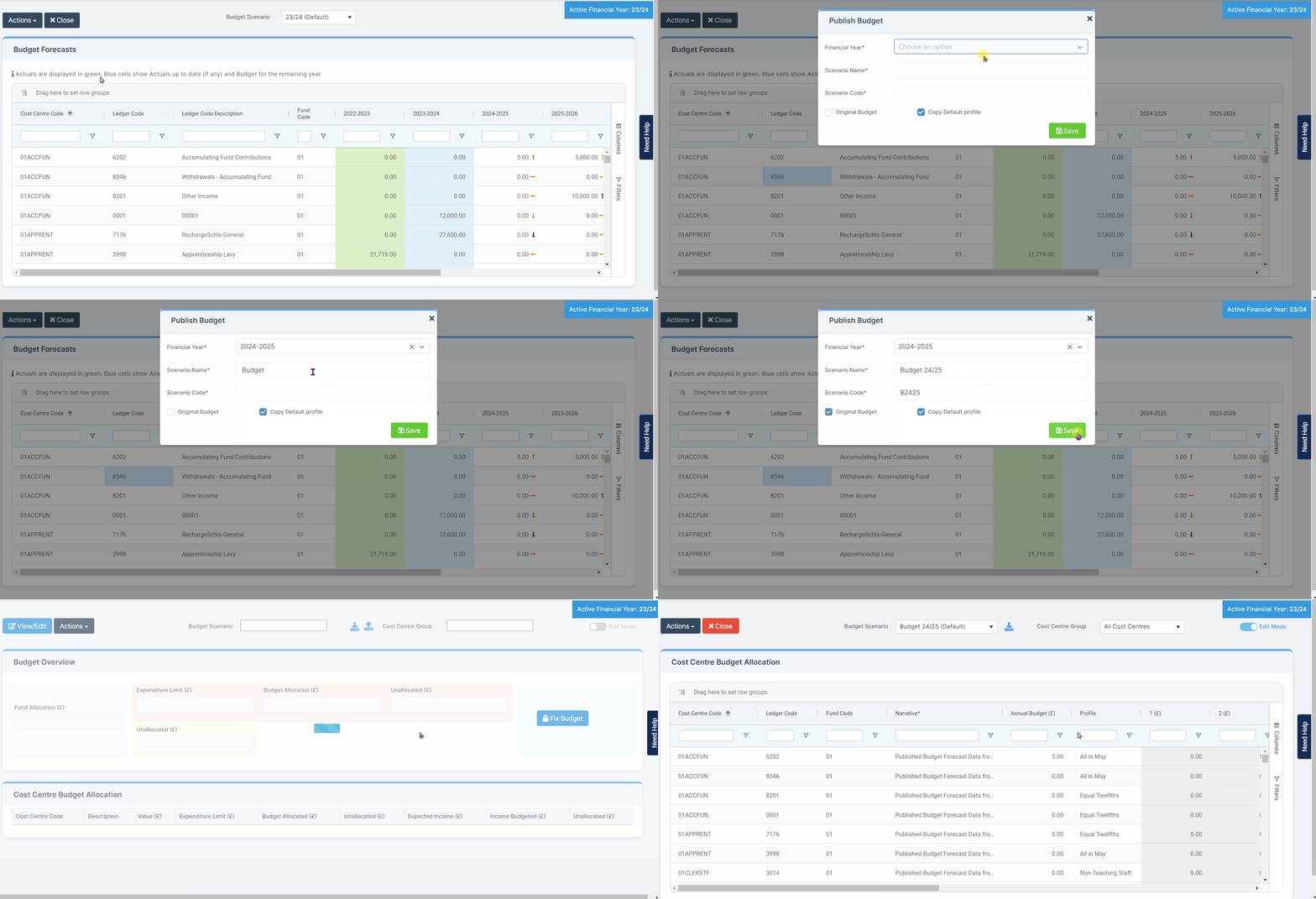
The Publish as Budget option can be used to take a forecast and publish it as a new Budget Scenario.
- Select the from the Actions dropdown the Publish as Budget option and the popup is displayed.
- Choose which Financial Year forecast to publish as a new Budget Scenario.
- A unique Scenario Name and Scenario Code must be entered.
- Tick Original Budget to say this is the original budget and tick Copy Default Profile to use the default profile assigned to Ledger Codes in the Maintenance page.
Note: If Copy Default Profile is unticked then Budgets will remain unallocated against the Ledger Code.
Note: Publish as Budget will only work if there is at least one value in the Budget Forecast table.
Note: Users will be taken to the Cost Centre Allocation page in Edit Mode for any amendments to be made.
Finance > Budgeting > Scenarios
Create Multiple Budget Forecasts in the Same Year
Finance users have the ability to create more than one Forecast per year in the Budgeting pages.
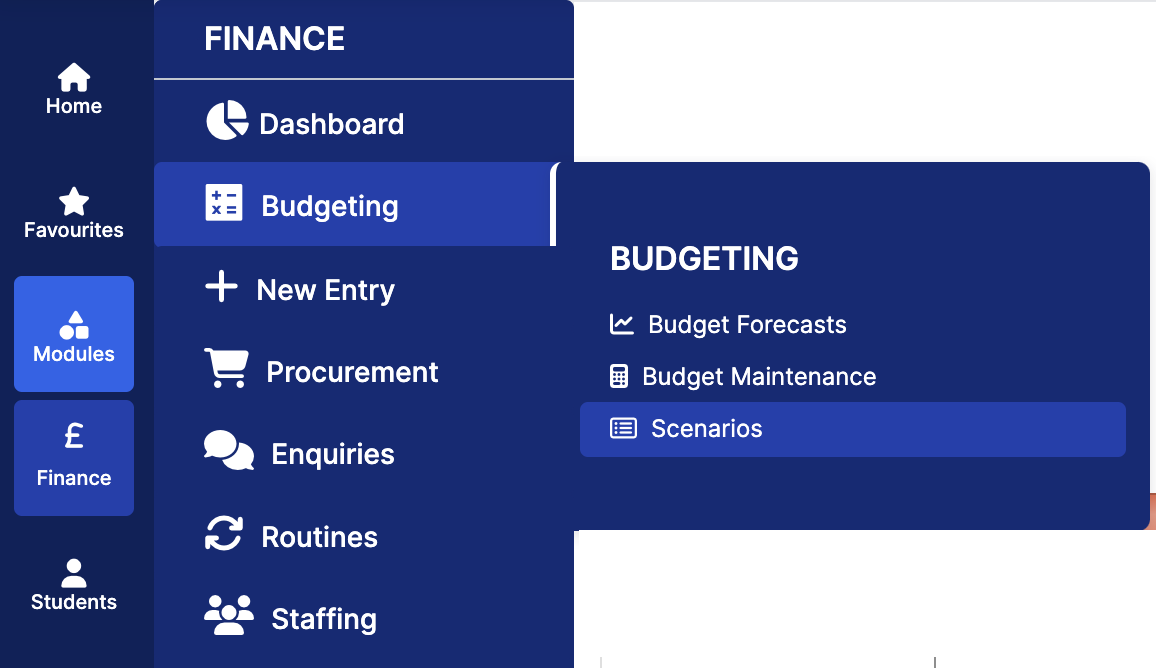
- Click on New in the Scenarios page, and choose the Forecast option.
- Complete the following fields: Scenario Name, Scenario Code, and Financial Year.
- Press Save.
This creates: a new entry in the Scenarios table labelled Forecast in the column Type, and a new Forecast Scenario in the Budget Forecasts page.
Back in the Budget Forecasts page, the dropdown lists only the Forecast Scenarios.
Note: The current year balance (blue) column will take the values from the Default budget of the selected Financial Year.