
In this guide, we show How to Use the Budget Projections Report in the Finance Module.
Access: The minimum permissions required to Monitor Budgets are found in the Finance Module section Config > Setup > Roles & Permissions.
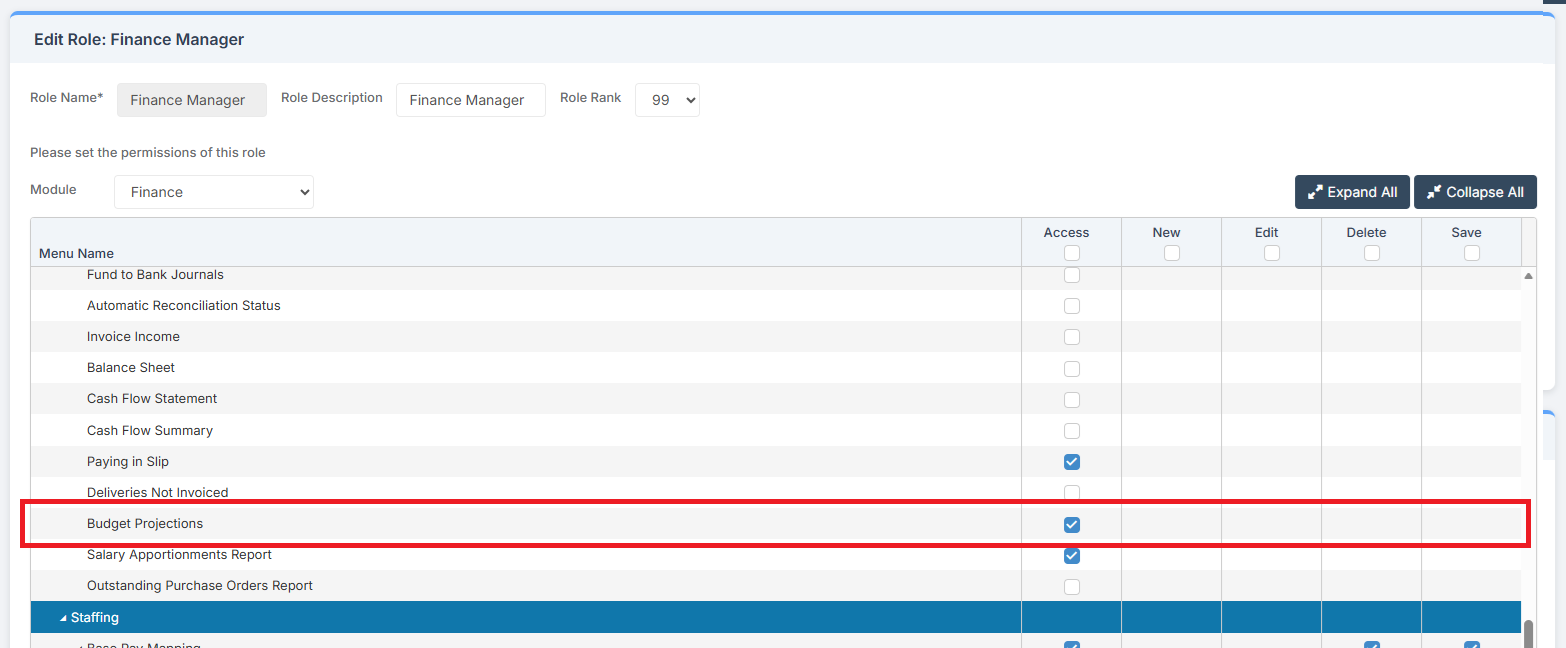
Pre-requisites: In order to Use the Budget Projections Report, at least one Budget Scenario needs to be in place within the Finance Module.
Related guides:
This Guide is part of the Budgeting Module User Guide
The previous guide in the Budgeting Module User Guide is: How to Use Budget Forecasting
This is the final guide in the Budgeting Module User Guide
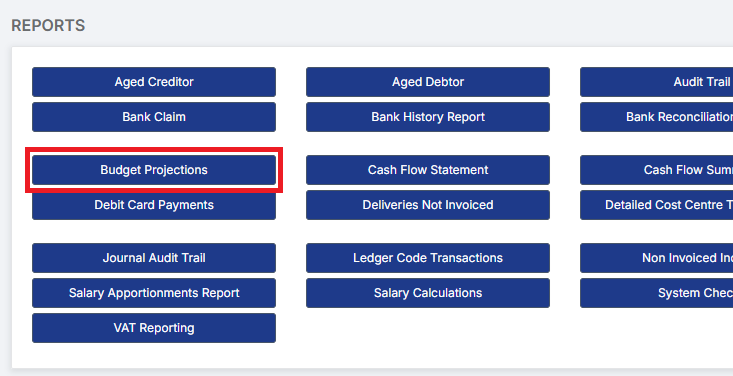
To begin, to go Modules > Finance > Finance Home Page > Reports > Budget Projections.
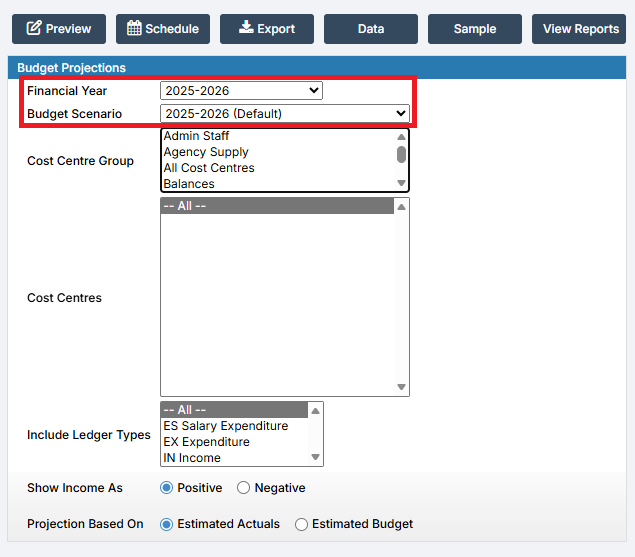
On the Report Parameters page, first choose the Financial Year and Budget Scenario to report on.
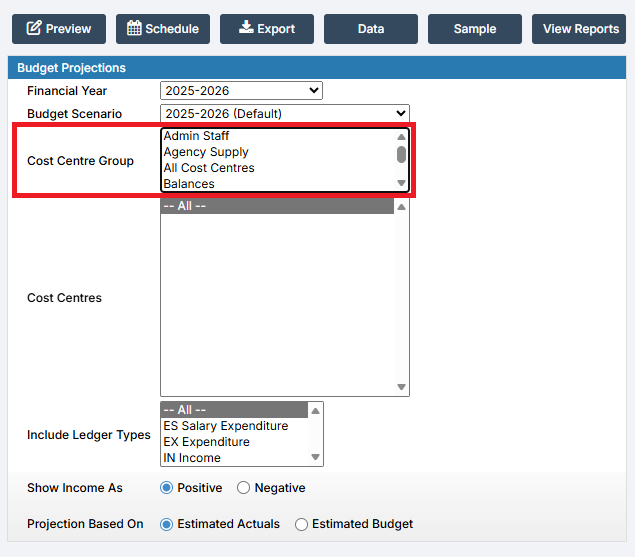
Next, choose the Cost Centre Group. To view All Cost Centres, scroll a little way down the list.
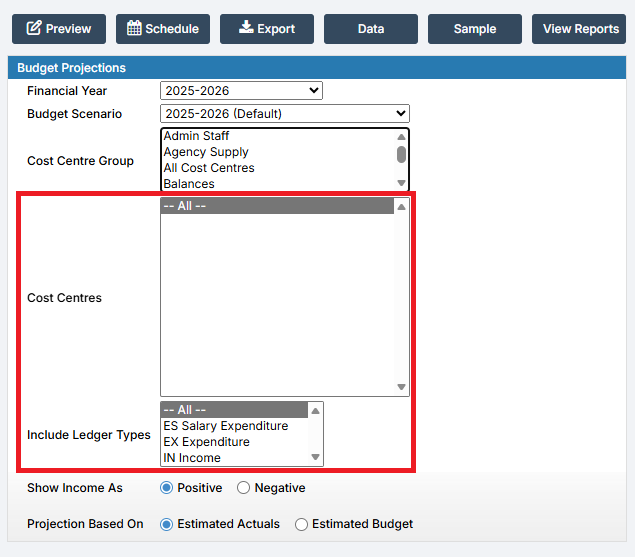
Then, choose which Cost Centres and Ledger Types to report on.
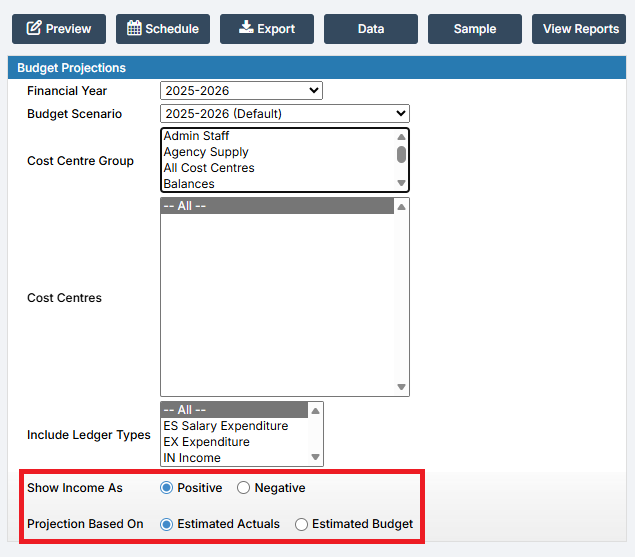
After this, decide whether to Show Income As Positive or Negative, and whether the Projection is Based On Estimated Actuals or Estimated Budget.
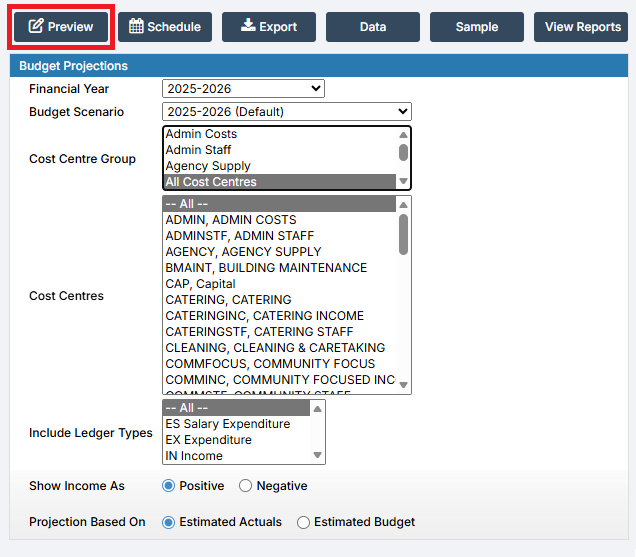
Finally, click Preview to Preview the Report.
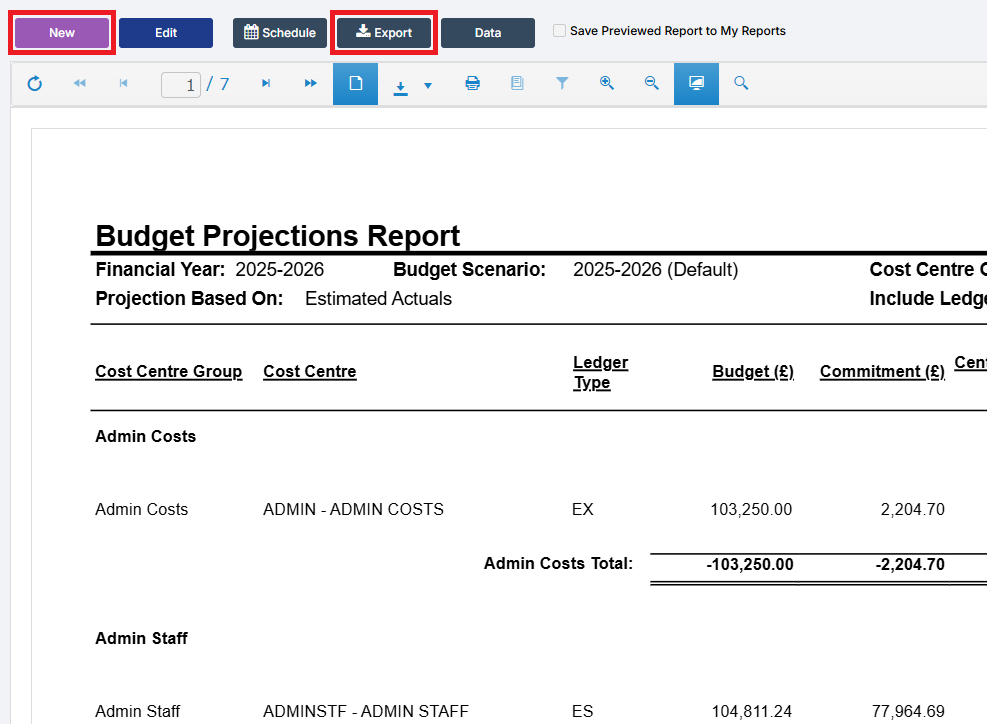
The Report can be exported by clicking Export. A new Report can be generated by clicking New.
This is the final guide in the Budgeting Module User Guide