This guide shows the Assessment Administrator and Teacher View into Assessment Marksheets and the various filters and features available in the Marksheets.
- Different views
- Text size and alignment
- Add additional student information columns
- Bulk data entry
- Columns Filters
- Re-set to original format
Note: These changes only affect the selected Marksheet, the changes are not made to all other Marksheets.
Pre – requisites: Assessment Sheets need to be created ready to be viewed by Administrators and Teachers. Please see How to create an Assessment Sheet
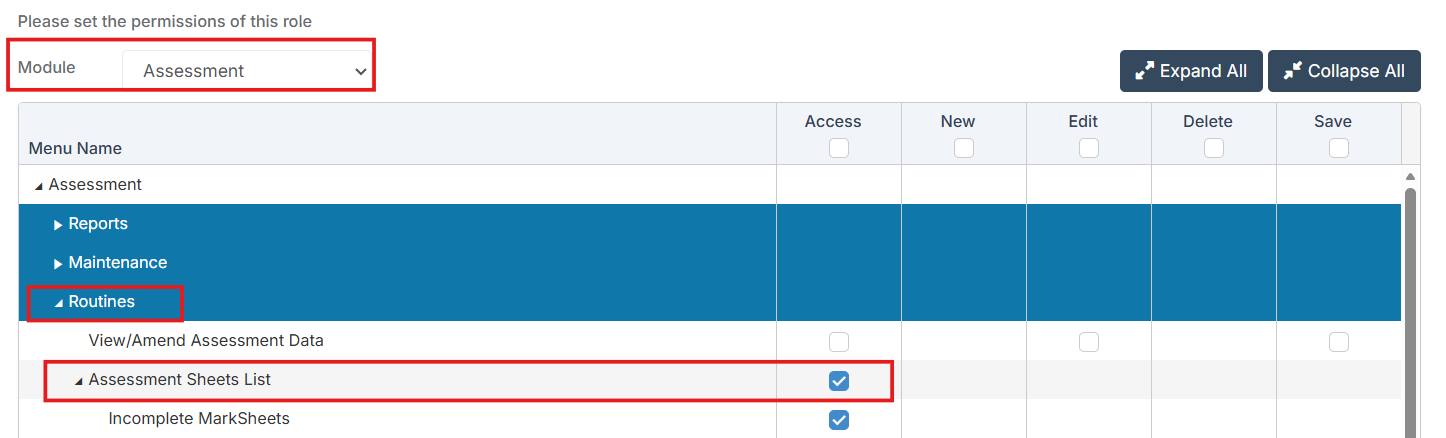
Access: the minimum permissions required to the Assessment Sheets Sheets are found in the Assessment Module from Config>Setup>Roles and Permissions. For more information see How to Edit a Role and its Permissions
Different Views
This section shows the route to access Marksheets as a Teacher or as an Assessment Administrator, the view of the opened Marksheet is the same for both routes.
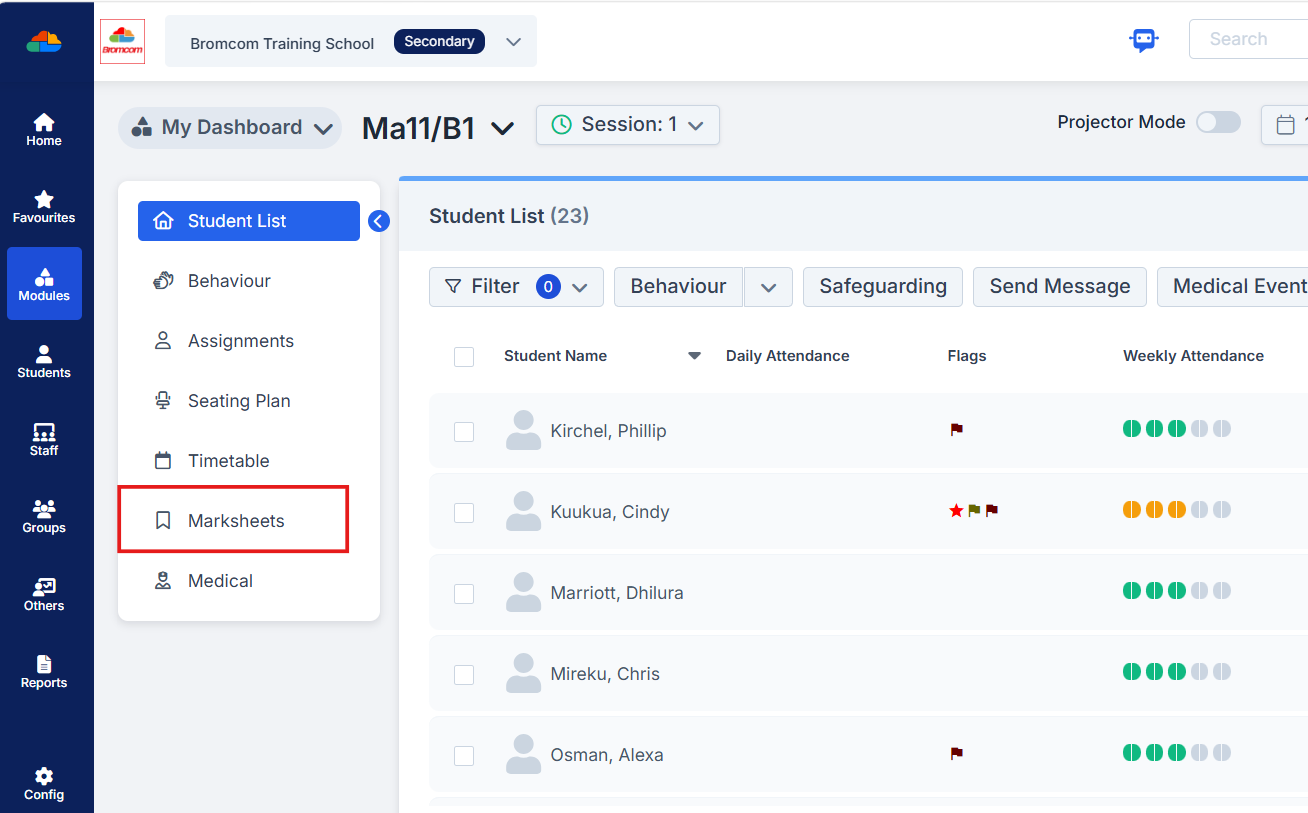
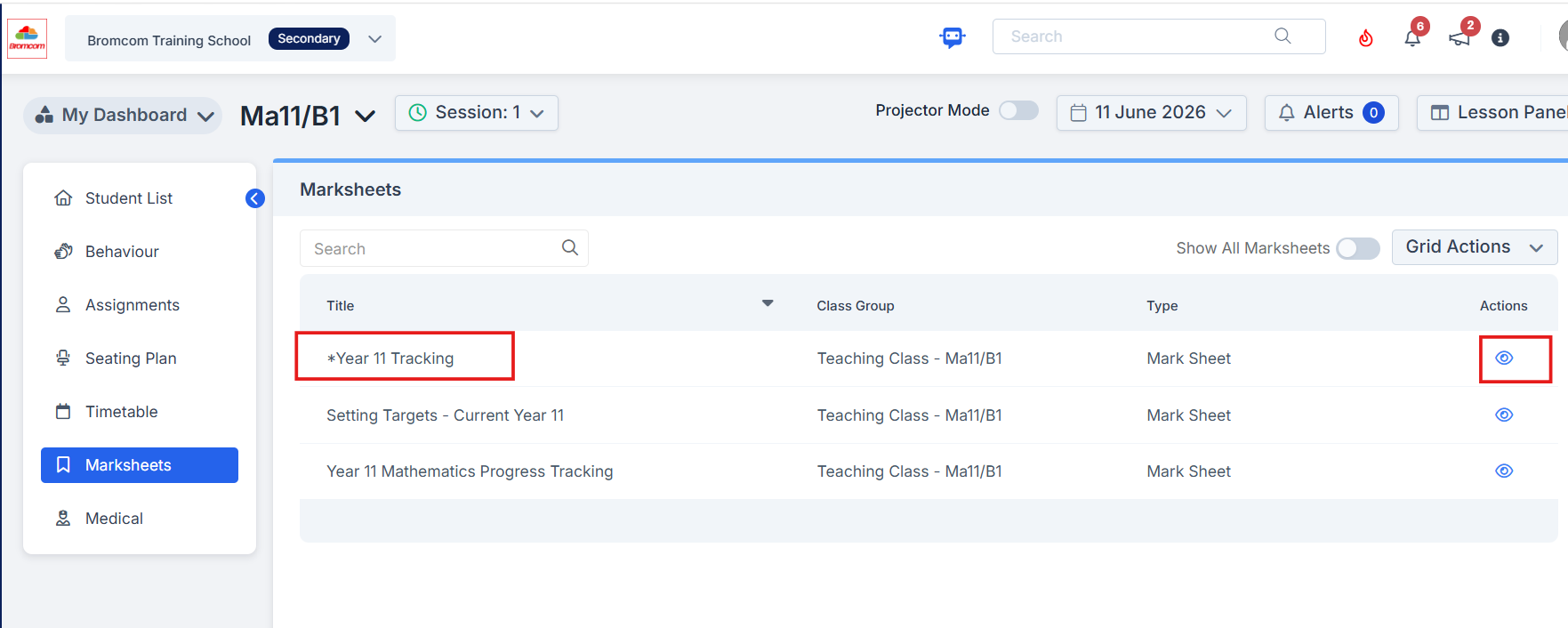
Teacher View : click Marksheets from My Dashboard.
In the Marksheet panel the Teacher can see the Marksheets for the class shown.
Use the Search function if required
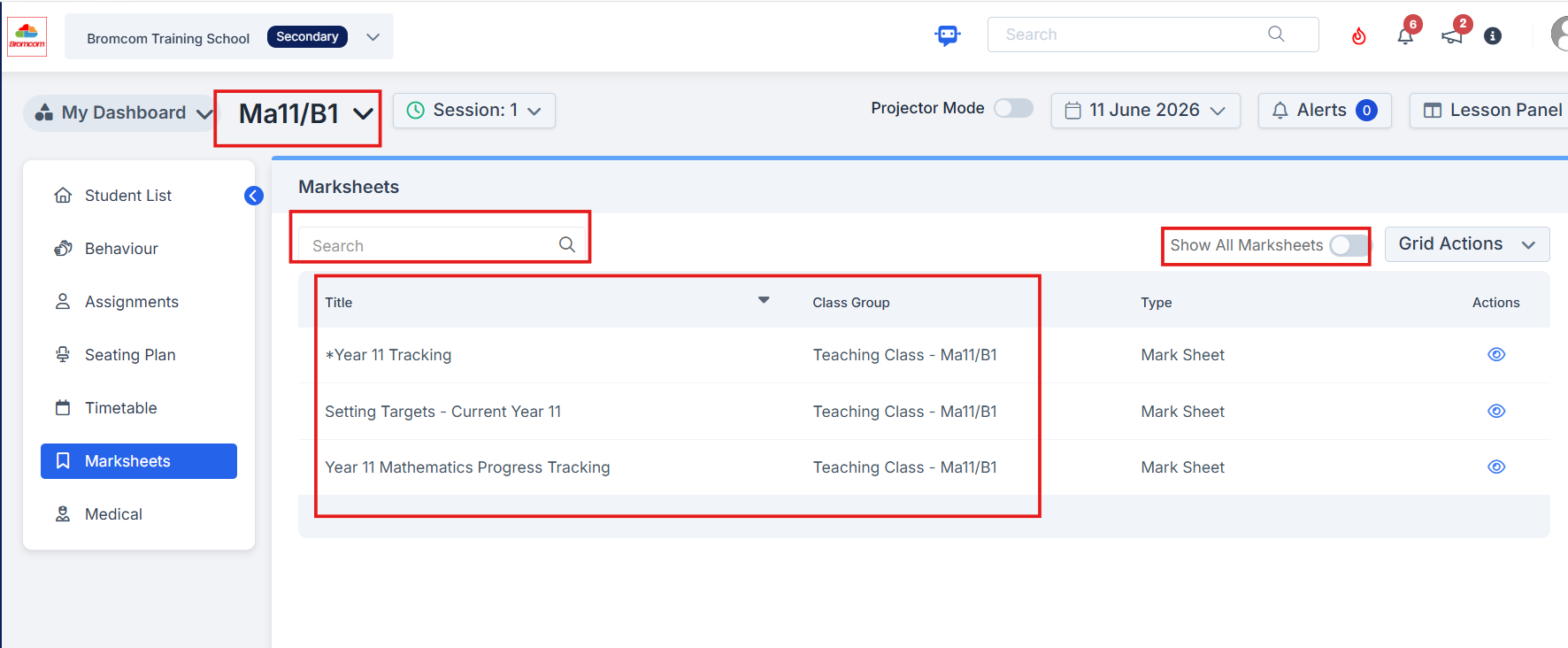
Toggle on Show All Marksheets to see all Marksheets for all classes
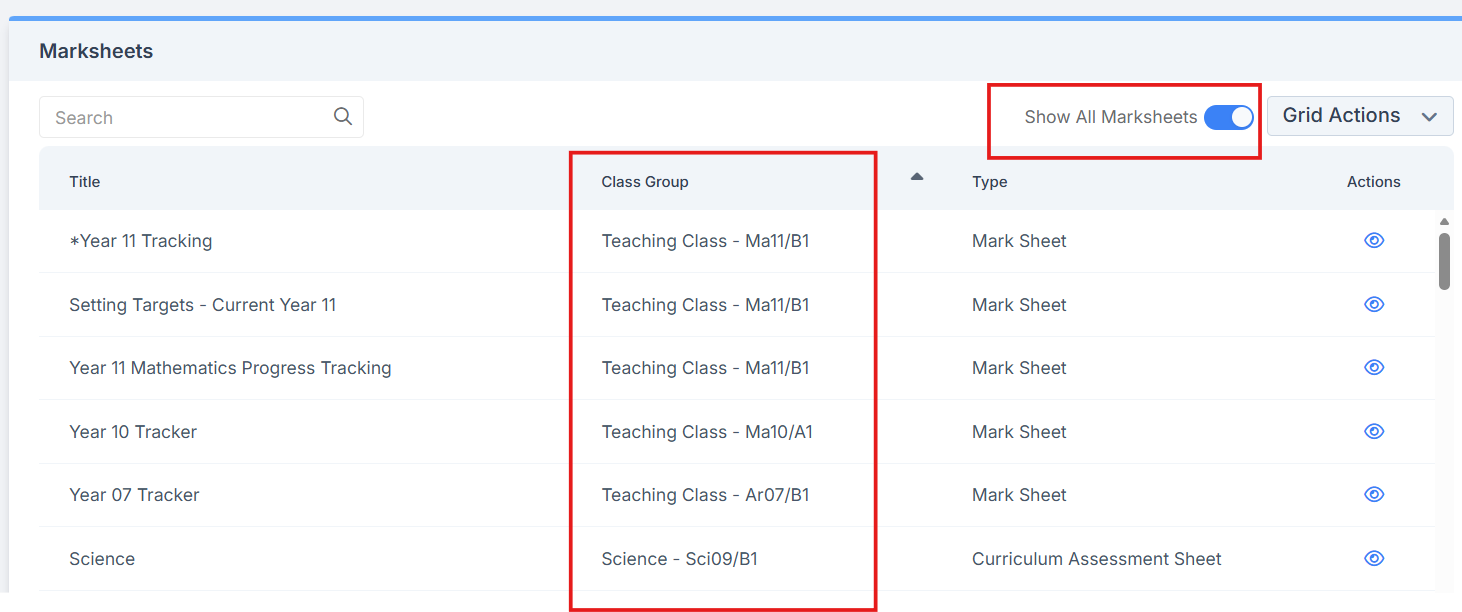
To open a Marksheet either Double Click on the Title or click the blue eye icon in the far-right Actions column
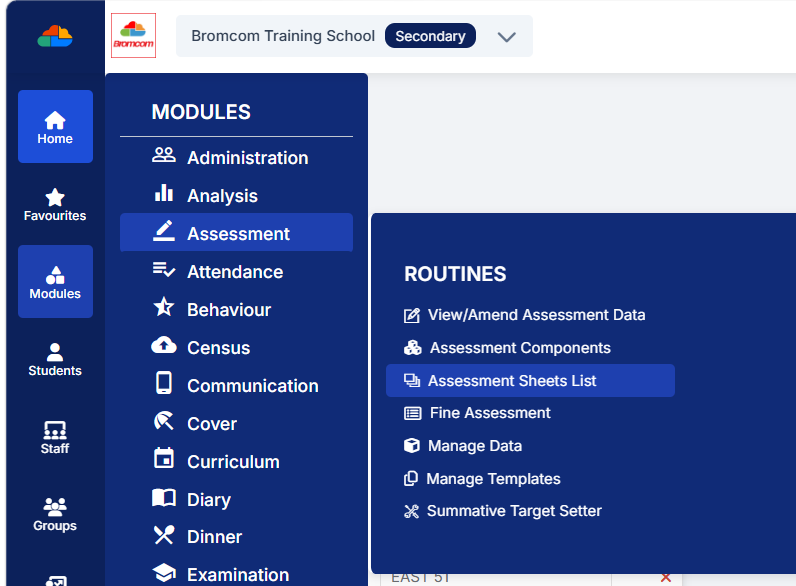
Assessment Administrators View : navigate to Modules > Assessment > Assessment Sheets List.
Double click on the required Marksheet Name to open the Marksheet
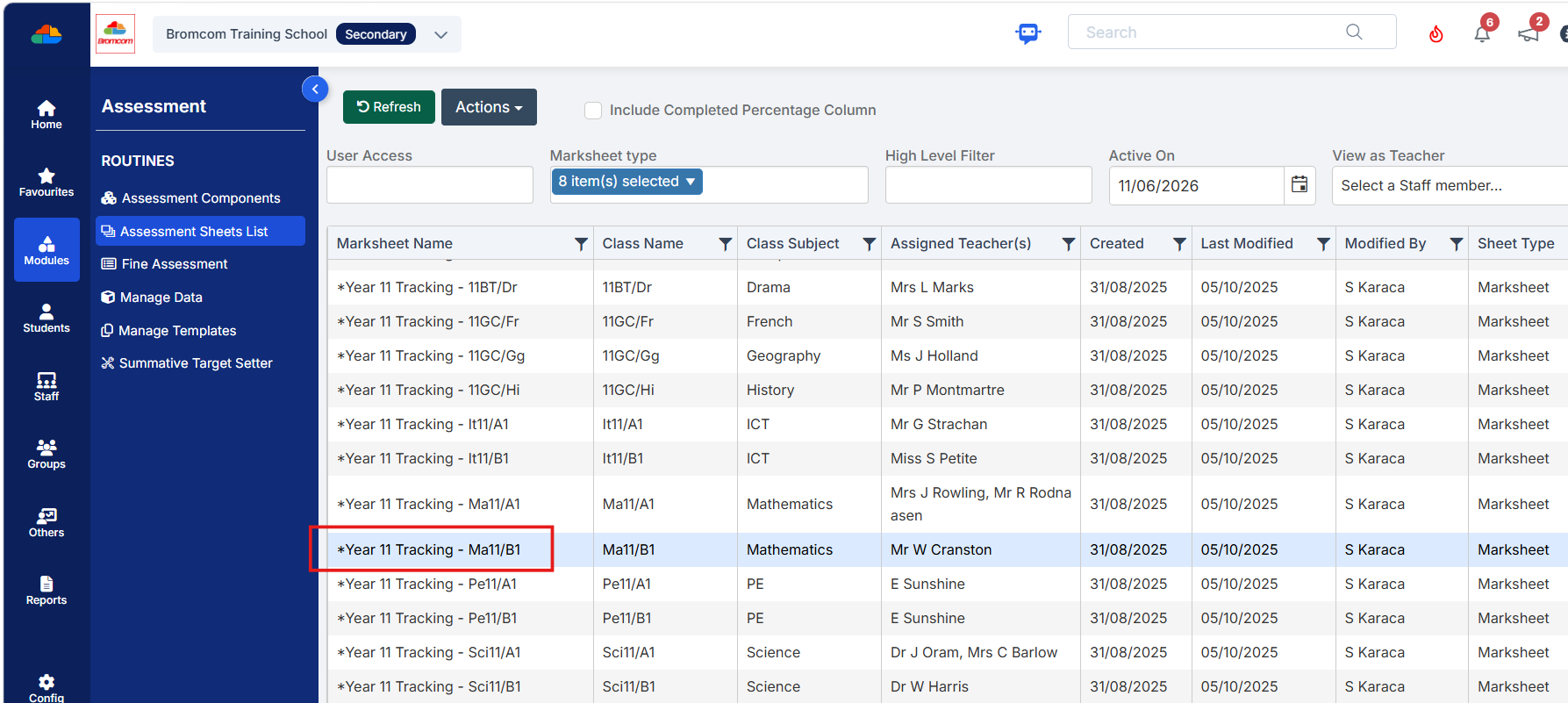
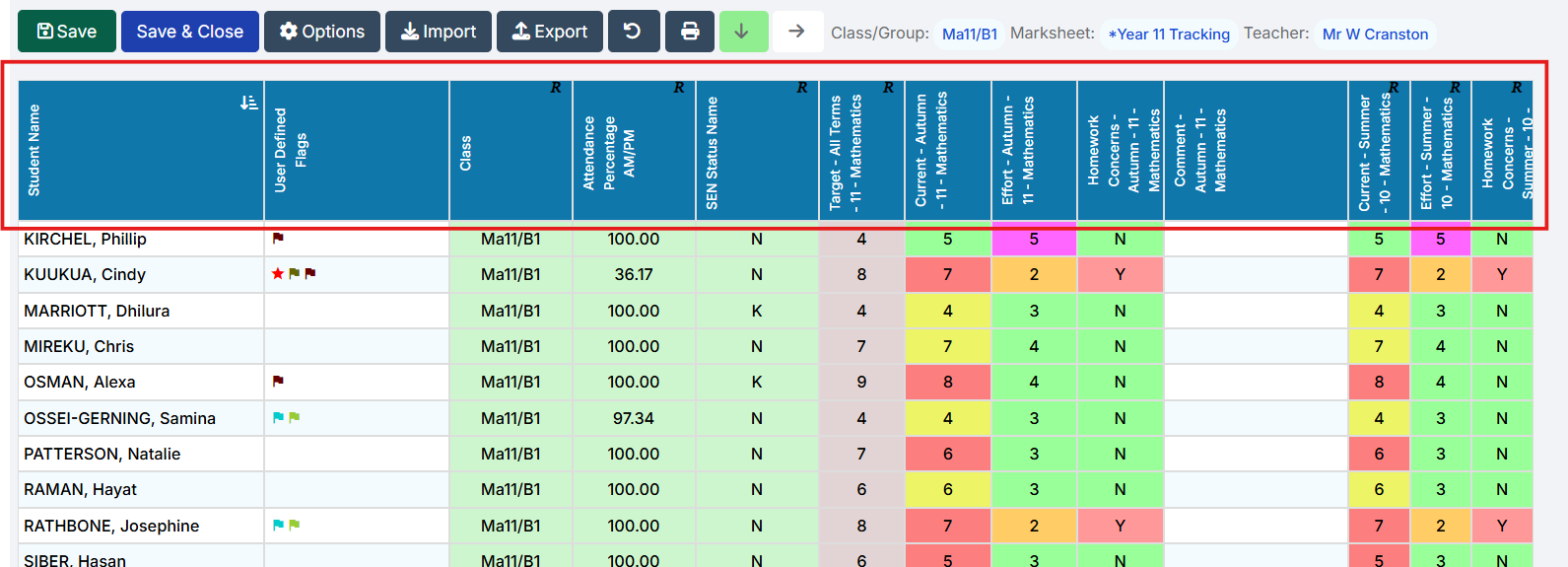
Below is an example Marksheet
Across the Top are the Column Headings.
Text Size and Alignment
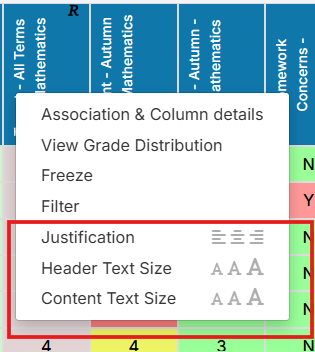
This is a standard feature that appears on All Column Headers.
Right Click on the Column Header, change the Positioning of the Text (justification) and Change the Text Size for the Header or Content
Add Additional Student Information Columns
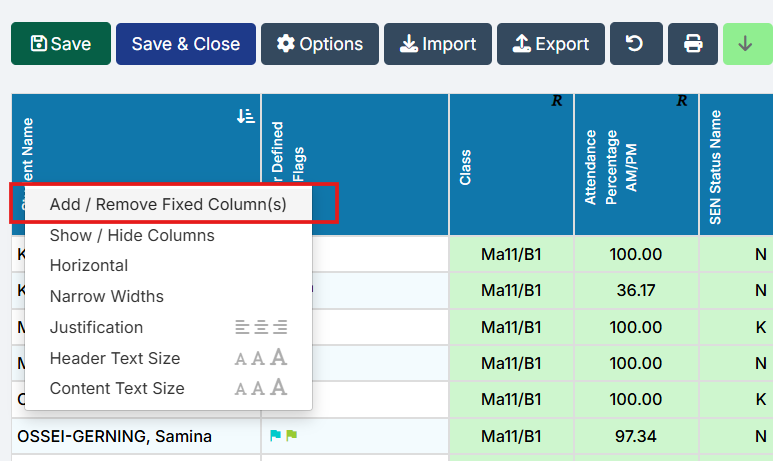
Right Click on Student Name and choose Add/Remove Fixed Columns
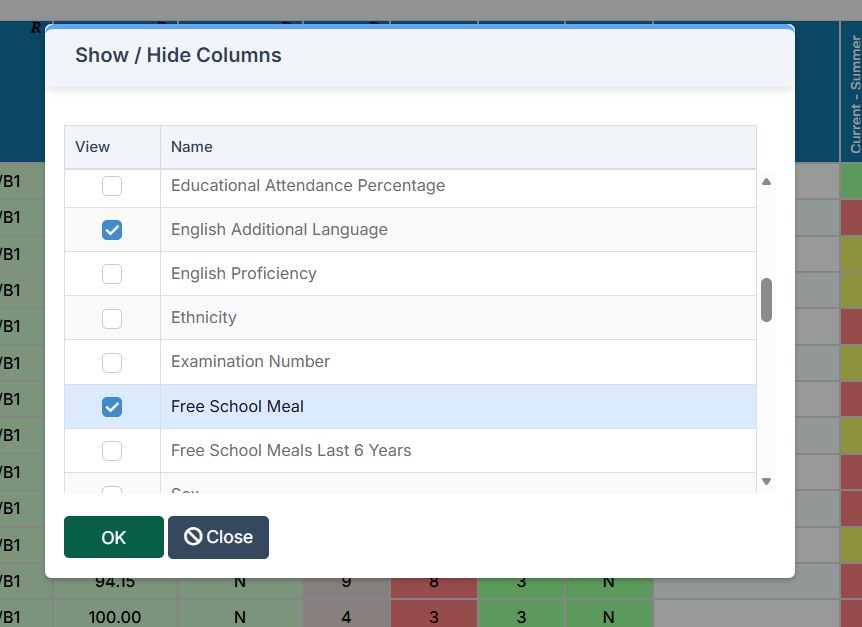
Tick the columns Add then click Ok
Bulk Data Entry
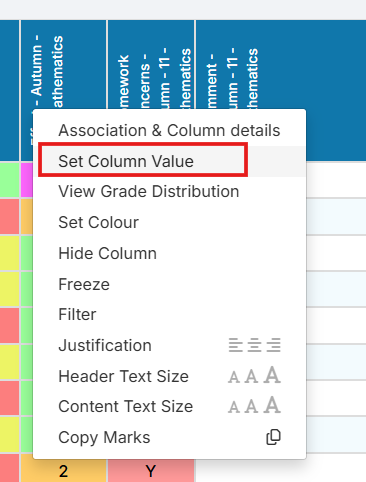
Right Clicking on a column for Data Entry and select Set Column Value
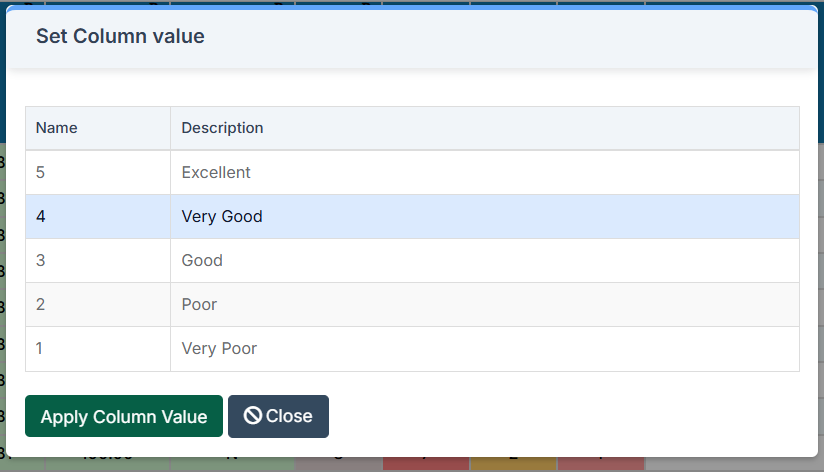
Select the grade and then Apply Column Value.
This will Bulk Update (flood fill) the column with the grade selected from the panel, the same grade will be assigned to all Students in the Marksheet.
Column Filters
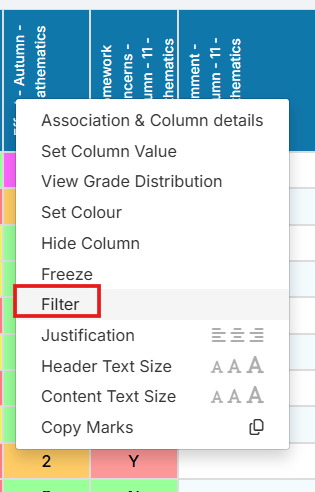
Right click on the Column Header and choose Filter
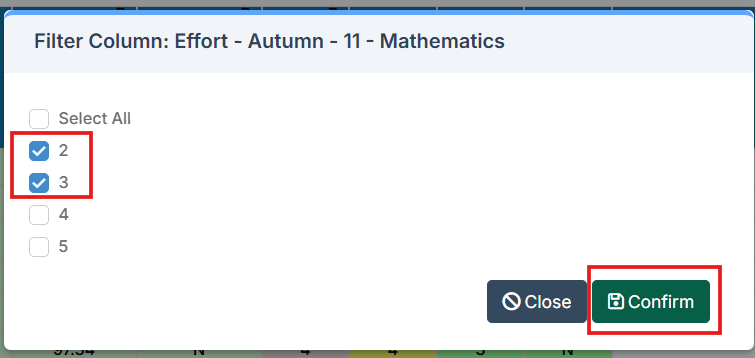
Tick the Boxes for the Results you want to see on the Marksheet and click Confirm
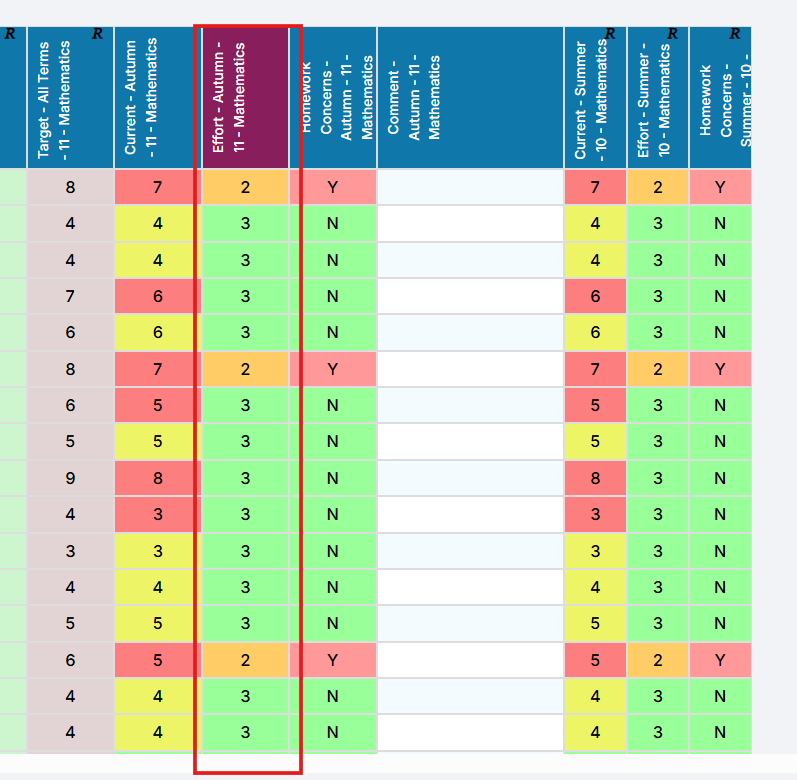
In the example below we only want to see Student with Grade 2 and 3
The Marksheet will Filter and the Column Header will be coloured Purple to indicate the Filter
Right click again and select all Grades to clear the Filter.
Reset to Original Format
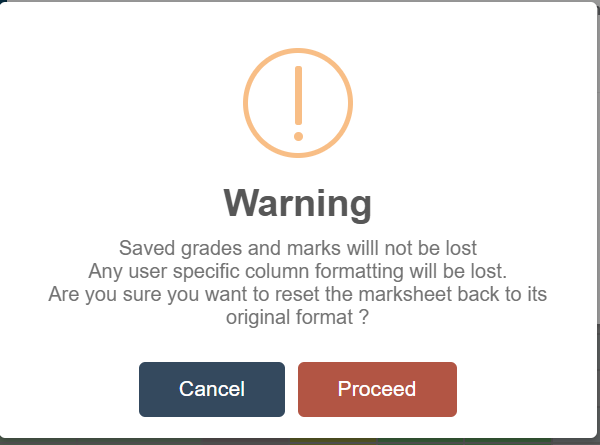
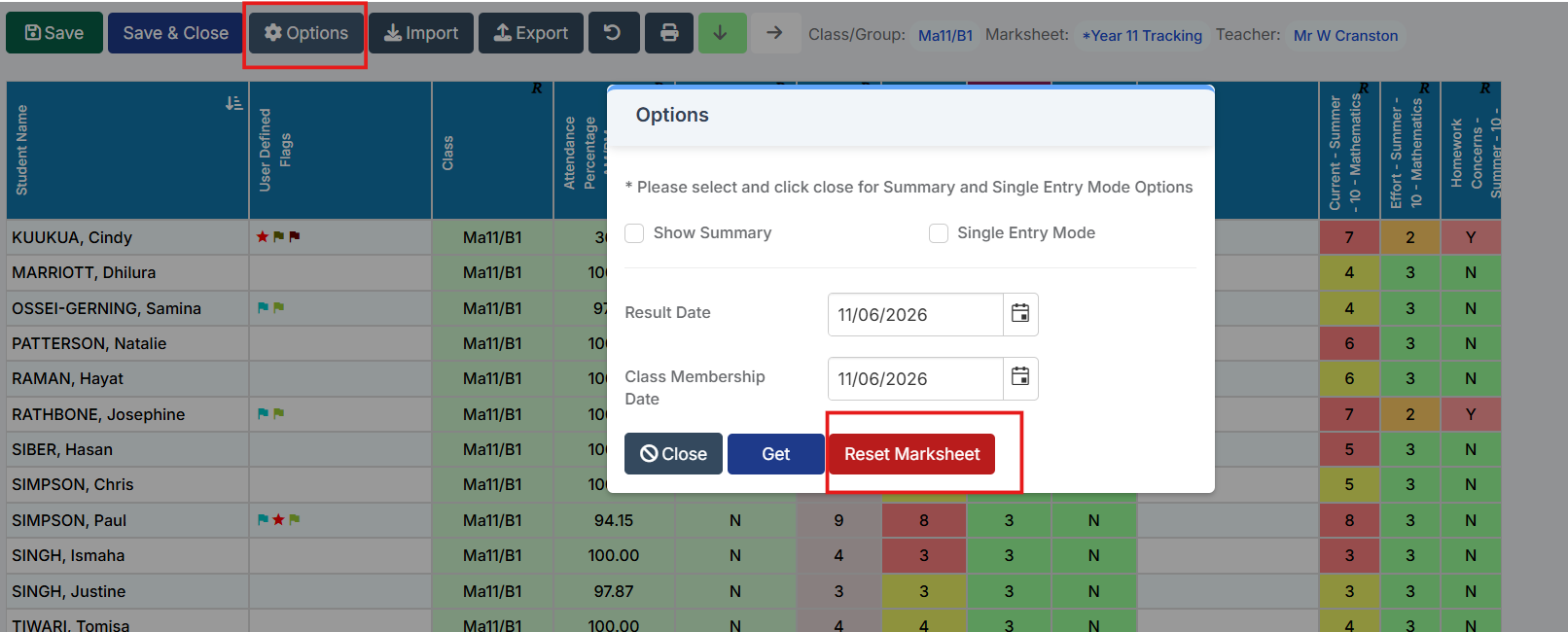
After making Changes to the Marksheet to reset back to Original Format click the top-left Options and select Reset Marksheet
Then if happy click Proceed