In this guide, we show How to Manage the MAT Finance Year End Process for some or all Sites across a MAT.
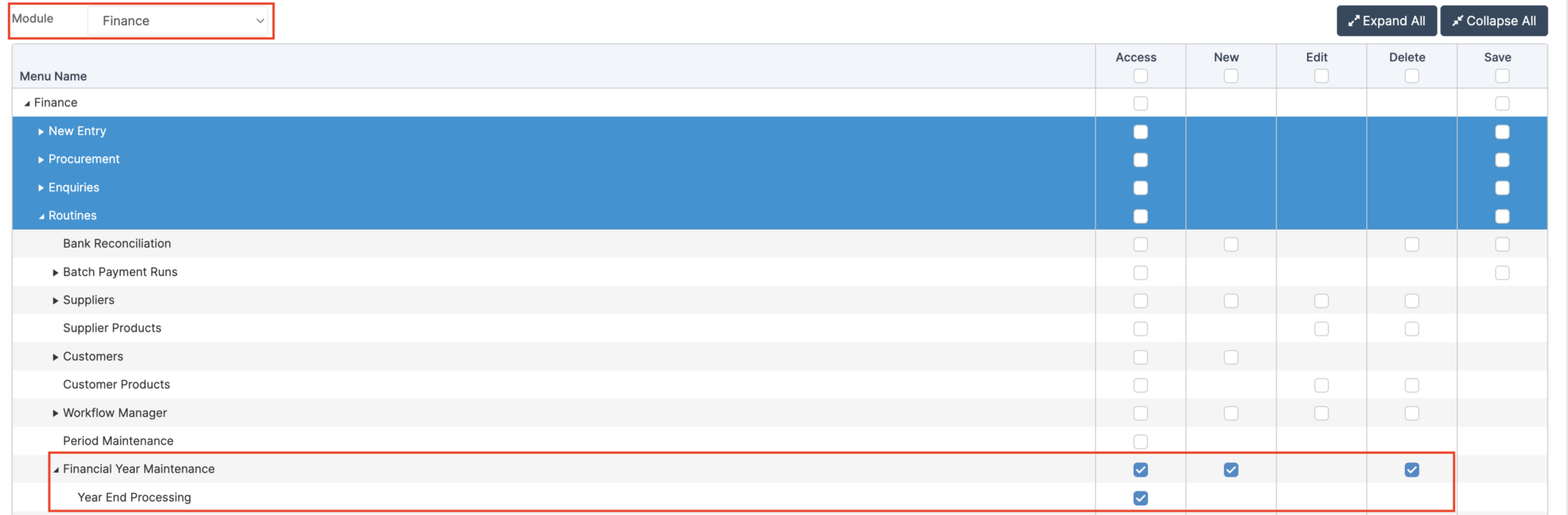
Access: The minimum permissions required to Manage the MAT Finance Year End Process are found in the Finance Module section of Config > Setup > Roles & Permissions.
Pre-requisites: this guide assumes that all previous Financial Years have been closed. In addition, the New Financial Year needs to have been added to the system and it needs to have been opened. See: How to Create a New Financial Year in MAT Finance.
Related guides:
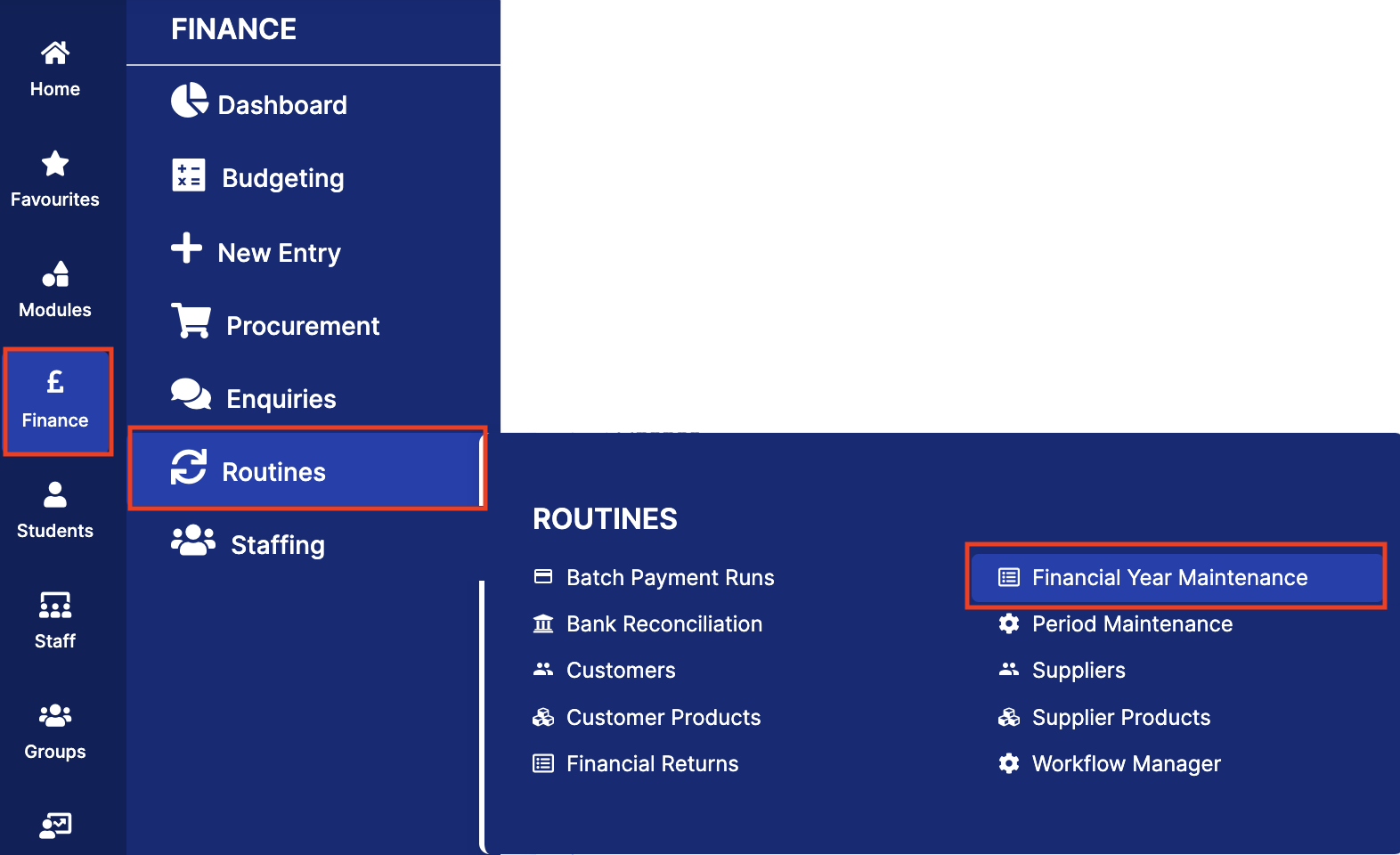
To begin, from the left Menu, go to Finance > Routines > Financial Year Maintenance.
Click on the Year End Process icon under the Actions column to open the Close Financial Year Wizard in a new tab.
There are 4 Stages to Managing the MAT Finance Year End Process:
Step 1: Confirm Readiness
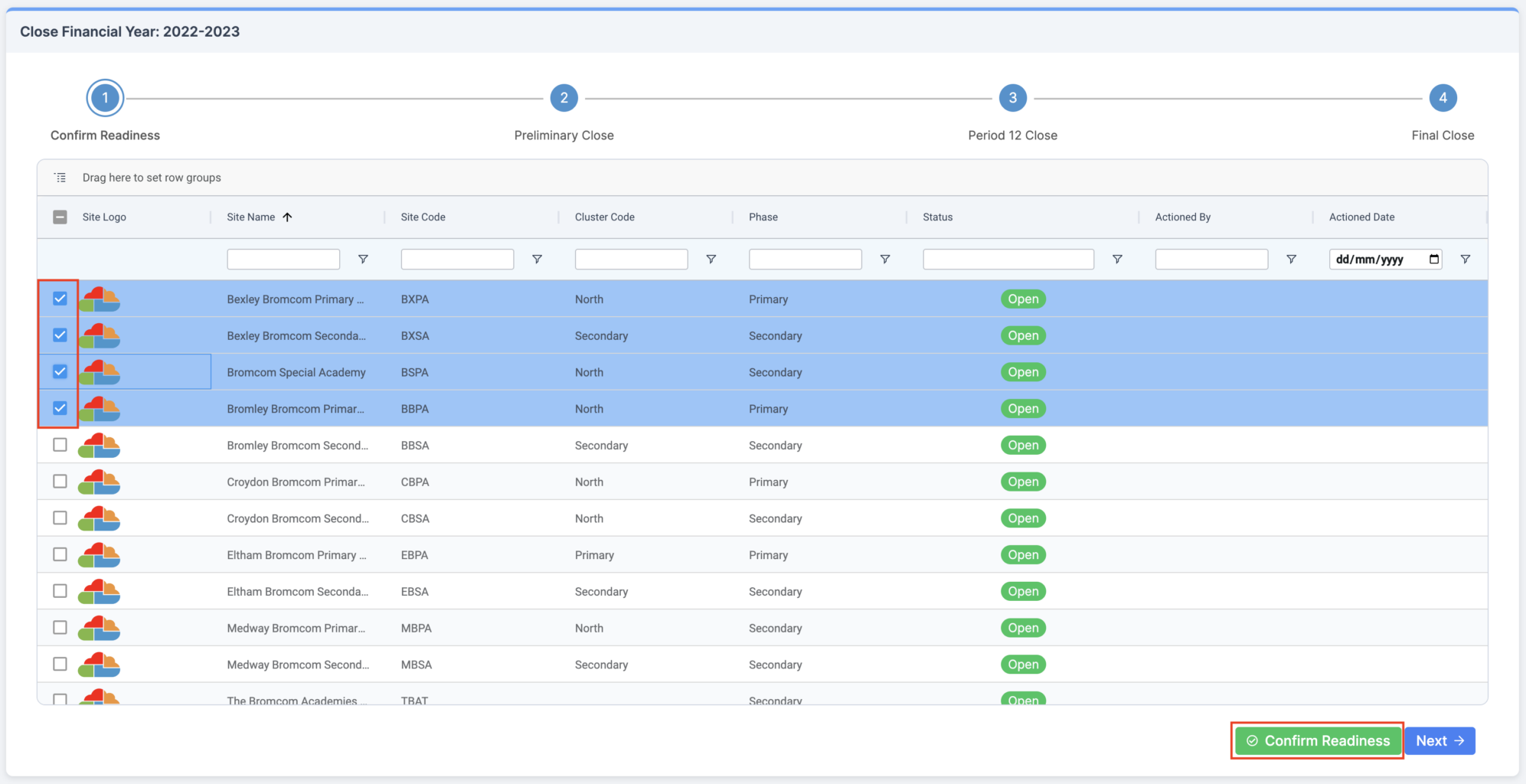
In the Close Financial Year Wizard in the newly opened tab, select the open Sites to have the Financial Year closed by ticking the checkboxes. Sites can selected one at a time, as a group, or all together.
Click Confirm Readiness button.
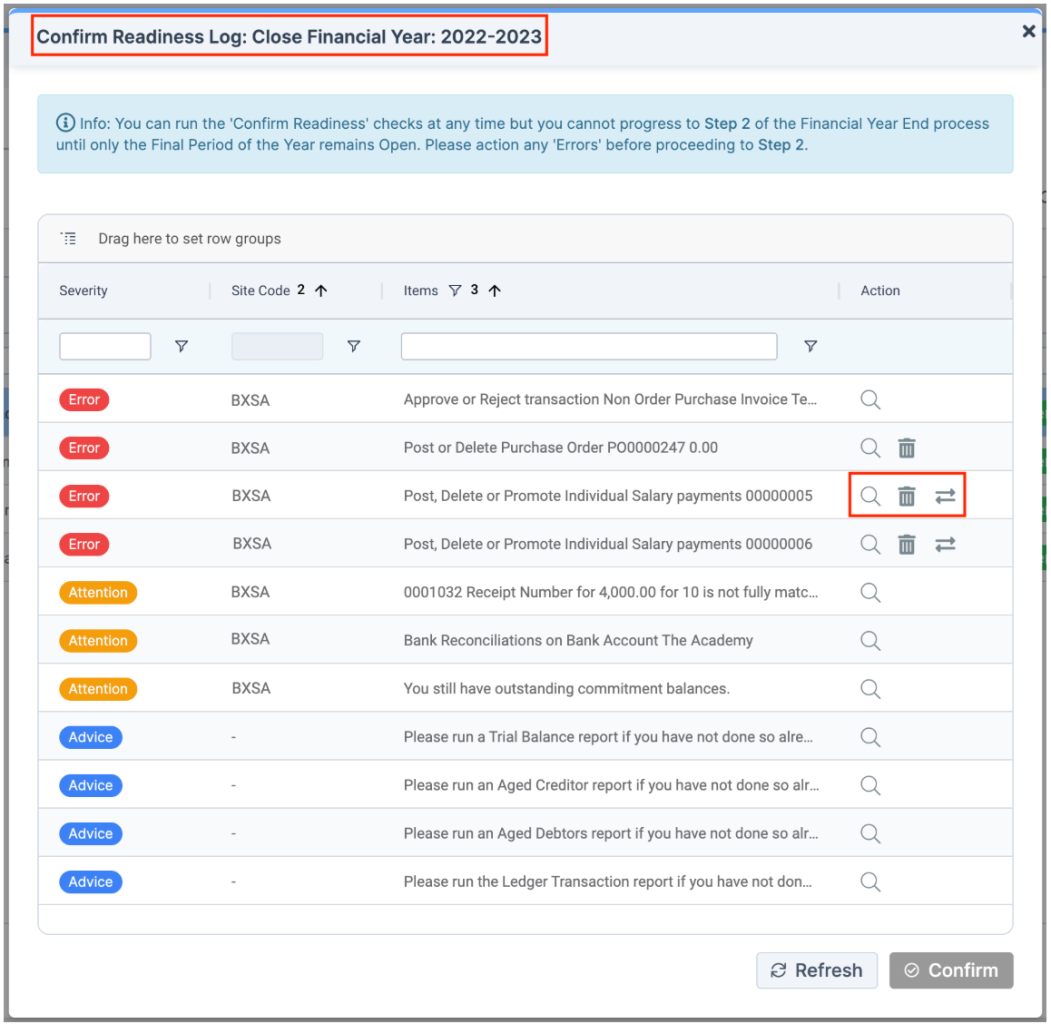
The system generates a Confirm Readiness Log of data checks by Site:
- Error: Prevents the completion of the step and must be rectified
- Attention: Requires consideration and possible action
- Advice: Requires consideration
Potentially, up to three icons are displayed in the Action column:
- Magnifying Glass: Enables the document to be viewed in a new tab
- Bin: Deletes the document
- Arrows: Moves the document to the next Financial Year
Note: Errors need to be resolved before it is possible to Confirm and move to the next step.
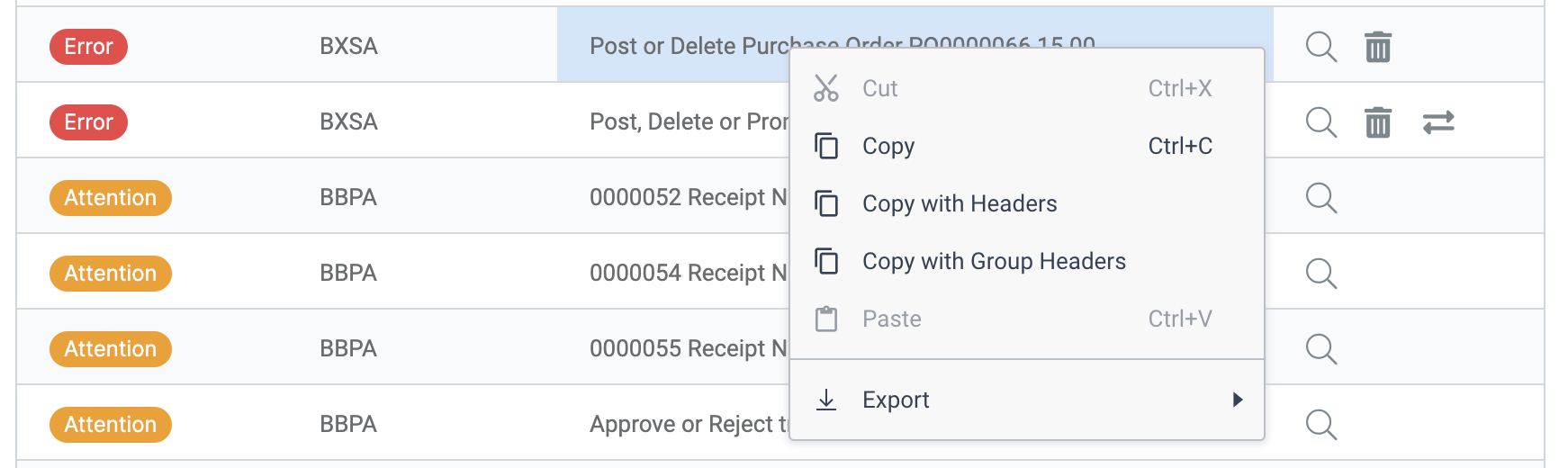
Note: Right click on rows in the Log to Copy and Export.
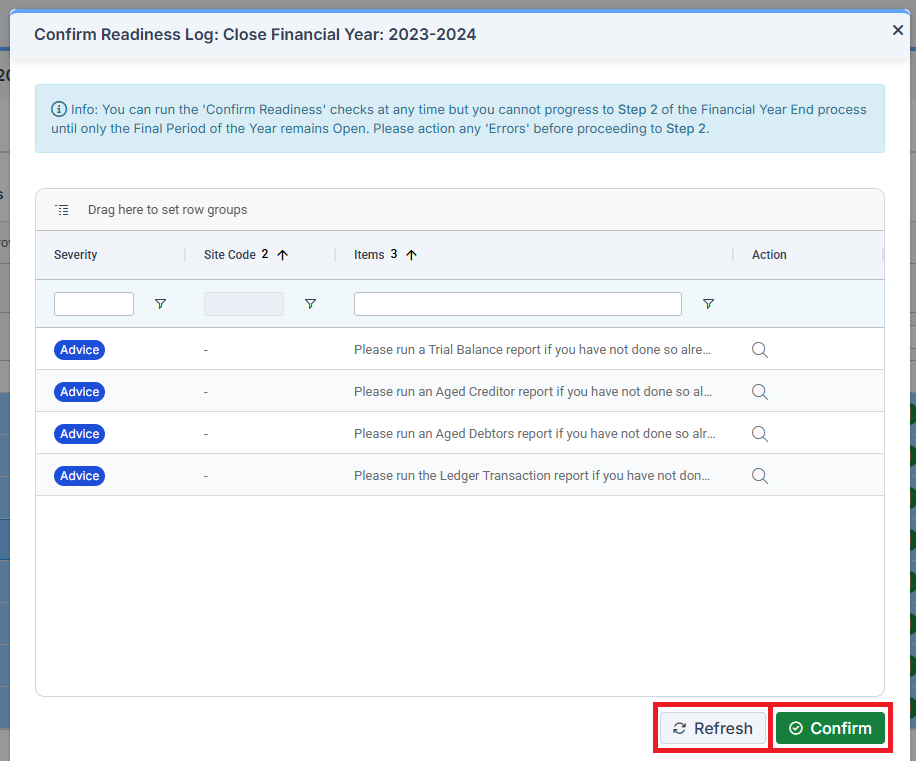
Once all Errors have been resolved, users can Refresh the Log and the Confirm button becomes available. Click Confirm to move to the next step in the Wizard.
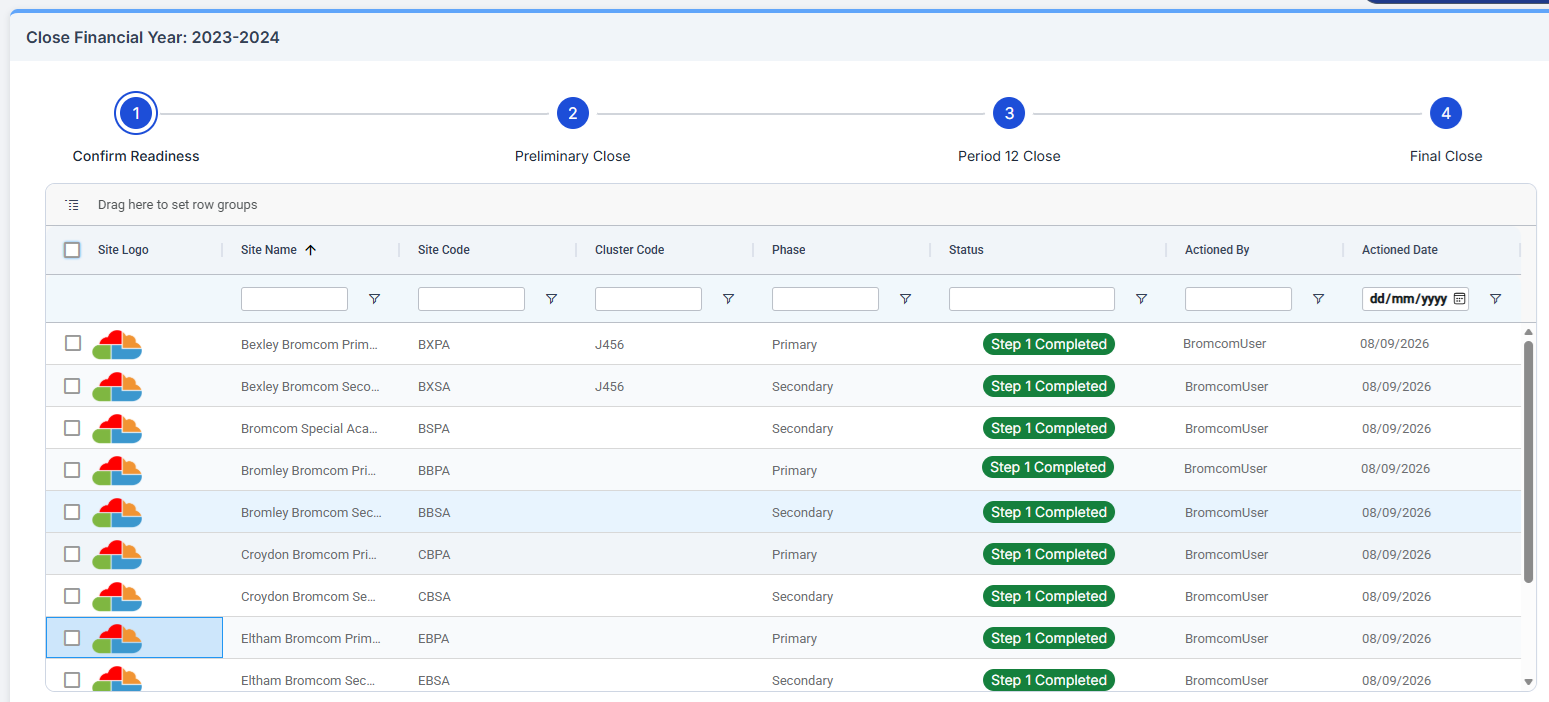
The Status of the Site in Step 1: Confirm Readiness updates to Step 1 Completed.
Step 2: Preliminary Close
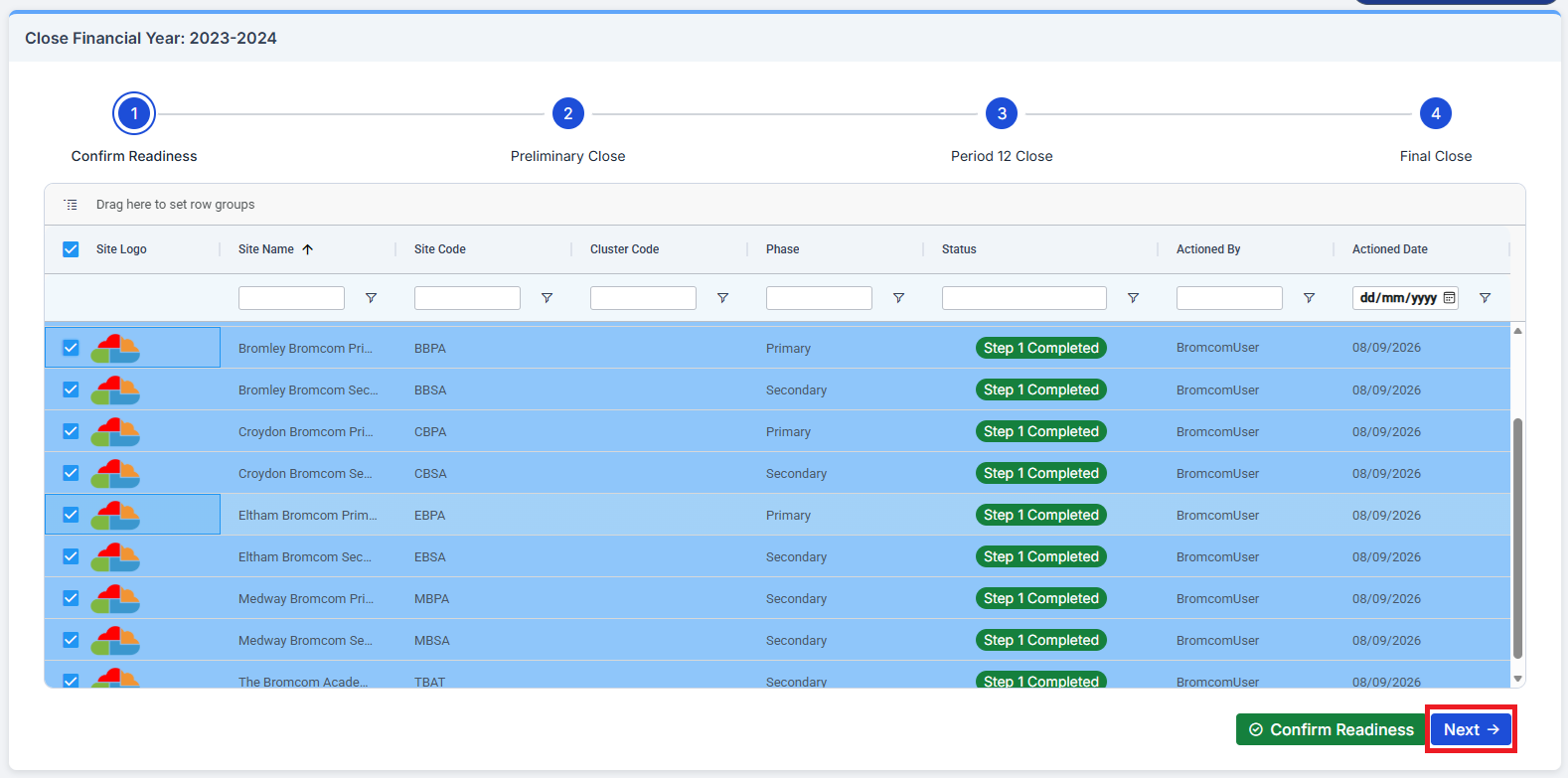
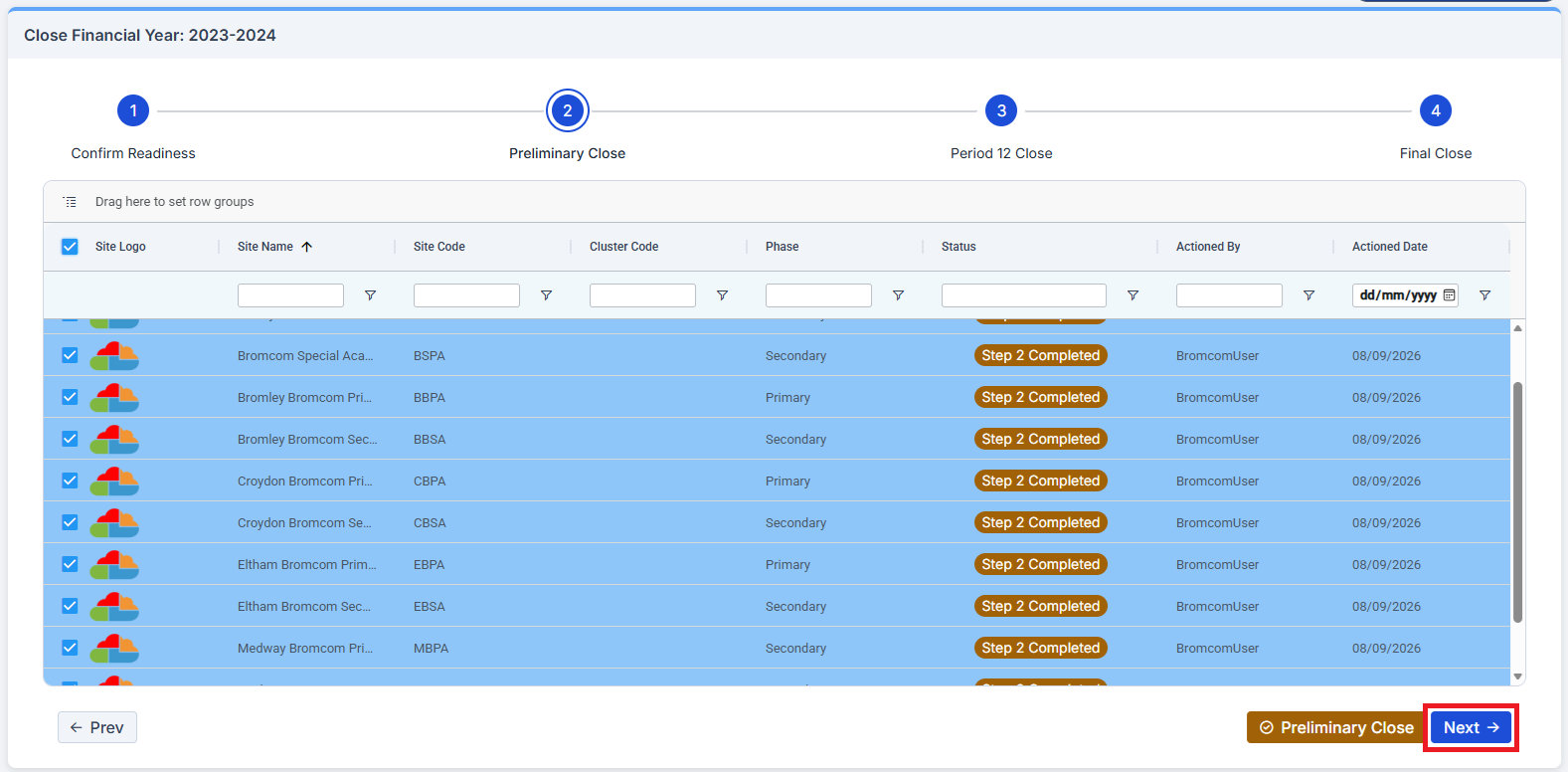
Step 1 is shown as Completed. Select the Schools to move to the next Stage and click Next.
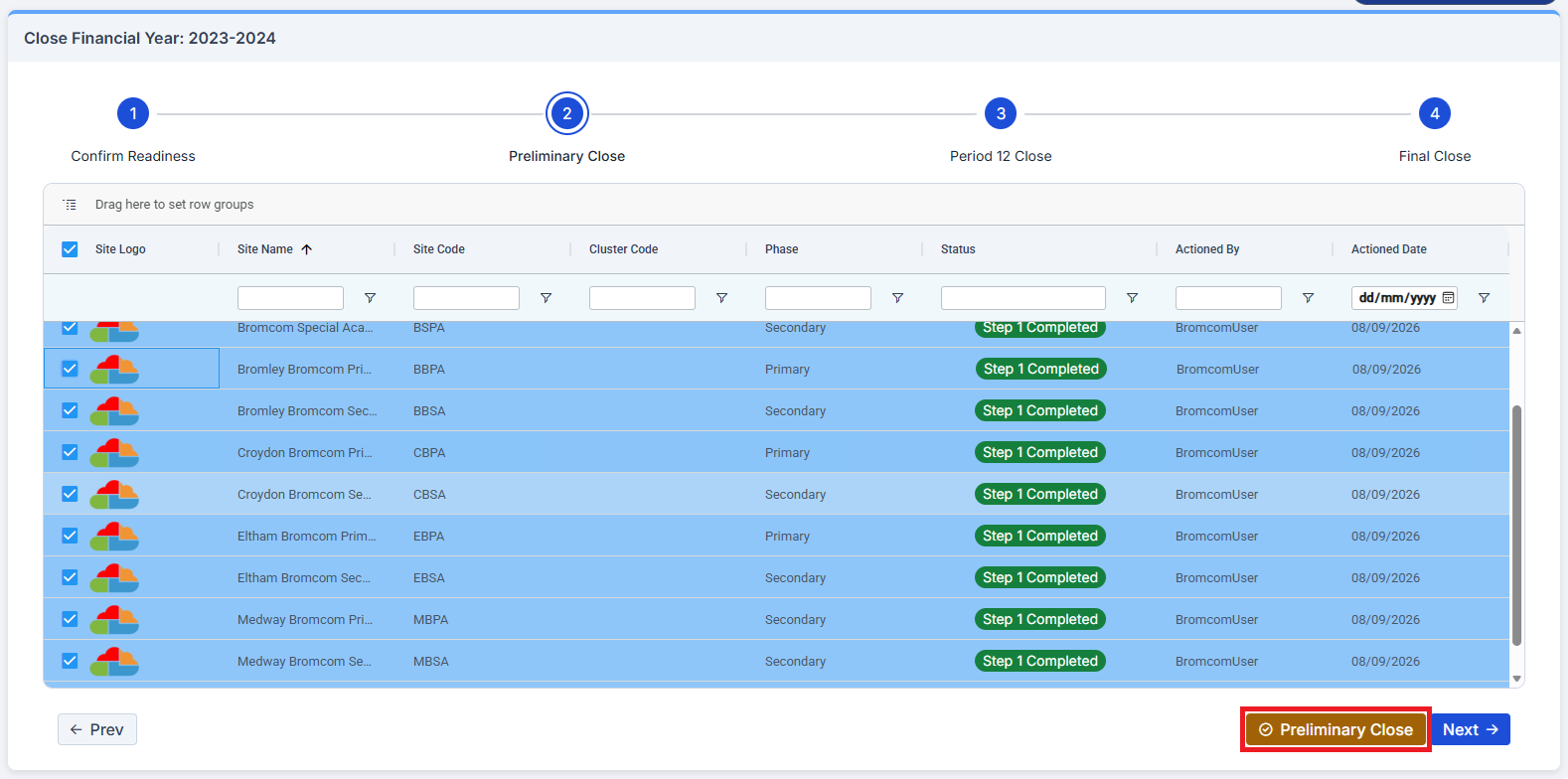
Click on Preliminary Close.
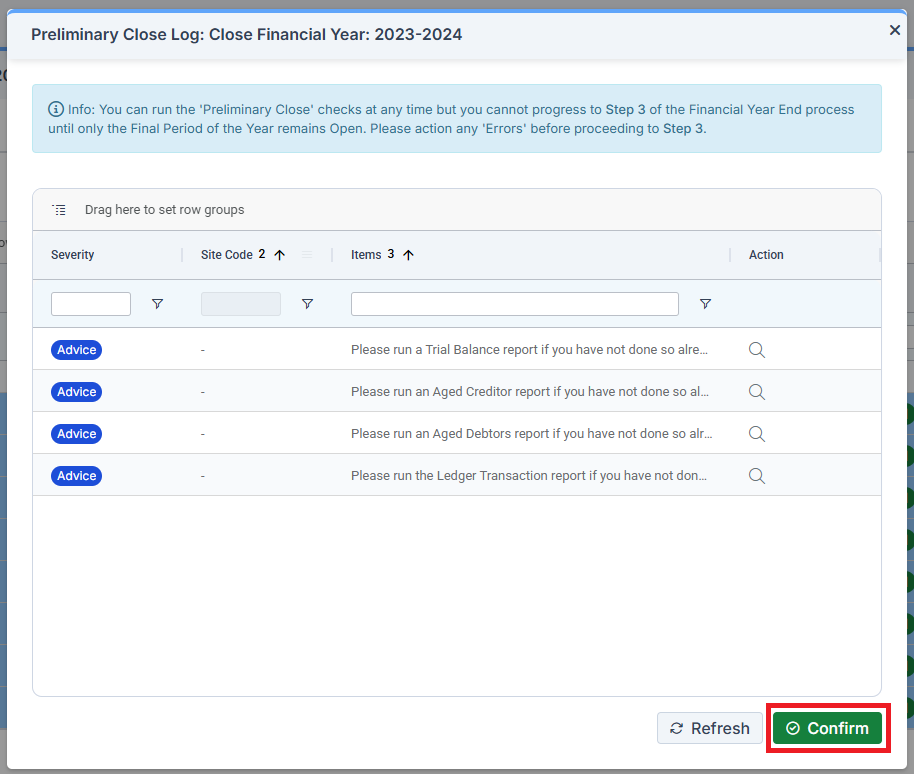
A Preliminary Close Log is generated. Click Confirm to continue. Deal with any Errors or Attention, as required.
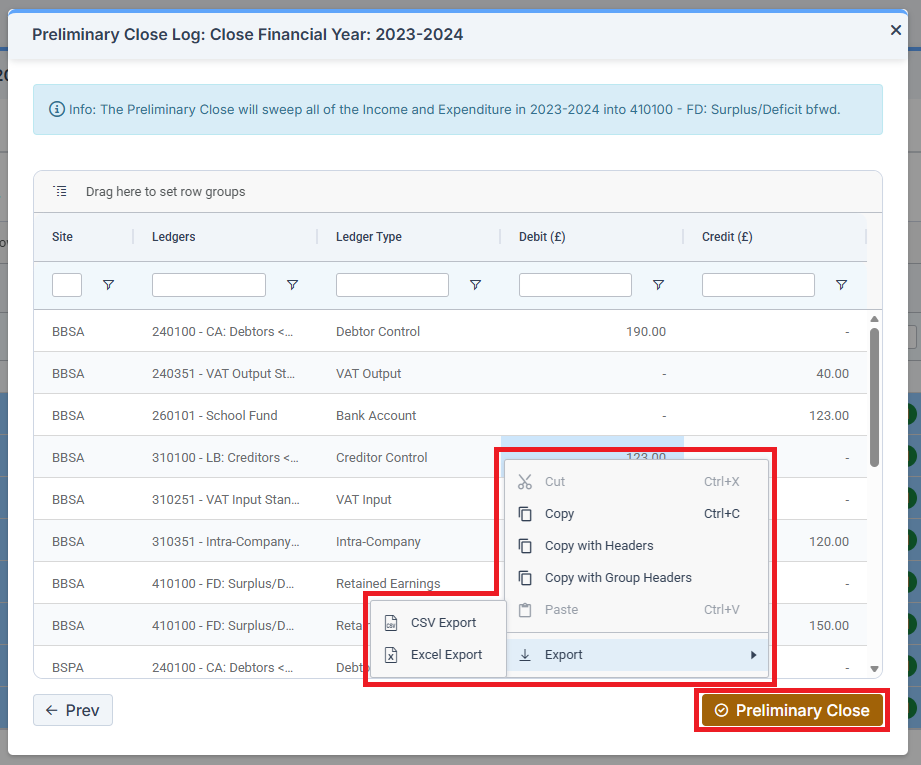
Another Preliminary Close Log is generated. Right click on it to either Copy or Export it. Click on Preliminary Close to continue the process.
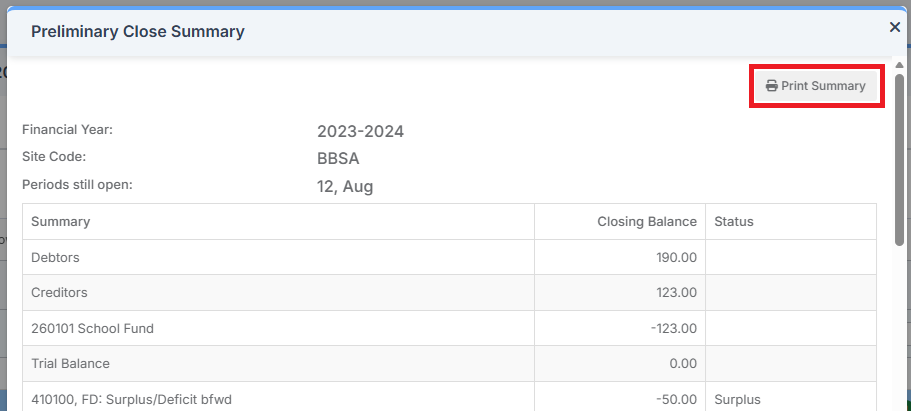
A Preliminary Close Summary is generated. It can be Printed.
Step 2 is shown as Completed. Select the Schools to move to the next Stage and click Next.
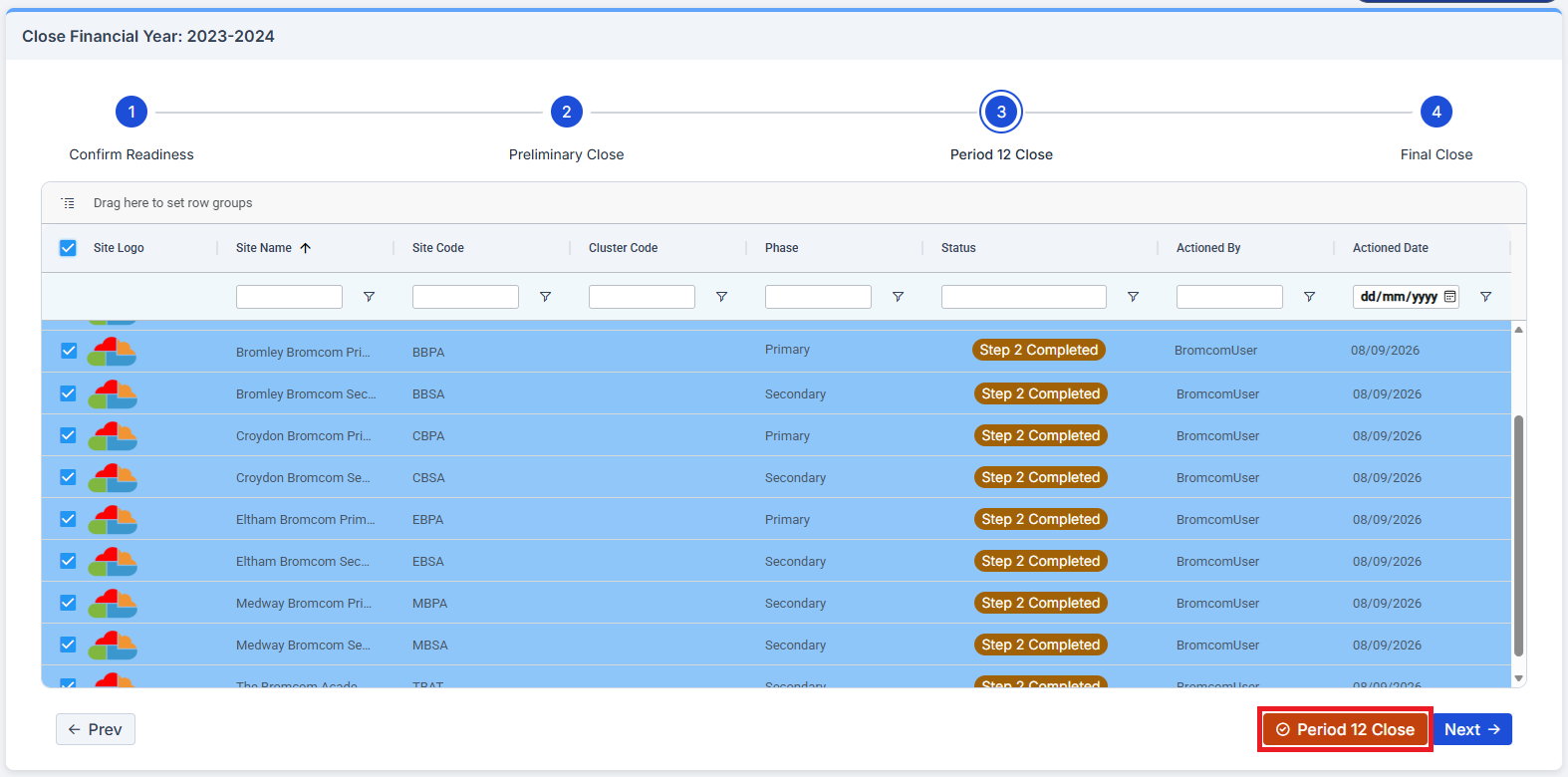
Step 3: Period 12 Close
Select the Schools to be moved to the next Stage in the process and click on Period 12 Close.
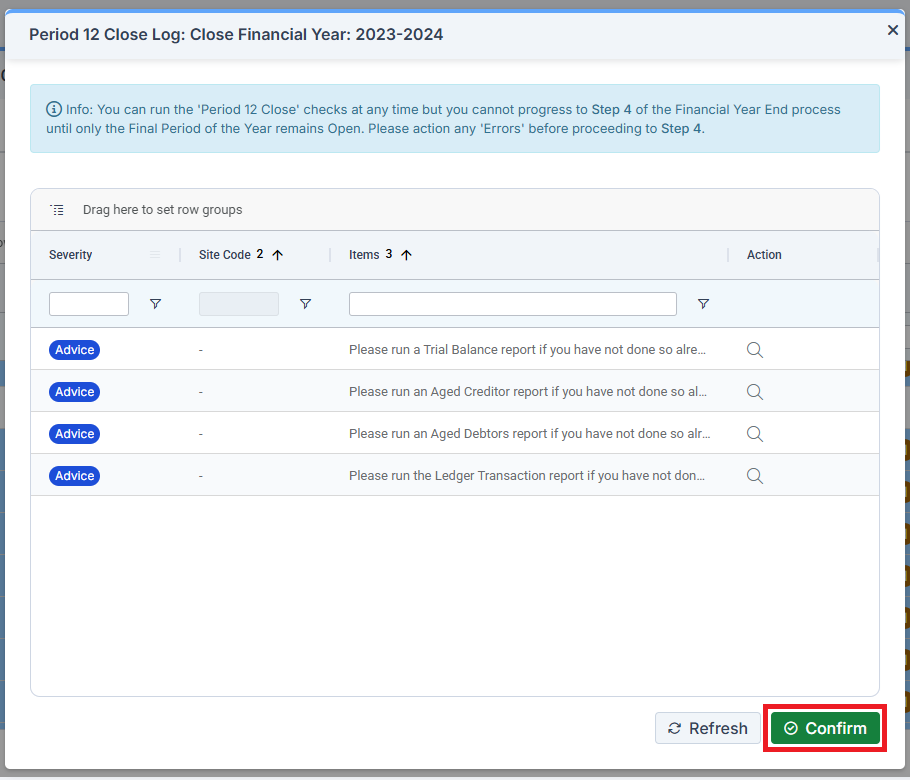
A Period 12 Close Log is generated. Click on Confirm. Deal with any Errors or Attention, as required.
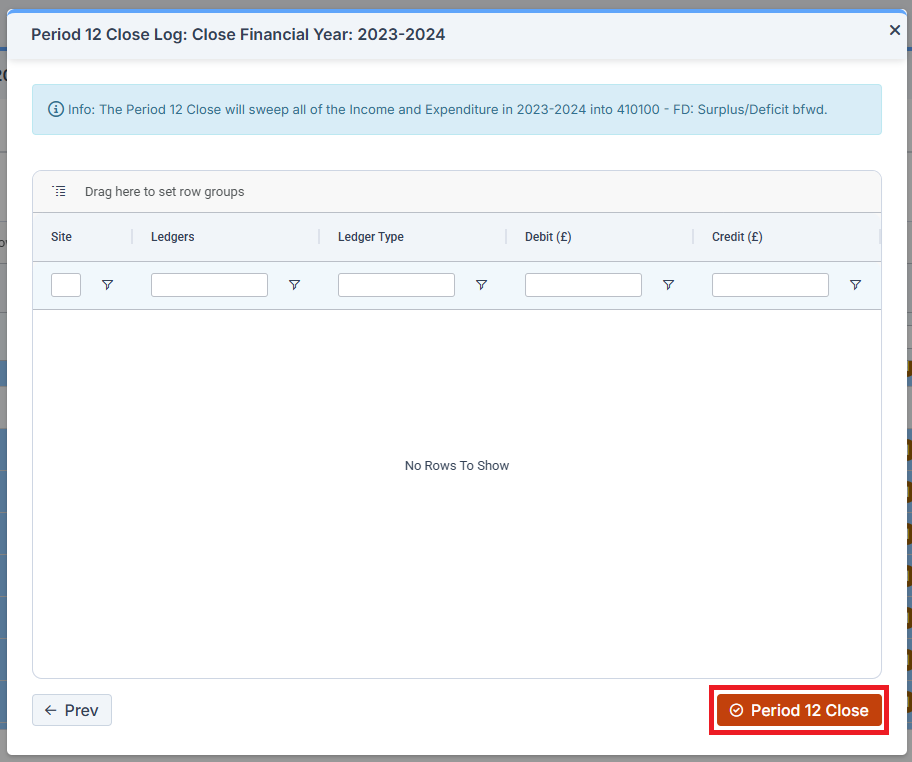
Another Period 12 Close Log is generated. If information is shown in it, it is possible to right click on it to either Copy or Export it, as shown above. Click on Period 12 Close.
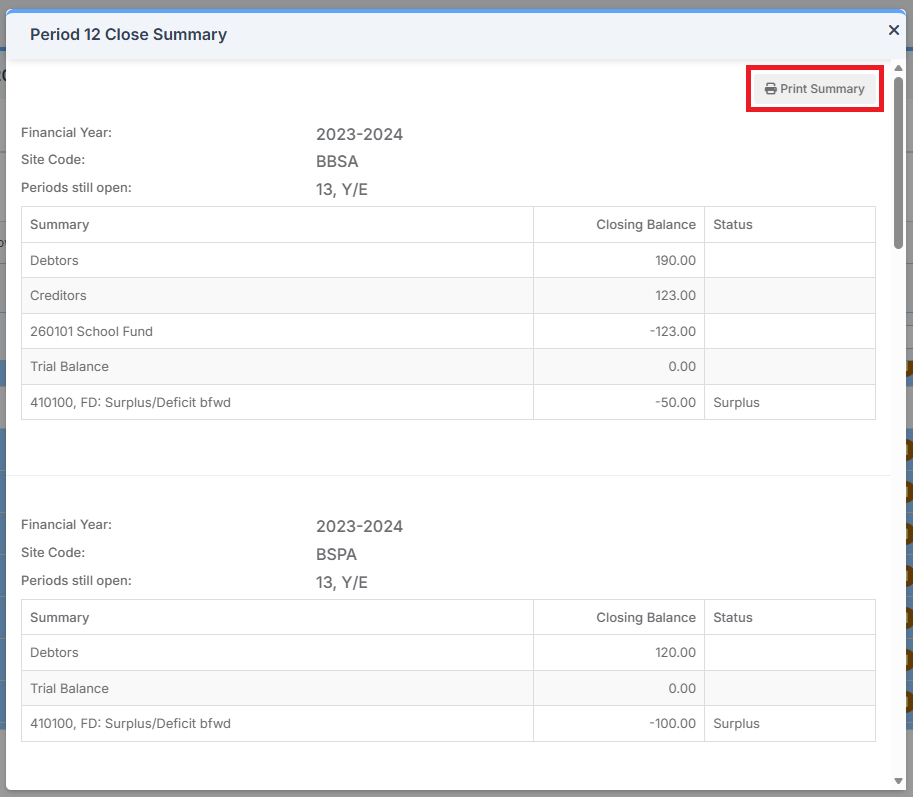
A Period 12 Close Summary is generated. It can be Printed.
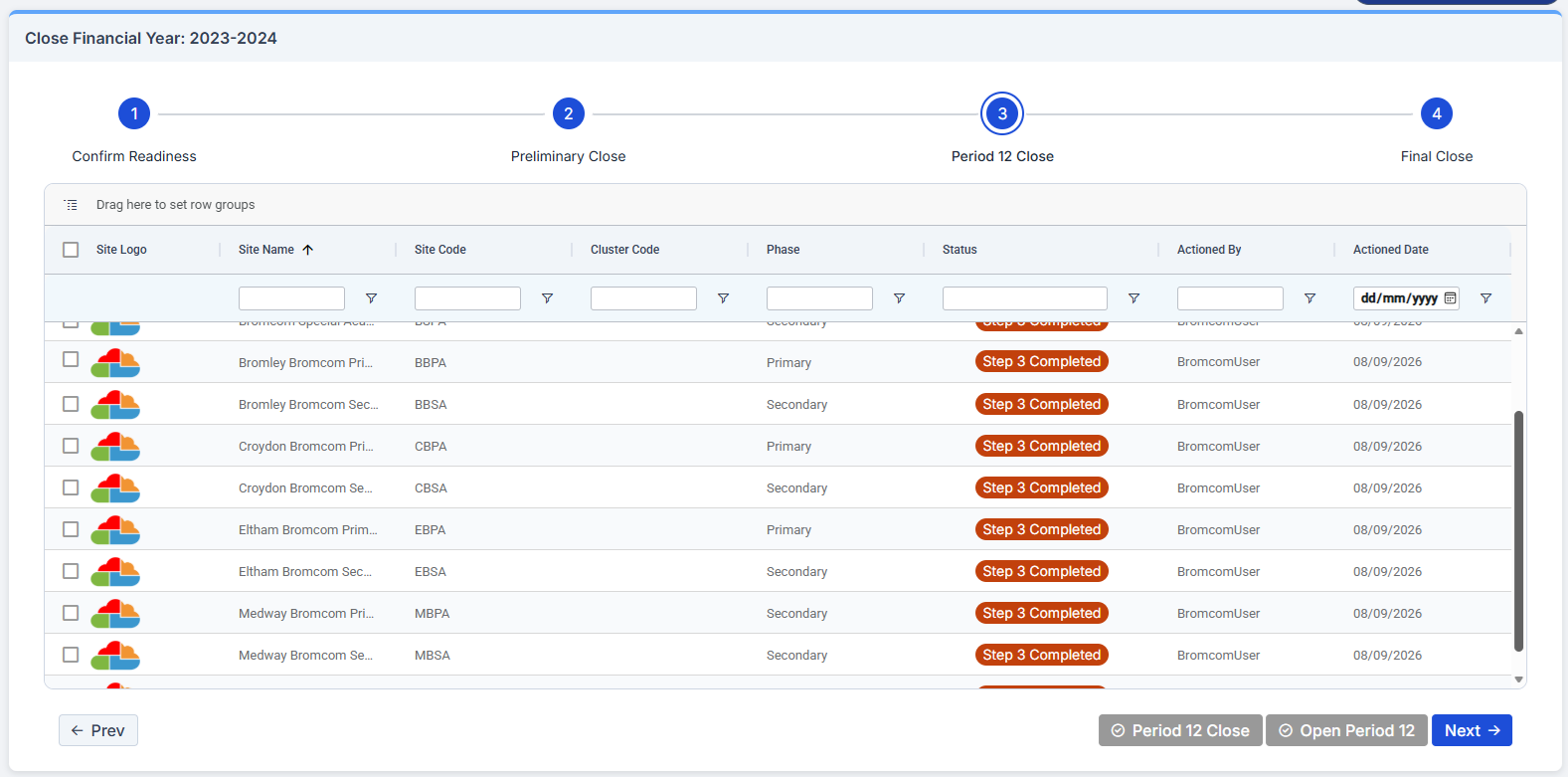
Step 3 is shown as Completed.
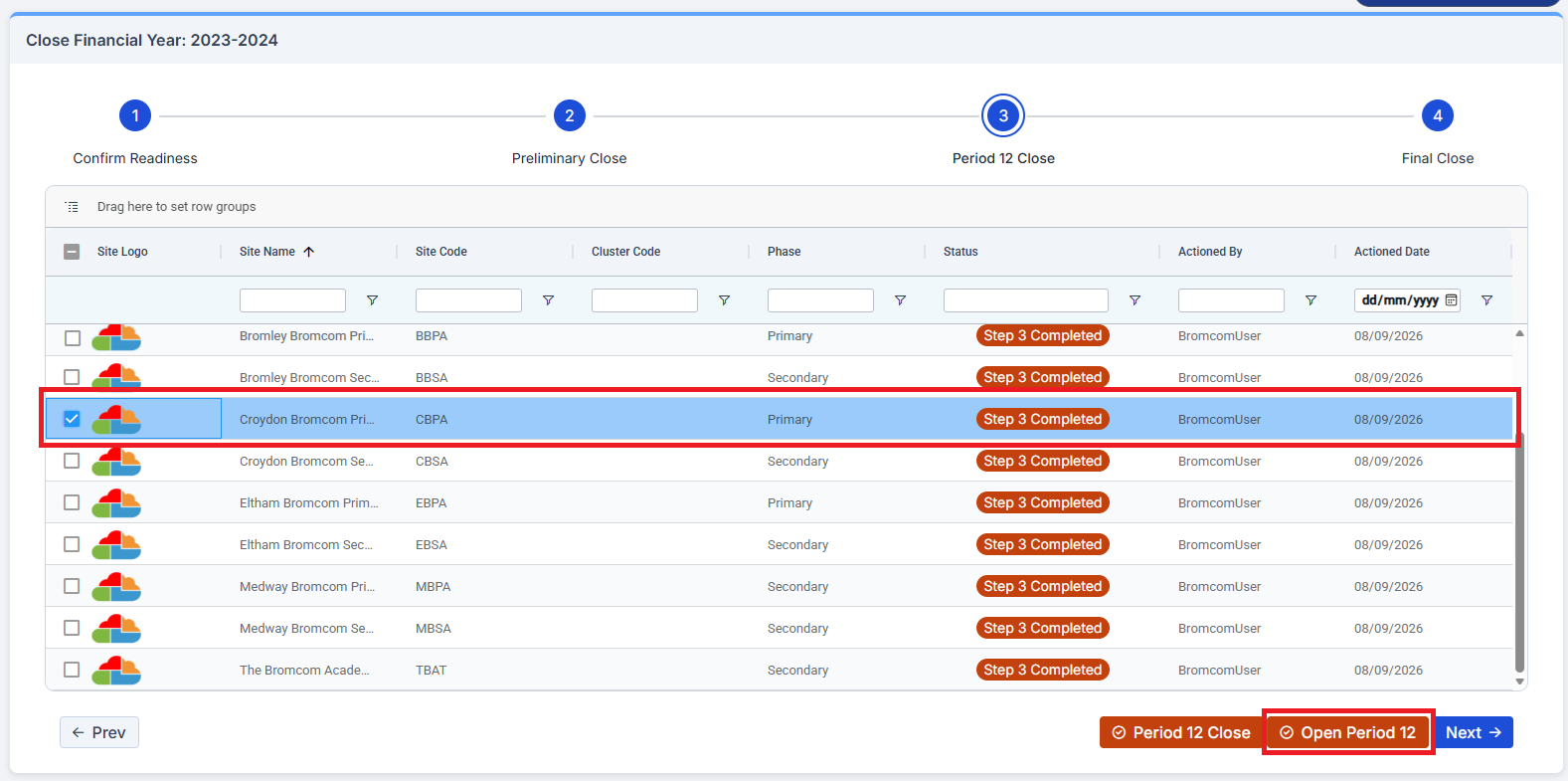
At this stage, it is possible to select a School or a number of Schools and Open Period 12 after it has been closed by selecting the School(s) and clicking Open Period 12.
Step 4: Final Close
Select which Schools to move to Final Close and click on Final Close.
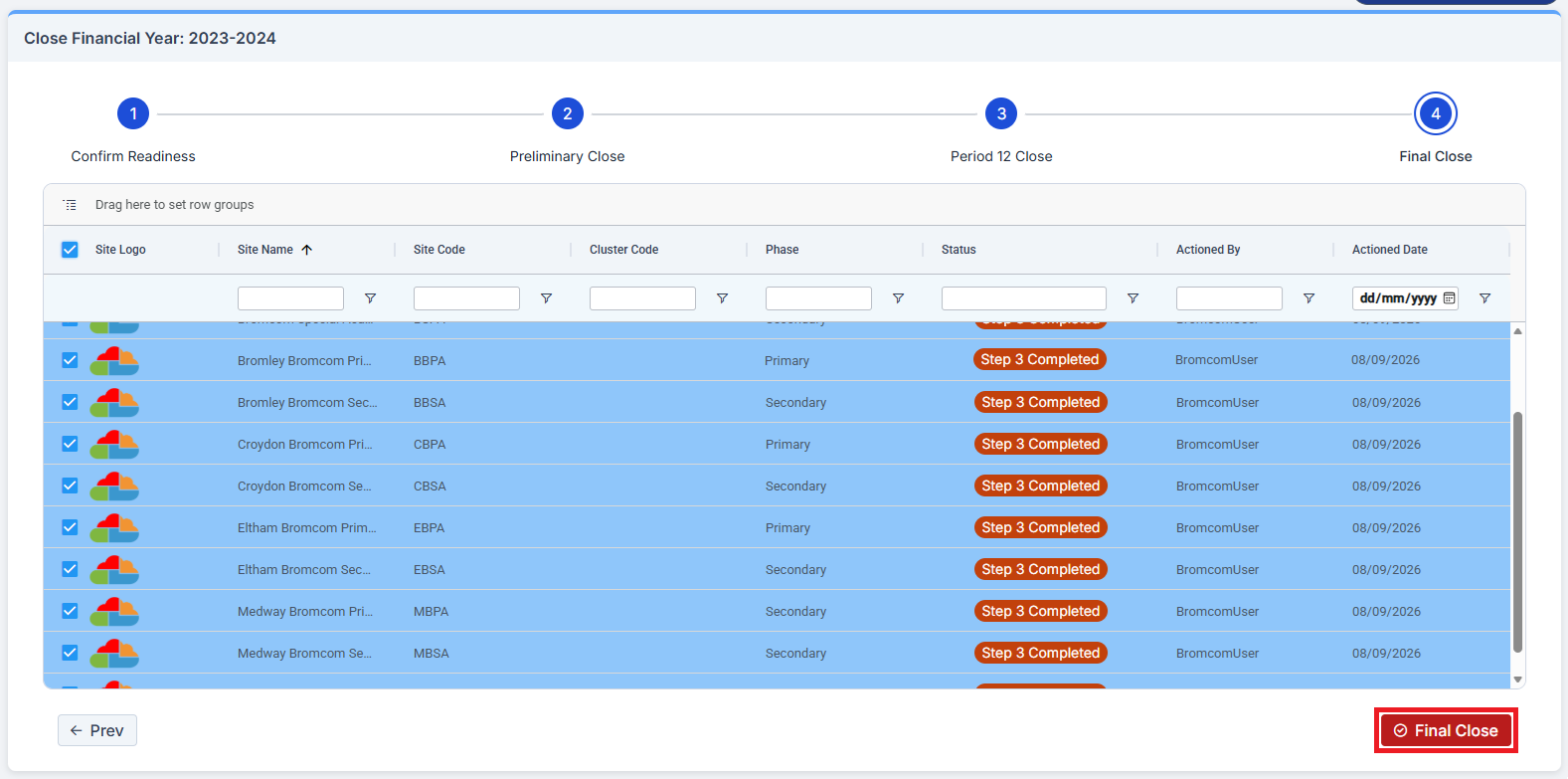
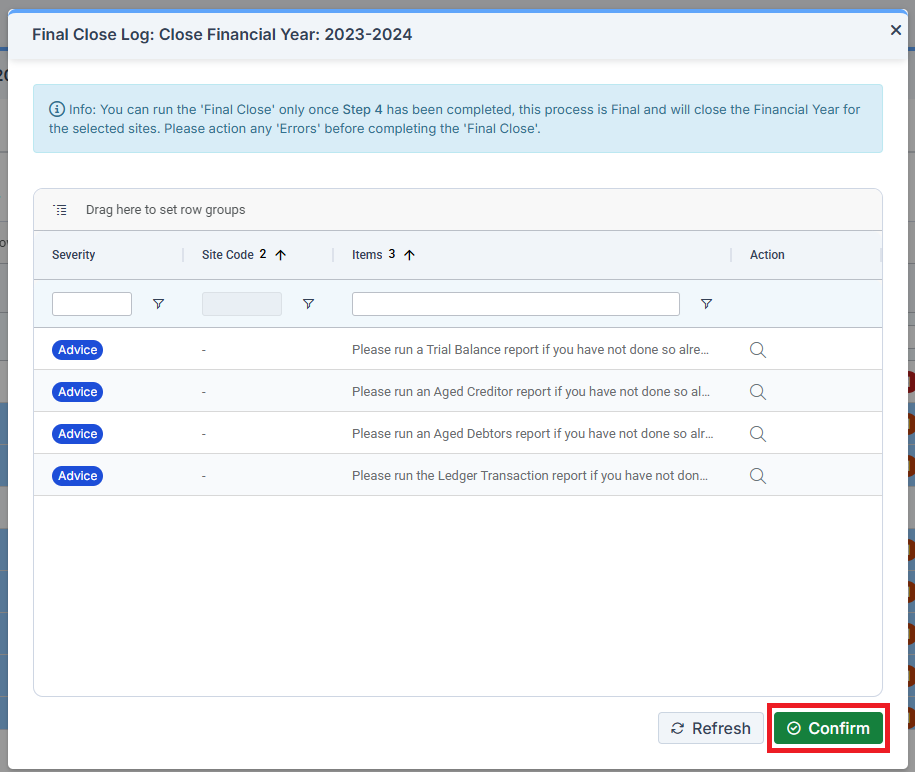
A Final Close Log is generated. Click on Confirm. Deal with any Errors or Attention, as required.
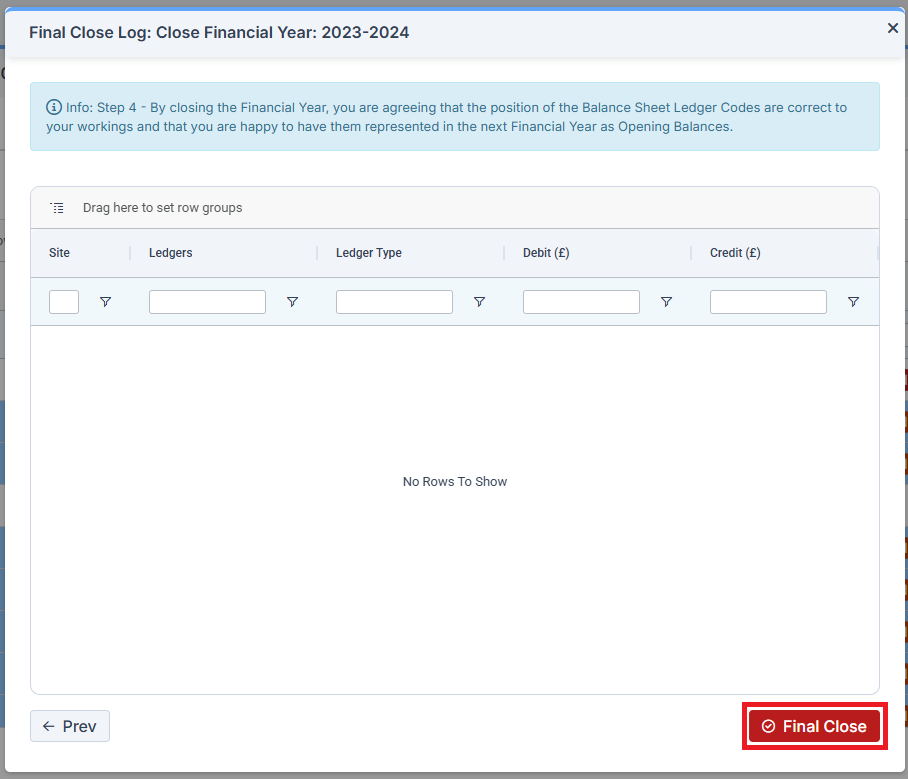
Another Final Close Log is generated. If information is shown in it, it is possible to right click on it to either Copy or Export it as shown above. To Final Close, click on Final Close.
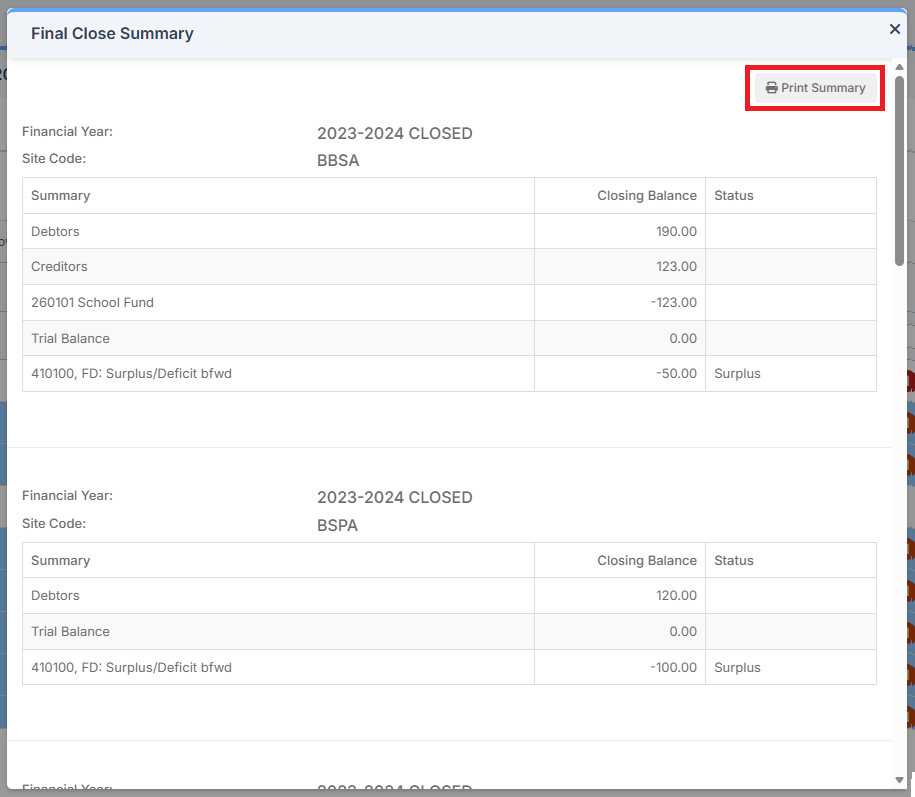
A Final Close Summary is generated. It can be Printed.
Step 4 is shown as Completed.
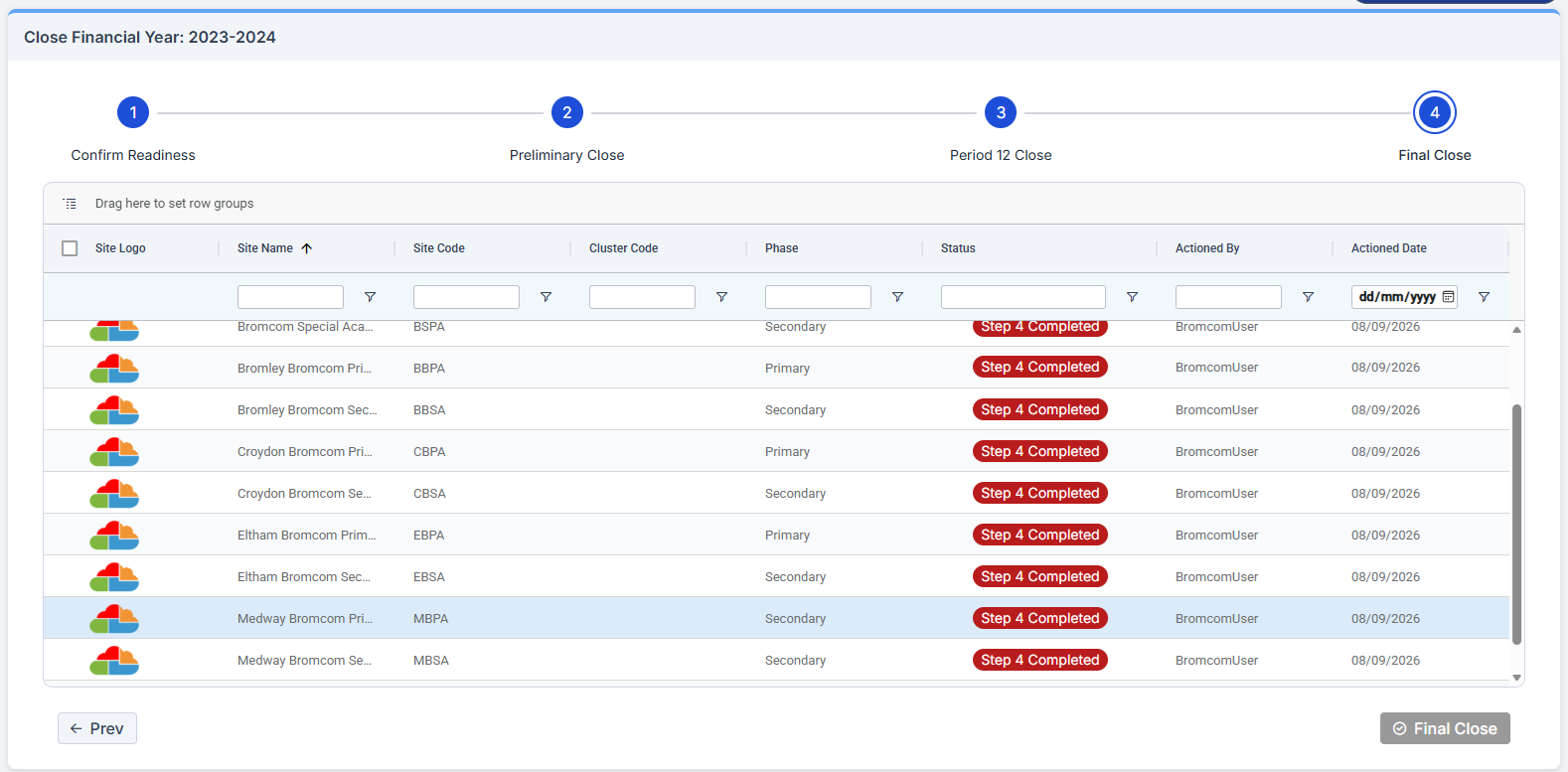
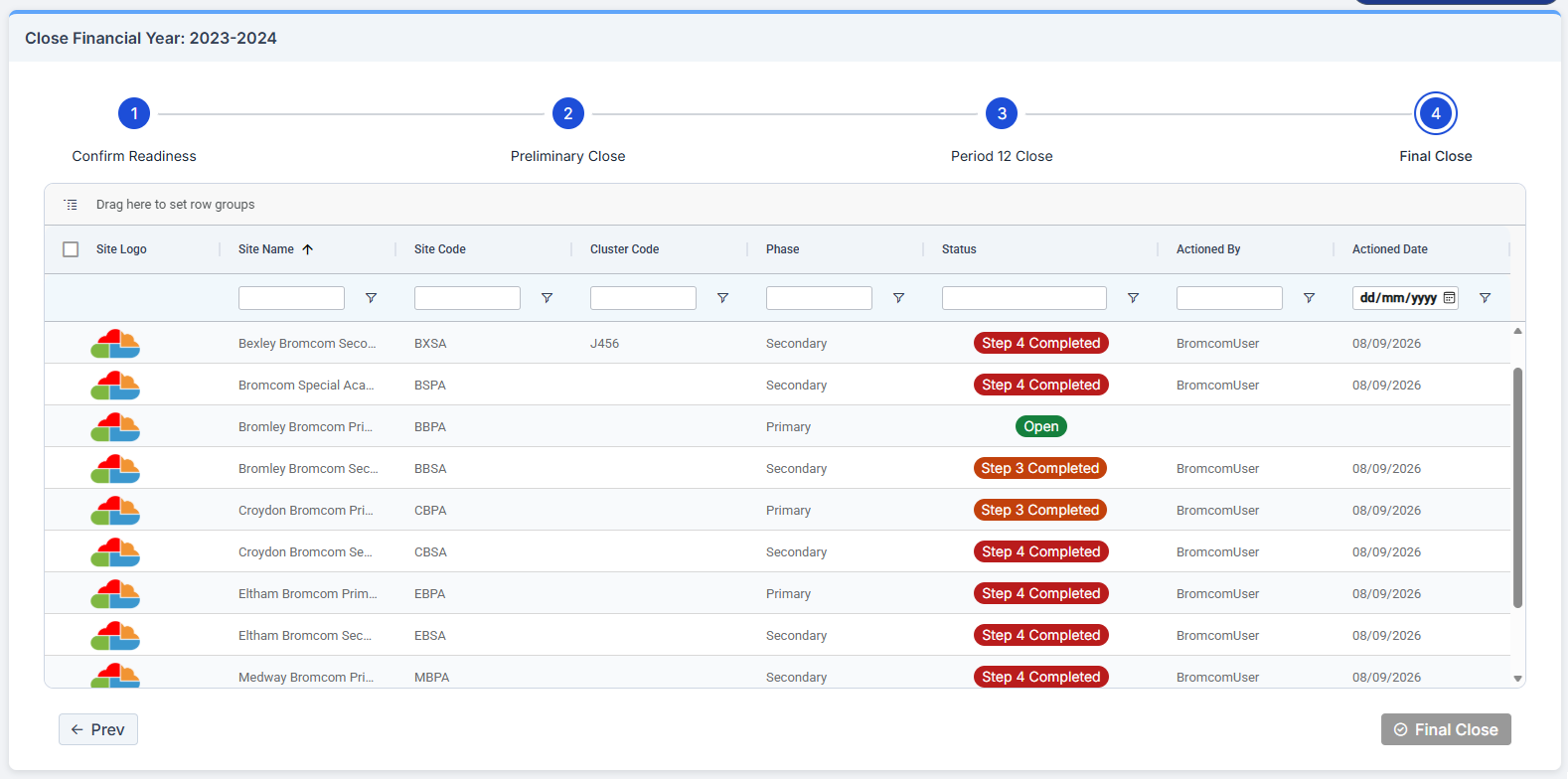
It is entirely possible and legitimate to have various Schools at various points in the Finance Year End process, as here: