In this guide, we show How to Clear Salary Commitments in the Finance Module.
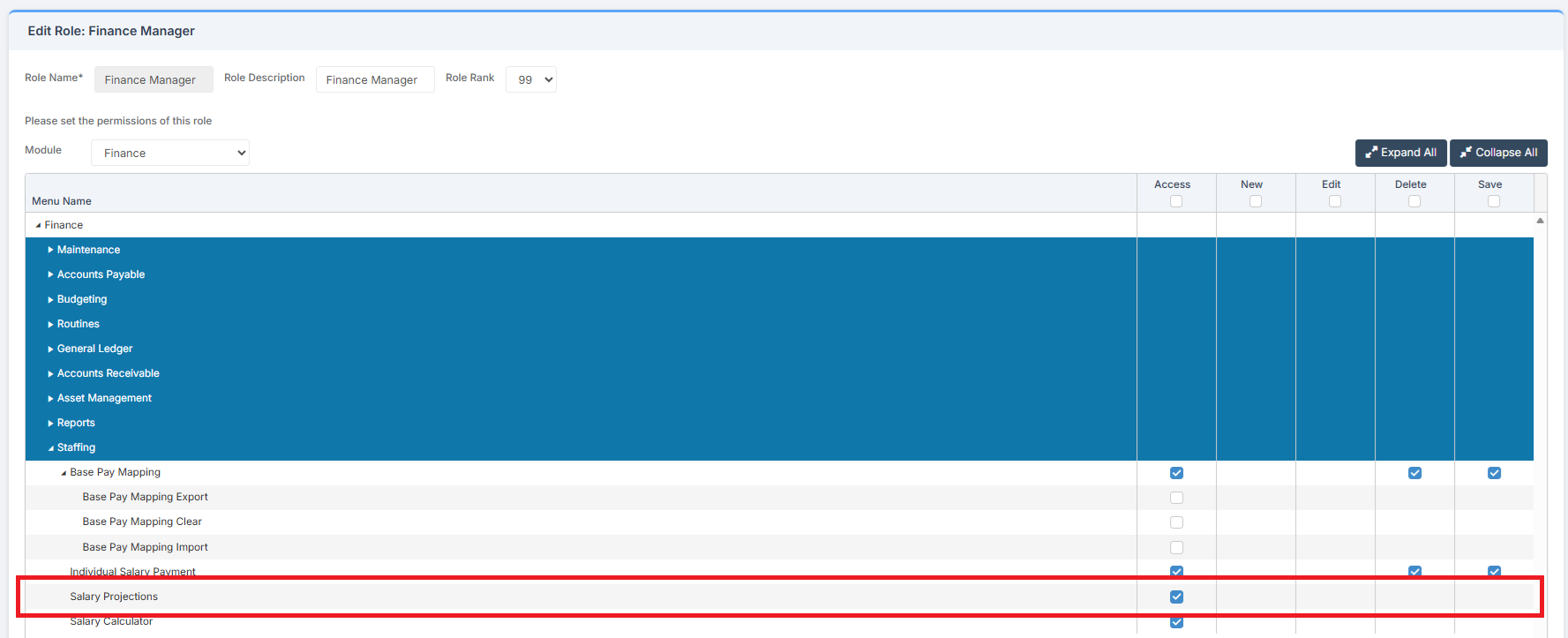
Access: The minimum permissions required to Clear Salary Commitments are found in the Finance Module section of Config > Setup > Roles & Permissions.
Related Guides:
- Finance Routines Guide
- Salaries User Guide
- How to Complete Automatic Reconciliation Of Salaries
- How to Manage Individual Salary Payments
- How to Review Salary Variations
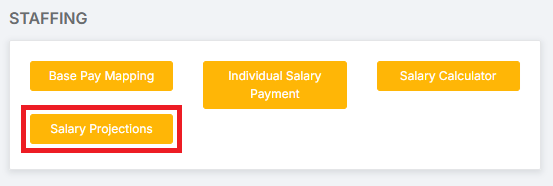
To begin, go to Modules > Finance > Finance Home Page > Staffing > Salary Projections.
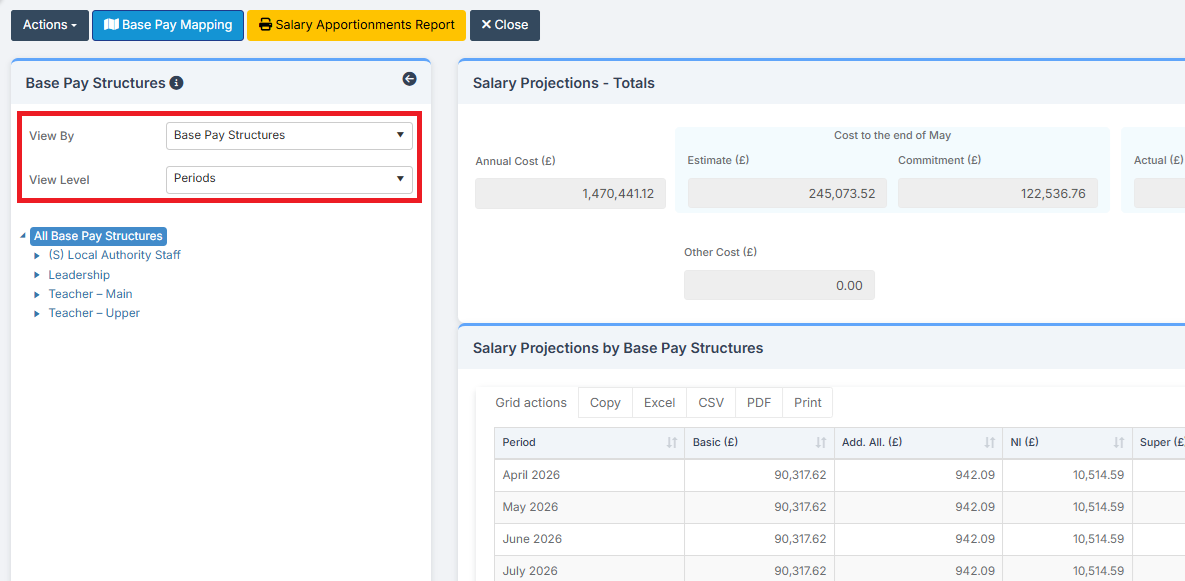
Select View By: Base Pay Structures and View Level: Periods.
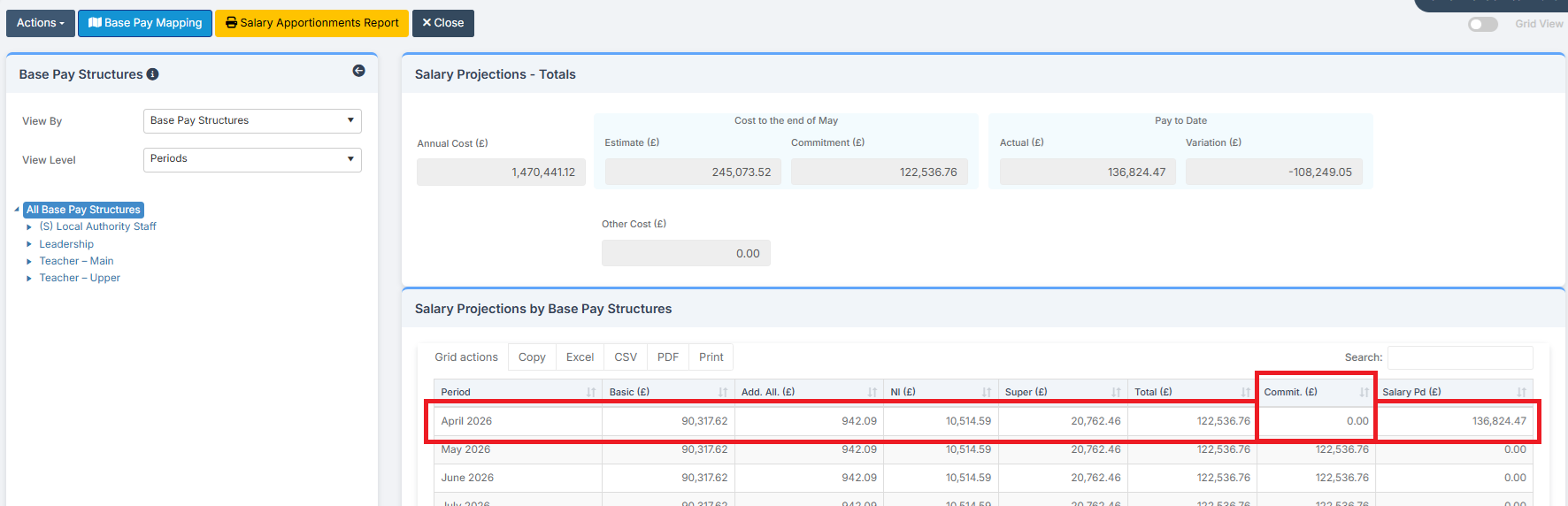
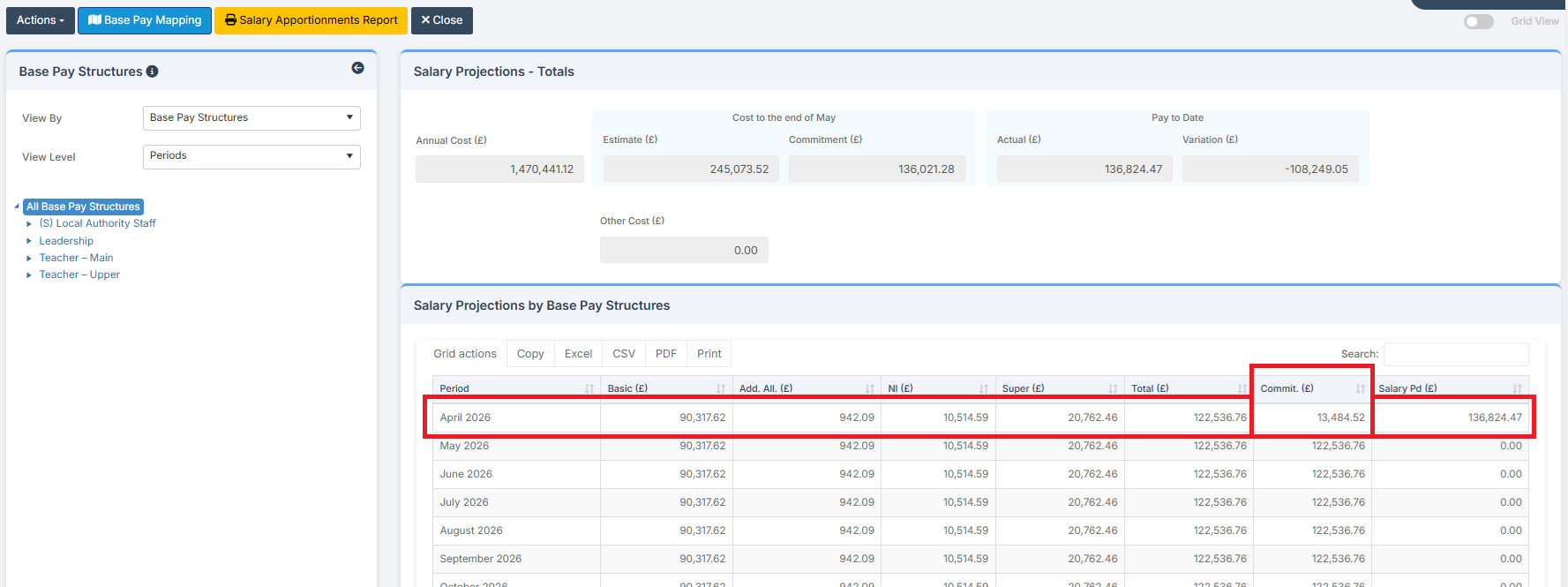
Any Remaining Salary Commitments for the Periods where Salaries have been paid can be seen. In the example below there are Remaining Commitments for April.
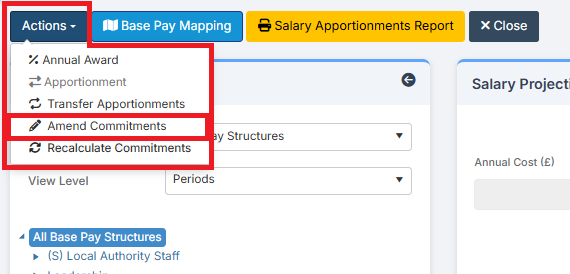
To Cancel Commitments, click on Actions in the top right of the page and select Amend Commitments from the drop down.
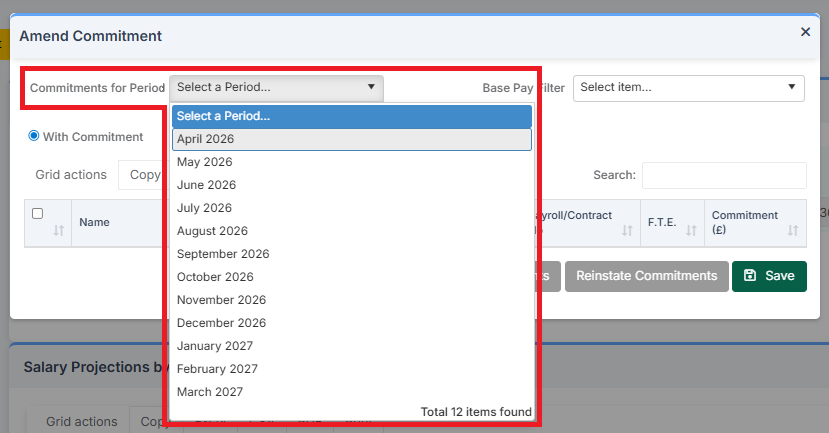
In the Amend Commitment pop up, select the Period in which to Amend Commitments.
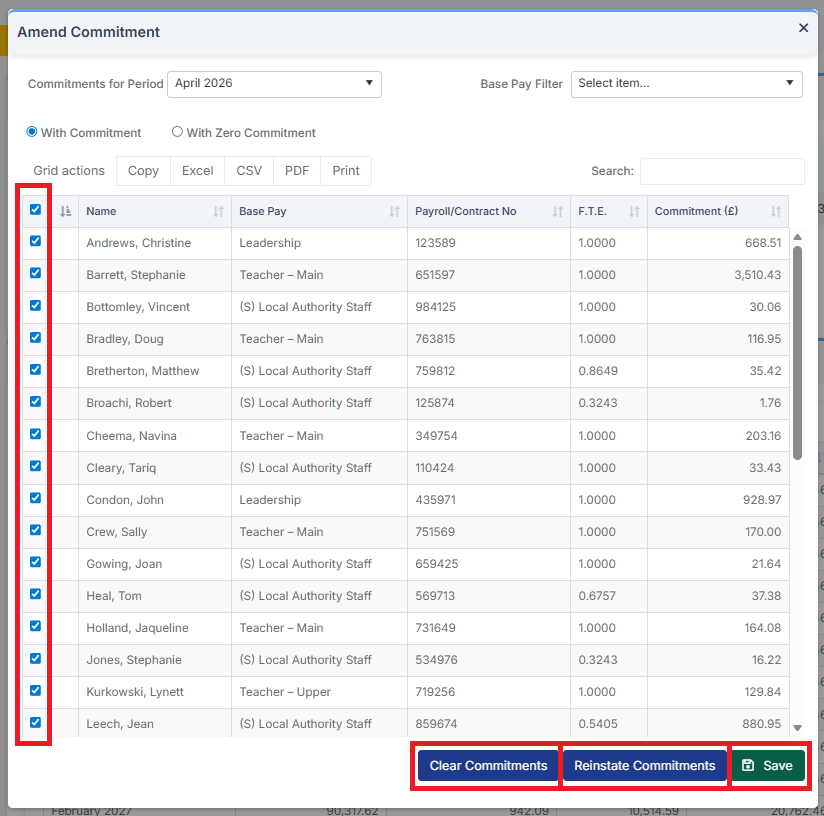
Then in the Amend Commitments pop up, either select individual Staff Members or Select All using the tick boxes, and click Clear Commitments. Commitments can be Reinstated until Save is clicked.
After Refreshing the Salary Projections page, the Commitment now shows as Zero.