
In this guide, we show How to Use Salary Projections within the Finance Module.
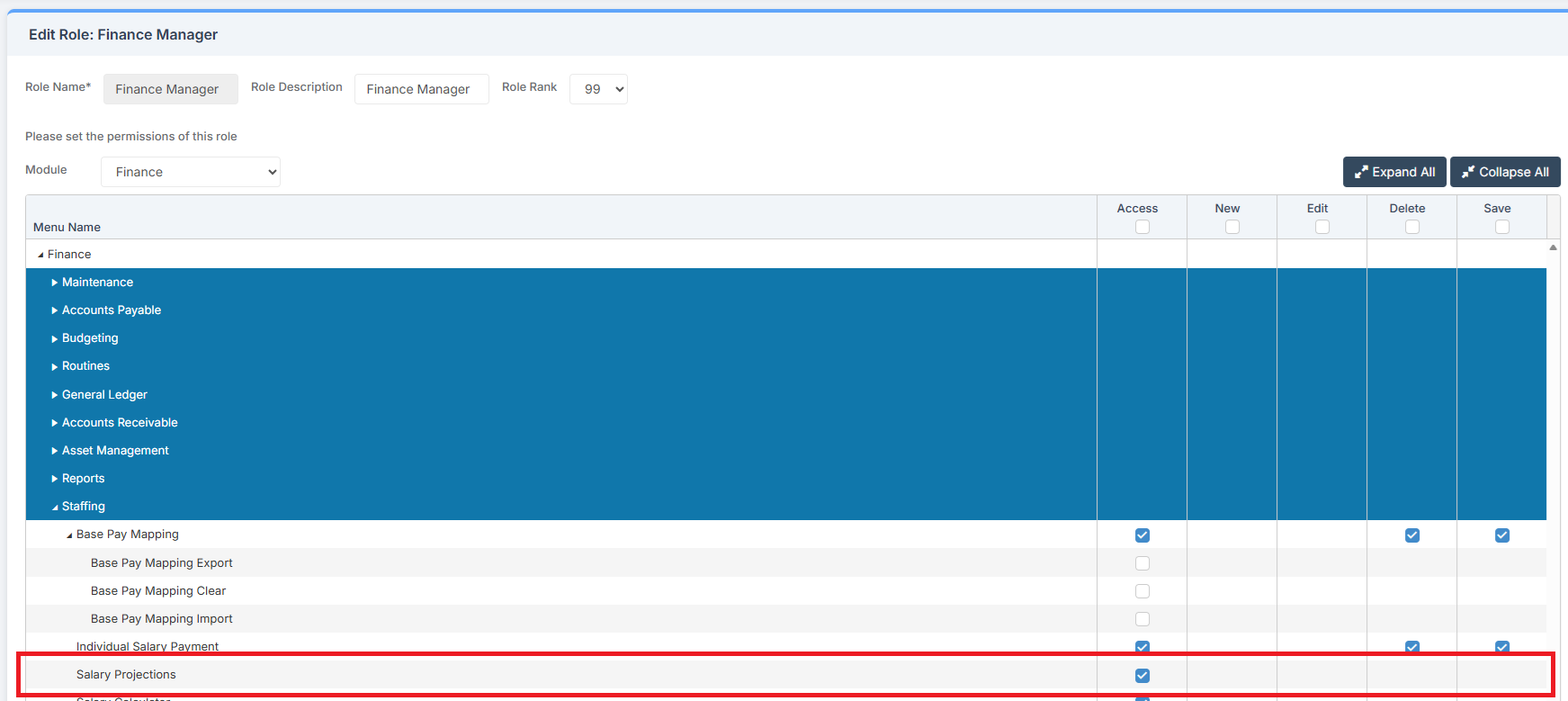
Access: The minimum permissions required to Use Salary Projections are found in the Finance Module section Config > Setup > Roles & Permissions.
Pre-requisites: In order to Use Salary Projections, all salary elements of Staffing must be up to date, including Base Pay Mapping. See: How to Add Base Pay Mapping.
Related Guides:
- Salaries User Guide
- How to Create/Edit and Update Base Pay Structures
- How to Copy Base Pay Mapping from One Year to Another
- How to Add a Salary Apportionment
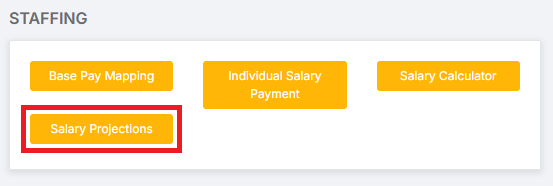
To begin, got to Modules > Finance > Finance Home Page > Staffing > Salary Projections.
The Salary Projections page contains a number of sections and functions. Taking each in turn…
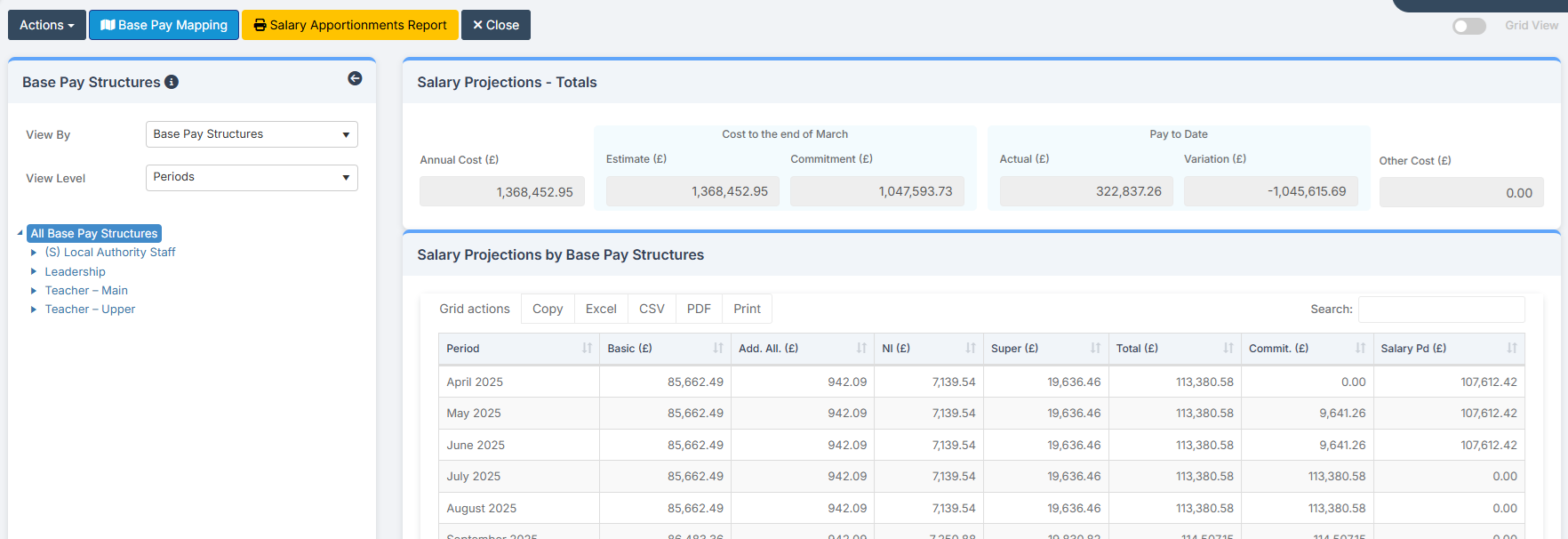
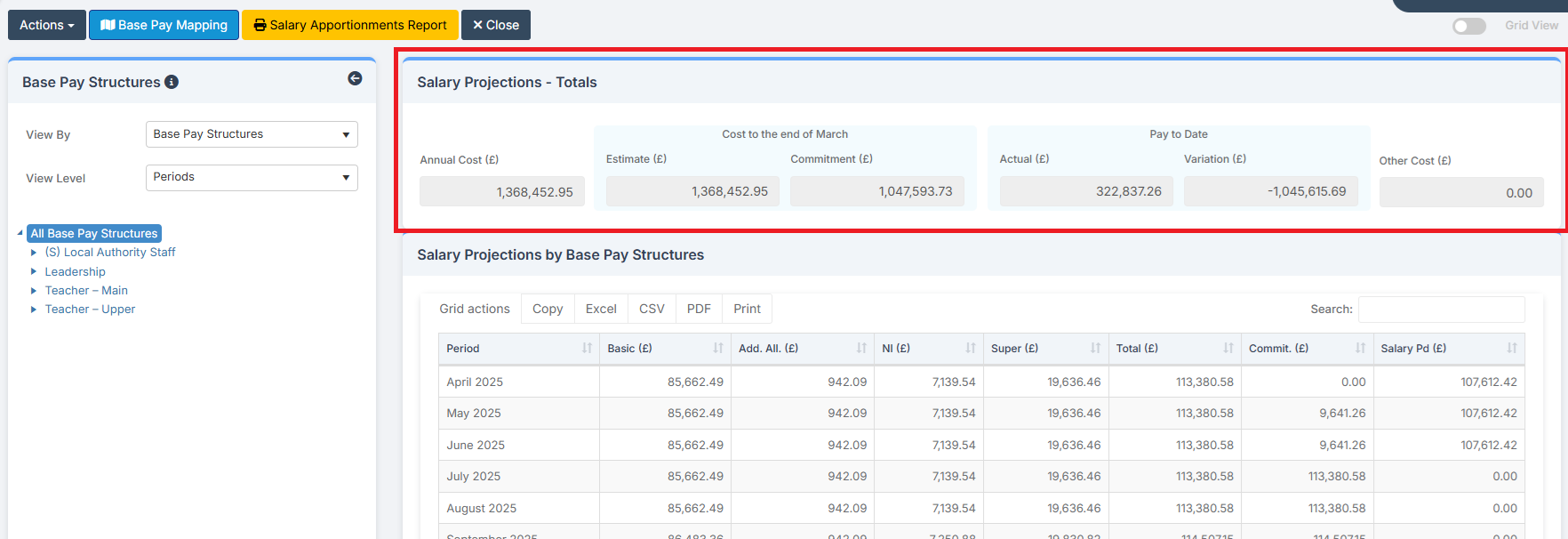
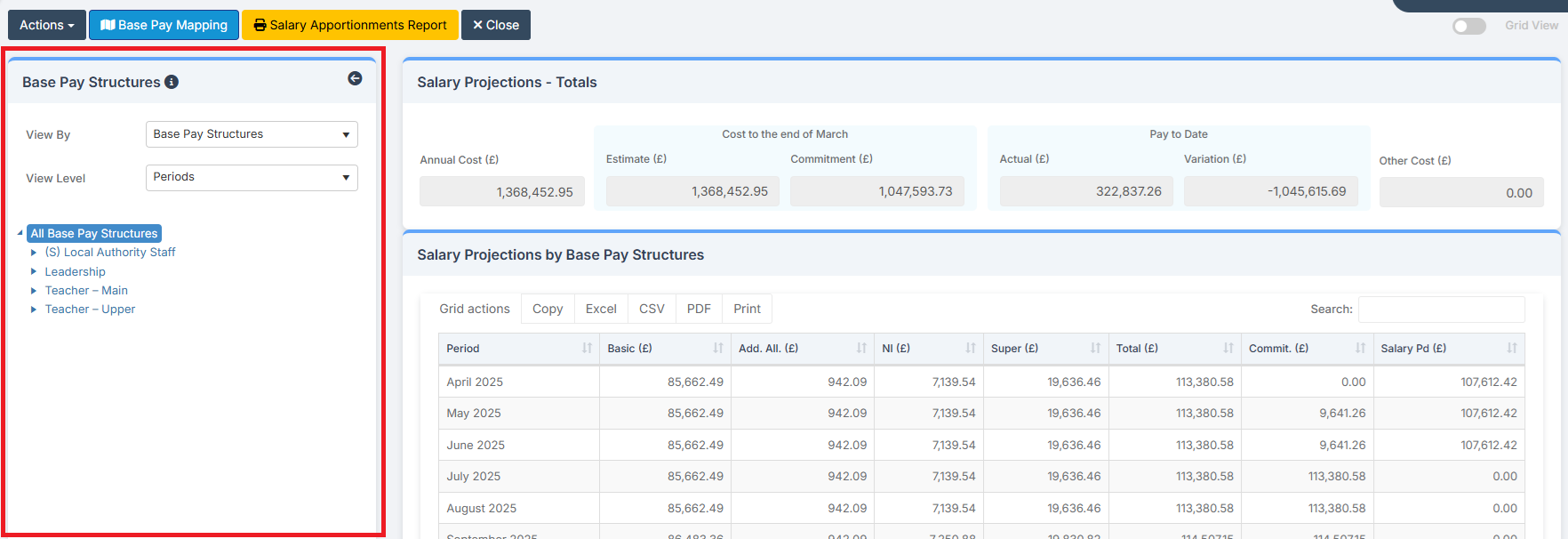
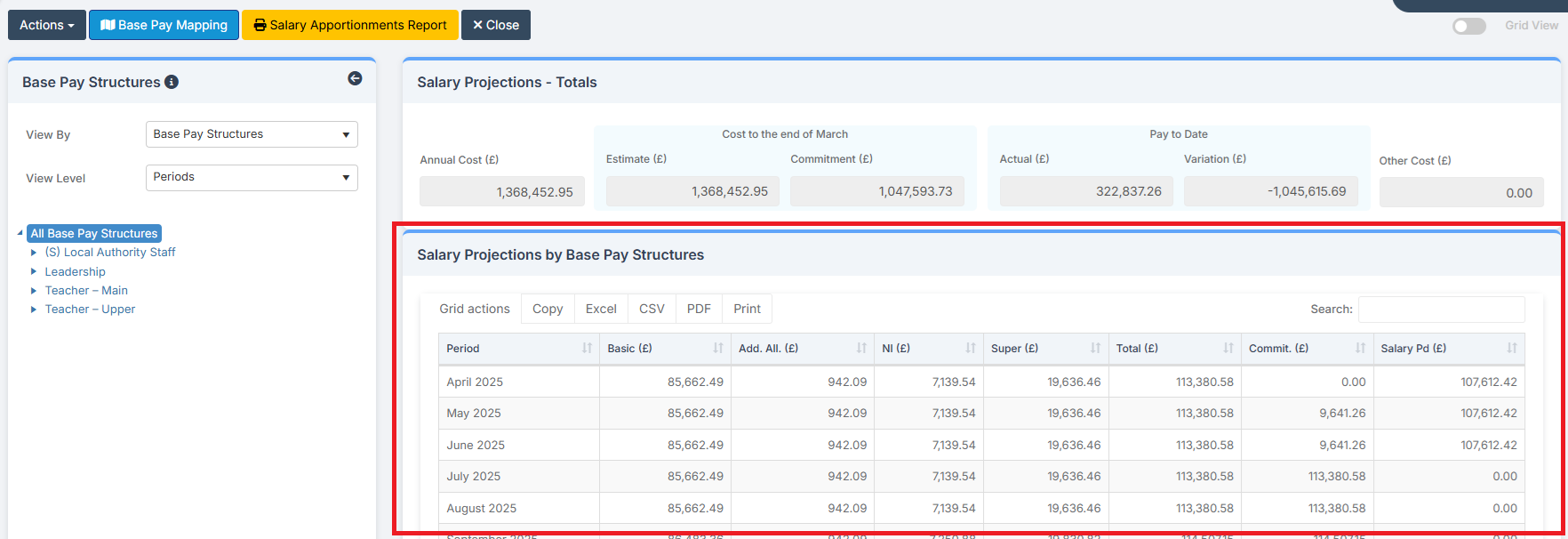
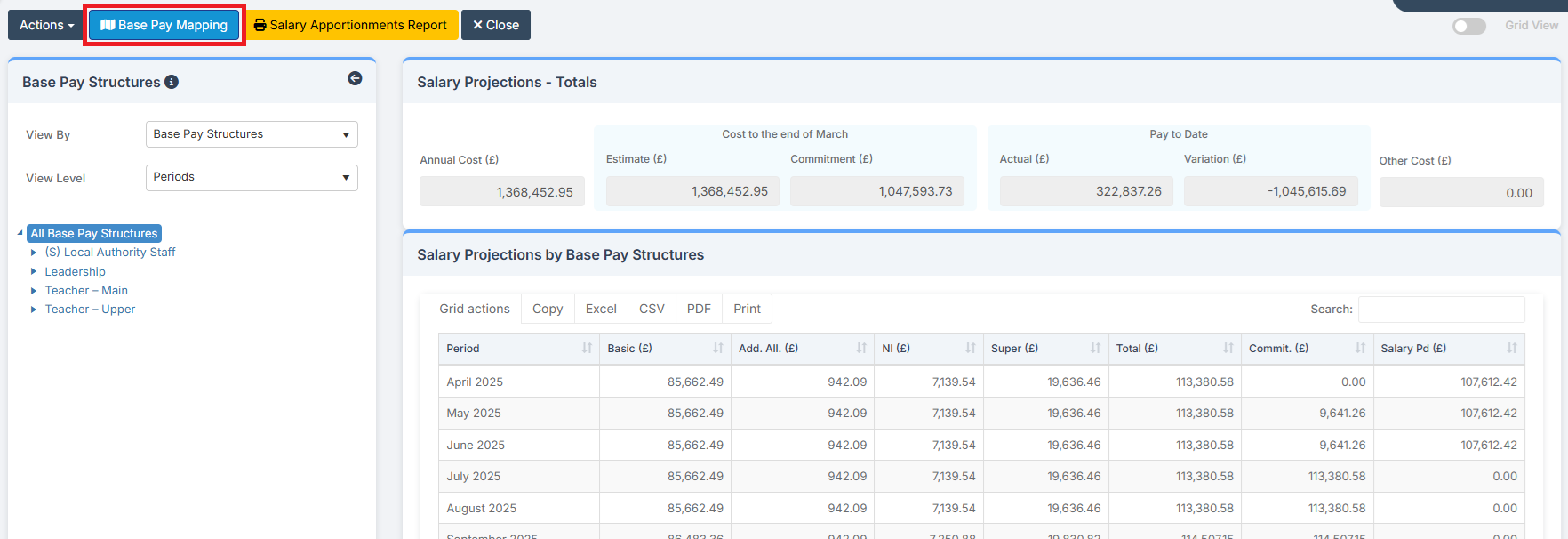
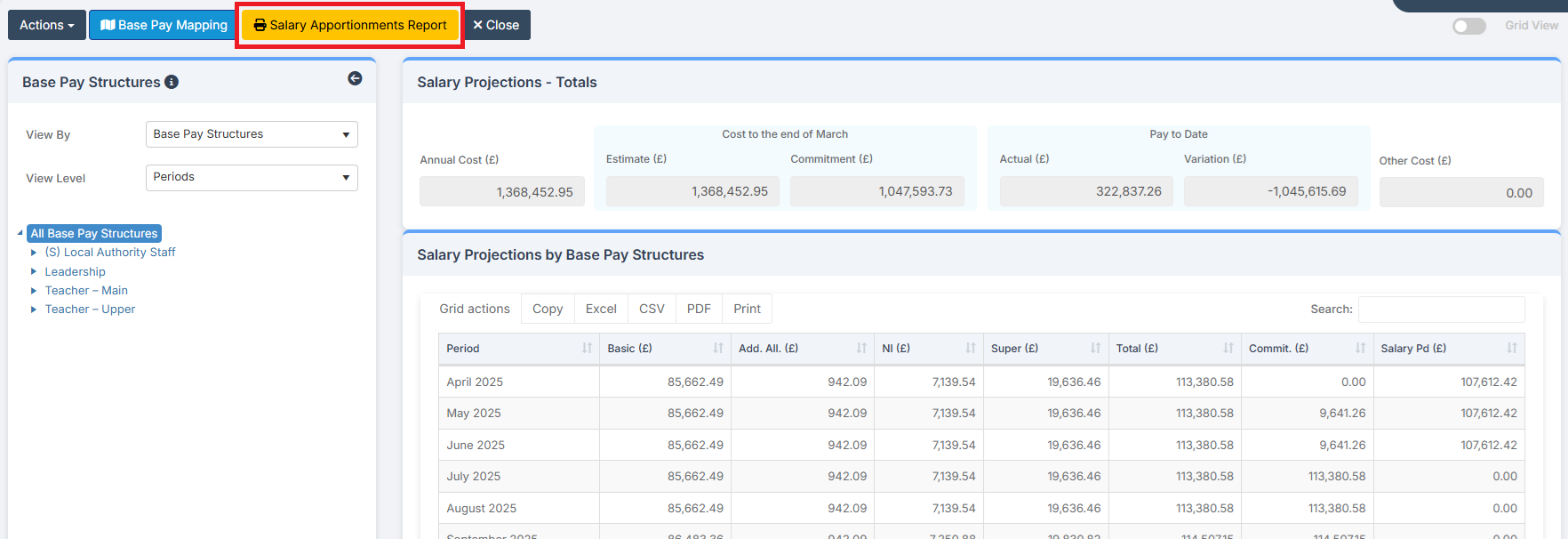
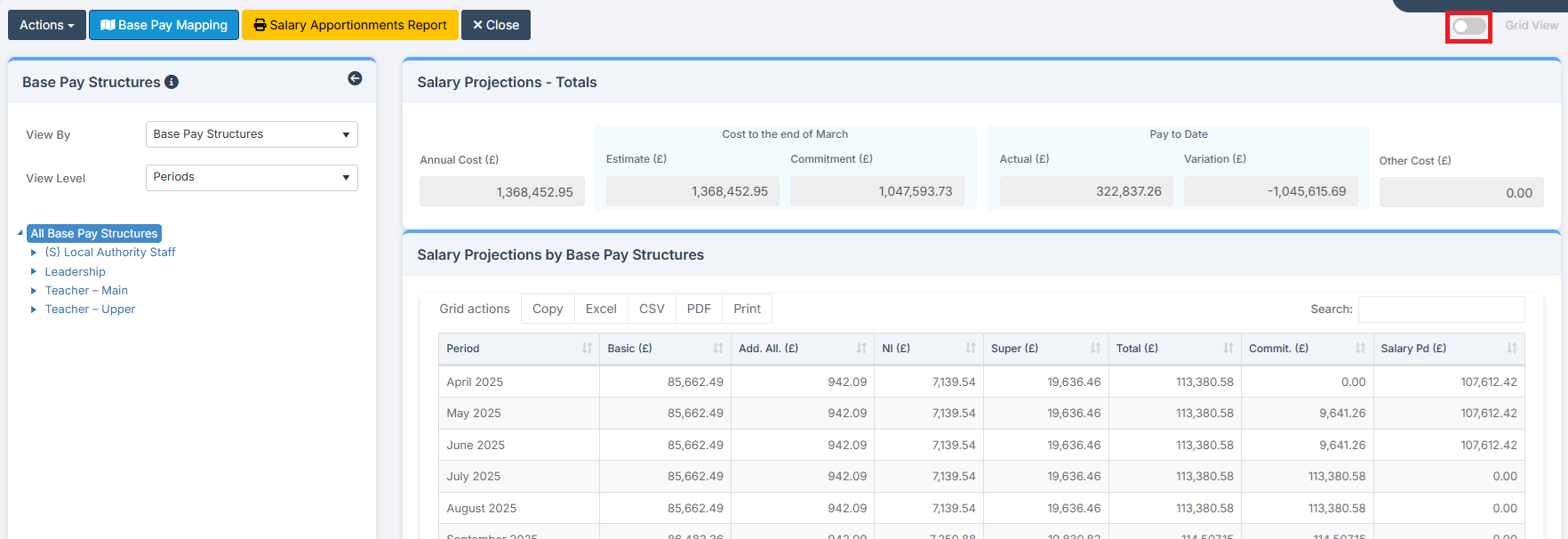
Salary Projections – Totals gives an overview of the Salary Projection. This is the headline information on this page.
Base Pay Structures allows for the selection of different Criteria in order to alter how the Salary Projection is viewed. This enables the scrutinising of the data presented in Salary Projections – Totals.
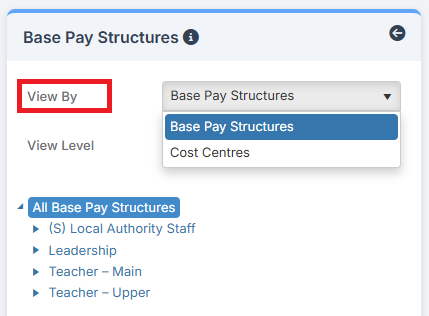
Base Pay Structures can be Viewed By either Base Pay Structures or Cost Centres.
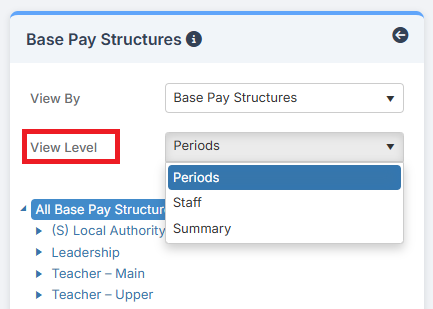
The View Level can be Periods, Staff or Summary.
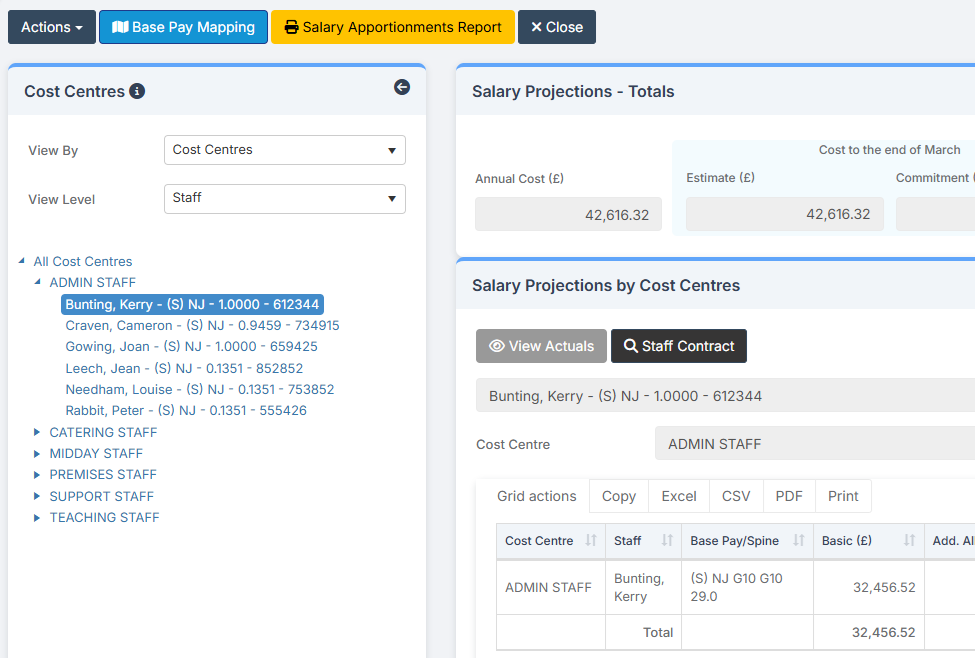
Depending on View By and View Level, the Expandable Menu in blue text allows for the selection of Base Pay Structure, Cost Centre, Staff Member, or Period.
Salary Projections by Base Pay Structures shows a breakdown of the Salary Projection as defined by the Criteria selected in Base Pay Structures. This enables the detailed examination of the data presented in Salary Projections – Totals.
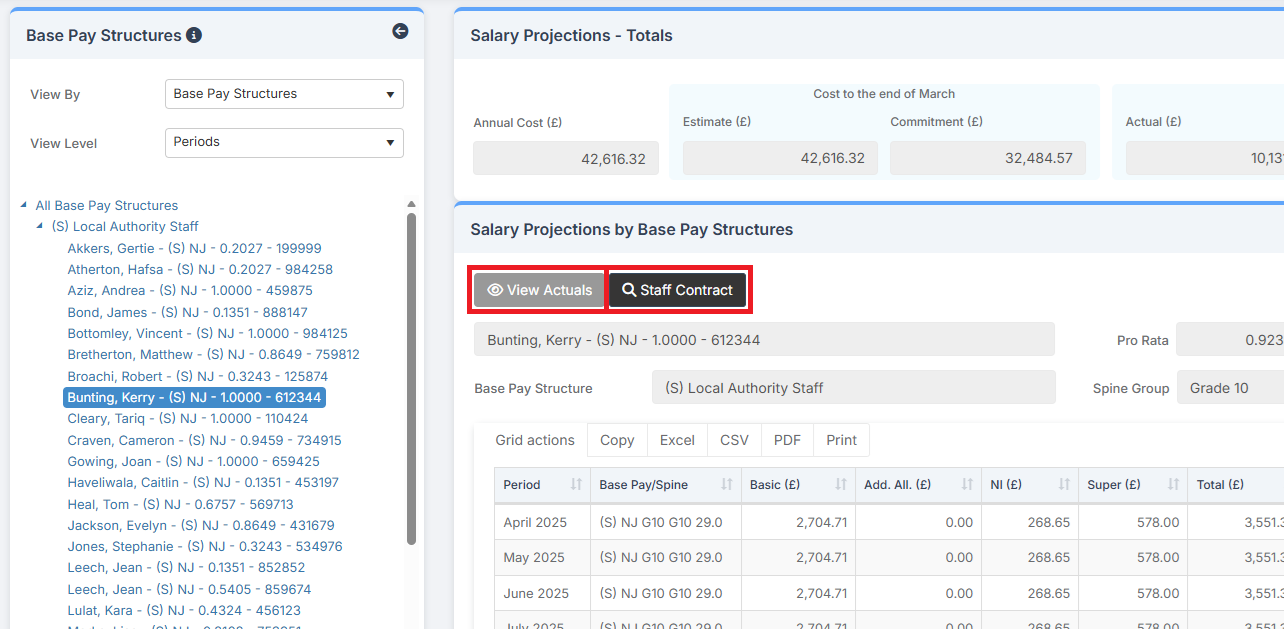
For example, an individual Staff Member’s monthly contribution to the overall Salary Projection can be viewed, as well as the Actuals and the Staff Contract.
Clicking on Actions at the top left of the page gives several options.
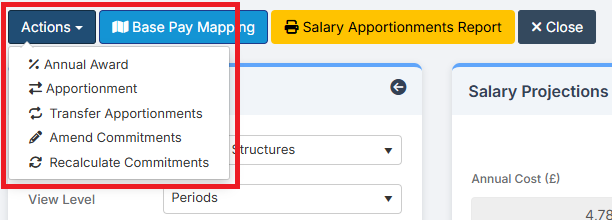
Actions > Annual Award allows for the addition of one or more annual awards into the Salary Projection.
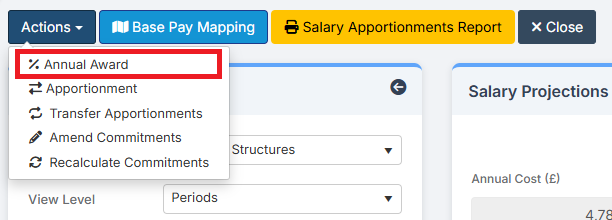
Click on Annual Award, select the Staff Group to apply the Annual Award to, and then click Add New Record.
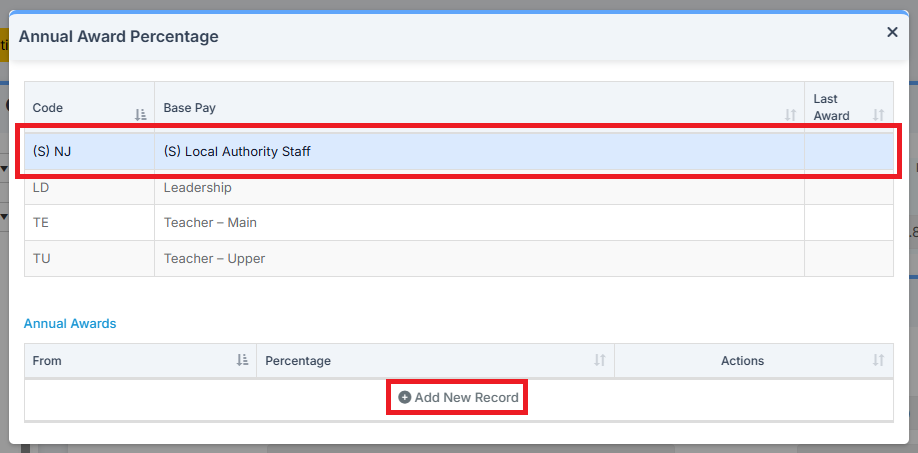
Complete the required information and click on the Tick.

Actions > Apportionment allows for the assigning of all, or a proportion of, a Staff Member’s salary elements to a Cost Centre other than that to which those elements would normally be assigned.
See: How to Add a Salary Apportionment
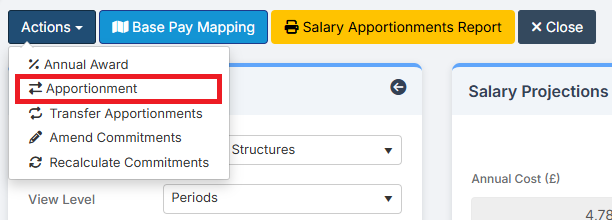
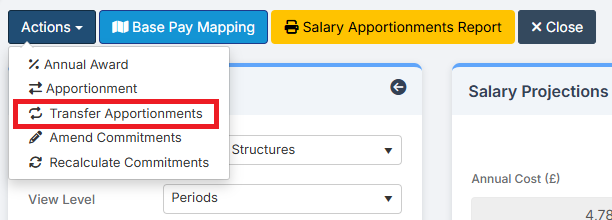
Actions > Transfer Apportionments allows for the Transfer of Apportionments from one Financial Year to another.
See: How to Add a Salary Apportionment
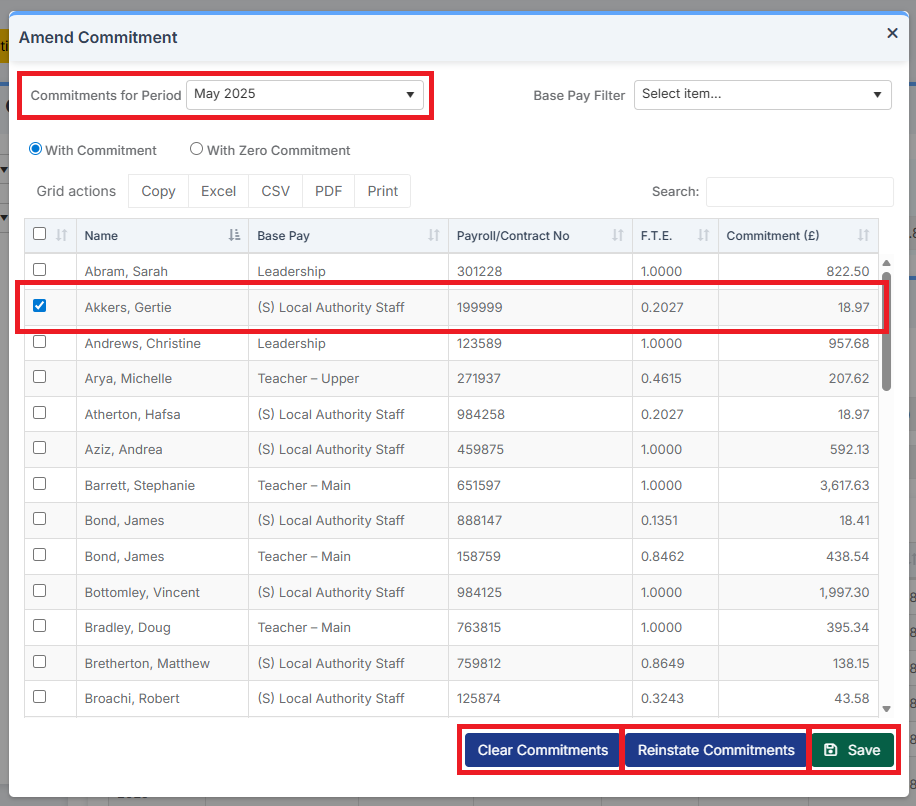
Actions > Amend Commitments allows for the Clearing of Commitments.
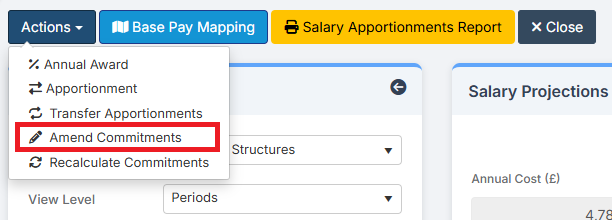
In the pop-up, choose the Period and Member(s) of Staff. Commitments can be Cleared, and if Cleared, they can be Reinstated until Save is clicked.
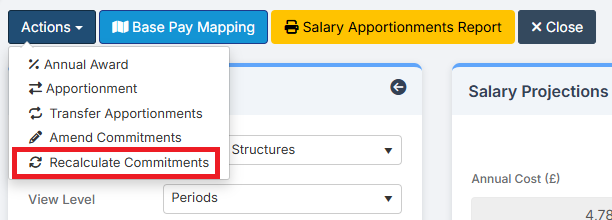
Actions > Recalculate Commitments allows for the Recalculation of Commitments.
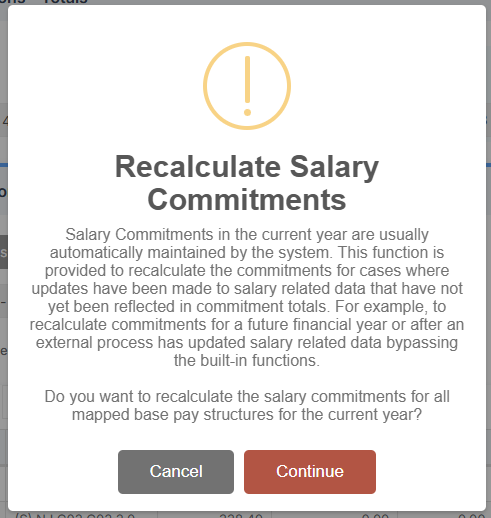
Read the warning before deciding whether to Recalculate Salary Commitments.
Clicking on Base Pay Mapping opens Base Pay Mapping in a new tab.
The Salary Apportionments Report button opens the Salary Apportionments Report page.
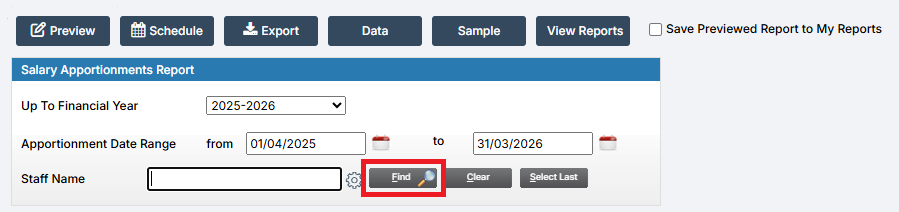
Clicking Find allows for the selection of Staff Members to include in the Report.
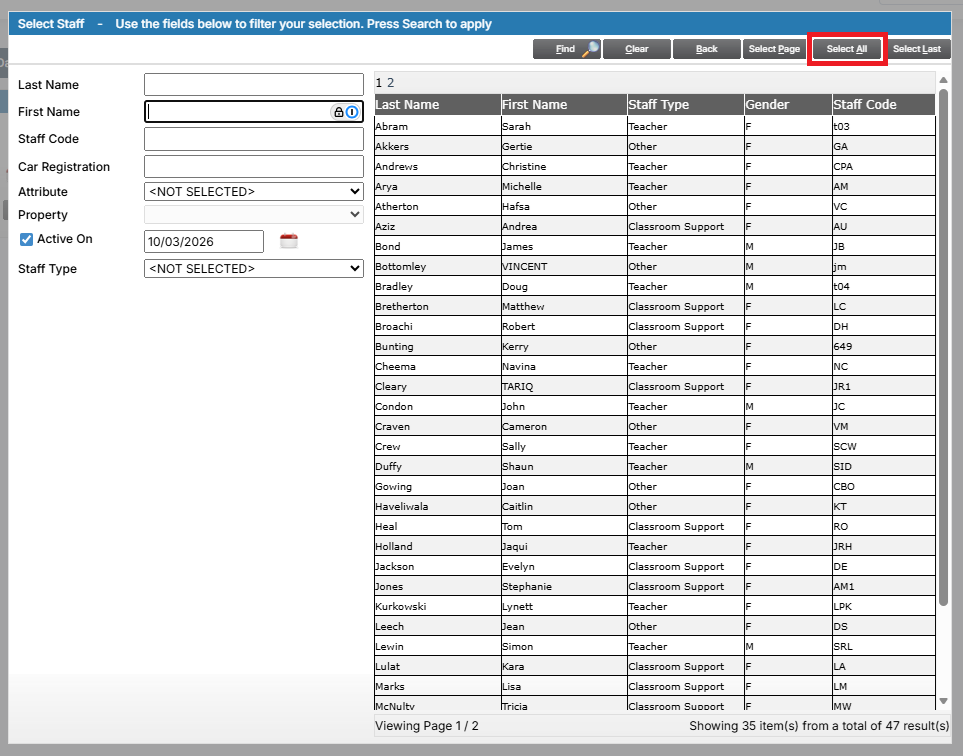
Choose the Parameters by which to run the Report. To select all Staff Members, click on Select All.
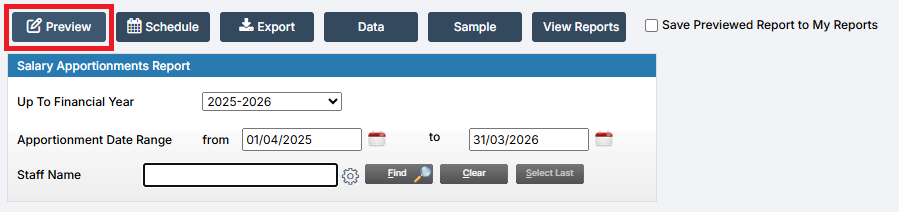
When the required Parameters have been chosen, click Preview to view the Report.
The Toggle at the top right of the Salary Projections page allows switching from the Standard View…
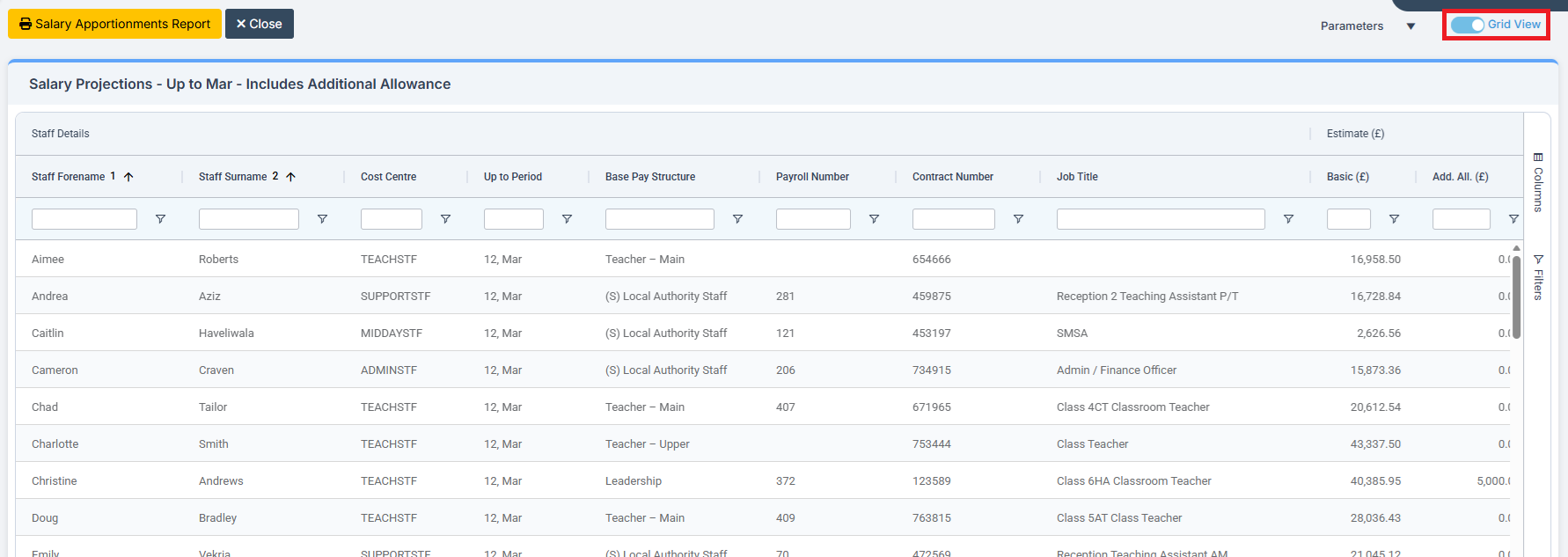
…to the AG Grid View.
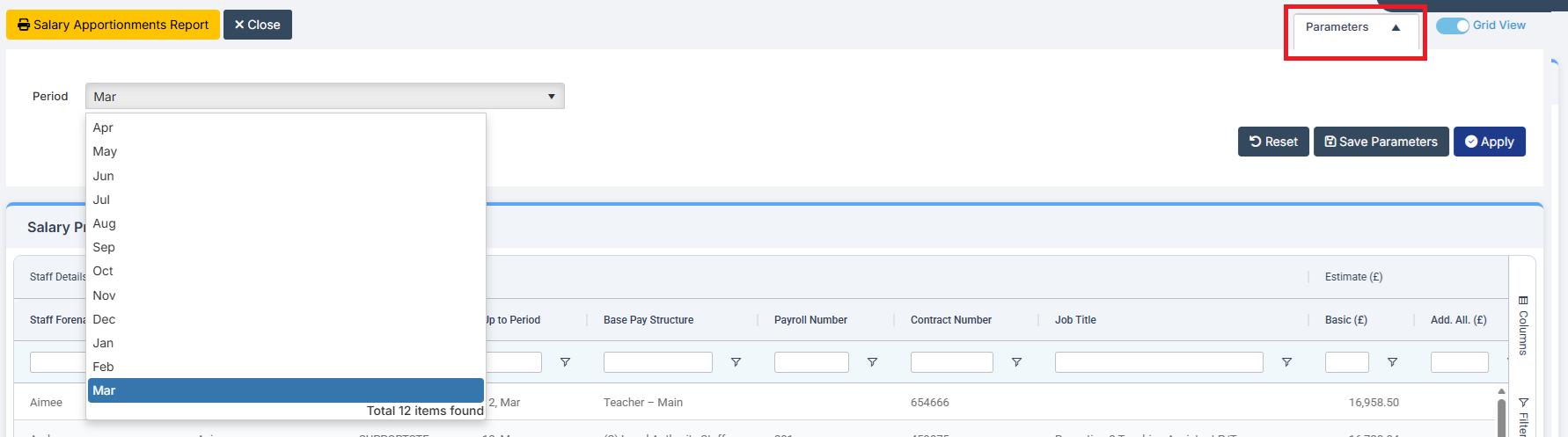
Selecting Parameters expands the parameters header where an Up-To Period can be selected, and if required, saved.
Columns and Filters on the right-hand side of the grid can be used to refine the data to be viewed.