
In this guide, we show how to Assign Cost Centre Responsibility to Budget Holders within the Finance Module.
Access: The minimum permissions required to Assign Cost Centre Responsibility to Budget Holders are found in the Finance Module section Config > Setup > Roles & Permissions.
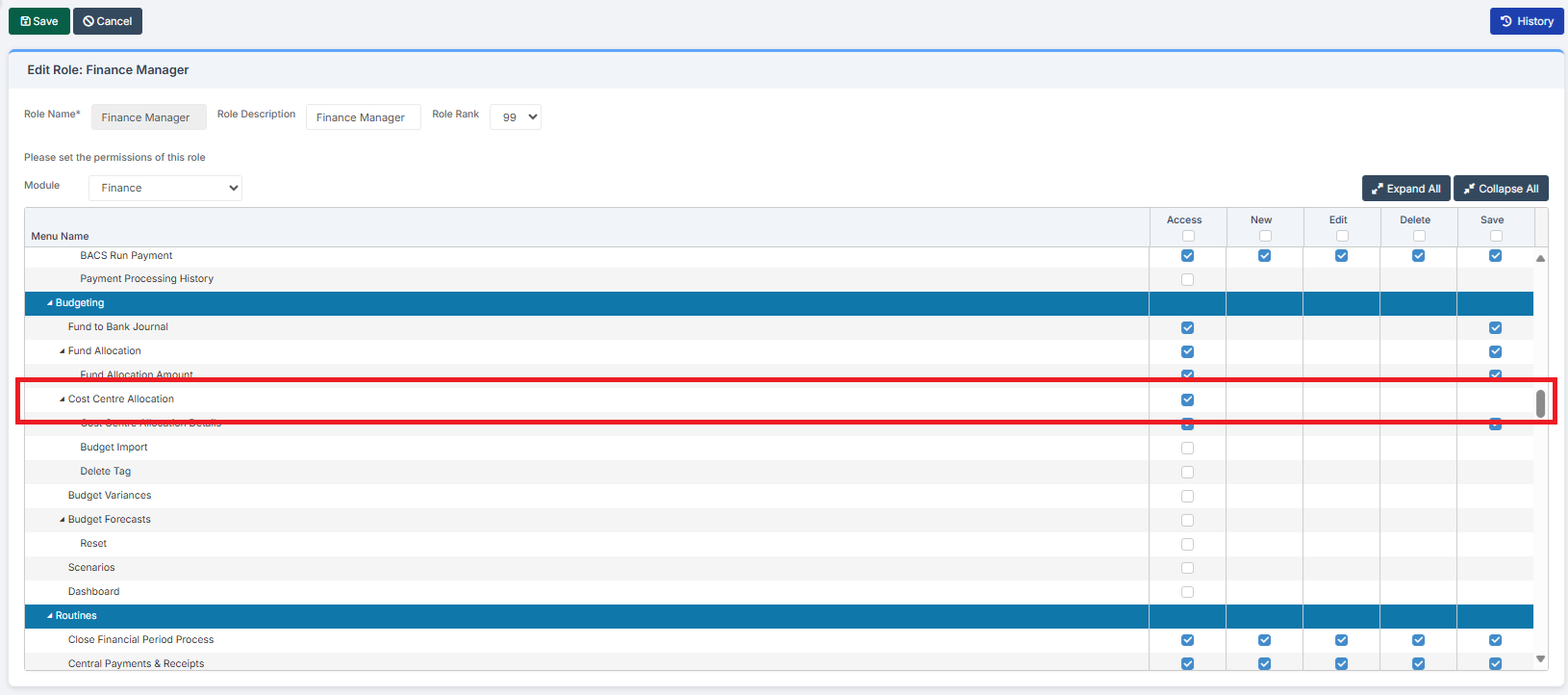
Pre-requisites: In order to Assign Cost Centre Responsibility to Budget Holders, the Finance Module needs to be linked to the MIS, as it is here that Staff Members’ details are stored. If a school does not use the MIS, then it is not possible to Assign Cost Centre Responsibility to Budget Holders. In addition, a Cost Centre must exist for a Staff Member to be assigned to it.
Related Guides:
This Guide is part of the Budgeting Module User Guide
The previous guide in the Budgeting Module User Guide is: How to Use Budget Profile Models
The next guide in the Budgeting Module User Guide is: How to Add and Manage Budget Scenarios
It is not a requirement to Assign Cost Centre Responsibility to Budget Holders, but it is a useful tool for Budget Holders and other interested parties (e.g. SBMs, the SLT, Governors) to help monitor spending against Cost Centres.
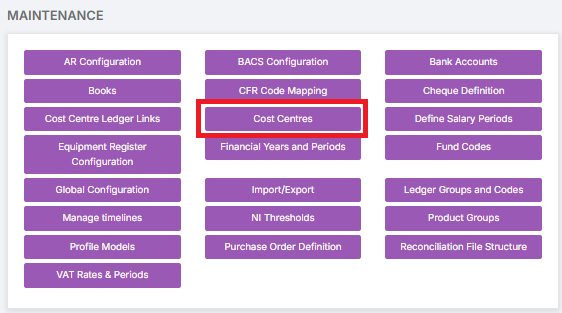
Go to Modules > Finance > Maintenance > Cost Centres.
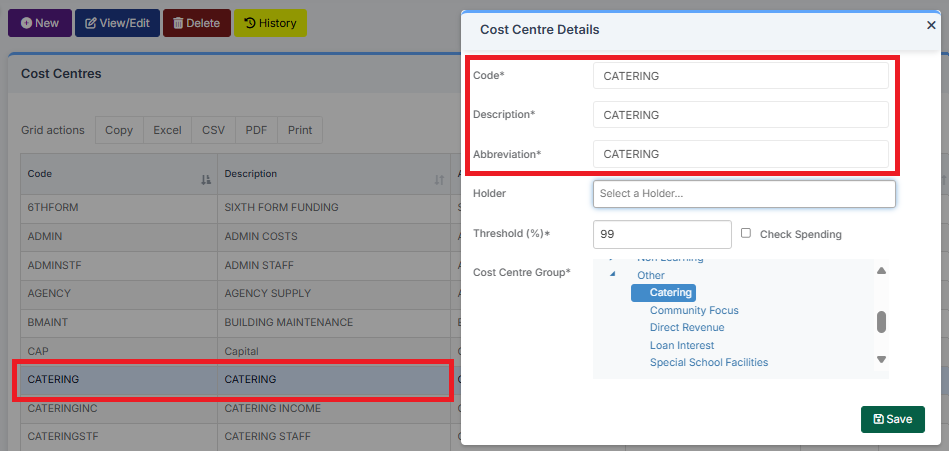
Select the Cost Centre to assign a Budget Holder to by double clicking on it and observing the pop-up.
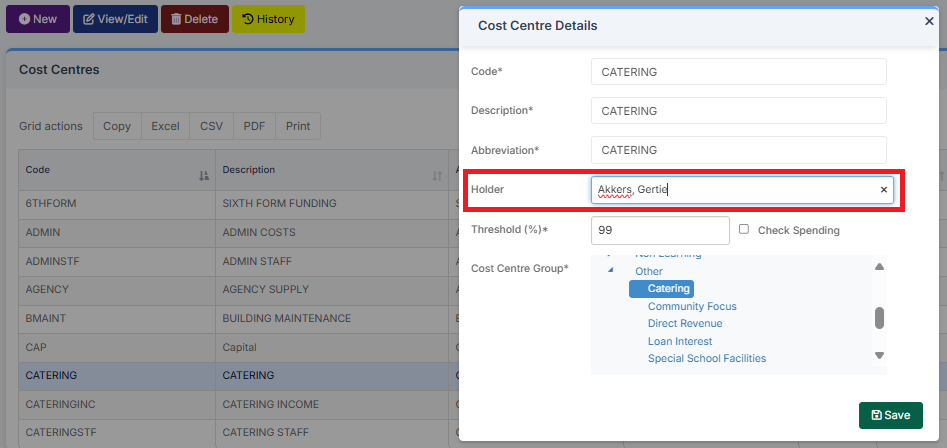
Select the Staff Member to assign that Cost Centre to as its Budget Holder.
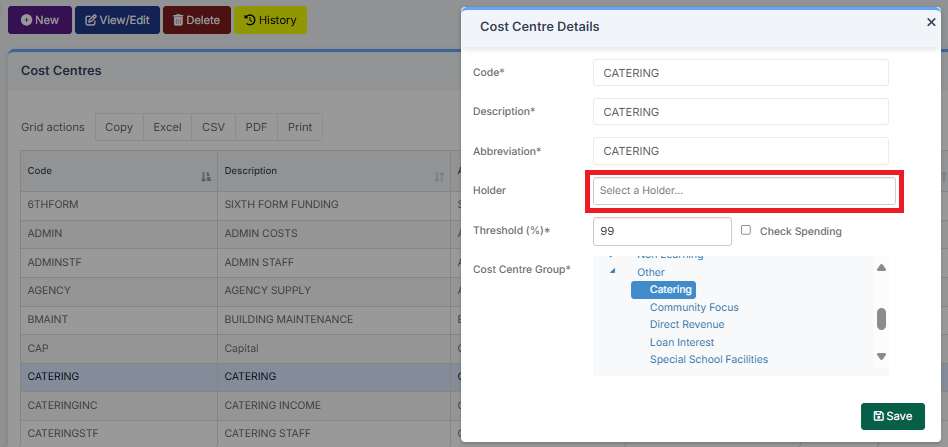
Staff Members are automatically pulled through from the MIS. This is not a free text box.
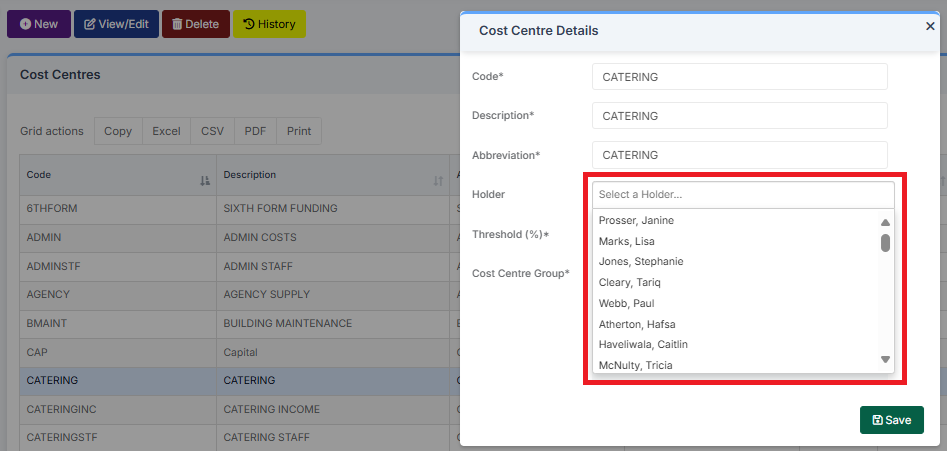
Scroll through the list, or alternatively, start to type the name of the Staff Member in the box to find them.
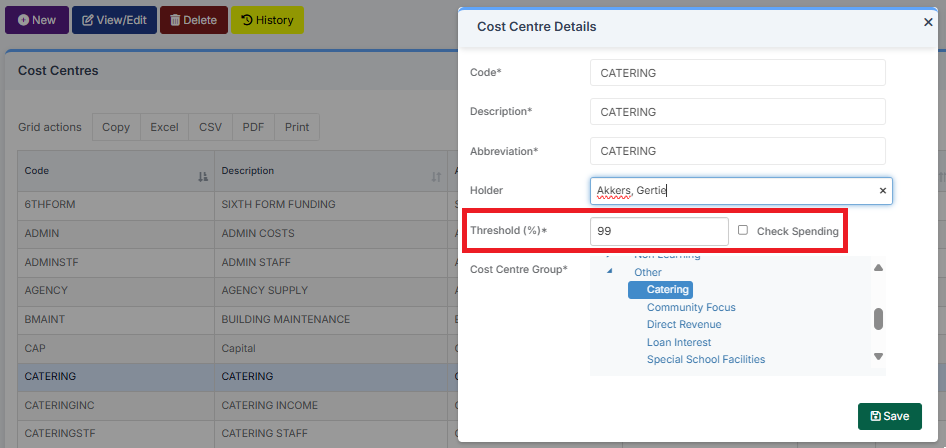
A Threshold must be set. Ticking the Check Spending box checks the spending on the Cost Centre when the Threshold is reached.
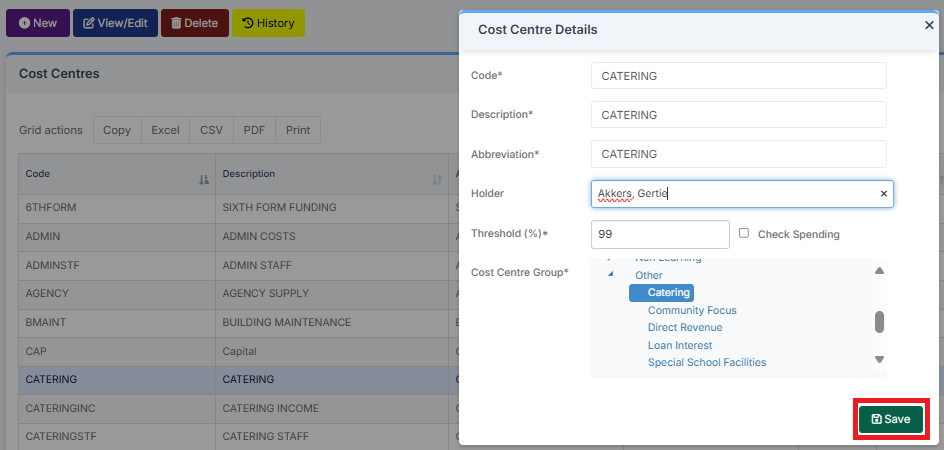
Click Save when complete.
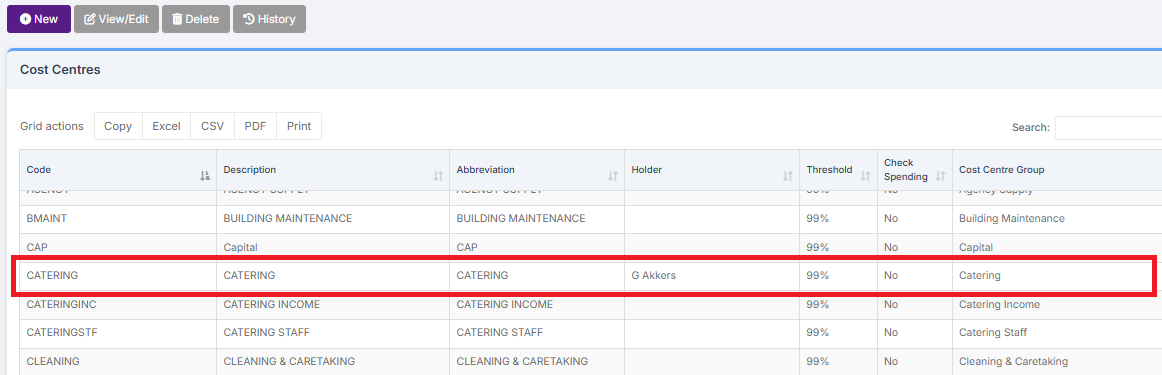
Returning to Modules > Finance > Maintenance > Cost Centres, the Staff Member is now listed as the Budget Holder.
To view a Report detailing Budget Holders and their assigned Cost Centres, go to Modules > Finance > Home Page > Reports > Budget Monitoring by Cost Centre/Holder.

The Report allows the choice between all or individual Budget Holders.
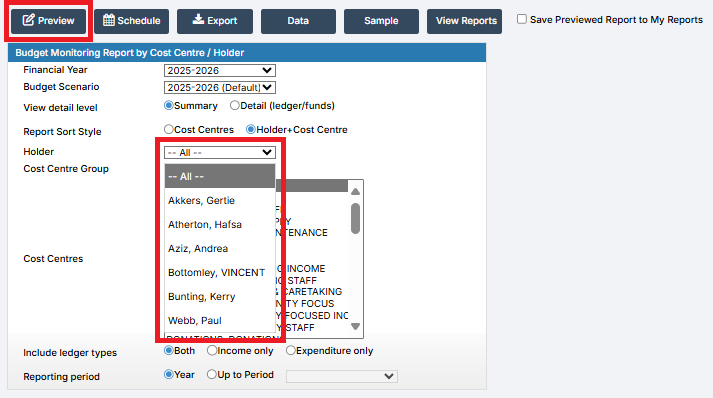
Clicking on Preview displays the Report on screen.
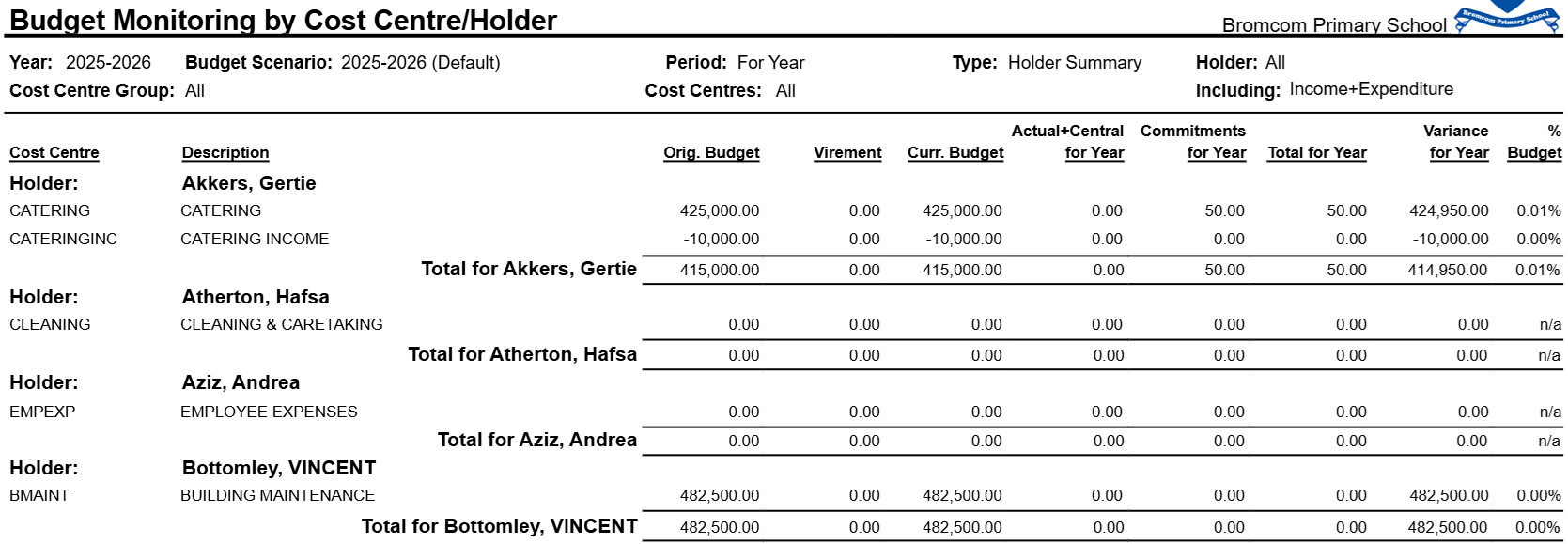
The buttons at the top of the Report page give a number of options.

You can learn more about how to use them here: How to Use Finance Reports.