
In this guide, we show How to Amend Budget Variances within the Budget Variances Report
Access: The minimum permissions required to Use Budget Variances are found in the Finance Module section Config > Setup > Roles & Permissions

Pre-requisites: In order to Use the Budget Variances Report, a Budget needs to be in place within the Finance Module. Reading How to Use the Budget Variances Report is recommended
Related guides:
This Guide is part of the Budgeting Module User Guide
The previous guide in the Budgeting Module User Guide is: How to Use the Budget Variances Report
The next guide in the Budgeting Module User Guide is: How to Use Budget Forecasting
To begin, go to Modules > Finance > Finance Home Page > Budgeting > Budget Variances

Amending Actuals
Amending Projections based on Actuals in the Budget Variances Report enables the changing and recording of Actual Spending outside of that anticipated
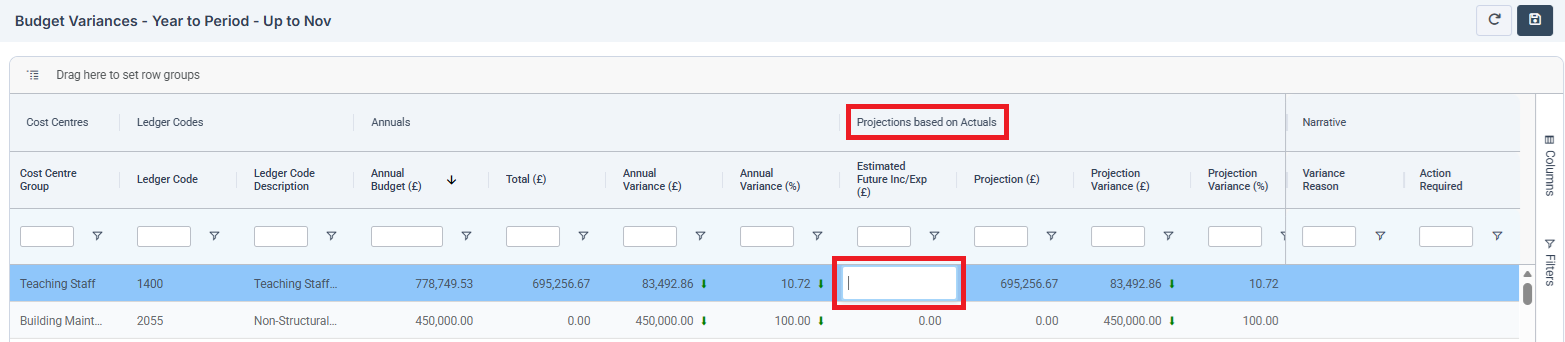
To Amend a Projection based on Actuals, click on the figure in the Estimated Future Inc/Exp (£) Column and type in either a positive or negative amount
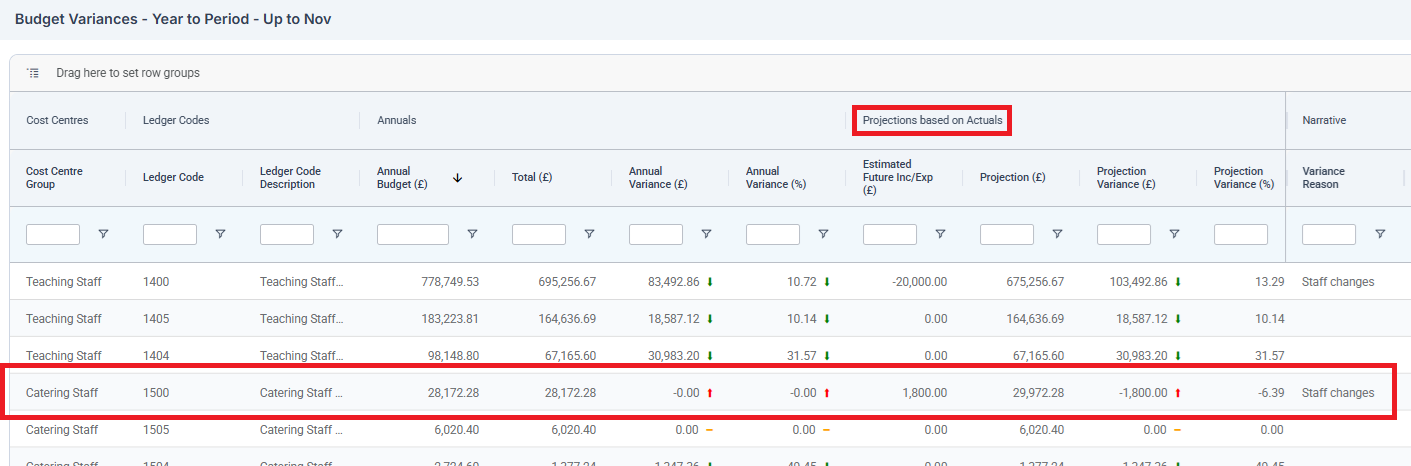
In the example below, £1,800 has been added to Catering Staff to accommodate an unexpected required increase in Catering Staff hours. This reason can be recorded in the Variance Reason column by clicking in the space. The impact of this change is evident in the Projection Variance, which has reduced by £1,800. Note also the Red Arrow to indicate an increase the Annual Variance, and therefore in spending
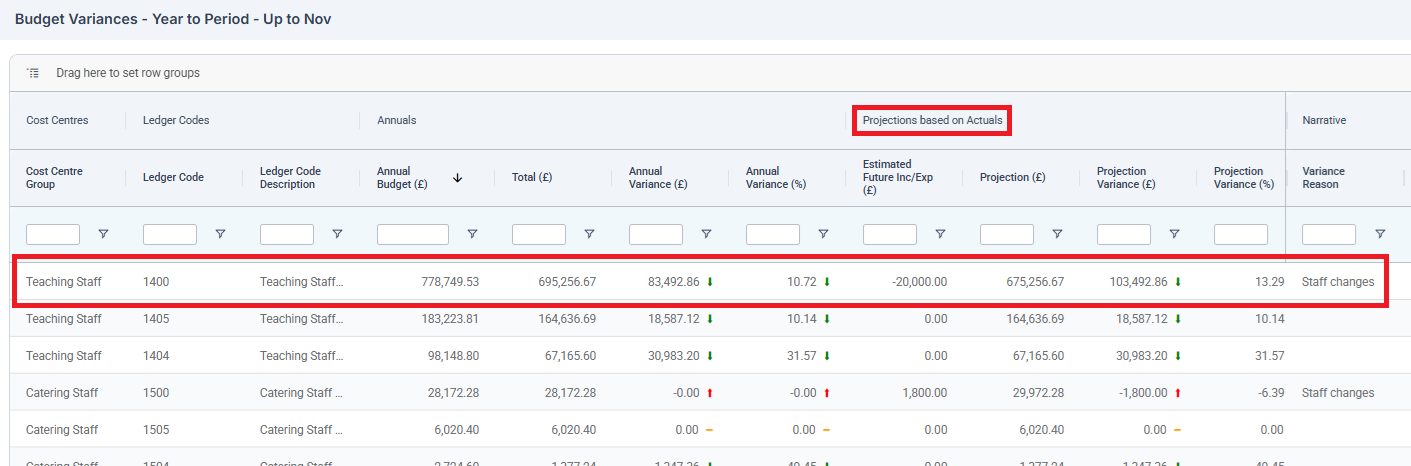
In the example below, £20,000 has been deducted from Teaching Staff, as two long serving teachers have decided to move on mid-year to senior positions at other schools, and to be replaced by two teachers at the start of their careers. Again, this reason can be recorded in the Variance Reason column by clicking in the space. The impact of this change is evident in the Projection Variance, which has been increased by £20,000. Note also the Green Arrow to indicate a decrease in the Annual Variance, and therefore in spending
Amending Budget
Amending Projections based on Budget in the Budget Variances Report enables the changing and recording of Budgeted Spending outside of that anticipated. It is a useful tool for moving money around within the Budget
To Amend a Projection based on Budget, click on the figure in the Estimated Budget Revision (£) Column and type in either a positive or negative amount
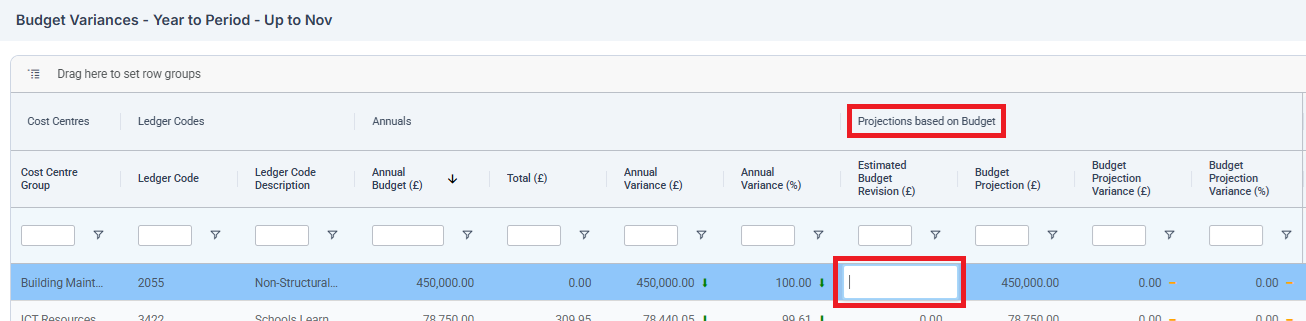
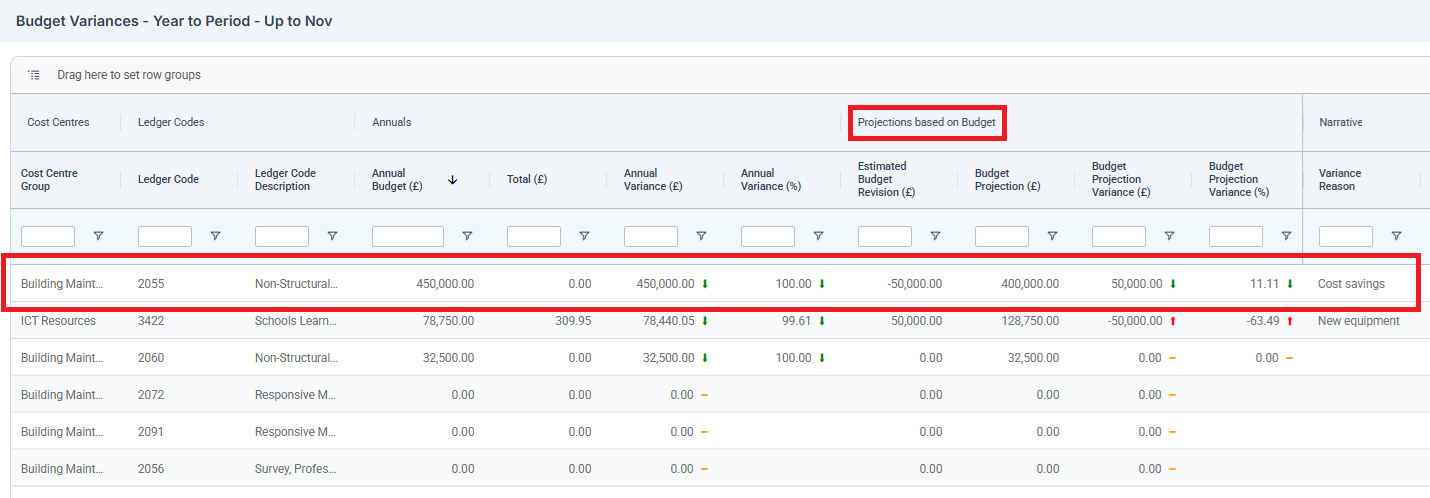
In the example below, £50,000 has been deducted from Building Maintenance due to the anticipated ongoing cost-saving and thriftiness of the Maintenance Team. This reason can be recorded in the Variance Reason column by clicking in the space. The impact of this change is evident in the Budget Projection Variance, which has increased by £50,000. Note also the Green Arrow to indicate a decrease the Annual Variance, and therefore in spending
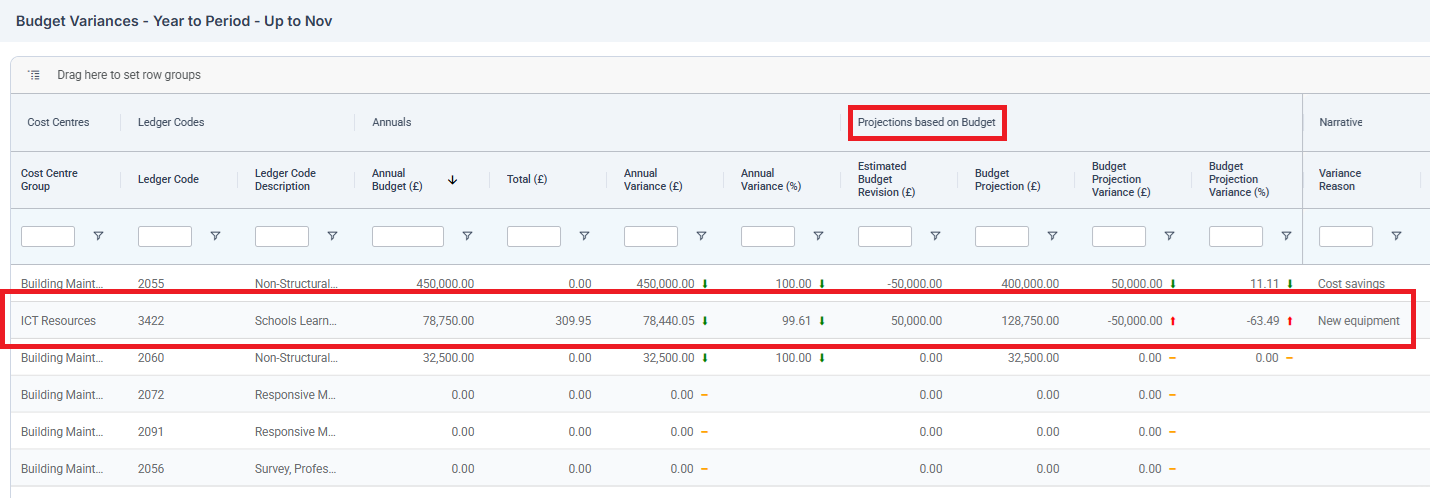
In the example below, £50,000 has been added to ICT Resources (available thanks to the anticipated cost-saving of the Maintenance Team) to allow for the purchase of new equipment for the ICT Suite. This reason can be recorded in the Variance Reason column by clicking in the space. The impact of this change is evident in the Budget Projection Variance, which has reduced by £50,000. Note also the Red Arrow to indicate an increase the Annual Variance, and therefore in spending
Exporting the Budget Variance Report
The Report can be exported to CSV or Excel by Right Clicking within it and choosing the file type. The Report is sent to the Browser’s Downloads Folder

The next guide in the Budgeting Module User Guide is: How to Use Budget Forecasting