
In this guide, we show
- How to Add a New Salary Calculation
- How to Manually Adjust a Salary Calculation
- How to Link a Salary Calculation to a Budget Scenario
- How to Delete a Salary Calculation
Access: The minimum permissions required to Use the Salary Calculator are found in the Finance Module section Config > Setup > Roles & Permissions.
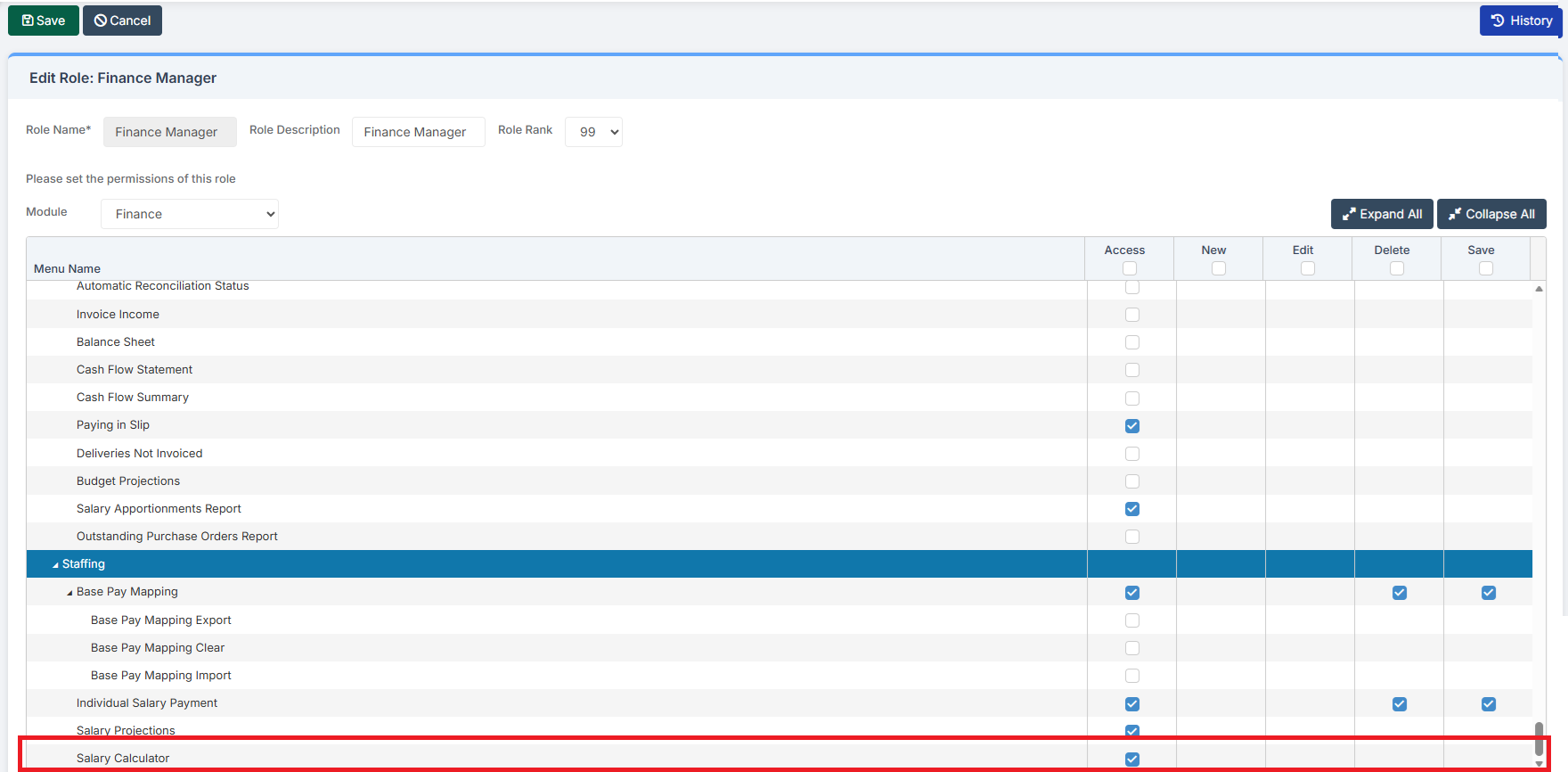
Pre-requisites: In order to Use the Salary Calculator, Base Pay Mapping must have been added for the Financial Year being worked on. See: How to Add Base Pay Mapping.
To add Base Pay Mapping, the Financial Year must be Open. See: How to Create a New Financial Year.
In addition, the Budget Cost Centre Allocation must be Fixed before linking the Salary Calculator. See: How to Fix a Budget in Cost Centre Allocation.
Related Guides:
This Guide is part of the Budgeting Module User Guide
The previous guide in the Budgeting Module User Guide is: How to Check Staff Contract and Pay Details in Preparation for Using the Salary Calculator.
The next guide in the Budgeting Module User Guide is: How to Monitor Budgets.
How to Add a New Salary Calculation
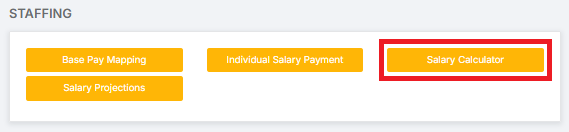
To begin, go to Modules > Finance > Finance Home Page > Staffing > Salary Calculator.
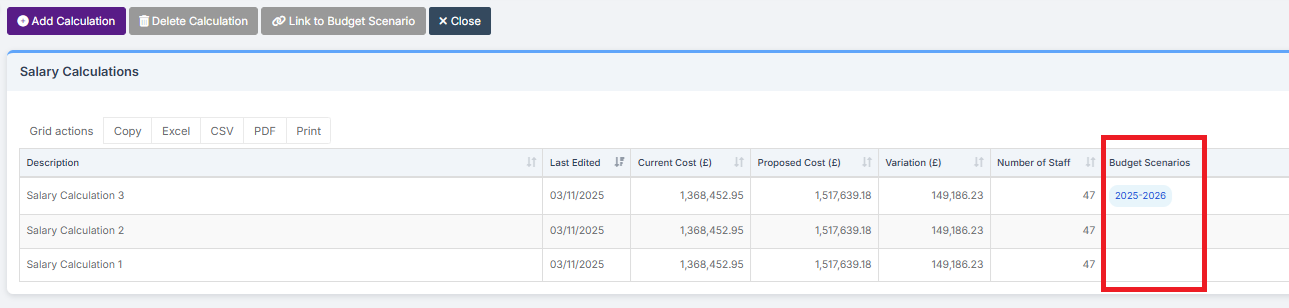
The page shows previous Salary Calculations and whether any of them are linked to a Budget Scenario.
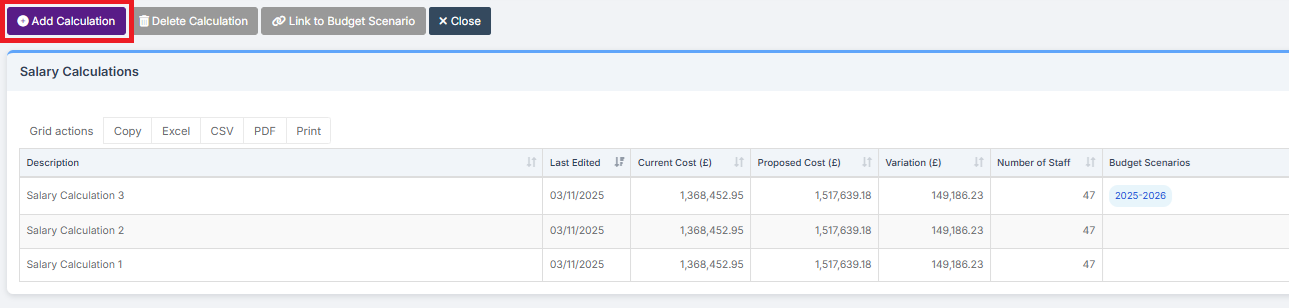
Click Add Calculation to Add a New Calculation.
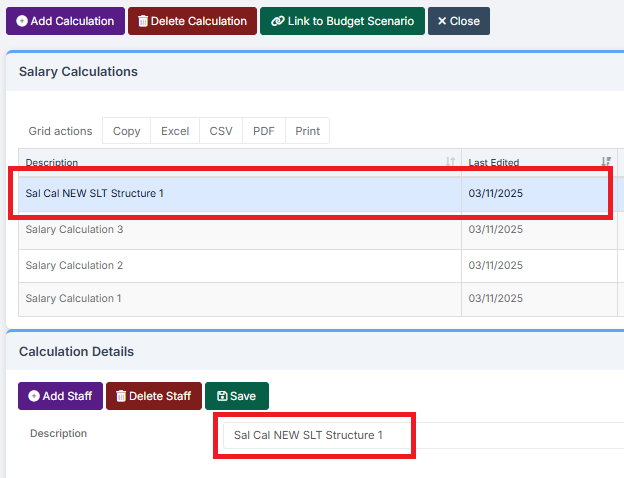
The New Calculation should be Renamed and Saved before working on it further. New Calculations pull through Staff Contracts as they are. For example, a Staff Member set as a Leaver will be a Leaver in the New Calculation.
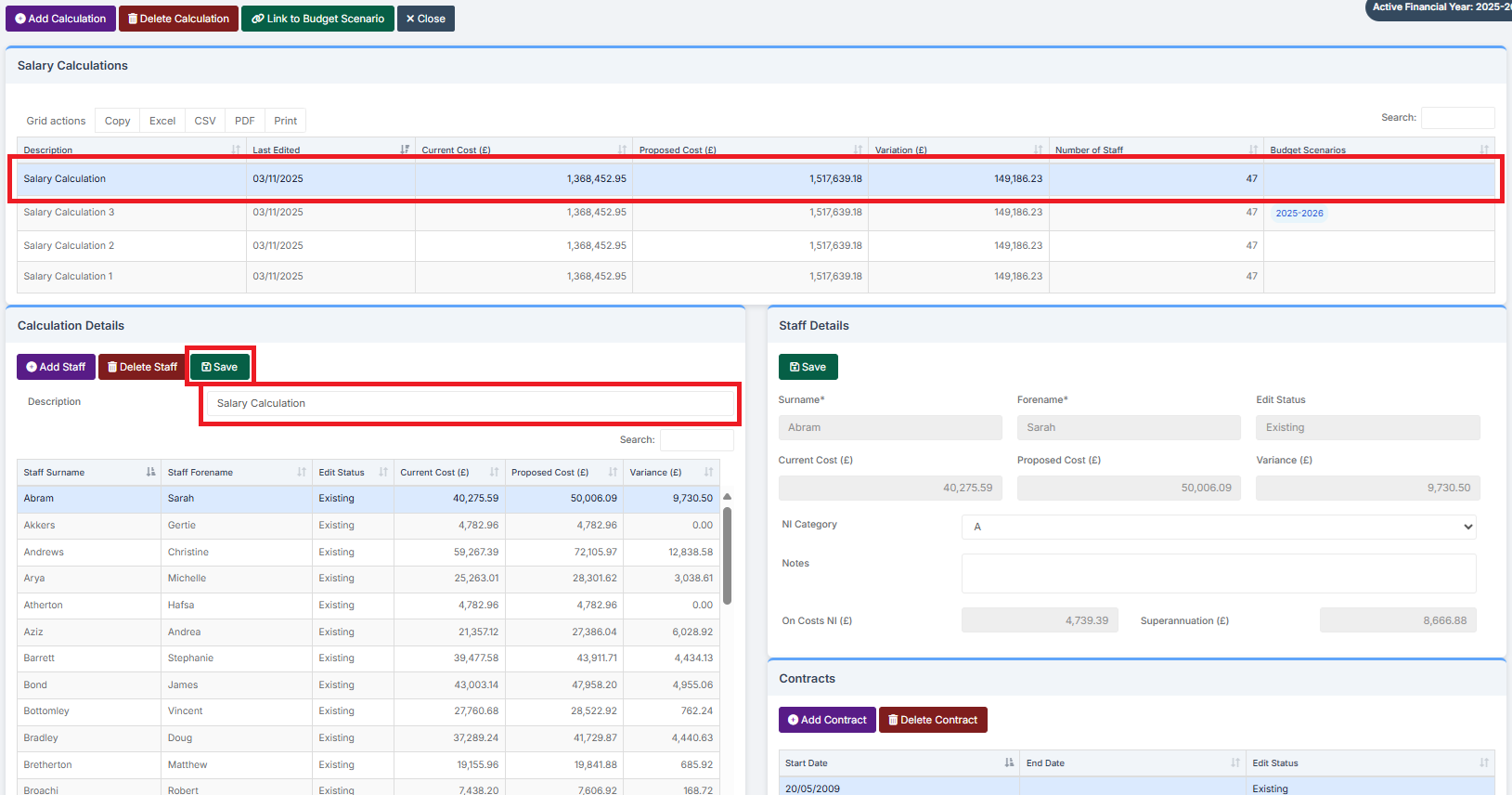
Multiple Salary Calculations can be created, so it pays to label them clearly.
Making a Salary Calculation for a Future Financial Year requires doing it in that Future Financial Year. Go to Modules > Finance > Finance Home Page and in the top right of the screen select the Financial Year in which the Salary Calculation is to be made.

Note: Projecting for a Future Financial Year requires the Base Pay Mapping to be copied over to that year. See: How to Copy Base Pay Mapping from One Year to Another.
Note: If anAnnual Award Percentage has been included in a Salary Projection, it will automatically pull through to the Salary Calculation.
How to Manually Adjust a Salary Calculation
There are three Adjustments that can be made to a Salary Calculation:
How to Add a New Staff Member to a Salary Calculation
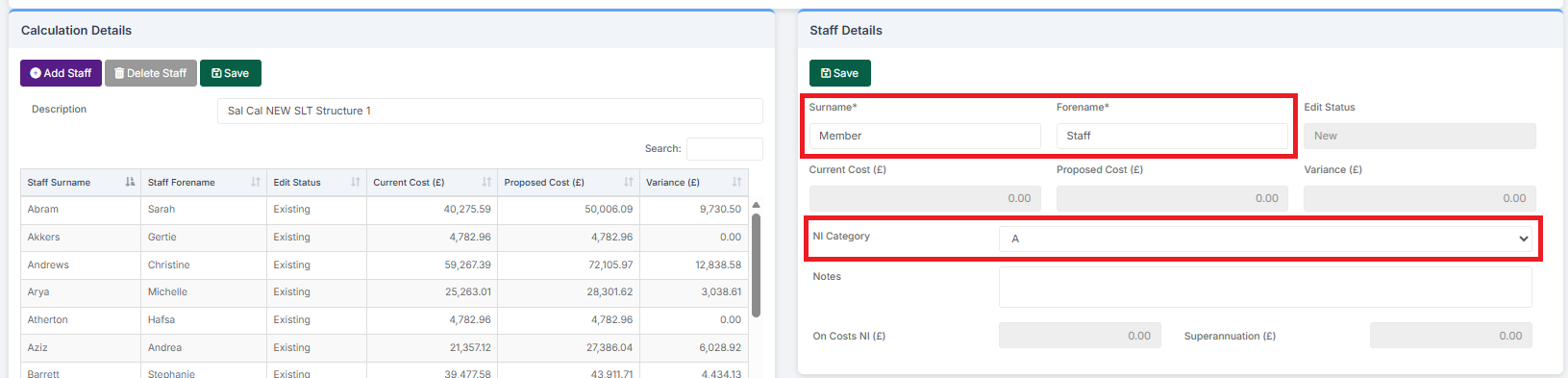
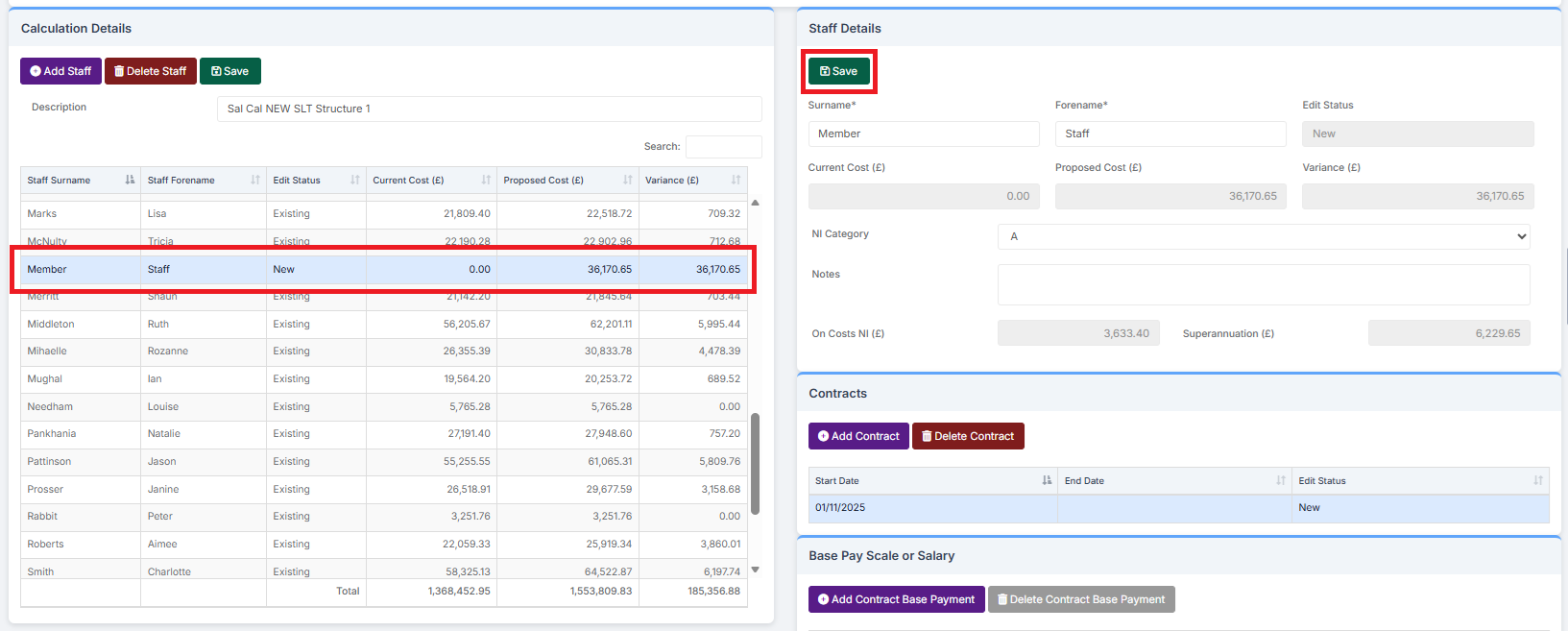
To Add a New Staff Member, click Add Staff, complete their Name and NI Category, then click Save.
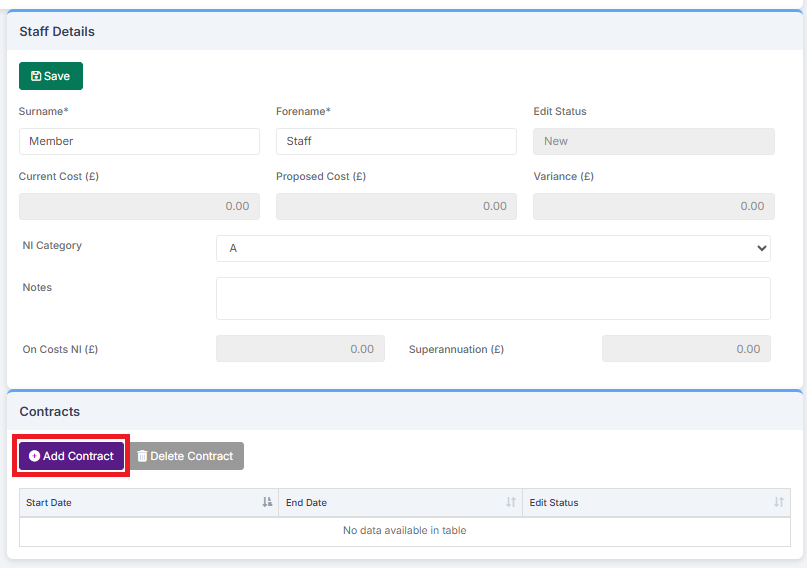
The Contracts section will appear. Click on Add Contract.
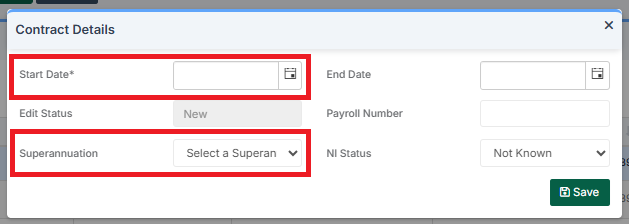
Complete the required information in the Contract Details pop-up then click Save.
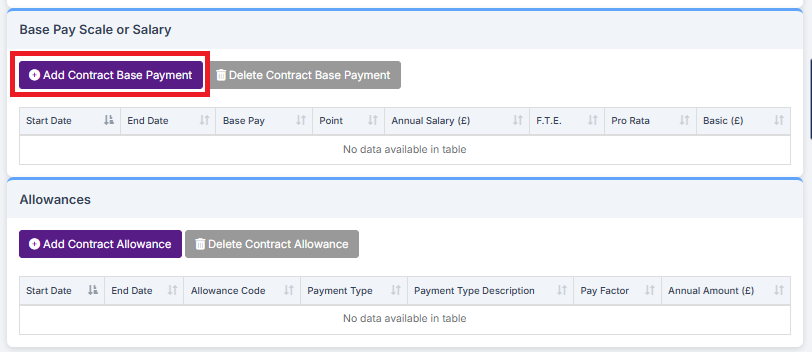
The Base Pay Scale or Salary and Allowances sections appear. Click on Add Contract Base Payment.
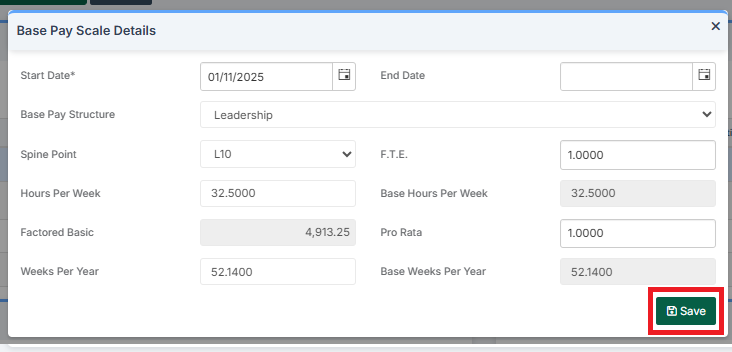
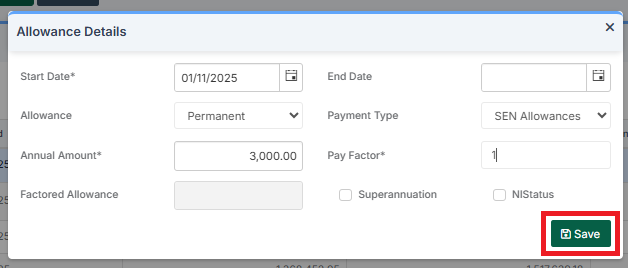
Complete the required information in the pop-up, then click Save.
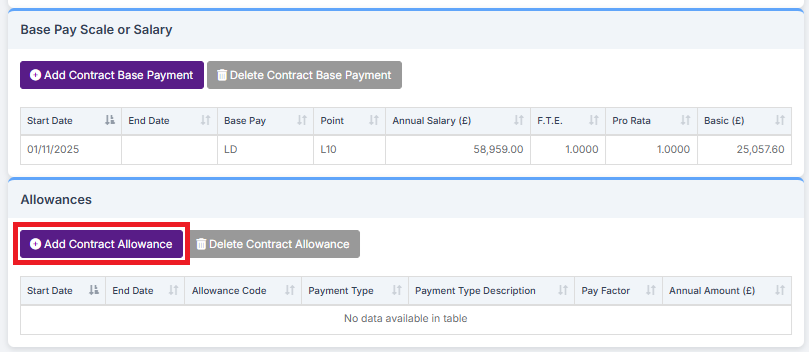
If required, click on Add Contract Allowance.
Complete the required information in the pop-up, then click Save.
Once complete, click Save. The New Staff Member can be seen in the list of Staff included in the Salary Calculation.
How to Amend a Current Staff Member in a Salary Calculation
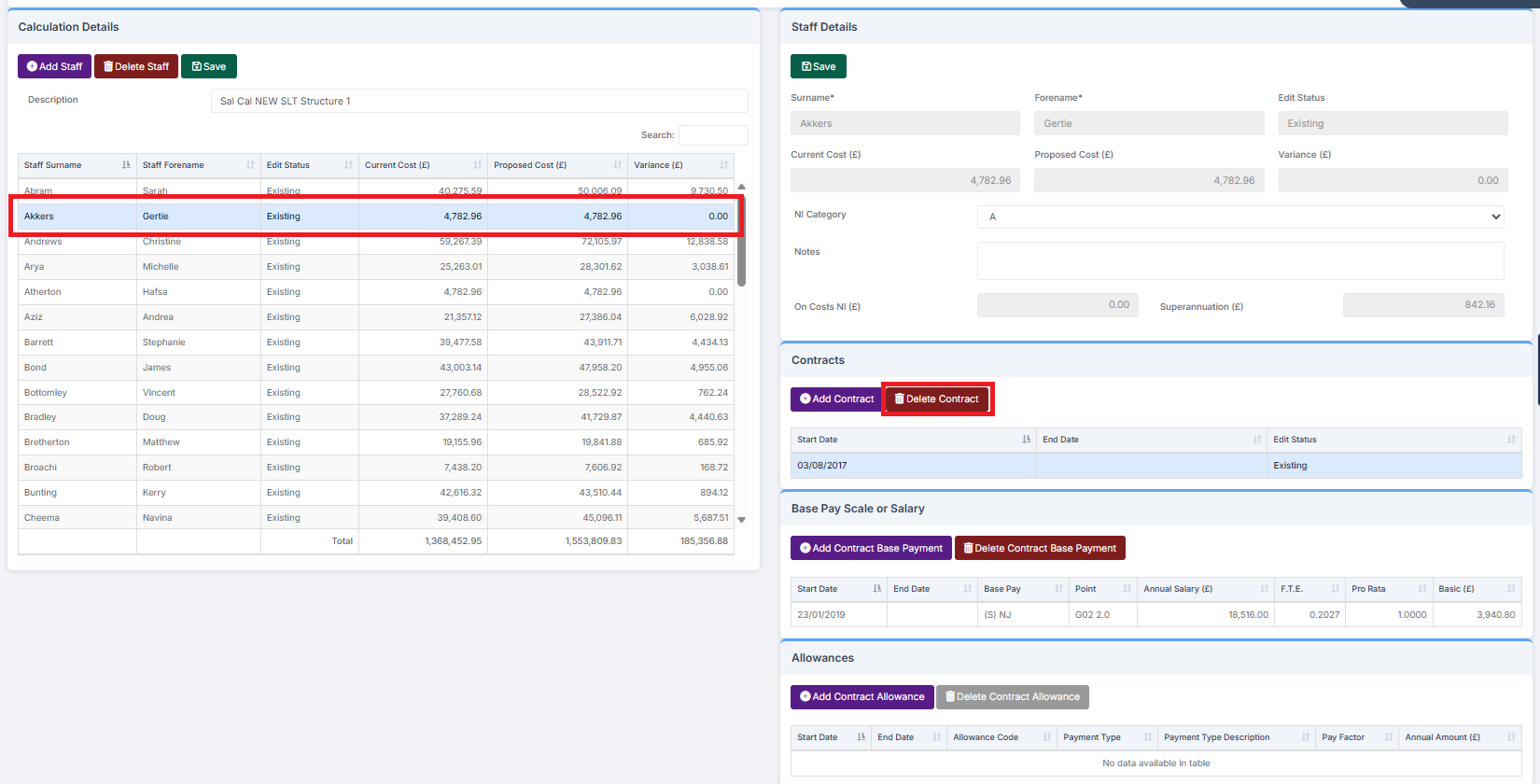
To Amend a Current Staff Member, select the Staff Member.
To move the Staff Member to a Different Contract, select Delete Contract to Delete the Staff Member’s Current Contract. Then follow the steps above in How to Add a New Staff Member to a Salary Calculation to complete the New Contract Details.
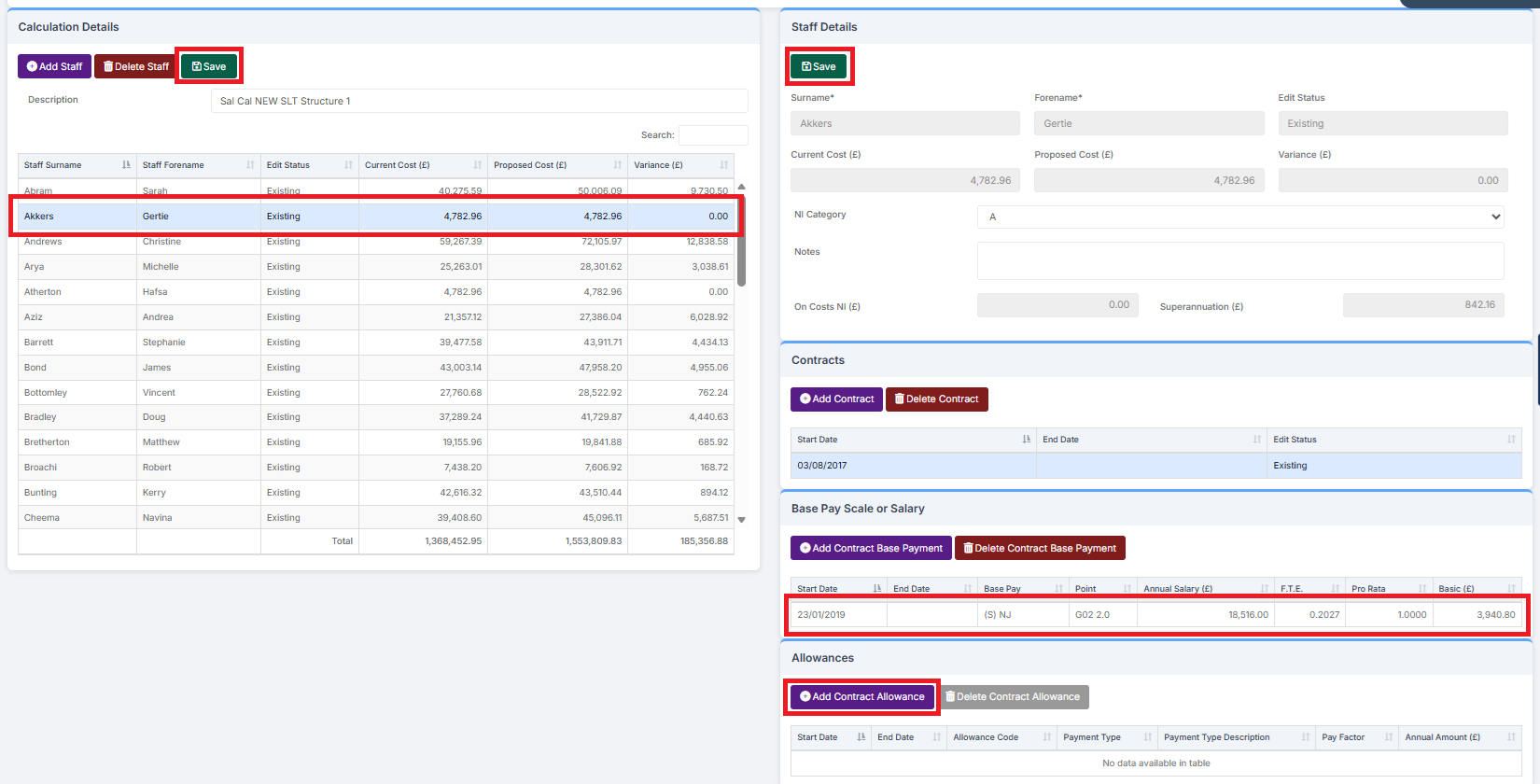
To Change the Details within a Staff Member’s Current Contract, double-click on the Base Pay Scale or Salary line and make the necessary changes. If a Contract Allowance is to be Added, click on Add Contract Allowance and complete the required information in the pop-up. If an Amendment is to be made to the Contract Allowance, double-click on the Contract Allowance line and amend the details. When complete, click Save under Staff Details and then Save under Calculation Details.
How to Delete a Current Staff Member in a Salary Calculation
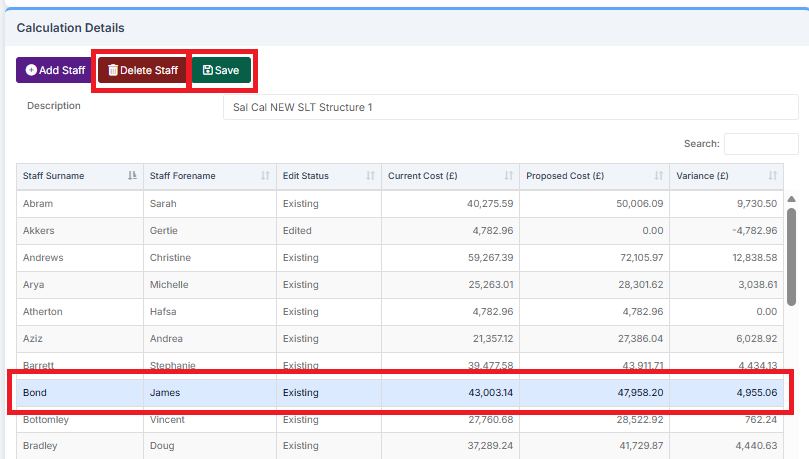
Select the Staff Member to be Deleted. Click Delete Staff. Click Save.
How to Link a Salary Calculation to a Budget Scenario
Select the Salary Calculation to Link to a Budget Scenario. Click Link to Budget Scenario.

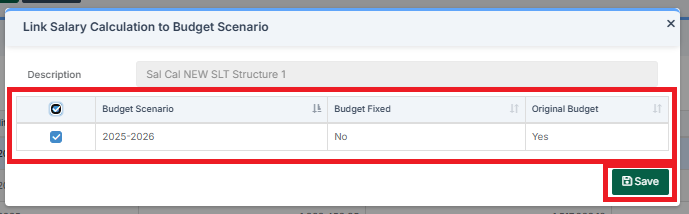
Select the Budget Scenario to Link the Salary Calculation to. Click Save.
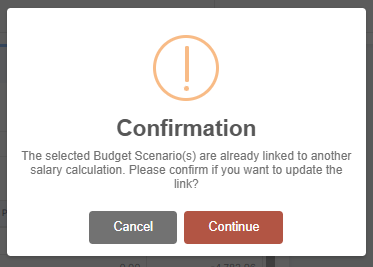
Read the Warning, then choose whether to Cancel or Continue.
Note: If a Salary Calculation is Linked to a Budget Scenario that is Not Fixed, it will not show as a Virement – it will update the current working scenario. Conversely, if a Salary Calculation is Linked to a Budget Scenario that is Fixed, it will show as a Virement.
To Unlink a Salary Calculation from a Budget Scenario, select the Salary Calculation to unlink then click Link to Budget Scenario.

Remove the Tick in the tick box from the Budget Scenario line, then click Save.
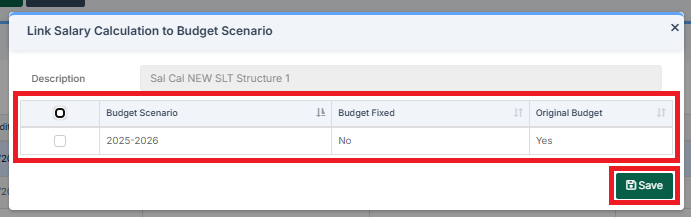
Note: Unlinking a Salary Calculation from a Budget Scenario deallocates the Staff Budget from the Budget Scenario. Any manually entered ledger code for ledger type ES will also be removed when unlinked.
How to Delete a Salary Calculation
Select the Salary Calculation to Delete and click Delete Calculation.

Read the Warning, then choose whether to Cancel or Continue.
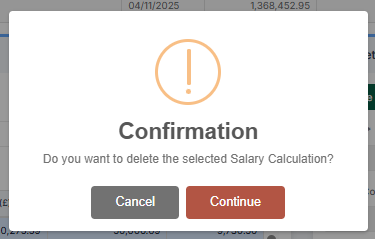
Note: A Salary Calculation Linked to a Budget Scenario needs to be Unlinked before it is Deleted.
The next guide in the Budgeting Module User Guide is: How to Monitor Budgets.