In this guide, we show How to Make a Cost Centre Enquiry within the Finance Module.
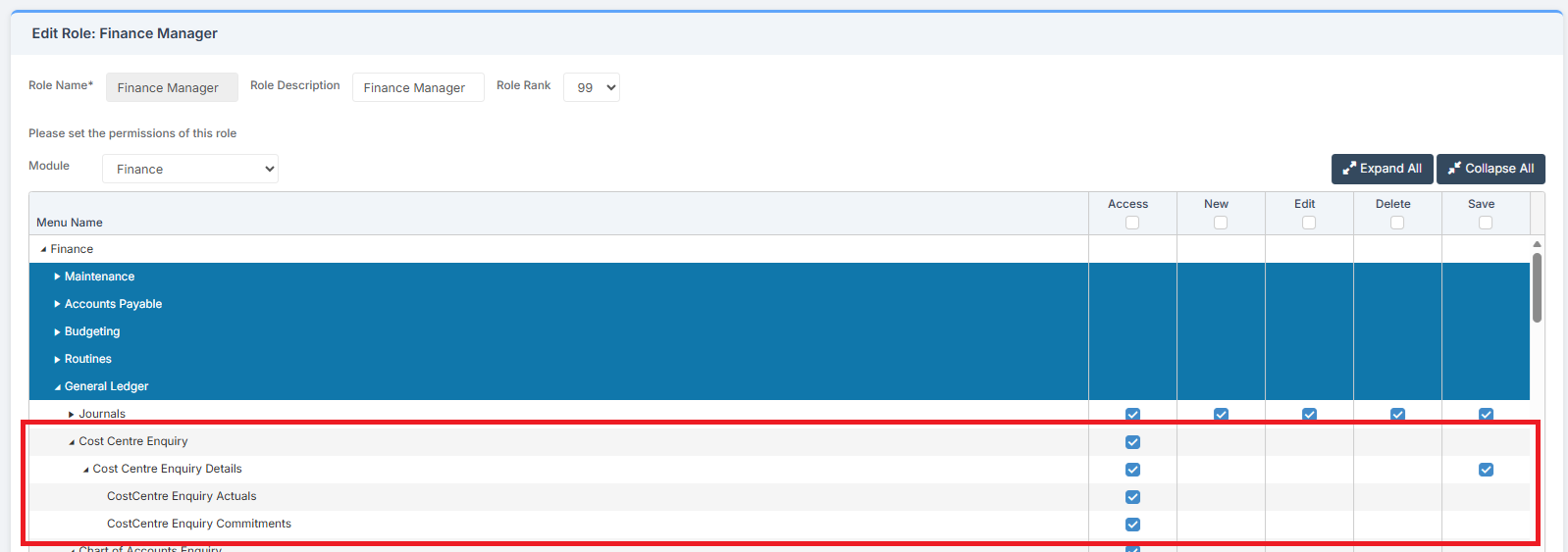
Access: The minimum permissions required to Make a Chart of Accounts Enquiry are found in the Finance Module section Config > Setup > Role & Permissions.
Related guides:
- Finance Managers Guide
- Finance Routines Guide
- How to Make a Chart of Accounts Enquiry
- How to Review Funds
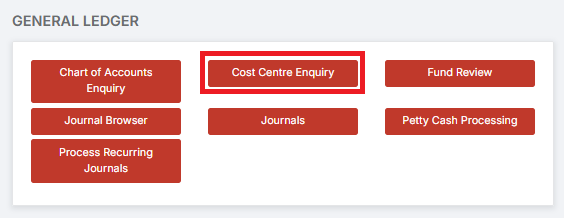
To begin, go to Modules > Finance > Finance Home Page > General Ledger > Cost Centre Enquiry.
The Cost Centre Enquiry page looks like this:
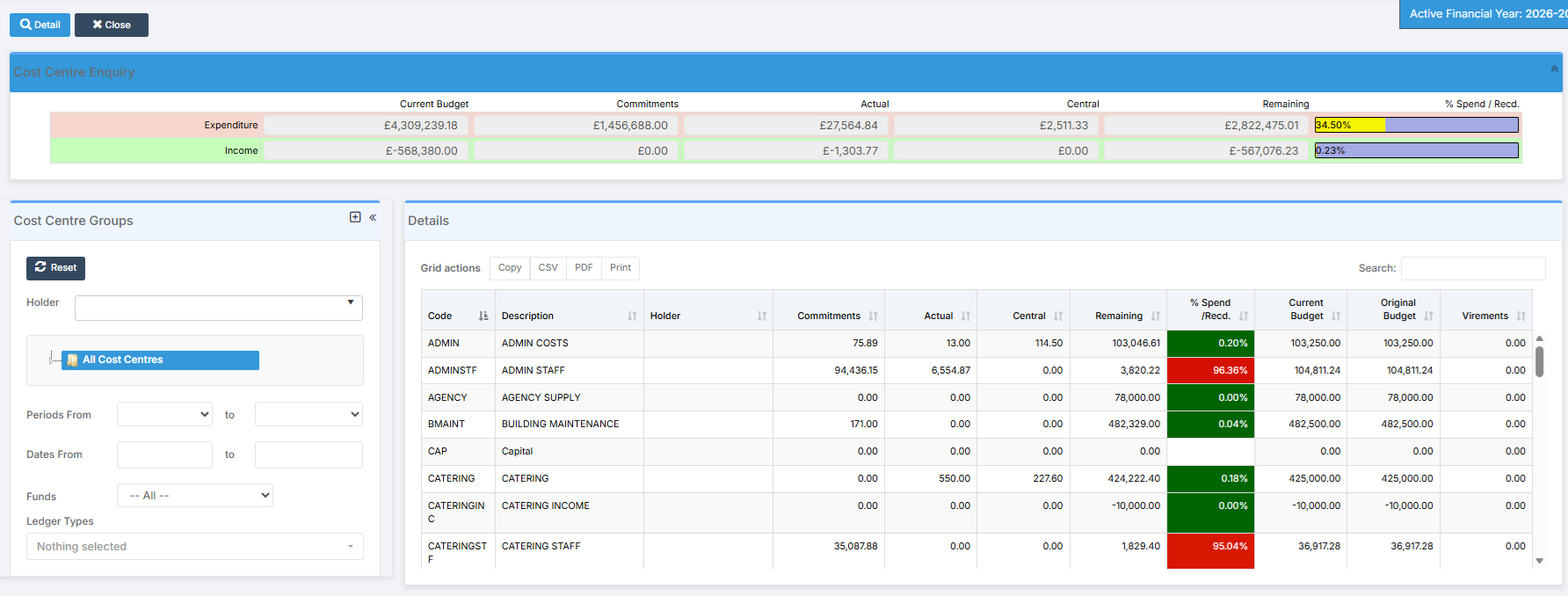
The Cost Centre Enquiry section at the top gives an overview of the selected Cost Centre(s). It details Expenditure and Income against the Current Budget, Commitments, Actuals, Central, and Remaining. To the right of the section is a small graphic illustrating % Spend/Recd.
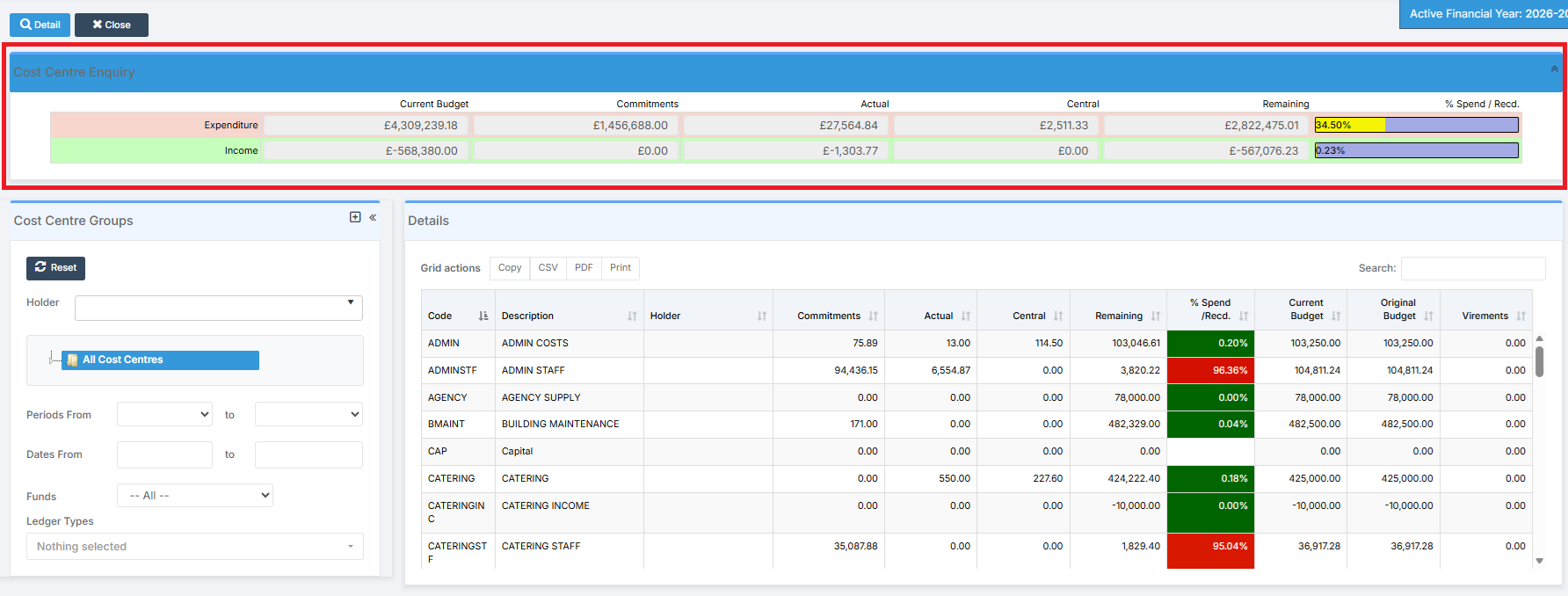
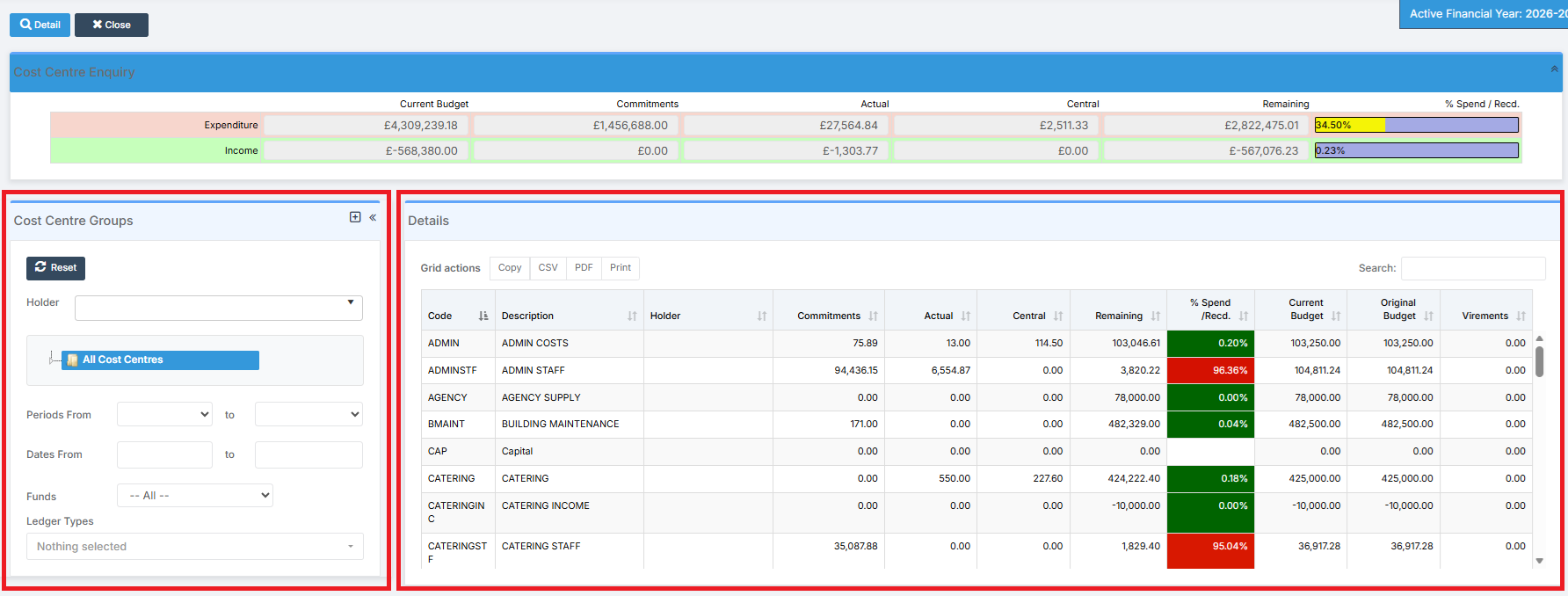
The Cost Centre Groups section on the left allows for the filtering of the Details section on the right.
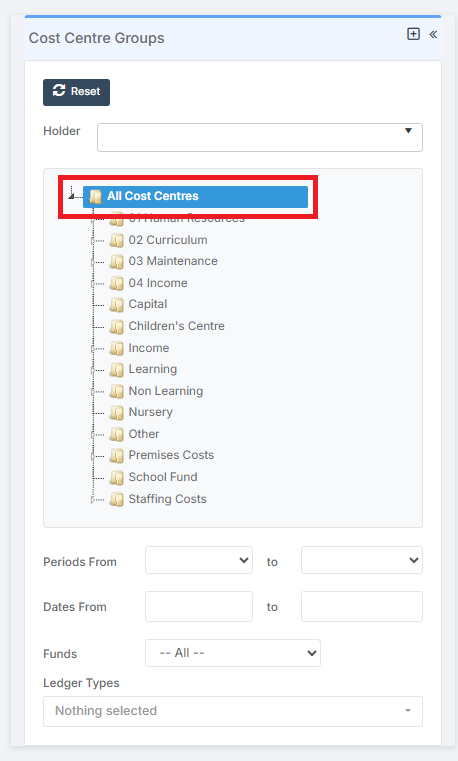
In Cost Centre Groups on the left, clicking on All Cost Centres expands the list.
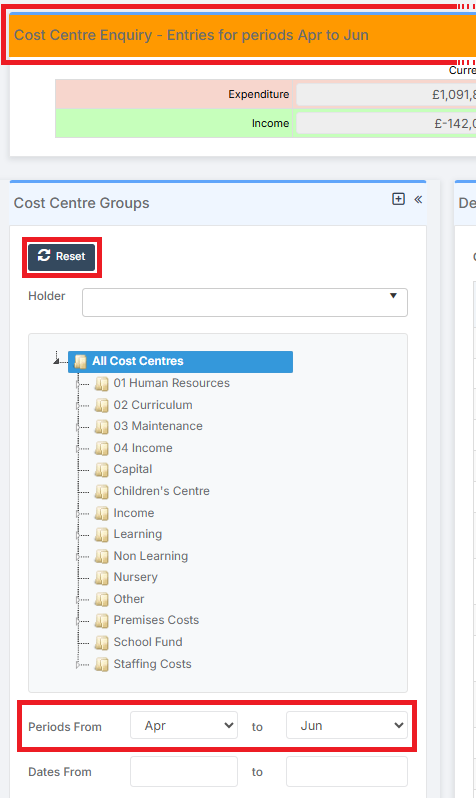
If filters in Cost Centre Groups on the left are applied, the colour of the bar in Cost Centre Enquiry changes from Blue to Orange and a description of the filter is added. The information contained in the Cost Centre Enquiry section and the Details section is changed to reflect the criteria selected in the filter(s). The filter can be cancelled by clicking Reset.
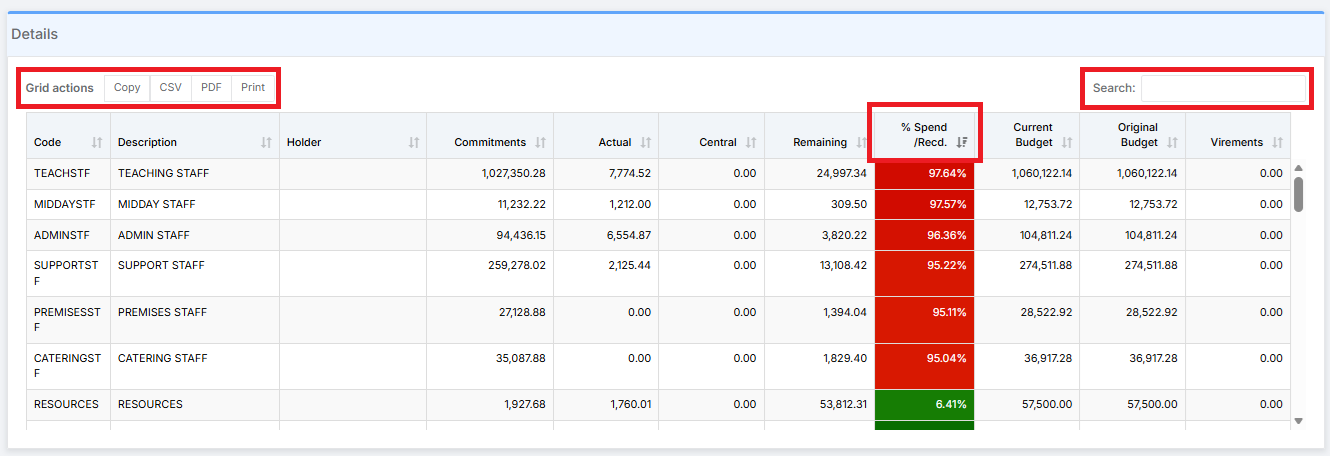
In the Details section, the columns can be sorted highest to lowest or lowest to highest by clicking on them. Usefully, the % Spend/Recd. column is colour-coded to reflect the percentage of Expenditure or Income measured against the Current Budget.
The Search feature is a quick and easy way to find specific information.
The table can be Copied, Printed, or Exported in the preferred file format by clicking on Grid actions.
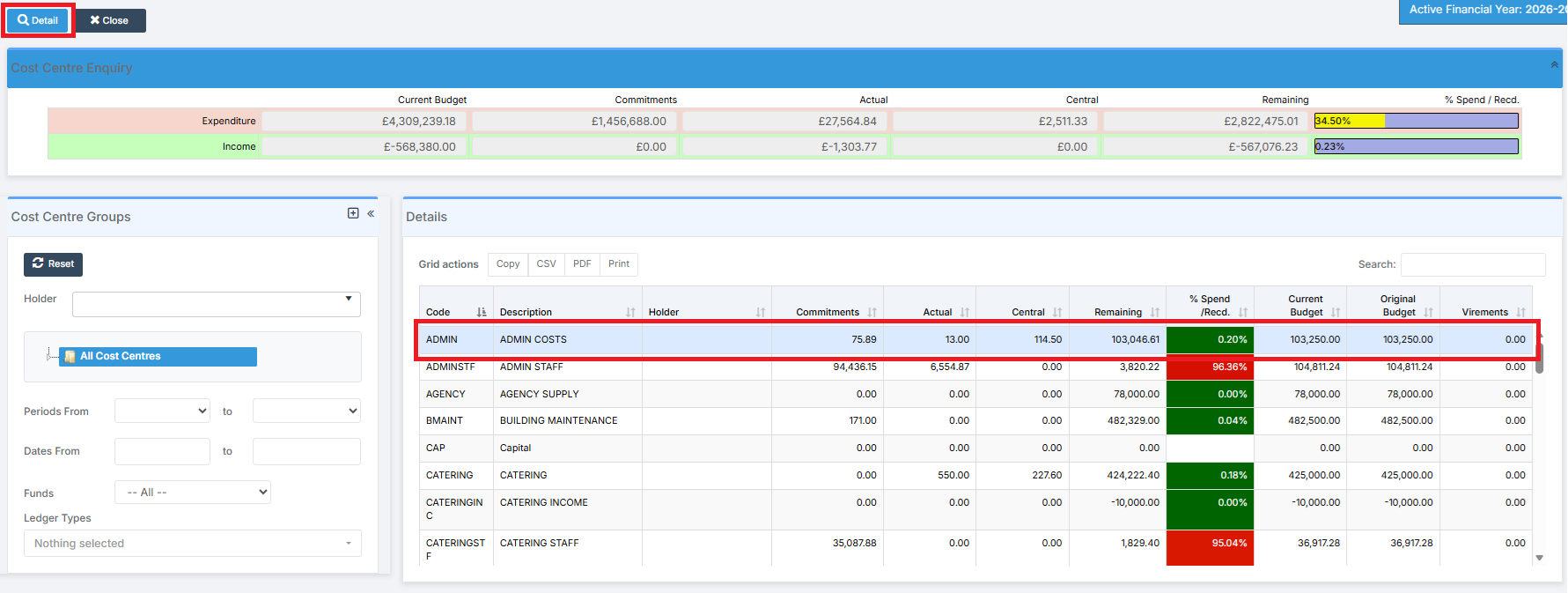
Double clicking on a Cost Centre line, or selecting it and clicking on Detail in the top left of the page, shows the Cost Centre Enquiry Details and the Linked Ledgers.
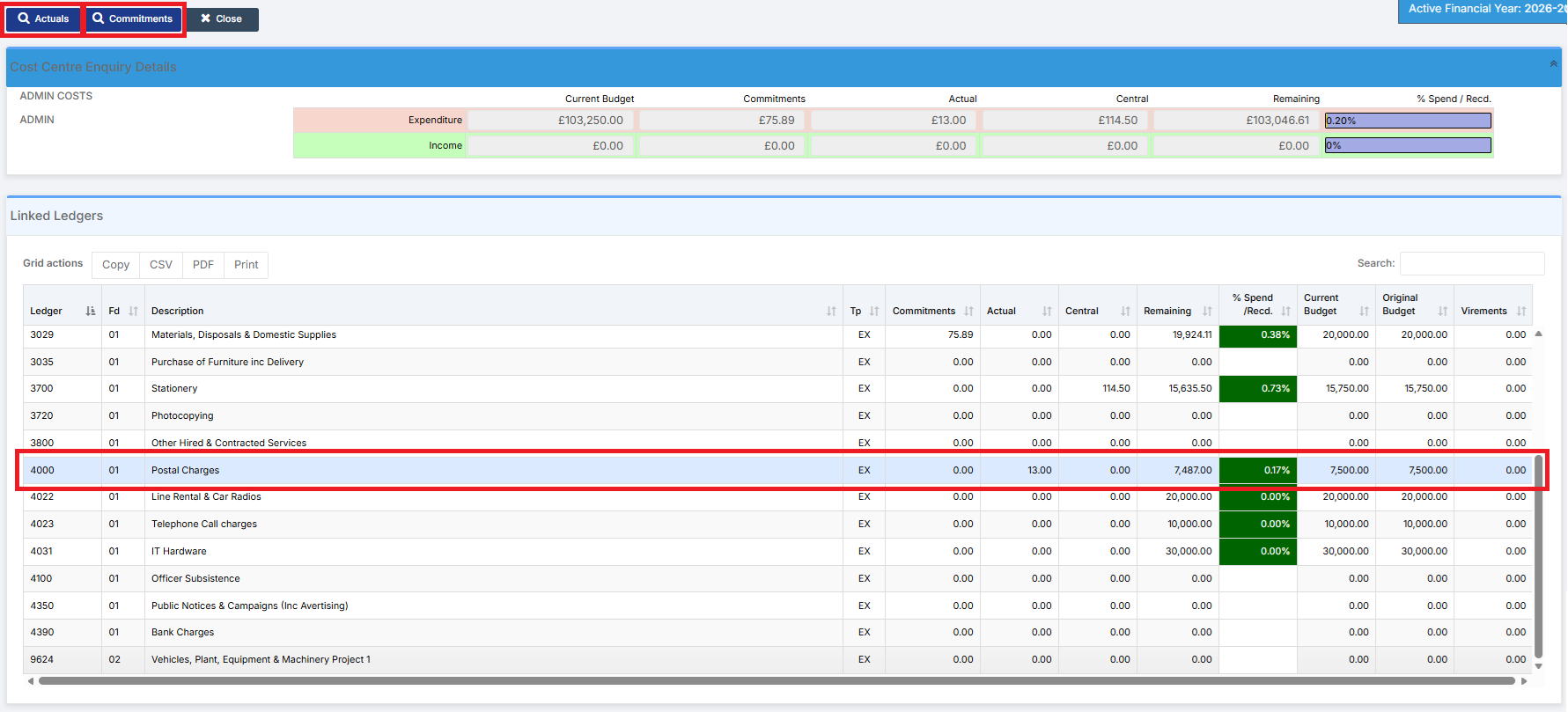
Within Cost Centre Enquiry Details, double clicking on a Ledger, or selecting it and clicking on Actuals, shows the Transactions associated with that Ledger. If there are Commitments associated with that Ledger, these can be shown by clicking on Commitments.
Within Transaction Listings, double clicking on a Ledger shows the Transactions associated with that Ledger. To view the Journal that created the Transaction, either double click on the Transaction or highlight it and then click Journals.
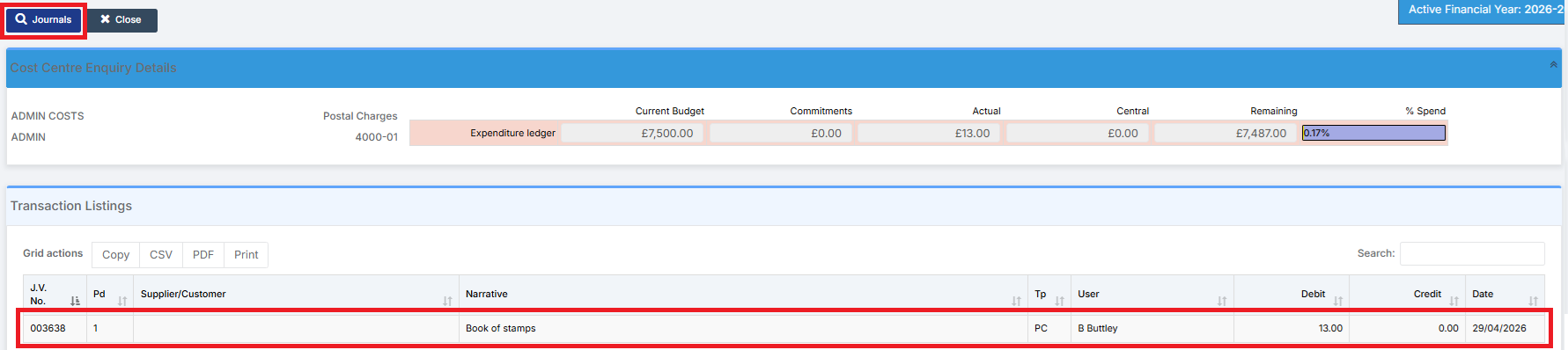
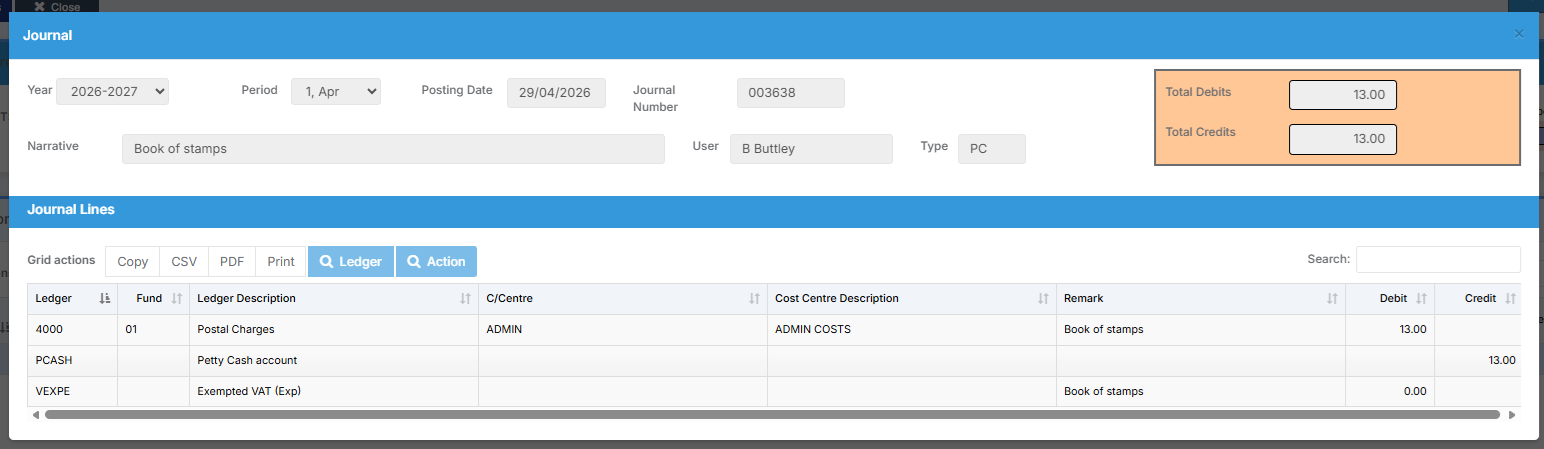
The Journal that created the Transaction is then shown.