All pages below are subject to having the relevant Roles and Permissions.
Also See: How To Manage Roles & Permissions within Vision
Note: This option is for use with the Vision product only. User Accounts also need to be created in your central system before they can be distributed to other schools.
IMPORTANT: Please be aware when distributing central changes from Vision for Users this process will also push out the roles from your central system as well. So if a school has amended the Teacher role it will be overwritten by the Teacher role in the central MIS.
Allowing an MIS User Account to be transferred to Vision connected schools for Staff who work in multiple schools.
For more information on the distribution process see : How to distribute items to schools from Vision.
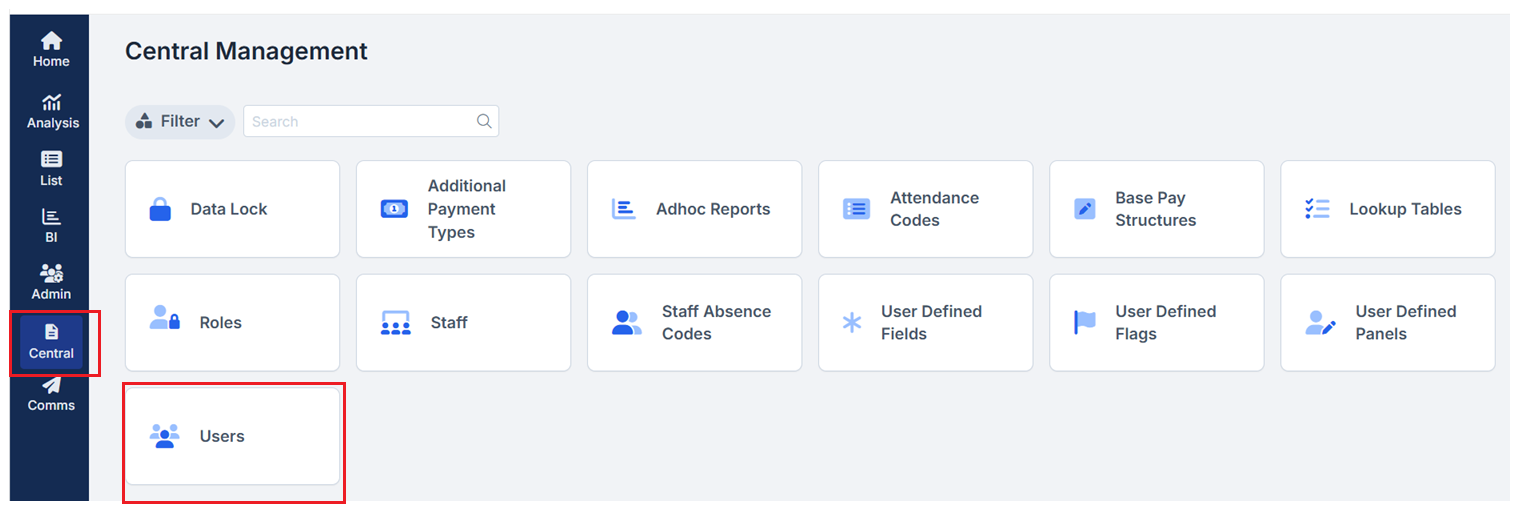
Login into Vision and from the left Menu click Central to open the Central Management panel then click on Users
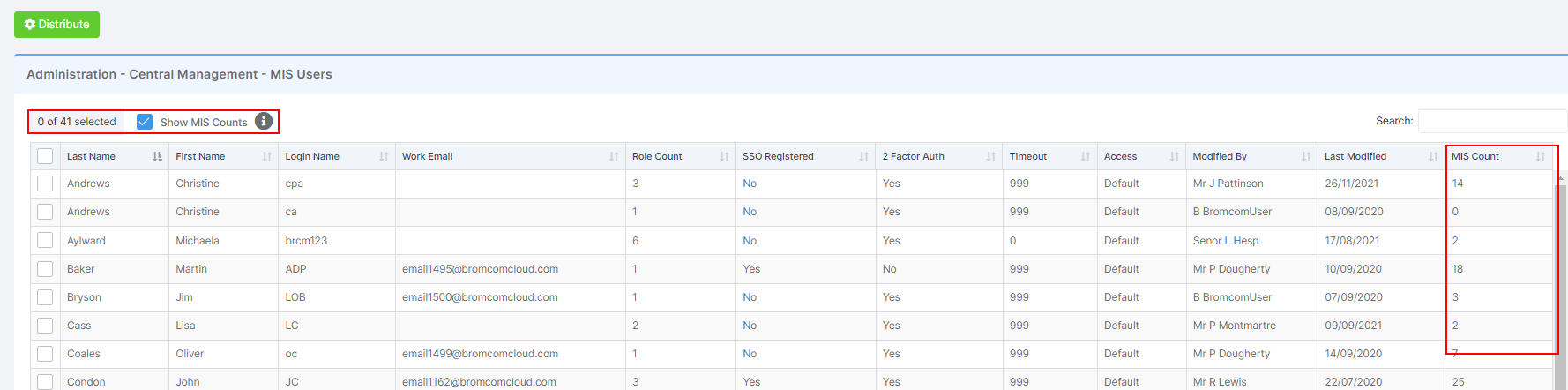
Ticking the Show MIS Count box will show the number of schools that have that User available in the MIS. The MIS Count column values are now active.
Note: Enabling this Count can increase the time it takes the table to load
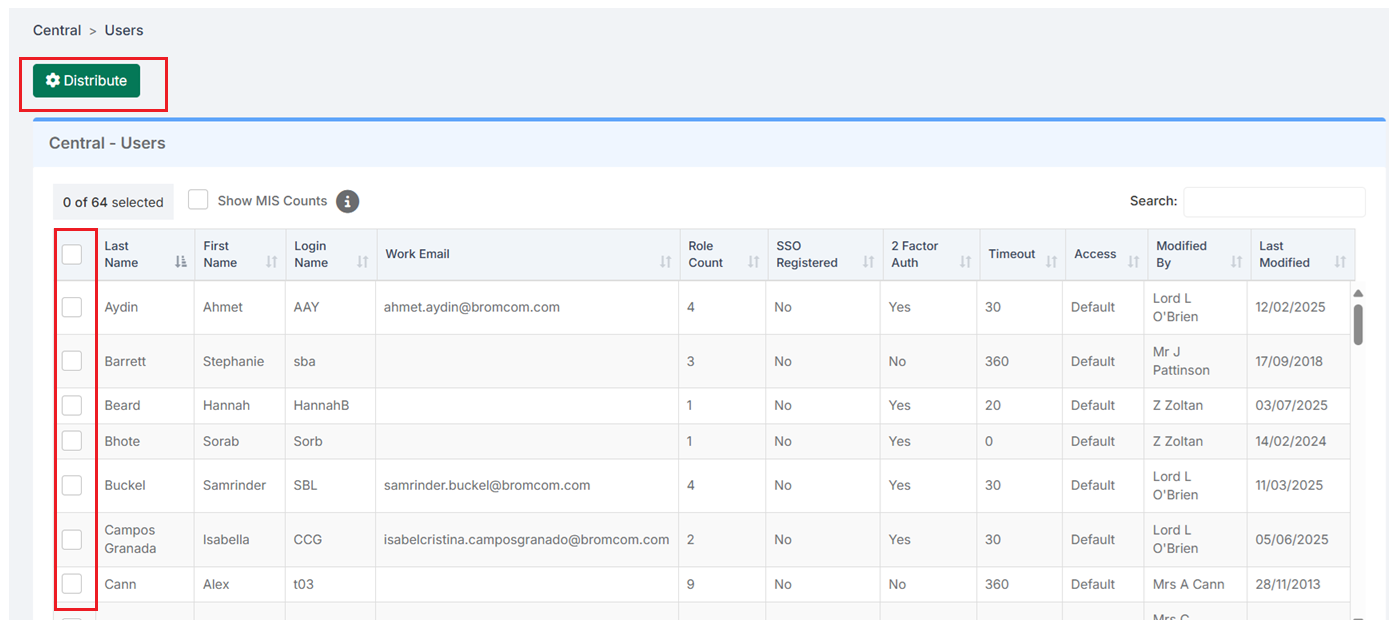
Then simply click on the relevant Users (there is an option to Select All) and click Distribute
Then use the Distribute MIS Users to Schools panel to Select Schools by clicking All Schools, Phases, School Set or Custom Filter.
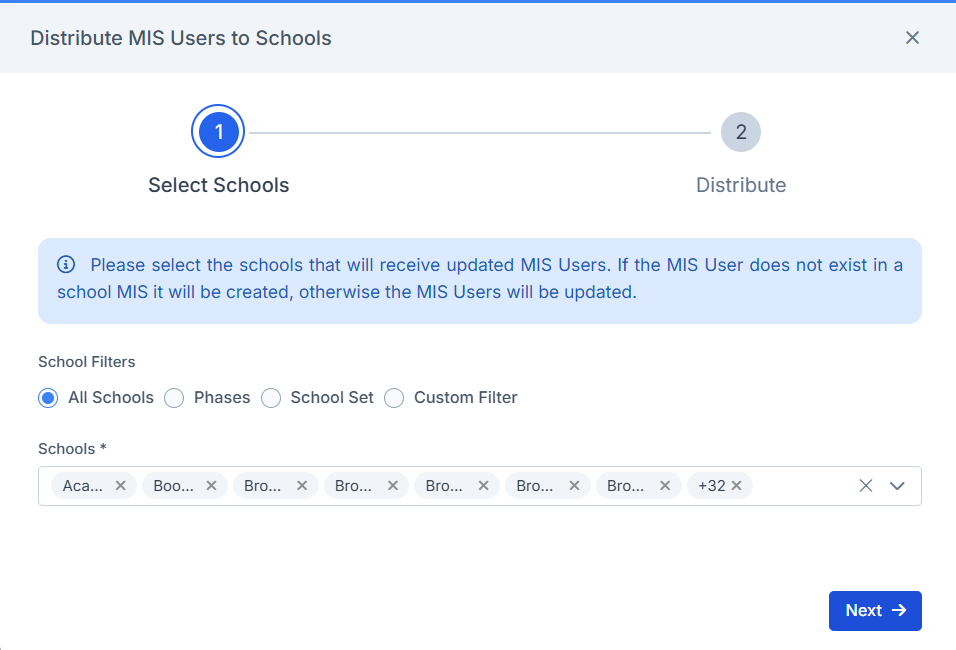
When you are happy with the Selected School(s) click Next.
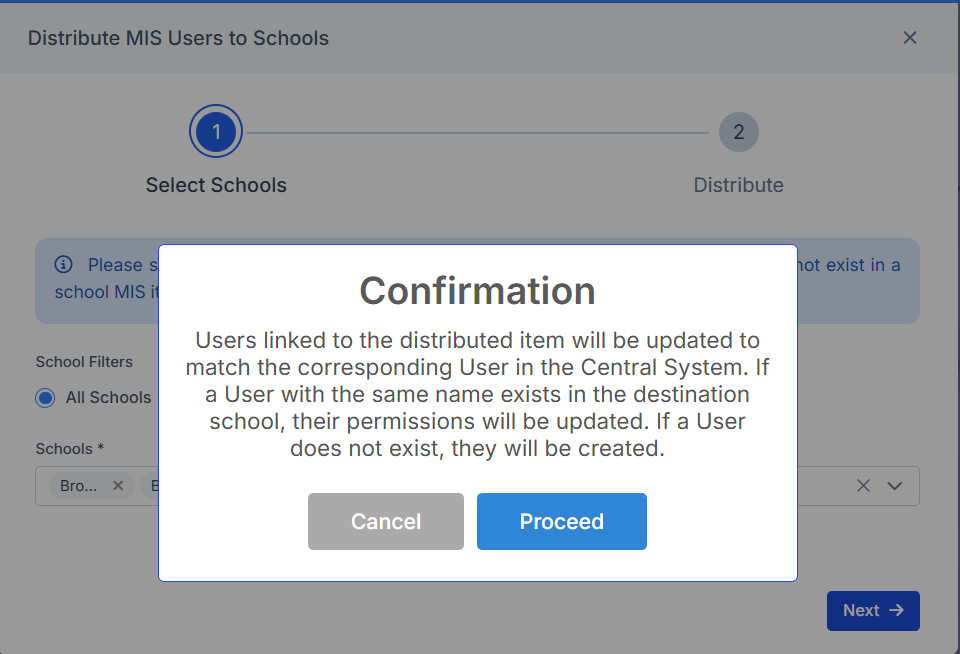
Then if you are happy with the Confirmation message click Proceed.
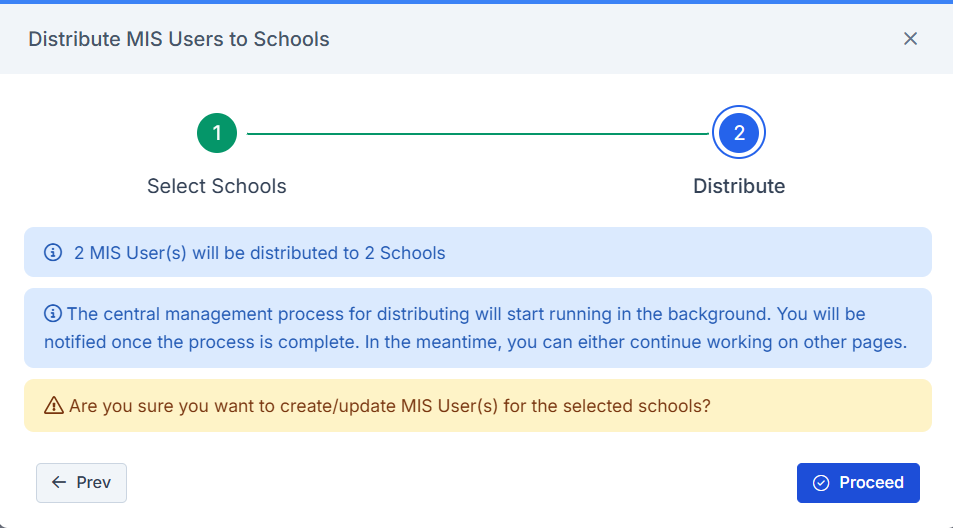
Then in the final screen if you are happy click Proceed.
Third Party Permissions that have been Assigned to a User will also be Distributed as well.
Note: Any Third Party Permissions Distributed will overwrite any existing Third Party Permissions for that User.
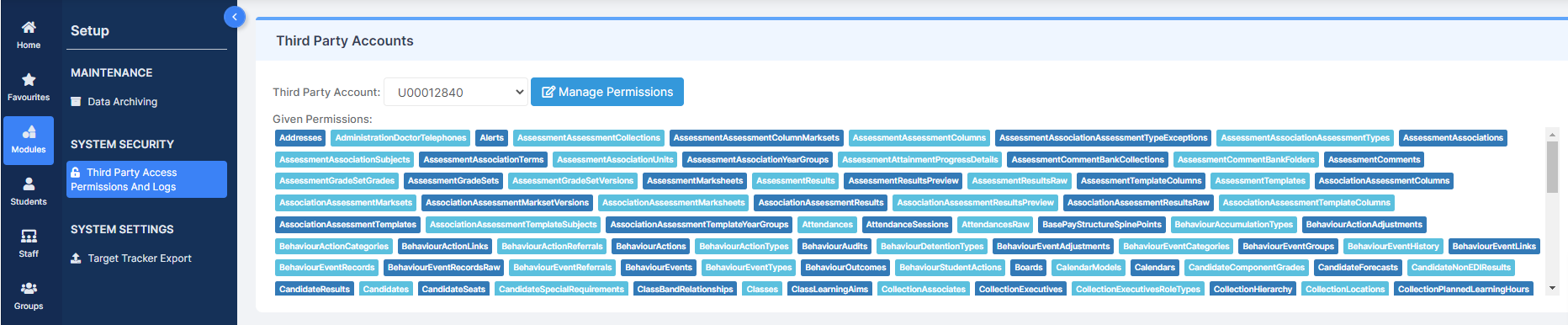
To check what Permissions have been Assigned to a User in the MIS go to Modules > Setup > System Security > Third Party Access Permission and Logs and select a User from the dropdown list.