
In this guide, we show how to check Staff Contract And Pay Details in preparation for using the Salary Calculator.
Access: The minimum permissions required to Set a Default Budget Scenario are found in the Finance Module section Config > Setup > Roles & Permissions.
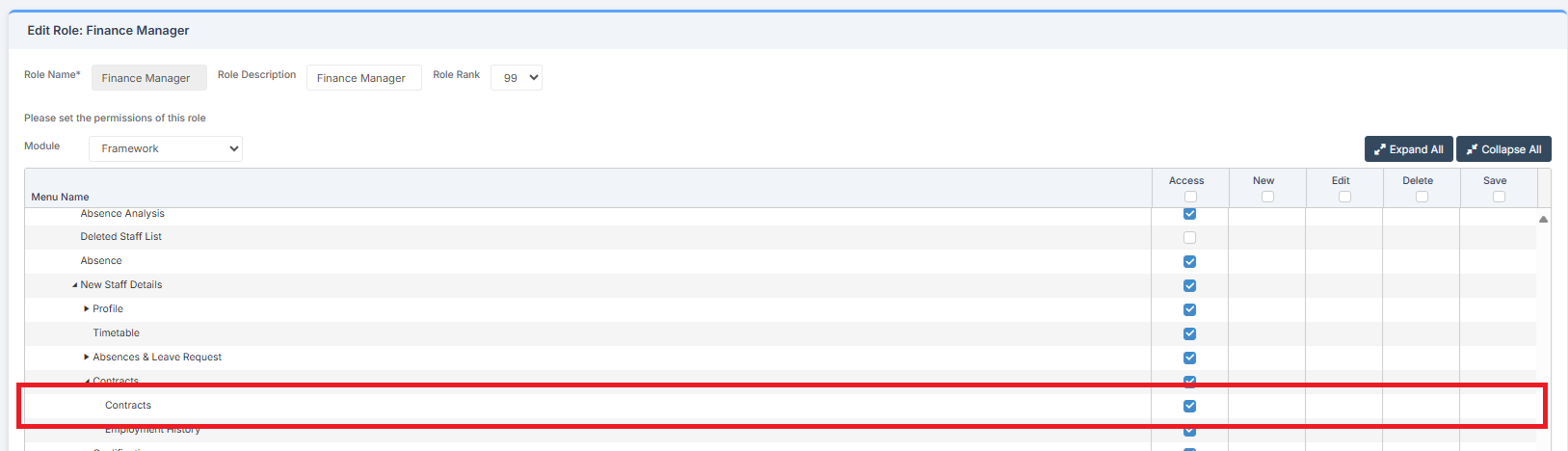
Pre-requisites: For the Salary Calculator to work, all Staff Contract And Pay Details must be up to date, so that they accurately pull through to the Salary Calculator. See: How to Add Staff Contract Information.
Related Guides:
This Guide is part of the Budgeting Module User Guide
The previous guide in the Budgeting Module User Guide is: How to Manage Virements.
The next guide in the Budgeting Module User Guide is: How to Use the Salary Calculator.
To begin, go to Modules > Staff.

Click on Selections > Select All.
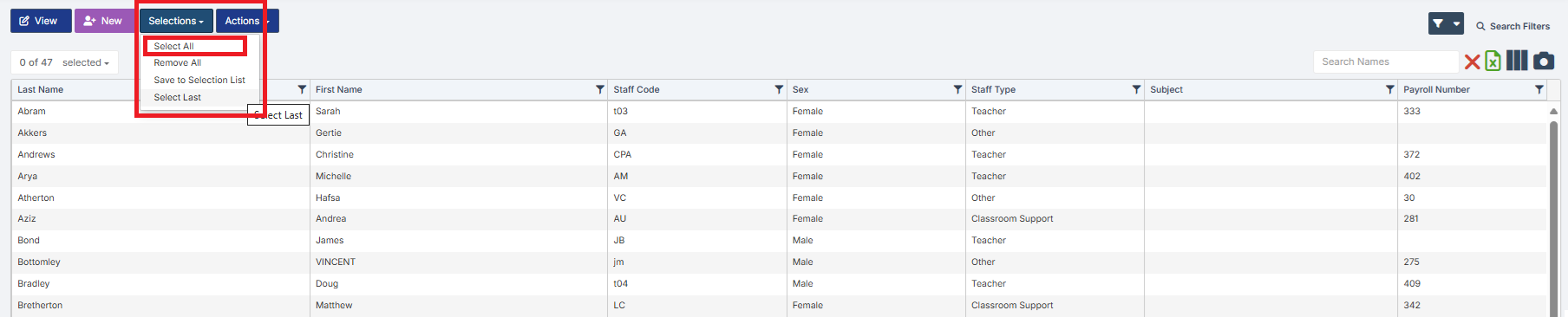
Click View.

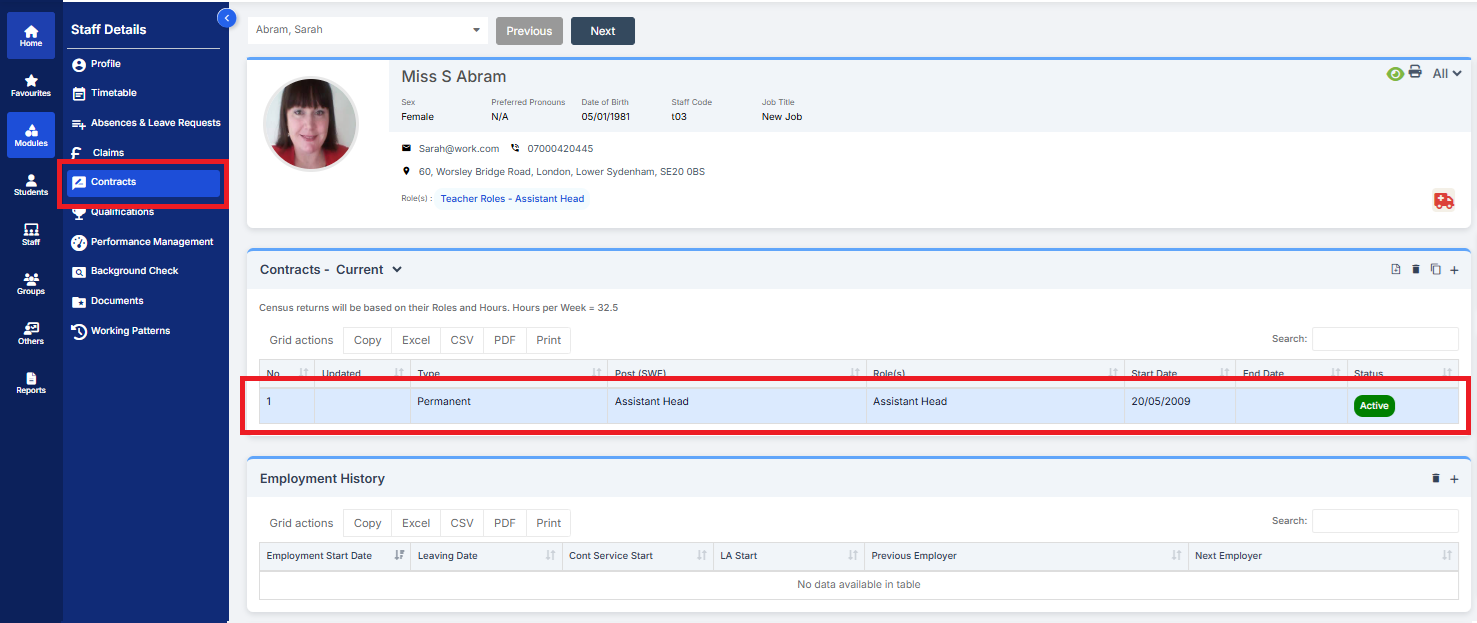
A new tab will open. Select Contracts from the ribbon on the left and then double-click on the Contract Line.
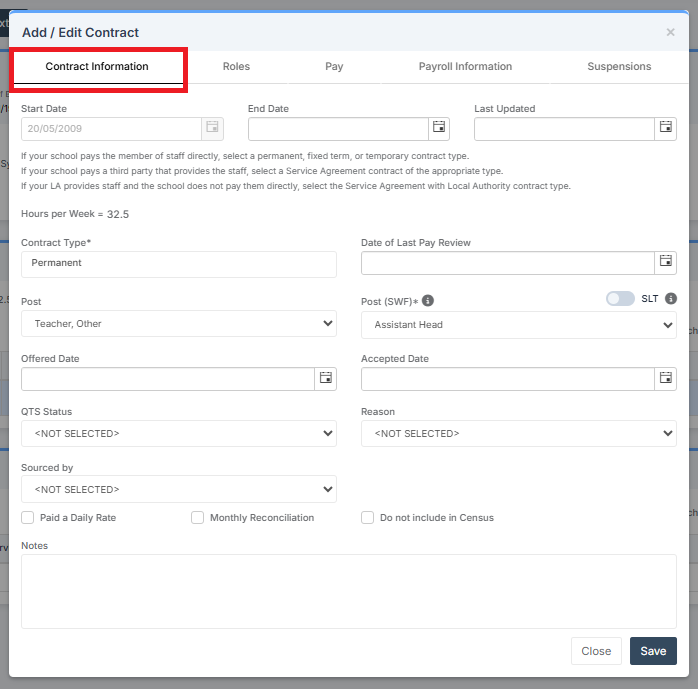
In the pop-up Add / Edit Contract, select Contract Information and check the Start Date is correct.
In Roles, check the Role and Start Date are correct.
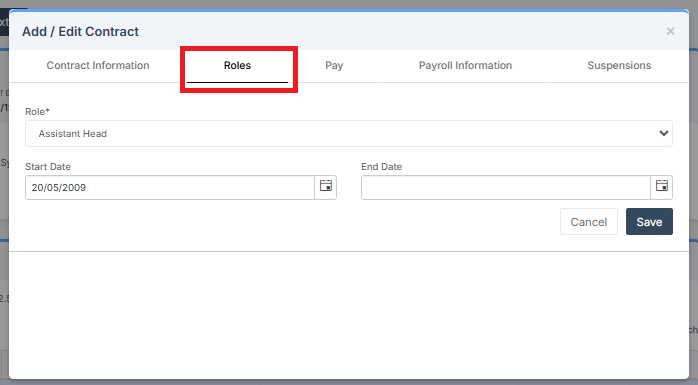
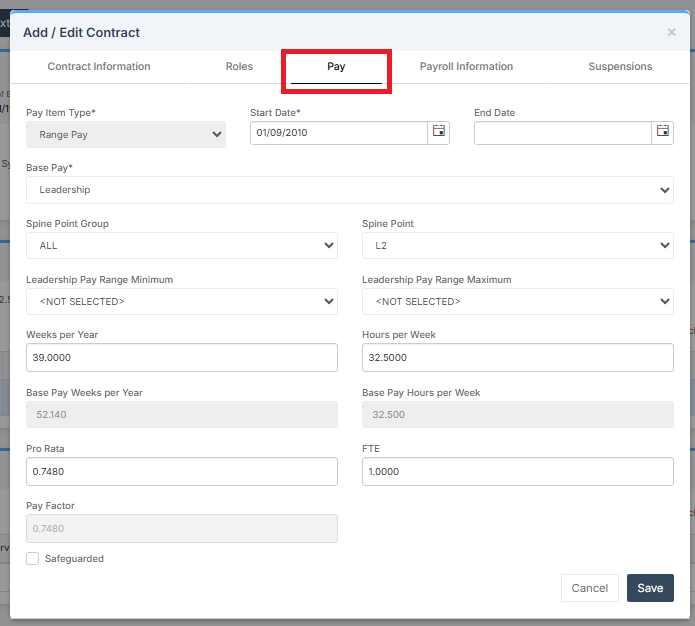
In Pay, check all the information in the boxes is correct.
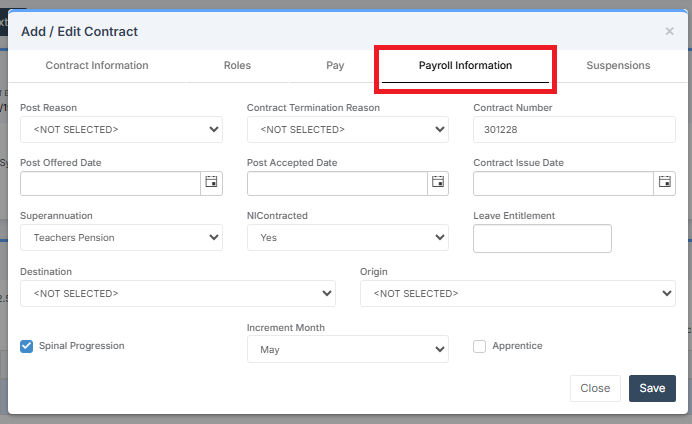
In Payroll Information, pay particular attention to the Contract Number and the Superannuation setting.
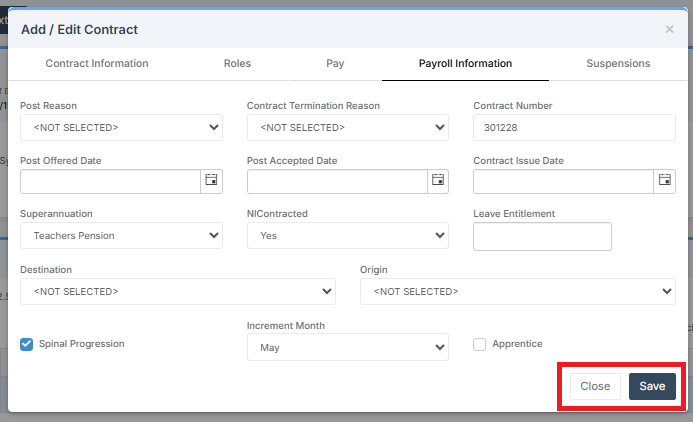
When satisfied the information in Add / Edit Contract is correct, click Close, or Save if any changes have been made.
Next, hover to the right of the Staff Member’s Name to click on the Icon to open the Edit Staff Details pop-up.

In the Staff Details pop-up, select Employee Details and check the Employee has an NI Category assigned to them.
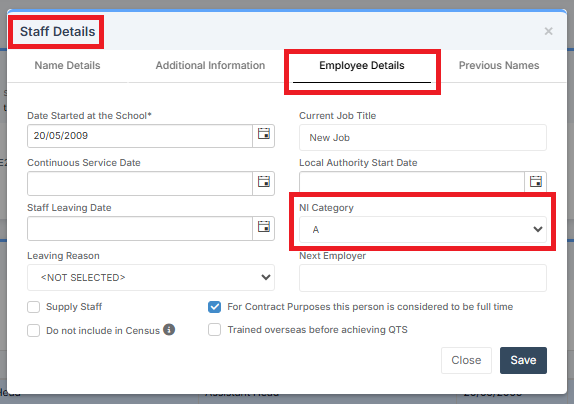
Click Close, or Save if any changes have been made.
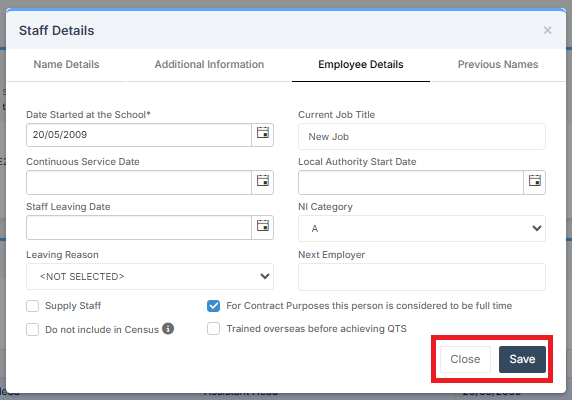
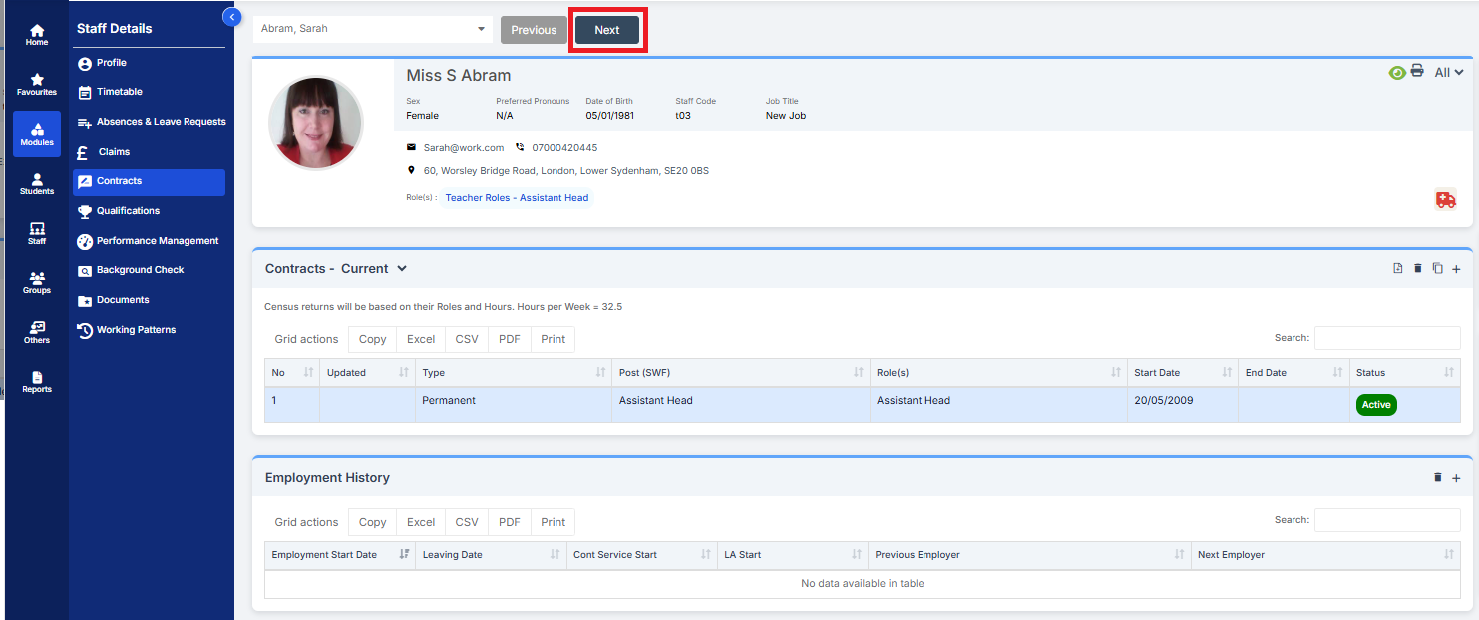
When satisfied that the Staff Member’s Contract and Pay Details are correct, click Next to move to the next staff member. Repeat the process.
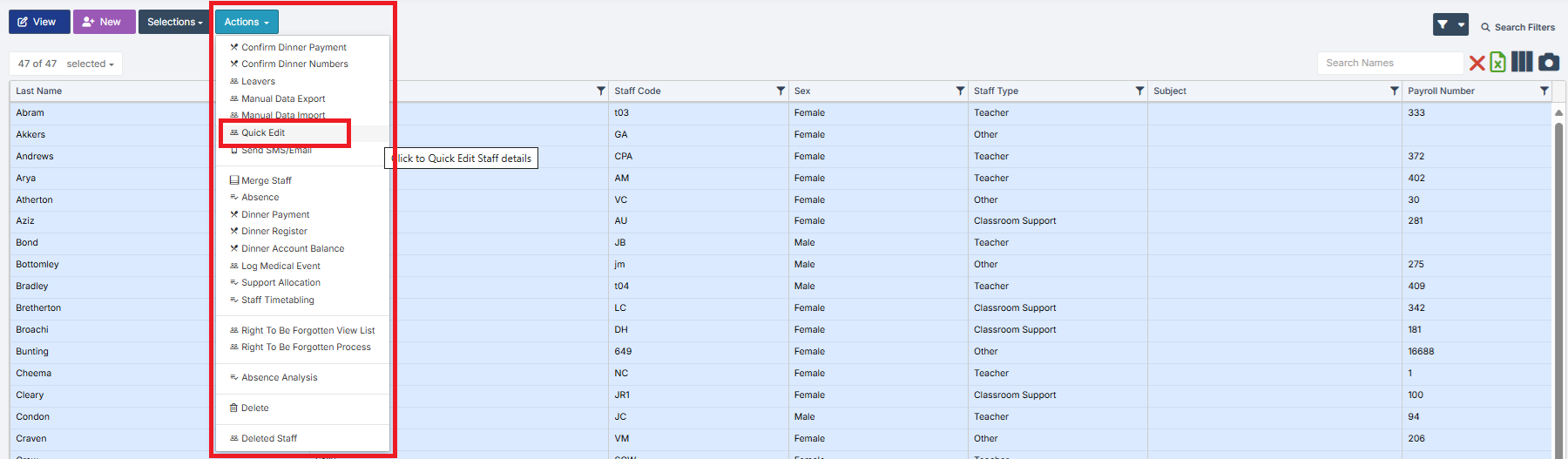
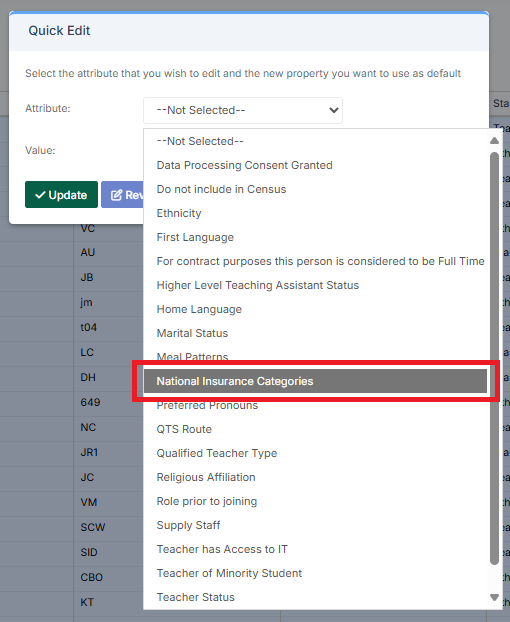
If required, to Bulk Update staff NI Category, go to Modules > Staff > Selections > Select All > Actions > Quick Edit.
From the Attribute drop-down, select National Insurance Categories.
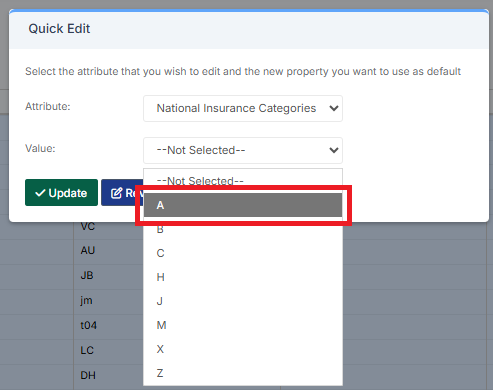
From the Value drop-down, select A.
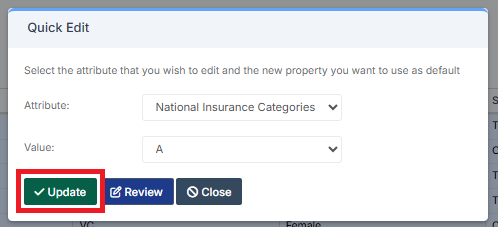
Then click Update. This will update all Staff’s NI Category to A.
Notes:
- NI Thresholds are automatically updated and pushed out by Bromcom
- Pension Schemes are not automatically updated by Bromcom. These need to be manually updated. Go to Config > Administration > Superannuations
- Base Pay Structures are not automatically updated by Bromcom. These need to be manually updated. See: How to Create/Edit and Update Base Pay Structures
The next guide in the Budgeting Module User Guide is: How to Use the Salary Calculator.