In this guide, we show How to Process Debit Card Transactions in the Finance Module.
Note: If you are a Parent looking for guidance on MCAS, please see: MyChildAtSchool (MCAS) Parent Guides.
This Guide forms part of the ACCOUNTS PAYABLE USER GUIDE. Click to see Related Guides.
Access: The minimum permissions required to Process Debit Card Transactions are found in the Finance Module section of Config > Setup > Roles & Permissions.

Related Guides:
- Accounts Payable User Guide
- How to Process Credit Card Transactions
- How to Create a New Purchase Order
- How to add a Non-order Invoice
This guide is split into three sections:
- How to Add a Debit Card
- How to Set Up and Process a Payment by Debit Card
- How to Process a Refund by Debit Card
How to Add a Debit Card
Debit Cards can be added to a Bank Account.
To begin, go to Modules > Finance > Finance Home Page > Maintenance > Bank Accounts.
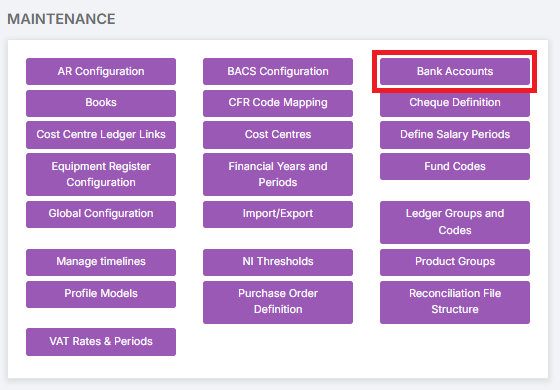
Add a new Bank Account, if required. See: How to Add a Bank Account.
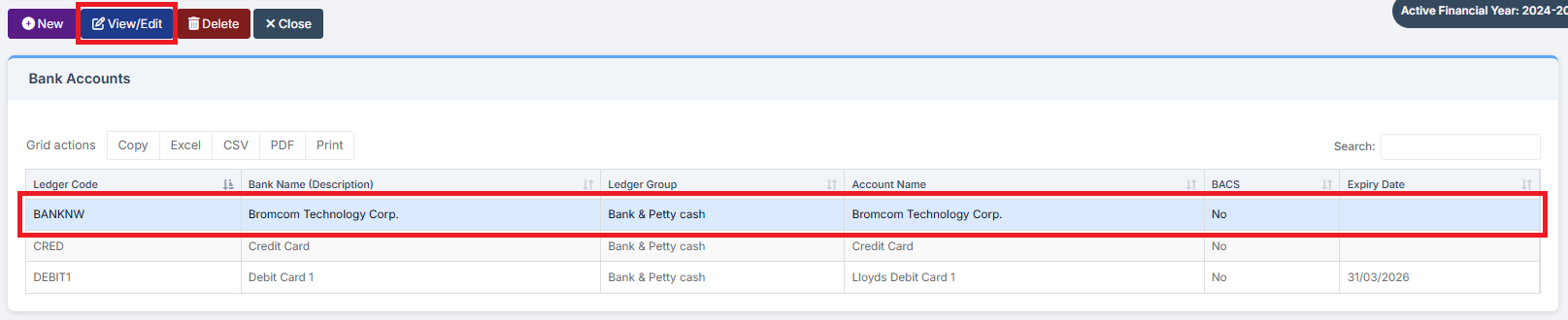
Choose the Bank Account to add the Card to. Click View/Edit.
Go to the Cards section at the bottom of the Bank Account page. Click on Add New Record to add a New Card.

Complete the Debit Card section by adding the last four numbers of the Card Number, Card Holder Name, Expiry Date, and whether it is Active, and then click the Blue Tick to Save.

How to Set Up and Process a Payment by Debit Card
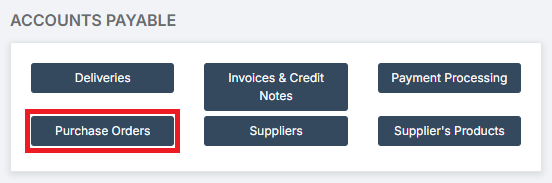
First, go to Modules > Finance > Finance Home Page > Accounts Payable > Purchase Orders.
The Debit Card is now available to use as a payment method if a Purchase Order has the Bank Account selected in the Pay From field.
Note: To use the Debit Card linked to the Main Bank Account, do not choose any Credit Cards or Debit Cards that have been created as separate entities. For guidance on using Credit Cards or Debit Cards that have been created as separate entities, see: How to Process Credit Card Transactions.
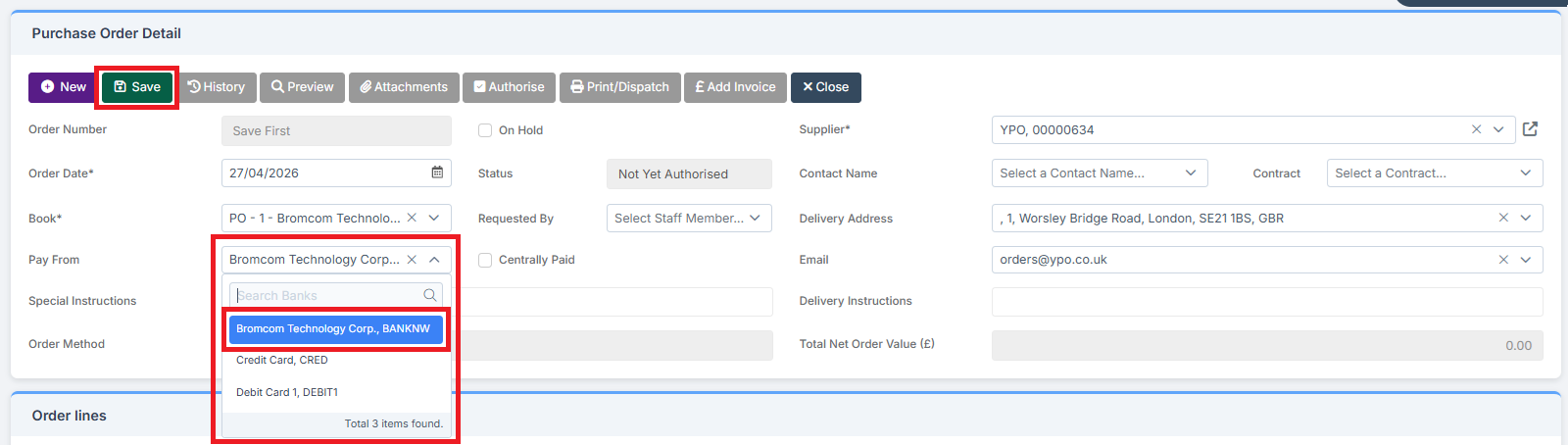
Complete the Order Lines for the Purchase Order, Authorise and Print/Dispatch it.
When the Invoice connected to the Purchase Order has been received, go to Modules > Finance > Finance Home Page > Accounts Payable > Payment Processing.
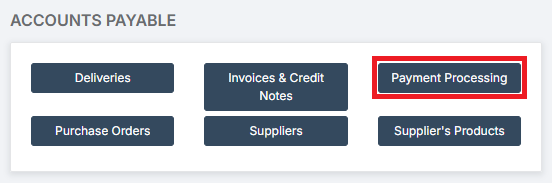
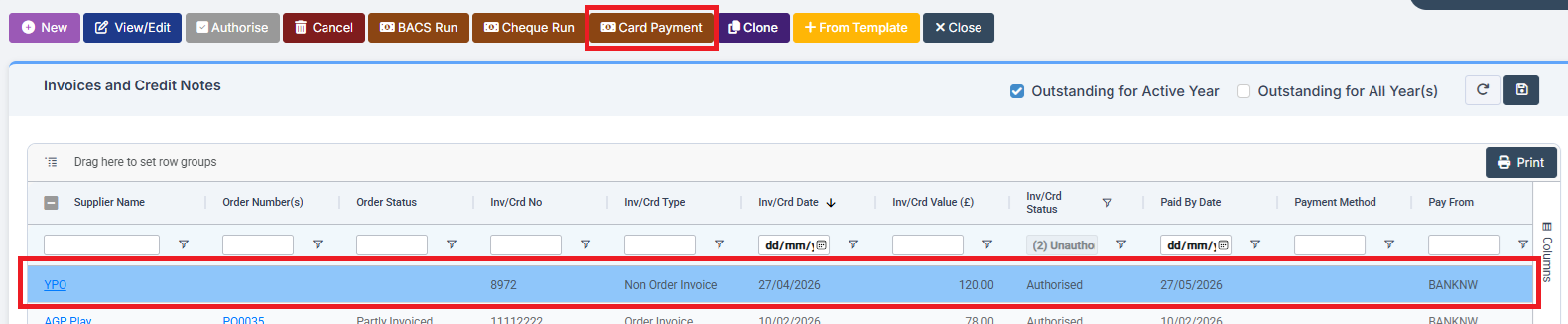
To pay the Invoice, highlight it and click Card Payment.
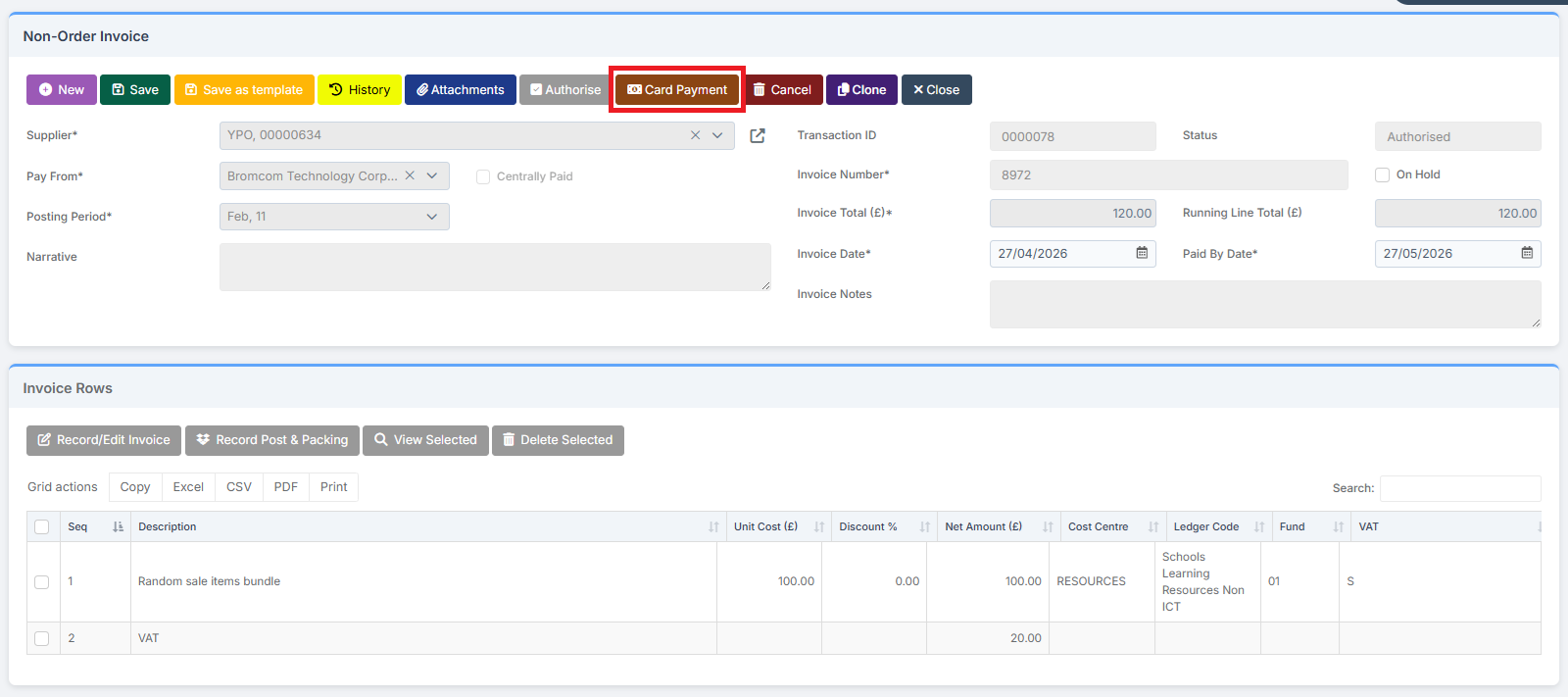
Note: The Invoice must be Authorised before the Card Payment icon is available.
Alternatively, from the Invoice itself, click Card Payment.
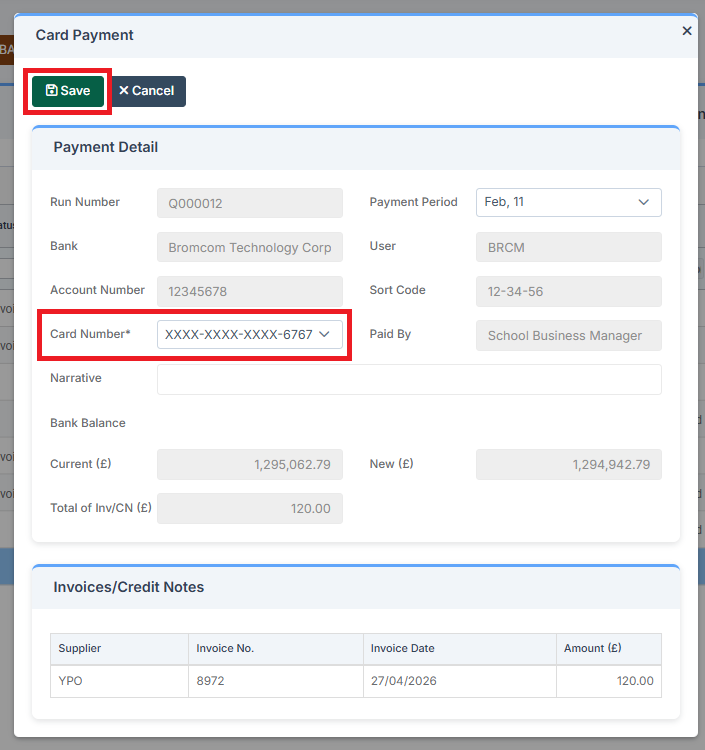
Choose the relevant Card from the drop-down box, enter the Narrative if required, and then click Save.
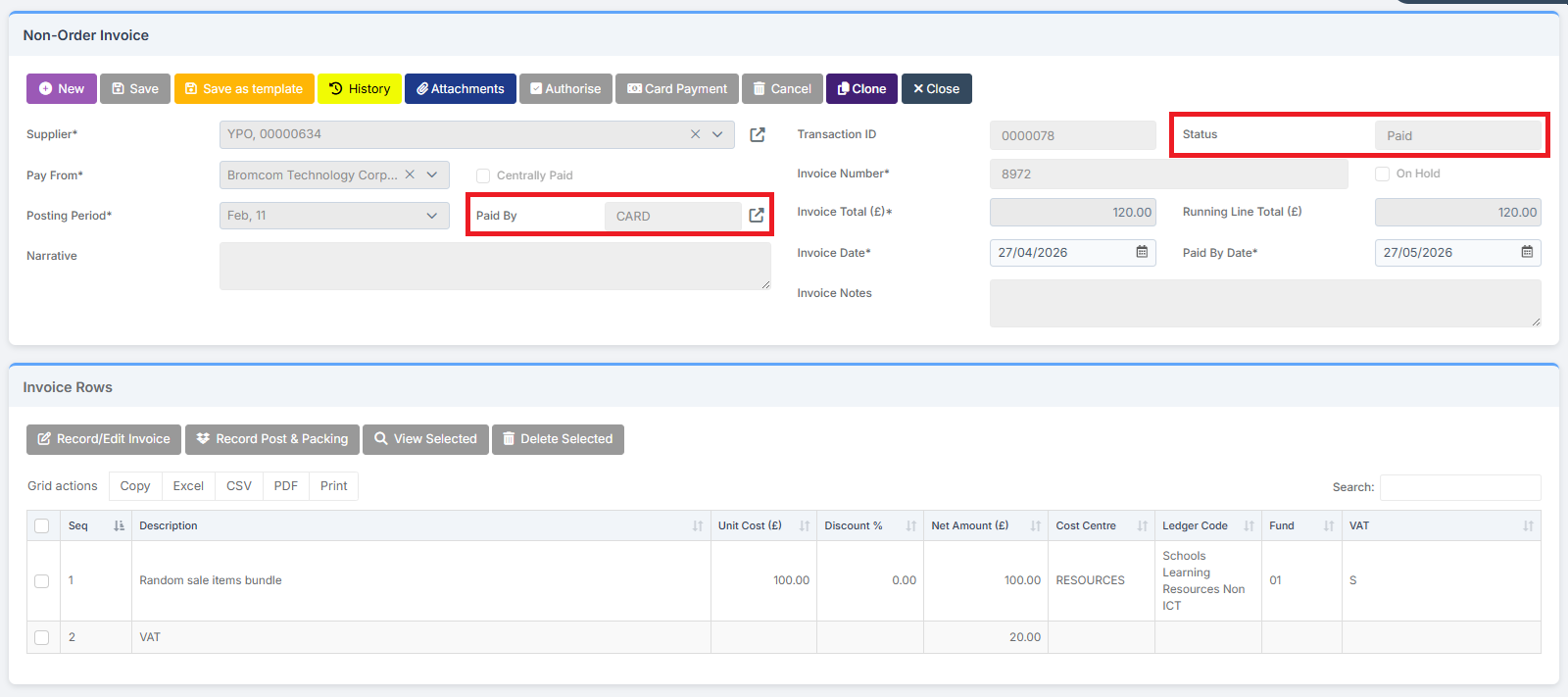
The Invoice now shows as Status: Paid and Paid By: Card.
How to Process a Refund by Debit Card
Go to Modules > Finance > Finance Home Page > Accounts Payable > Payment Processing.
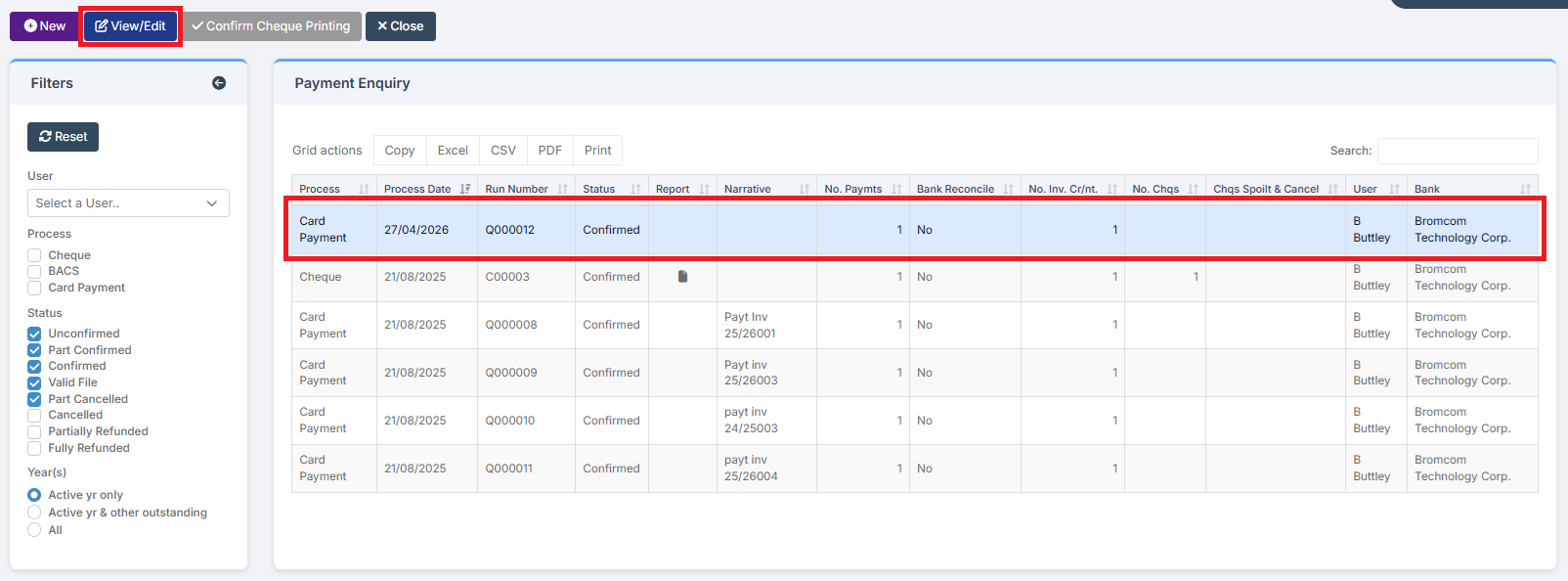
Highlight the Payment to be Refunded and then click View/Edit, or double-click on it.
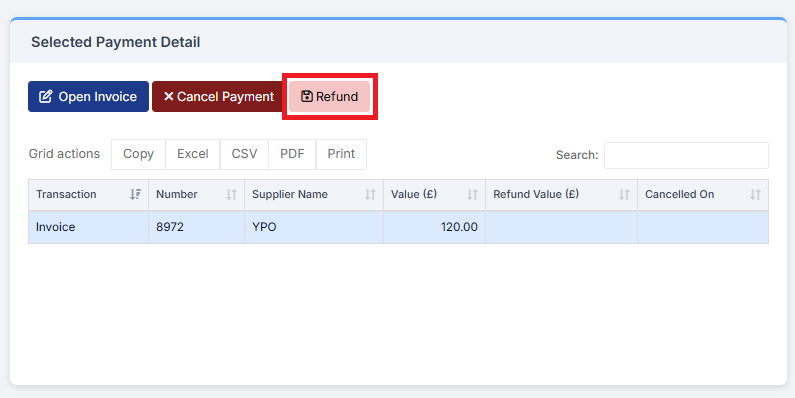
In Selected Payment Details on the right, highlight the Payment and click Refund.
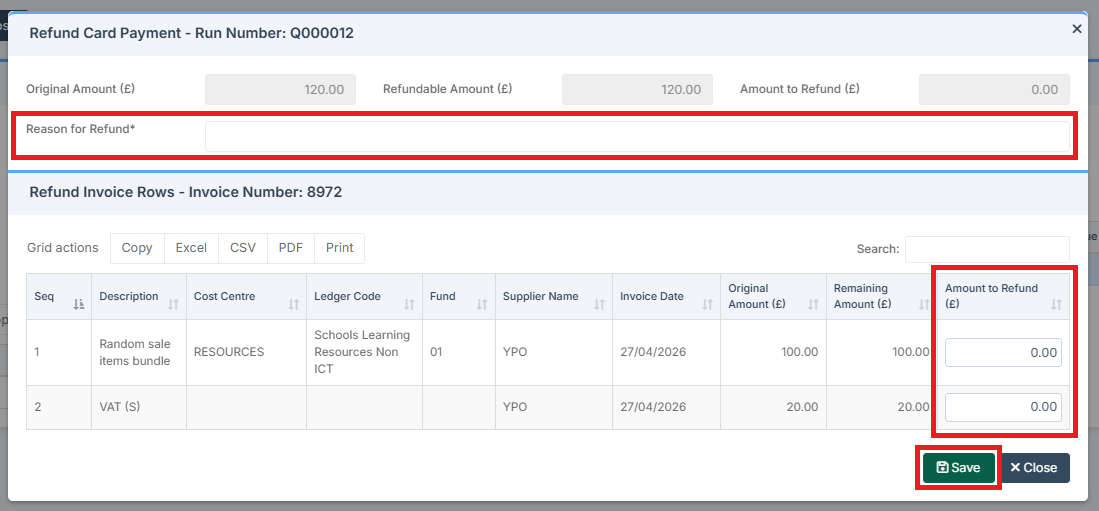
Include the Reason for Refund, insert the Amount to Refund, and click Save.
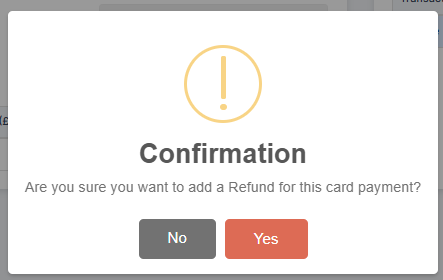
Confirm the Refund.
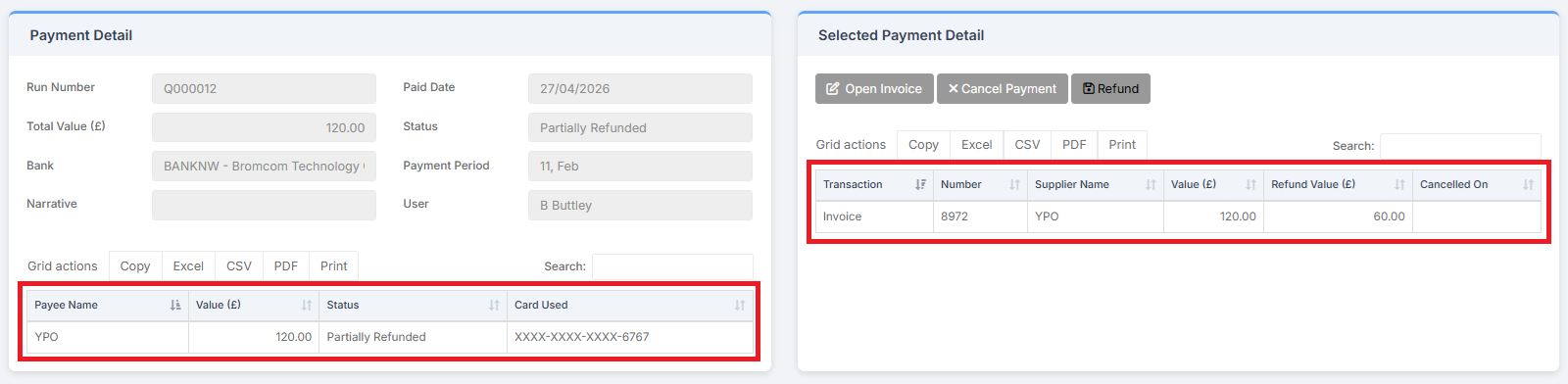
Details of the Refund can be viewed in Payment Detail and Selected Payment Detail.
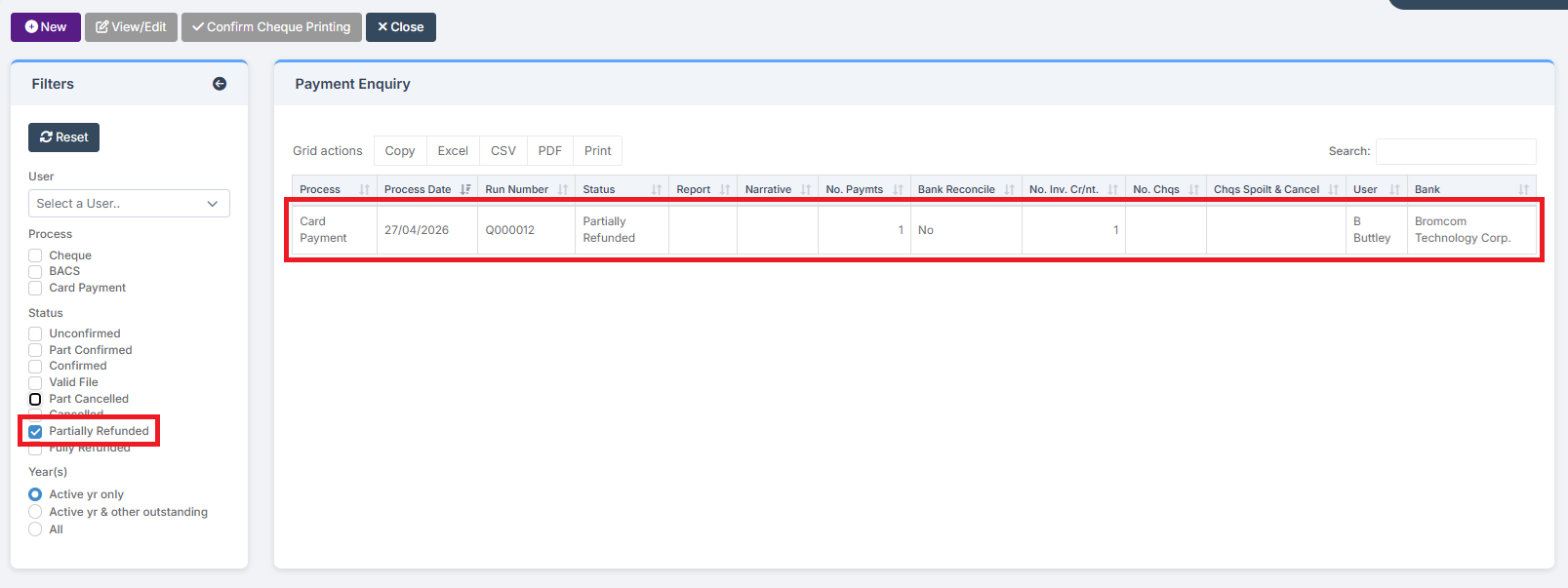
In Payment Processing, select the Partially Refunded or Fully Refunded filter to see the Refund.