Note: All pages below are subject to having relevant Roles and Permissions.
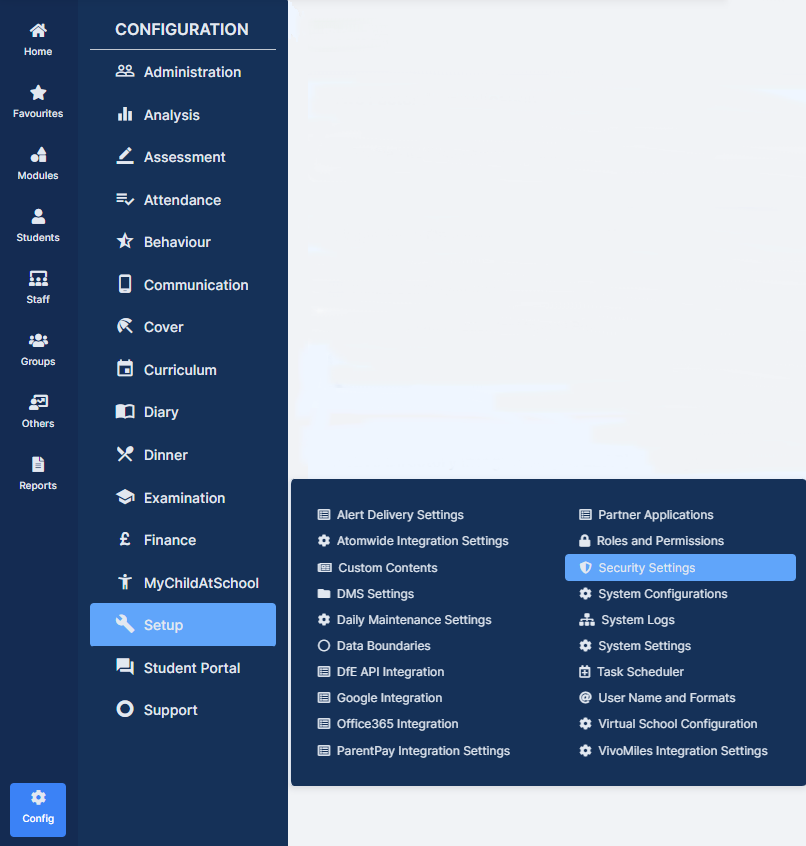
From the left Menu go to Config > Setup > Security Settings
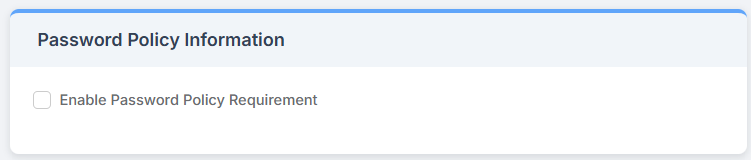
Tick the box to Enable Password Policy Information.
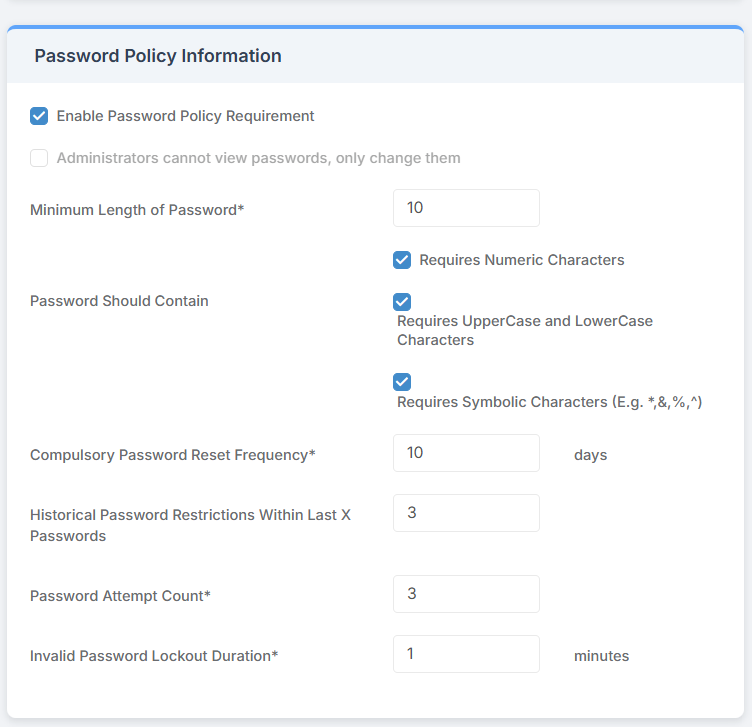
Select the desired requirements for the Password Policy.
- Minimum Length of Password – Enter the minimum number of Characters users must have in their passwords.
- Passwords Should Contain – Use the tick boxes to configure the types of character that must be included in user passwords.
- Compulsory Password Reset Frequency– Enter the number of days after which users will be required to update their password.
- Historical Password Restrictions Within Last X Passwords – This dictates the frequency with which users can re-use old passwords. For example in the example below this is set to 3, this means that the next time a user updates their password they won’t be able to use any of the last 3 passwords they have set.
- Password Attempt Count – The number of incorrect password attempts a user can have before being locked out of the account.
- Invalid Password Lockout Duration – The number of minutes for which a user will be locked out after having entered the number of incorrect passwords set in the Password Attempt Count field.
Finally, click Save in the top left hand corner.
Please Note: Existing users will only be required to update their passwords upon their next login if their current password does not meet the requirements set out in the policy or if they have not reset their password for longer than the Compulsory Password Reset Frequency.
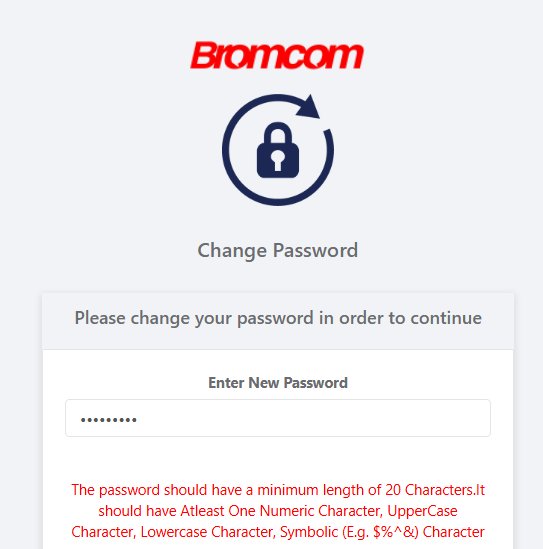
If a user attempts to choose a password that does not meet the Password Policy Requirements they will be presented with a message detailing the requirements to enable them to choose a stronger password.