
This guide provides an overview to the Staffing Module in Bromcom Finance. In providing links to individual guides, it functions as a de facto Salaries User Guide.
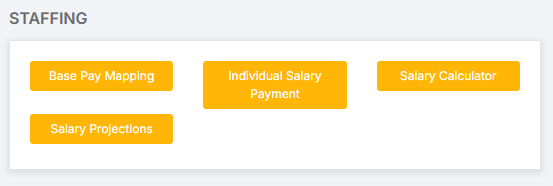
Note: All pages below are subject to having relevant Roles and Permissions.
Essentially, there are three interlinked parts to Staffing:
1. Inputting and Organising Staffing / Salary Data
2. Predicting Current and Future Staffing / Salary Costs
3. Recording Actual Staffing / Salary Costs
1. Inputting and Organising Staffing / Salary Data
To be able to gain an accurate picture and record of staffing costs, and to be able to project these forward, the System requires certain data to be correctly entered into it.
1.1. Staff Contract Details
Go to Modules > Staff
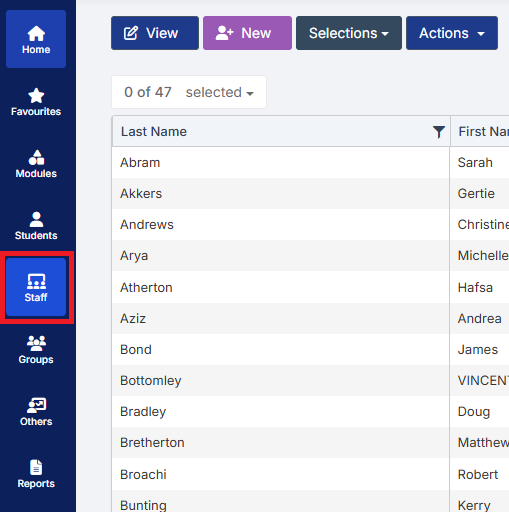
Staff Records are found with the MIS part of Bromcom. Staff Contracts are created as part of the Staff Record. These indicate Scale Points, Start and End Dates plus any additional payments such as TLRs. They also show membership of Superannuation Schemes and what National Insurance Table the Staff Member is on.
See: How to Add Staff Contract Information.
See: How to Check Staff Contract and Pay Details in Preparation for Using the Salary Calculator.
1.2. Superannuations
Go to Config > Administration > Superannuation.
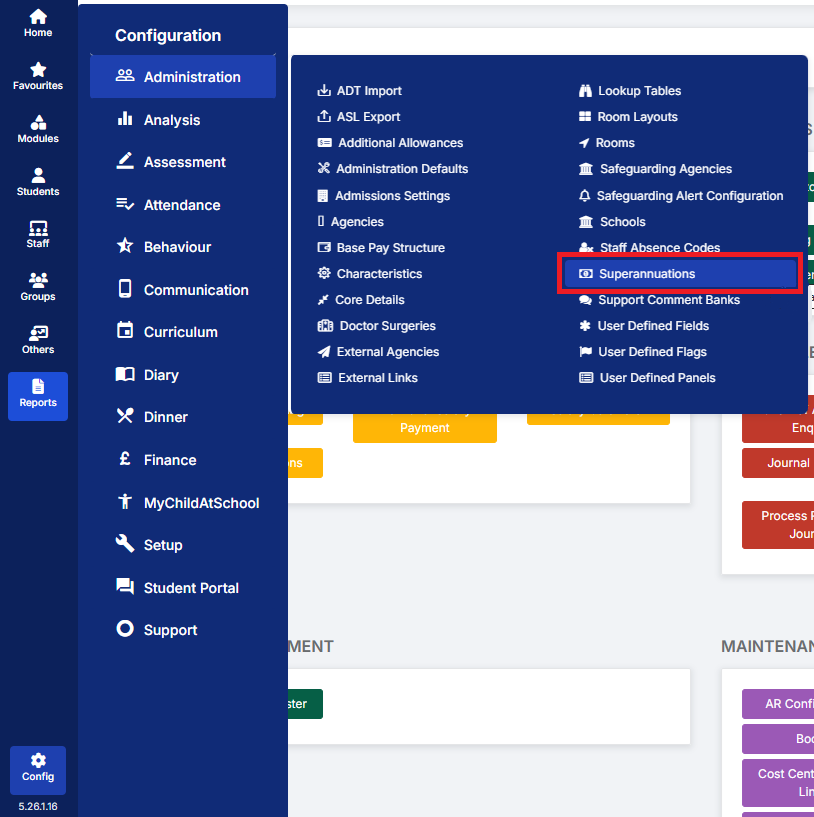
Superannuations allows for the correct values to be assigned to the Local Government and Teachers Pension Schemes.
See: How to Configure and Check Superannuations.
1.3. NI Thresholds
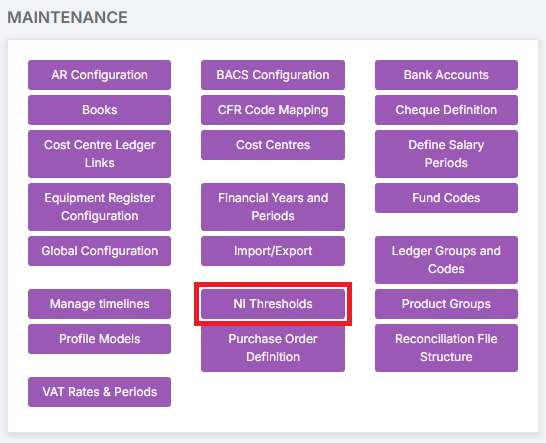
NI Thresholds allows for the correct values to be assigned to National Insurance Thresholds and Bands.
See: How to Configure and Check National Insurance Thresholds.
1.4. Define Salary Periods
Go to Modules > Finance > Finance Home Page > Maintenance > Define Salary Periods.
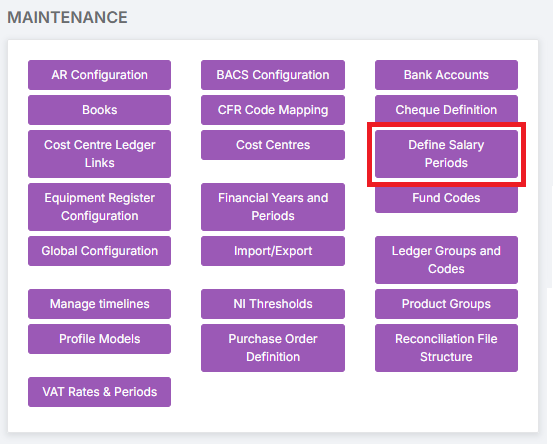
Define Salary Periods allows for the Financial Year to be split into the required number of dated Periods.
See: How to Define Salary Periods.
1.5. Base Pay Structure
Go to Config > Administration > Base Pay Structure.
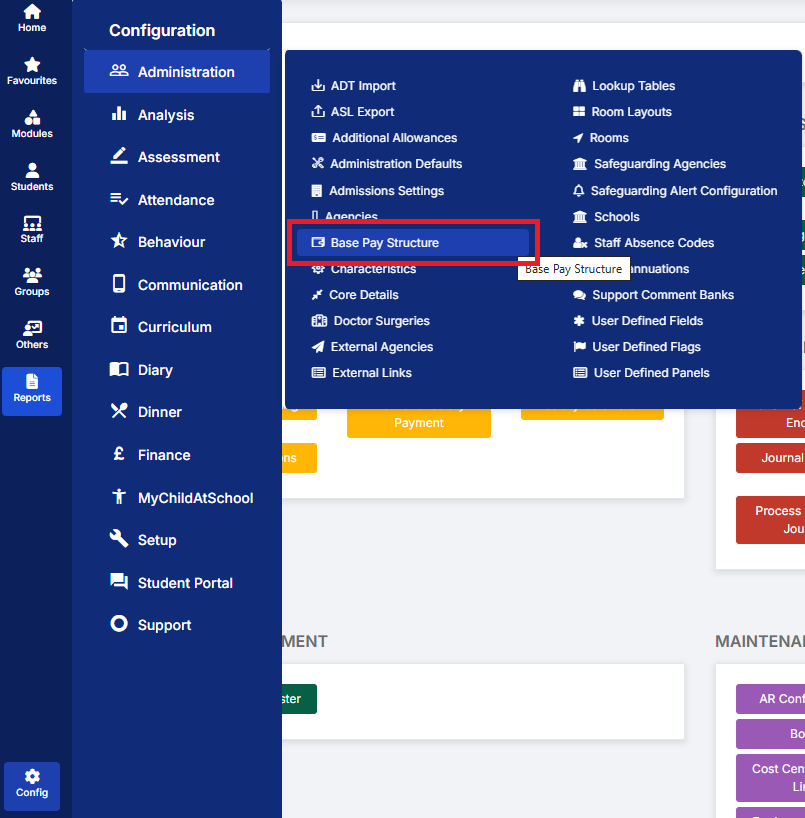
Base Pay Structure allows for Monetary Values to be assigned to Salary Spine Points.
See: How to Create/Edit and Update Base Pay Structures.
1.6. Base Pay Mapping
Go to Modules > Finance > Finance Home Page > Staffing > Base Pay Mapping.
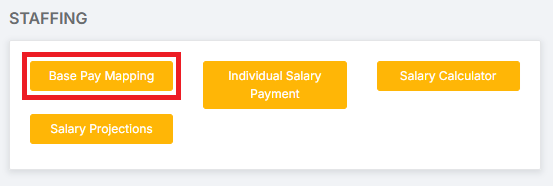
Base Pay Mapping allows for the mapping of Staff Roles and their Salary Elements (Pay, National Insurance, Superannuation, and Allowances) to Cost Centre / Ledger Code combinations.
See: How to Add Base Pay Mapping.
See: How to Copy Base Pay Mapping from One Year to Another.
1.7. Financial Groups
Financial Groups can be selected from within a Base Pay Structure, with the purpose being to duplicate the Base Pay Mapping using a different Financial Group. Having multiple Financial Groups allows for the differentiation between them when mapping costs.
See: How to Use Financial Groups Lookups
1.8. Salary Apportionment
Go to Modules > Finance > Finance Home Page > Staffing > Salary Projections > Actions > Apportionment.
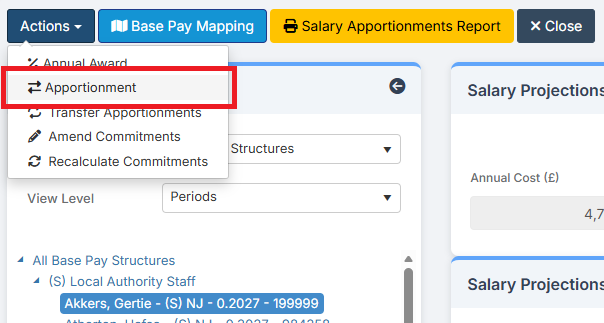
Salary Apportionment allows for the assigning of all, or a proportion of, a Staff Member’s salary elements to a Cost Centre other than to which those elements would normally be assigned.
See: How to Add a Salary Apportionment.
2. Predicting Current and Future Staffing / Salary Costs
Once Salary / Staffing Data has been entered into the System, it can be used to Predict Current and Future Staffing / Salary Costs.
2.1. Salary Projections
Go to Modules > Finance > Finance Home Page > Staffing > Salary Projections.
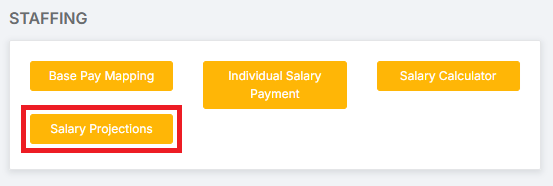
Salary Projections allows for the viewing of Salary Costs across the Financial Year.
See: How to Use Salary Projections.
2.2. Salary Calculator
Go to Modules > Finance > Finance Home Page > Staffing > Salary Calculator.
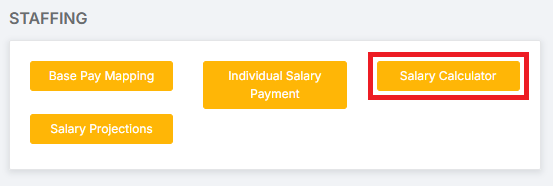
Salary Calculator allows for the exploration of different Staffing Scenarios in order to compare their Financial Impact.
See: How to Check Staff Contract and Pay Details in Preparation for Using the Salary Calculator.
See: How to Use the Salary Calculator.
3. Recording Actual Staffing / Salary Costs
Once Salaries have been paid, the amounts paid need to be recorded in the System. This can be done by Automatic Reconciliation or Individual Salary Payments.
3.1. Automatic Reconciliation
Go to Modules > Finance > Finance Home Page > Routines > Automatic Reconciliation.
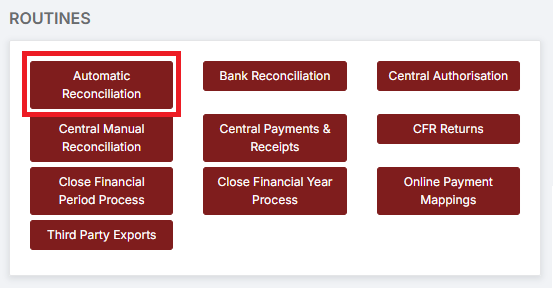
Automatic Reconciliation allows for the reconciliation of a Monthly Payment File to Staff Members.
See: How to Complete Automatic Reconciliation of Salaries.
3.2. Individual Salary Payment
Go toModules > Finance > Finance Home Page > Staffing > Individual Salary Payment.
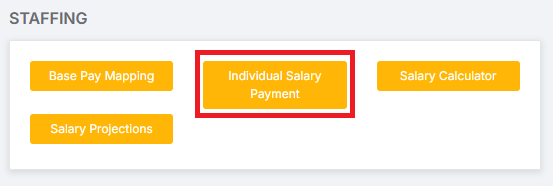
Individual Salary Payment allows for the posting of a Single Salary Payment for a Staff Member.
See: How to Manage Individual Salary Payments.
3.3. Reviewing Salary Variations
Go to Modules > Finance > Finance Home Page > Staffing > Salary Projections.
Salary Projections can also be used to Review Salary Variations, that is, the difference between what was projected to be paid and what was actually paid.
See: How to Review Salary Variations.
3.4. Clearing Salary Commitments
Go to Modules > Finance > Finance Home Page > Staffing > Salary Projections.
Salary Projections can also be used to clear any Outstanding Salary Commitments.